What Is a TV PIN Lock and How to Use It
A TV pin lock, often called a parental control PIN, is a security feature used to prevent unauthorized viewing of certain channels or content on your television. It’s a simple four-digit code that you set up. This code is then required before you can access restricted programming, ensuring only adults can change settings or watch age-inappropriate shows.
You might be wondering why you need this. Well, many TV manufacturers include this feature for parental guidance. It’s a handy way to manage what your children can watch without constant supervision. Think of it as a digital gatekeeper for your entertainment. It helps you maintain control over your TV’s content library with minimal effort.
- A TV pin lock is a security code for your television.
- It helps you control what channels or shows can be watched.
- It’s commonly used for parental controls.
- You set a four-digit code to activate it.
- It prevents kids from watching unrestricted content.
Ready to learn more about how this works and how you can set it up on your TV? Let’s dive into the details.
Understanding Your TV’s PIN Lock Feature
You’ve probably seen it before, or maybe you’ve set one up yourself. A TV PIN lock is essentially a secret code for your television. It’s designed to give you, the user, a way to control what gets watched on your screen. Think of it like a password for your TV’s content. It’s there to help you manage access, especially when younger eyes might be around.
How Does a TV PIN Lock Actually Work?
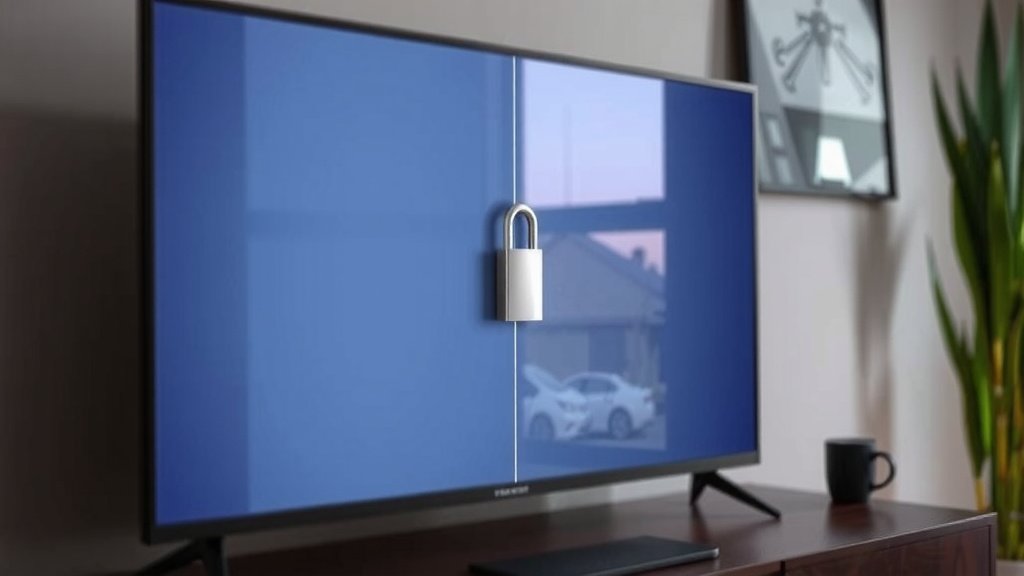
At its core, a TV PIN lock uses a simple four-digit code. You choose this code, and it becomes the key to accessing certain features or content. When you or someone else tries to change a locked setting, view a restricted channel, or even sometimes access the TV’s menu, the TV will prompt you to enter this PIN. If the correct PIN is entered, access is granted. If not, the action is blocked.
This system is built into most modern televisions. It’s a standard feature that manufacturers include. The goal is to provide a layer of security. This security isn’t about protecting your TV from theft, but rather from unauthorized viewing choices. It’s a digital lock that keeps your entertainment choices on your terms.
The Role of Parental Controls
The most common application for a TV PIN lock is parental controls. Many parents want to ensure their children aren’t watching content that’s too mature for their age. This is where the PIN lock becomes incredibly useful. You can set the TV to block channels or shows rated above a certain level. Without the PIN, those programs remain inaccessible to children.
We found that many parents appreciate this feature because it reduces the need for constant supervision. Instead of hovering over your kids’ shoulders every time they pick up the remote, you can set up the PIN and have peace of mind. It’s a way to set boundaries digitally. This helps maintain a safe viewing environment for your family.
Beyond Parental Controls: Other Uses
While parental controls are the primary use, a TV PIN lock can serve other purposes too. For example, if you have roommates, you might want to restrict access to certain premium channels that only you pay for. Or, perhaps you want to prevent younger siblings or guests from changing your carefully curated TV settings or input sources. A PIN lock can prevent accidental changes to your preferences or configurations.
It’s also a handy tool if you’re concerned about unauthorized purchases. Some smart TVs allow you to buy apps or content directly through the TV interface. A PIN lock can act as a safeguard, preventing unintended spending. You can ensure that any purchases require your explicit approval via the PIN.
Setting Up Your TV PIN Lock: A Step-by-Step Guide
Setting up a TV PIN lock is usually a straightforward process. It involves navigating through your TV’s settings menu. The exact steps will vary slightly depending on your TV brand and model. However, the general path is quite similar across most devices. Let’s walk through the typical procedure.
Accessing the Parental Control or Security Menu
First, you’ll need to access your TV’s main menu. This is usually done by pressing a “Menu,” “Settings,” or “Home” button on your remote control. Once in the menu, look for an option labeled “Parental Controls,” “Security,” “System,” or sometimes “Lock.” This is where the PIN settings are located.
If you’re having trouble finding it, your TV’s user manual is your best friend. Most manuals have a section dedicated to parental controls or security features. Many manufacturers also offer support pages on their websites where you can find guides for specific models. You’re not alone in trying to figure this out!
Choosing and Setting Your PIN
Once you’ve found the correct menu, you’ll likely be prompted to enter a default PIN. Many TVs use a universal default PIN, such as 0000 or 1234. If you’ve never set a PIN before, try these common defaults. If those don’t work, your manual should specify the default PIN for your model.
After entering the default PIN (or if you’re changing an existing one), you’ll have the option to set a new PIN. You’ll be asked to enter your desired four-digit code, and then you’ll usually have to confirm the new PIN by entering it again. It’s crucial to choose a PIN that is memorable for you but difficult for others to guess. Avoid obvious sequences like 1111 or your birthdate.
Configuring Lock Settings
With your PIN set, you can now configure the actual lock settings. This is where you decide what will be protected by your PIN. Common options include:
- Channel Locks: You can block specific channels.
- Program Locks: You can block shows based on their rating (e.g., TV-MA, PG-13).
- Input Locks: Prevent changes to the TV’s input source (HDMI 1, HDMI 2, etc.).
- Menu Locks: Prevent access to the TV’s settings menu.
- App Locks: On smart TVs, you might be able to lock specific applications.
Many experts suggest starting with basic channel and program locks. You can then explore more advanced options as needed. You’ll typically select the content or feature you want to lock, and then enter your newly created PIN to apply the restriction. The TV will then enforce these locks when prompted.
Troubleshooting Common PIN Lock Issues
Even with simple technology, sometimes things don’t go as planned. You might forget your PIN, or perhaps a setting isn’t behaving as expected. Here are a few common issues and how to address them.
Forgot Your PIN?
This is perhaps the most frequent problem. If you forget your PIN, you’ll need to reset it. The method for resetting a forgotten PIN usually involves a factory reset of your TV. This means the TV will return to its original out-of-the-box settings. All your custom configurations, including saved channels and Wi-Fi passwords, will be erased.
To perform a factory reset, you’ll typically go back into the TV’s main settings menu. Look for an option like “Reset,” “Factory Reset,” “Initialize,” or “Restore Defaults.” You might need to enter the default PIN (like 0000) or another confirmation code to proceed. After the reset, you’ll be able to set up your TV again from scratch, including creating a new PIN.
PIN Not Working for Certain Content
Sometimes, you might set a PIN, but it doesn’t seem to be locking content as you expect. This can happen for a few reasons. Ensure you’ve correctly applied the lock to the specific channel or content rating you intended. Some TVs require you to lock individual channels, while others allow you to set a broad rating restriction.
Also, check if you are trying to access content through a streaming app versus a traditional TV channel. Parental controls might function differently between the TV’s built-in tuner and external apps. Many streaming services also have their own internal parental control settings that work independently of your TV’s PIN. You might need to configure settings within the app itself, like Netflix or Hulu.
Lost Remote or Button Malfunction
What if your remote is lost or broken, and you can’t access the menu? Some TVs have physical buttons on the unit itself that can navigate the menu. If not, you might need to get a replacement remote. Many universal remotes can be programmed to work with your TV. Some smart TVs also offer mobile apps that can function as a remote control, allowing you to navigate settings from your smartphone.
Here’s a quick checklist to keep in mind regarding your TV PIN lock:
- Choose a PIN you’ll remember.
- Write it down and store it securely if needed.
- Understand the default PIN for your TV.
- Check your TV manual for specific instructions.
- Be aware that a factory reset erases all settings.
- Confirm app-specific controls for streaming services.
Conclusion
You’ve learned that a TV PIN lock is a straightforward yet powerful tool. It acts as a digital gatekeeper, putting you in control of your television’s content. Whether you’re safeguarding children from mature shows or preventing accidental purchases, this feature offers peace of mind. Setting it up is usually simple, even if you need to refer to your TV’s manual. Don’t let unauthorized viewing or settings changes disrupt your entertainment. Take a moment today to find the parental control or security menu on your TV and set up your PIN. It’s a small step for big control over your home viewing experience.
Frequently Asked Questions
What if I forget my TV’s default PIN?
If you can’t remember your TV’s default PIN, your best bet is to consult your TV’s user manual. Common defaults like 0000 or 1234 often work, but not always. If these don’t work and you can’t find the default in your manual, you might need to perform a factory reset on your TV.
Will setting a PIN lock affect my streaming apps?
A TV PIN lock primarily controls features directly accessible through your TV’s interface. Streaming apps like Netflix or Hulu often have their own separate parental control settings within the app itself. You may need to set up restrictions within those apps independently of your TV’s PIN. Check the settings menu for each streaming service you use.
Can I lock specific channels using a PIN?
Yes, most TVs with a PIN lock feature allow you to lock specific channels. You’ll typically find this option within the parental control or security settings menu. This is a great way to block access to channels you don’t want certain viewers to access without entering your chosen PIN.
Is a TV PIN lock the same as a Cable Box PIN?
No, they are different. A TV PIN lock is set on your television itself and controls features and content accessible through the TV. A cable box PIN is set on your cable or satellite provider’s equipment and controls content or features specific to that service. You may need to set up PINs on both devices if you use a cable box.
What happens if I reset my TV to factory settings?
Performing a factory reset on your TV will revert all settings back to their original, out-of-the-box state. This means any custom configurations you’ve made, including saved Wi-Fi passwords, channel presets, and your custom PIN, will be erased. You will then need to set up your TV again from the beginning, including creating a new PIN.