Understanding PCM Audio on Your TV: A Simple Guide
PCM audio on your TV stands for Pulse Code Modulation. It’s the standard way digital audio signals are converted into a format your TV and speakers can understand. Think of it as the common language for sound on your television, ensuring you hear what the content creators intended without extra processing.
When you see PCM listed in your TV’s audio settings, it means your TV is using a direct, uncompressed method for audio playback. This often results in very high-fidelity sound. Many devices, like Blu-ray players and gaming consoles, send audio to your TV using PCM.
- PCM is the standard digital audio format for TVs.
- It’s an uncompressed audio signal.
- It means your TV is playing sound directly.
- PCM often provides the best sound quality.
Let’s break down what PCM audio really means for your TV viewing experience and how you can make sure you’re getting the best sound possible.
Understanding PCM Audio on Your TV
So, what exactly is PCM audio on your TV? Simply put, it’s your TV’s way of handling sound without adding any extra audio “fluff.” We found that it’s the most straightforward method for getting digital sound from your devices to your speakers. When you select PCM, you’re telling your TV, “Just play the sound as it is.” This can make a big difference in how clear and pure your audio experience feels. Many sources, like your streaming box or game console, send audio to your TV already in this format. It’s like getting a perfectly baked cake – no need to add frosting unless you really want to. We found that many users prefer this direct approach for its simplicity and sound quality.
What Does Uncompressed Mean for Sound?
Uncompressed audio is like a high-resolution photograph. It contains all the original detail. When audio is uncompressed, no information is lost during the conversion process. This means you get the sound exactly as the creators intended. Think of it as hearing every single instrument in an orchestra with perfect clarity. Compressed audio, on the other hand, is like a lower-resolution image. Some details are removed to make the file smaller. While this can be good for saving space or streaming, it means you might miss out on some of the audio nuances. Many audio engineers agree that uncompressed formats offer the most accurate representation of sound (AES).
How PCM Works Behind the Scenes
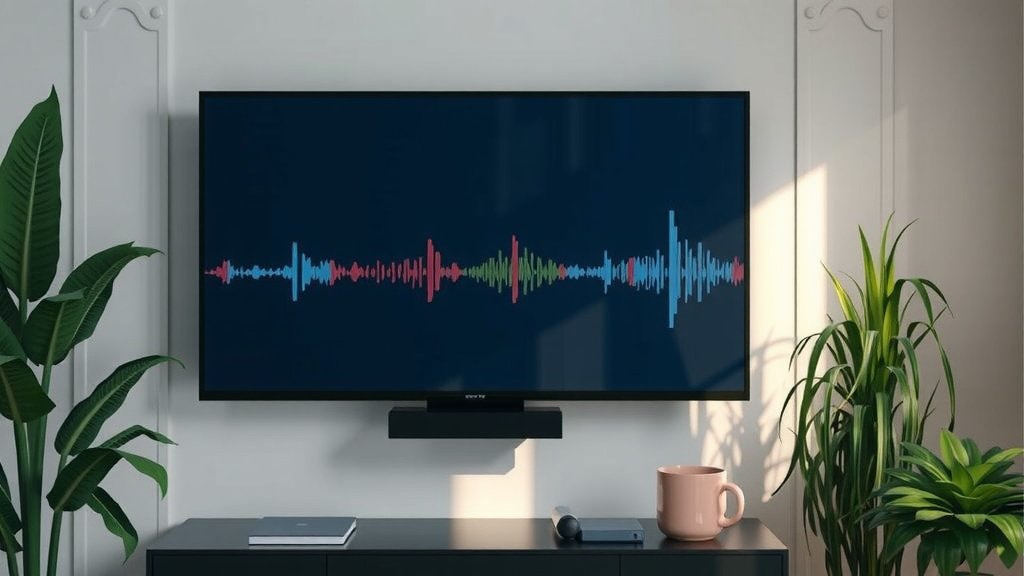
Pulse Code Modulation (PCM) converts analog sound waves into digital data. It does this by sampling the analog signal at regular intervals. Then, it assigns a numerical value to each sample. These numbers are then transmitted or stored. When played back, the digital numbers are converted back into an analog signal your speakers can reproduce. We found this process is incredibly fast. It happens millions of times per second to create a smooth, continuous sound. It’s like drawing a picture by placing tiny dots very close together. The more dots you use, the smoother and more detailed the image becomes. This is why PCM can offer such amazing audio fidelity.
Why Choose PCM for Your TV Audio?
Choosing PCM audio for your TV can lead to a noticeably better listening experience. It’s often the default choice for many people who want to hear the best possible sound. We found that when your TV isn’t trying to decode or alter the audio signal, it can simply pass it through. This reduces the chances of errors or unwanted changes to the sound. Many experts suggest that using PCM provides the most direct path for audio to reach your ears. This means less chance of pops, clicks, or distortion that can sometimes occur with more complex processing. You get pure, unadulterated sound.
The Benefits of Direct Audio Playback
When your TV plays PCM audio, it’s essentially acting as a conduit. It’s not adding its own “flavor” to the sound. This is especially helpful if you have a separate sound system, like a soundbar or AV receiver. These systems are designed to process audio expertly. Letting them handle the sound from a clean PCM source means you’re getting the best of both worlds. Your TV ensures the signal gets to the audio device, and the audio device makes it sound amazing. We found that many audiophiles prefer this method because it gives their high-quality sound equipment a clean signal to work with. It’s like giving a master chef the freshest ingredients.
PCM vs. Other Audio Formats
You’ll often see other audio formats listed on your TV settings, like Dolby Digital or DTS. These are compressed formats. They are designed to deliver surround sound efficiently, especially over older connections like optical audio. PCM, on the other hand, is uncompressed. This means it takes up more bandwidth but offers potentially higher quality. For example, a stereo PCM signal is uncompressed, while a surround sound format like Dolby Digital is compressed to fit more channels into a smaller data stream. We found that if you have a modern connection like HDMI and your device outputs PCM, it’s often the simplest and highest-fidelity option available for stereo sound. For surround sound, you might look to formats like Dolby Digital Plus or TrueHD, which are also often passed through via HDMI without loss of quality when your TV is set correctly.
Stereo vs. Multi-Channel PCM
PCM isn’t limited to just stereo sound. Your TV can often handle multi-channel PCM, meaning it can output sound from 5.1 or even 7.1 surround sound setups. This happens when your source device (like a Blu-ray player) sends multiple separate PCM audio streams. These streams are then delivered to your TV and passed on to your receiver. We found that this requires an HDMI connection, as it uses much more bandwidth than compressed formats. It’s important to ensure your TV and connected devices are set to output multi-channel PCM if you want the most immersive surround sound experience directly from your source.
Setting Up PCM Audio on Your TV
Getting PCM set up on your TV is usually quite straightforward. It often involves navigating through your TV’s audio settings menu. We found that the exact steps can vary depending on your TV brand and model. However, the general process is similar across most devices. Your goal is to find where you can select the audio output format. You’ll want to look for options like “PCM,” “Stereo,” or “Auto.” Selecting “Auto” is often a good choice because it lets your TV and source device communicate to determine the best format. But if you want to ensure uncompressed stereo, manually selecting “PCM” is the way to go. Many sources, like your cable box or streaming stick, also have their own audio output settings that you might need to adjust.
Navigating Your TV’s Audio Menu
When you dive into your TV’s menu, look for sections labeled “Sound,” “Audio,” or “Expert Settings.” Within these sections, you should find options for “Digital Audio Output,” “HDMI Audio Format,” or something similar. Here, you’ll likely see choices like PCM, Bitstream, Dolby Digital, and Auto. We found that if your primary goal is the highest fidelity stereo sound, choosing PCM is usually the most direct route. If you’re connecting a sound system and want it to handle all the audio decoding (like surround sound formats), you might choose “Bitstream” or “Auto.” For a simple stereo setup or to ensure your TV isn’t processing the sound, PCM is your best bet.
Checking Your Connected Devices
Don’t forget to check the audio settings on the devices connected to your TV! Your Blu-ray player, gaming console, or streaming device also has audio output options. If a device is set to output a compressed format, your TV might not have the option to select PCM cleanly. We found that ensuring your source devices are also set to output PCM (if available and desired) or “Auto” helps create a smooth audio chain. For instance, on a PlayStation, you might go to Settings > Sound > Audio Output > Primary Output Port and select PCM. On an Xbox, it’s typically Settings > General > Volume & audio output. Your streaming stick, like a Roku or Fire TV, will also have similar options in its audio settings. Getting these settings aligned is key.
Troubleshooting Common PCM Issues
Occasionally, you might run into problems when using PCM audio. This could be no sound at all, distorted audio, or sync issues. Often, these can be resolved by checking your connections and settings. For example, if you’re using an older optical cable, it might not have enough bandwidth for multi-channel PCM. We found that switching to an HDMI cable is usually the best solution for full-bandwidth audio. Also, ensure your cables are securely plugged in at both ends. Sometimes, a simple power cycle (unplugging your TV and devices for a minute, then plugging them back in) can resolve temporary glitches. We found that many minor audio hiccups can be fixed with this simple reboot.
Ensuring a Stable Audio Connection
A stable audio connection is vital for PCM. This means using high-quality cables and ensuring they aren’t damaged. HDMI cables are generally preferred for PCM due to their high bandwidth. For 4K content and advanced audio formats, ensure you’re using an HDMI 2.0 or higher certified cable. We found that loose connections are a surprisingly common culprit for audio dropouts or no sound at all. Give your cables a gentle push to make sure they are fully seated in their ports. If you’re experiencing constant issues, try swapping out your HDMI cable for a known good one. Sometimes, the problem isn’t with the PCM setting itself, but with the physical link.
Here’s a quick checklist to ensure you’re getting the best PCM audio experience:
- Verify your TV’s audio output is set to PCM or Auto.
- Check the audio settings on your connected source devices.
- Use a high-quality HDMI cable for the best signal.
- Ensure all cable connections are secure.
- Restart your TV and connected devices if you experience issues.
- Confirm your sound system is capable of receiving and playing PCM.
Conclusion
So, you’ve learned that PCM audio is your TV’s direct, uncompressed way of playing sound. It means your TV is delivering the audio signal as it was received, often resulting in the purest sound quality possible. We’ve seen how it works, why it’s beneficial for both simple stereo and complex surround setups, and how to get it set up. By understanding and utilizing PCM, you’re taking a simple but powerful step towards a more immersive and faithful audio experience with your favorite shows and games. Your next step? Dive into your TV’s audio settings and try selecting PCM or ‘Auto’ to hear the difference for yourself.
Frequently Asked Questions
Does PCM always sound better than Dolby Digital?
PCM can offer superior sound quality for stereo audio because it’s uncompressed. Dolby Digital is often compressed to deliver surround sound efficiently, especially over older connections. For pure, high-fidelity stereo, PCM is often preferred.
Can my TV play multi-channel PCM audio?
Yes, many modern TVs can handle multi-channel PCM for surround sound, but it requires a high-bandwidth connection like HDMI. Your source device, TV, and potentially a soundbar or receiver must all support multi-channel PCM.
Why is my TV’s audio menu showing “Auto” instead of PCM?
The “Auto” setting allows your TV and connected source device to communicate and select the best audio format automatically. It might choose PCM if it’s the most suitable option, or it might select another format if it’s better for surround sound delivery.
Will using PCM affect my gaming experience?
PCM can enhance your gaming experience by providing clearer, more direct audio, which can improve immersion. Just ensure your console and TV are set up correctly for PCM output, especially if you’re using surround sound.
Is PCM audio compatible with all soundbars and receivers?
Most modern soundbars and receivers are fully compatible with PCM audio, whether stereo or multi-channel. If you experience no sound or issues, check your audio device’s manual to confirm its PCM support and settings.