How to Rename HDMI Inputs on Your TV for Easier Switching
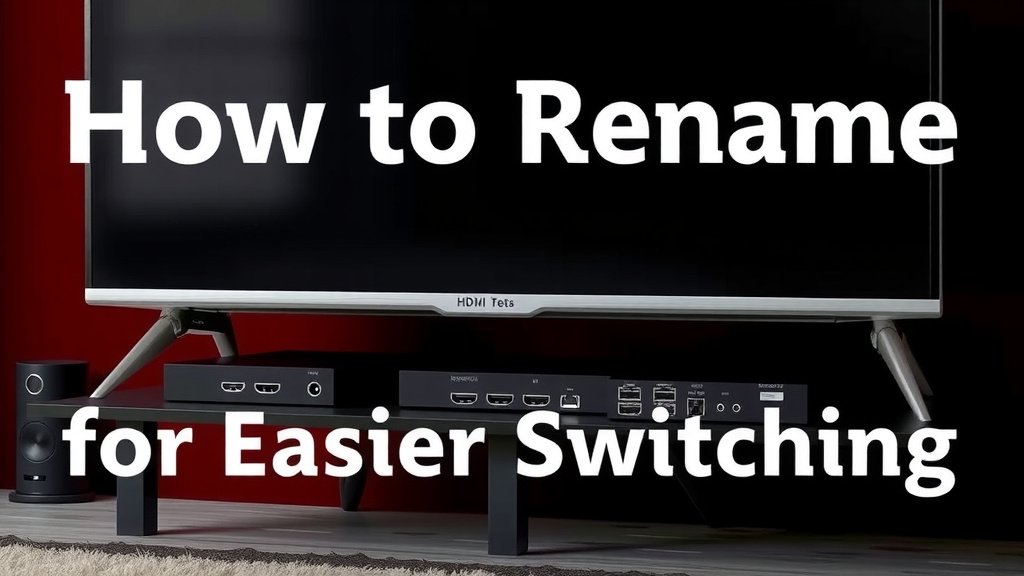
To name the HDMI inputs on your TV, open the settings menu, find the input or source options, and choose the rename or edit label feature for each port. Then just type in a name like “Soundbar” or “Roku.” It only takes a couple of minutes.
Ever hit the input button and cycled through HDMI 1, HDMI 2, and HDMI 3, hoping to land on the right one? We’ve all been there. Renaming your inputs puts an end to that guessing game. You’ll see clear labels like Game Console or Blu-ray Player the moment you switch sources. Most modern TVs from Samsung, LG, Sony, and TCL make this easy, and we researched the exact steps for each brand.
Here’s the quick rundown:
- Most TVs let you rename inputs through the settings or input menu
- Clear labels like “Living Room Cable” save you time and frustration
- The steps vary a bit by brand, but they’re all beginner-friendly
- You can rename as many or as few inputs as you want
- You can change the names again anytime you plug in something new
Below, we walk you through exactly how to rename your HDMI inputs, step by step, for the most popular TV brands. Let’s get your TV speaking your language.
Renaming HDMI Inputs on Your TV: Brand-by-Brand Steps
Renaming your HDMI inputs takes about two minutes per port. You open the input or source menu, pick the port, and choose the edit or rename option. Each brand hides it in a slightly different spot, so here’s where to look.
How to Rename Inputs on a Samsung TV
On most Samsung TVs, press the Home button, then navigate to Connected Devices or Sources. Highlight the input you want, press up on the remote, and select Edit. Type your new name and confirm.
Older Samsung models may tuck this under Settings > General > Device Manager instead. We found that 2020 and newer models make it fastest through the Home screen path. If your Samsung renames the input automatically when it detects a device, you can still override it with a custom label.
How to Rename Inputs on an LG TV
LG keeps things simple. Press the Input button on your remote, then select Edit (some models say “Inputs” or “Edit Inputs”). Choose the HDMI port, pick a preset name, or type your own.
On newer LG remotes without a dedicated input button, hit Home instead, then select the Inputs tile. You’ll see the edit option from there. LG also offers preset labels like Blu-ray and Game Console, which saves you from typing on the remote.
How to Rename Inputs on a Sony TV
Sony’s method lives in the settings. Go to Settings, then Channels & Inputs (or “Watching TV” on older models). Select External Inputs, then HDMI Inputs. Pick your port and type a name.
Sony lets you choose from preset labels too, which is handy when the on-screen keyboard feels clunky. We found that Google TV models from 2021 onward follow this same path, so there’s no need to hunt around.
How to Rename Inputs on a TCL, Roku, or Hisense TV
Roku TVs, which include most TCL and some Hisense models, make this painless. Press Home, go to Settings, then TV Inputs. Select the HDMI port, choose Rename Input, and type away.
You can also move rarely used inputs lower in the list while you’re there. That’s a bonus many folks don’t know about. And if you ever factory reset the TV, you’ll need to rename things again.
Why Bother Naming Your Inputs at All?
Because nobody enjoys playing “guess the HDMI port” with guests over. A clear label turns HDMI 2 into Soundbar or Nintendo Switch at a glance. It’s like labeling the jars in your pantry — everything gets easier to find.
There’s a practical benefit too. Most TVs let you assign a default power-on input once things are labeled. If your TV starts on the Cable input instead of a black screen, that’s a small daily win.
The Best Names to Use (and the Ones to Skip)
Short and specific beats clever every time. “Living Room Cable” tells you more than “TV Time.” We found that simple labels work best for households with multiple people, since everyone needs to understand them.
- Game Console or name the specific one, like PS5
- Cable or Antenna, with the room if you have several TVs
- Soundbar or Receiver if a port feeds your audio gear
- Streaming Stick, or the brand name like Roku or Fire TV
- Blu-ray if you still spin discs (no judgment)
- Skip vague names like Input A or Thing 1 — future you won’t remember
What If Your TV Doesn’t Offer Renaming?
Some budget TVs and very old models skip the feature entirely. Don’t panic. A cheap physical label on the TV’s back panel works fine. Even a strip of masking tape near the port does the job.
Another workaround: many universal remotes let you assign custom activity buttons. One press of “Watch a Movie” switches inputs for you. Check your remote’s app or manual to see what’s possible.
Quick Troubleshooting When Renaming Doesn’t Stick
Usually this comes down to one small thing. Try these fixes before calling anyone:
- Update your TV’s software — a pending update can block menu changes
- Restart the TV — a full power cycle clears glitchy menus
- Check the right port — HDMI 3 on the menu may not match the sticker on the back
- Reconnect the device — some TVs auto-rename when they detect new hardware
- Look for a “lock” icon — some inputs in AV mode can’t be edited until unlocked
A 60-Second Checklist Before You Start
- Know which device is plugged into which port
- Have your remote nearby with fresh batteries
- Decide on your names ahead of typing time
- Power on every device once so the TV detects them
- Test each renamed input before you finish up
Does Naming Inputs Change How Your TV Works?
Short answer: no. Renaming is purely cosmetic. It doesn’t affect picture quality, sound, or HDMI features like ARC or eARC. Think of it as swapping a name tag, not rewiring the building.
One small caveat worth knowing: on some TVs, renaming an input is how the port remembers what’s plugged in. Many experts say this “auto-detect” feature is why some models rename things on their own — which is a nice default, just override it if the guess is wrong.
A Note on HDMI Ports and Label Standards
HDMI licensing rules require manufacturers to label ports with their version (like HDMI 2.1), but that’s about hardware specs, not your custom names. Your personal labels live only in the TV’s software menu. That’s why they vanish after a factory reset — the hardware never knew about them.
Conclusion
Renaming your HDMI inputs is one of those small tasks that pays off every single day. You’ve seen the steps for Samsung, LG, Sony, and Roku-based TVs, and they all take just a couple of minutes per port. We researched each brand’s menu path and found the process beginner-friendly across the board. Clear labels mean no more cycling through inputs or guessing which port holds the PS5. Just remember the basics: use short, specific names, restart the TV if a change doesn’t stick, and re-label after any factory reset. Your next step? Grab the remote, pick one port, and give it a real name right now. Once you see “Soundbar” instead of “HDMI 2” pop up on screen, you’ll want to label them all.
Frequently Asked Questions
Will renaming an HDMI input erase anything on my TV?
No, renaming only changes the label in the software menu. Your apps, Wi-Fi settings, picture settings, and saved channels all stay exactly as they were. You can rename and rename again as often as you like without any side effects.
Can I name an HDMI input on a TV without a smart menu?
If your TV has no rename feature in its menus, you can’t label it through the software. Your best options are a physical label or a piece of tape near the port on the back panel. A universal remote with custom activity buttons is another handy workaround.
Why did my TV rename an input by itself?
Many TVs auto-detect what’s plugged in and apply a matching label, like “Roku” or “Xbox.” This comes from the device sending identifying information over HDMI. If the guess is wrong, just follow the rename steps to override it with your own name. That automatic detection happens over HDMI CEC, and our guide explains how the feature works.
Do custom input names transfer if I buy a new TV?
Unfortunately, no. Input names live in the old TV’s internal memory, so they don’t carry over to a new set. You’ll need to spend a few minutes renaming ports on the new TV once your devices are plugged in.
Is there a limit to how many characters an input name can have?
Yes, but it varies by brand, and most TVs allow more characters than you’ll realistically need. Some models cap names around 10 to 20 characters. If you hit the limit, shorten it — “Soundbar” works just as well as “Samsung Soundbar Main.”