TV Motion Blur Explained: Causes and Solutions
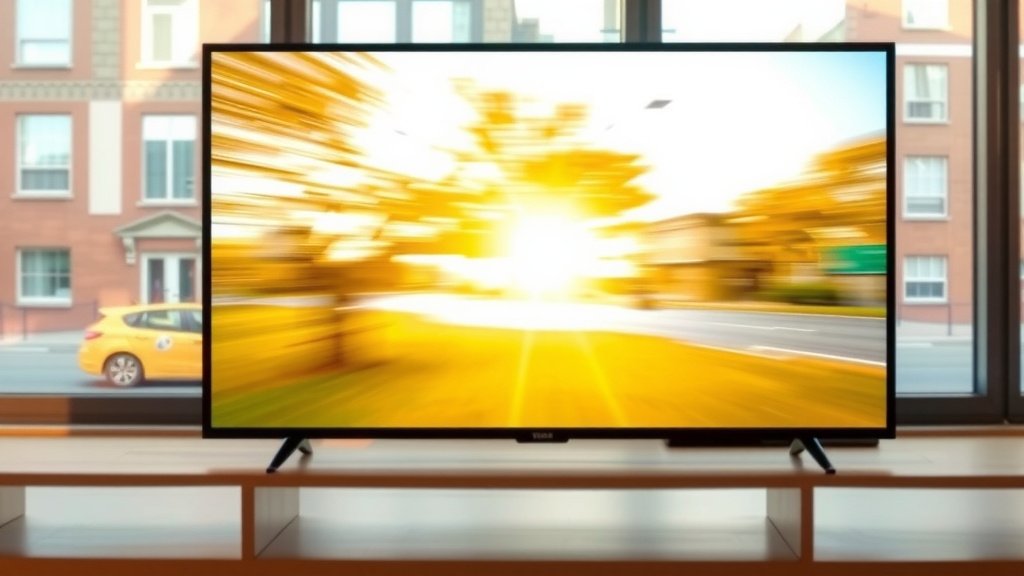
Your TV shows motion blur primarily because of how it processes fast-moving images. This is often due to a combination of factors, including your TV’s refresh rate and its response time. You might notice it most during sports or action movies where scenes change very quickly.
When an image changes rapidly, your TV struggles to update the pixels fast enough. This can cause a trailing effect or a general fuzziness. Manufacturers try to combat this with various motion smoothing technologies, but these can sometimes introduce their own issues.
- Motion blur happens when your TV can’t update images fast enough.
- Key factors are the TV’s refresh rate and response time.
- Action scenes and sports are where you’ll notice it most.
- Motion smoothing settings can help but sometimes make things worse.
Let’s dive into what’s really going on and how you can fix that blurry picture.
“`htmlUnderstanding Your TV’s Motion Blur Issues
Motion blur on your TV happens when moving objects look a bit fuzzy or leave a trailing shadow. It’s like when you try to take a picture of a fast car, and it comes out streaky. Your TV is trying to show you something moving quickly, but it can’t quite keep up. This can be a real bummer, especially during exciting moments in a movie or a crucial play in a game. We’ll help you figure out why this is happening and what you can do about it.
The Technical Reasons Behind Blurry Motion
Several technical factors contribute to motion blur. Think of them as the building blocks of how your TV displays an image, especially when things are moving fast.
Refresh Rate: How Often Your Screen Updates
Your TV’s refresh rate is measured in Hertz (Hz). This number tells you how many times per second your TV can redraw the entire image on the screen. A standard refresh rate is 60Hz, meaning the screen updates 60 times every second. Some newer TVs offer 120Hz or even higher.
Higher refresh rates mean the image is updated more frequently. This helps reduce the time between frames, making motion look smoother and less blurry. For example, a 120Hz TV updates twice as often as a 60Hz TV. This extra speed makes a noticeable difference in how clear fast action appears.
Response Time: How Quickly Pixels Change
Response time is another key player. It measures how quickly a single pixel can change from one color to another, usually from black to white and back again. This is typically measured in milliseconds (ms).
If a pixel takes too long to change color, it can leave behind a trail when the image moves. Imagine a single light bulb that takes a second to turn off after you flip the switch. While it’s still dimming, the next “scene” might start, causing that trailing effect. A faster response time, like 1ms or 4ms, means pixels react almost instantly. This minimizes those distracting trails during fast-paced scenes.
Many experts point to a low response time and a high refresh rate as essential for reducing motion blur (Rtings.com). These two work together to give you the clearest possible moving picture.
Input Lag: The Delay Before You See Anything
While not directly motion blur, input lag can make motion feel worse. Input lag is the delay between when your device sends a signal (like from your game console) and when you actually see that action on screen. High input lag can make fast games feel unresponsive and add to the perception of blur.
What About “Motion Smoothing” Features?
Most modern TVs come with special features designed to combat motion blur. These are often called by different brand names, but they generally work by manipulating the frames your TV displays.
How Motion Smoothing Works
These technologies, often found under names like “Motionflow,” “TruMotion,” or “Auto Motion Plus,” try to create intermediate frames. Your TV analyzes the frames you’re sending it and generates new frames that fit in between. For example, if you have frame A and frame B, the TV might create a frame C that looks like a blend of A and B.
The “Soap Opera Effect” and Other Downsides
While this can make motion look smoother, it can also lead to unwanted side effects. The most common is the “soap opera effect.” This is when regular movies or shows look unnaturally smooth and hyper-realistic, like a daytime drama. Many viewers find this effect distracting and prefer a more natural look.
This effect happens because the added frames increase the frame rate significantly. When you watch content that was originally filmed at a lower frame rate (like 24 frames per second for movies), the TV’s attempt to smooth it out can make it look artificial. Many people find themselves turning these features off to get a more cinematic feel.
We found that the effectiveness and appeal of these features vary greatly by TV model and personal preference. What one person finds smooth, another finds distracting. It’s often a good idea to experiment with these settings on your specific TV.
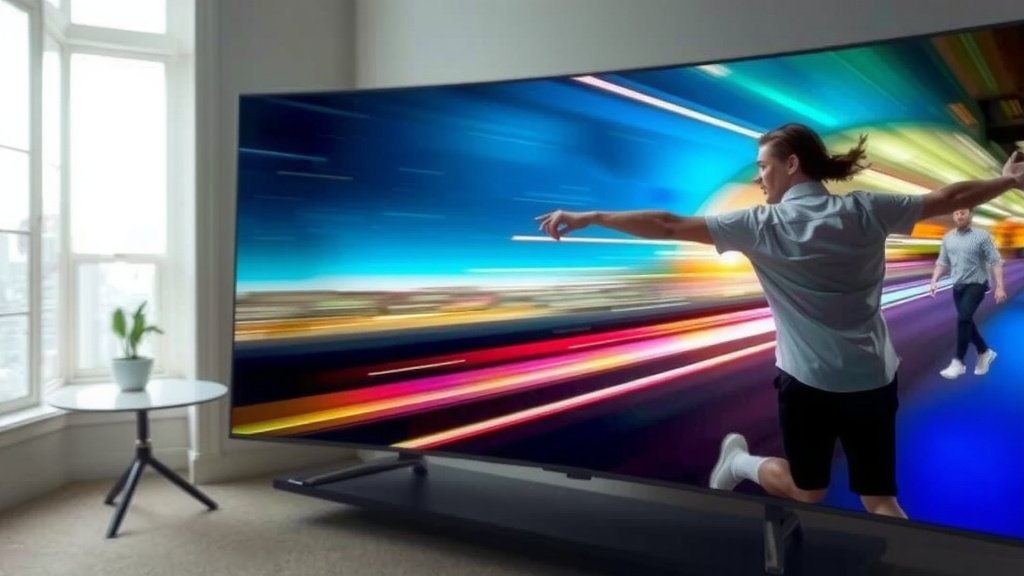
Common Scenarios Where Motion Blur is Noticeable
You’ll likely encounter motion blur in specific types of content where rapid visual changes are common. Recognizing these scenarios can help you troubleshoot.
Fast-Paced Sports
Watching a football game, basketball game, or even a race? The ball, players, and cameras are all moving very quickly. This is where a TV’s refresh rate and response time are truly put to the test. If your TV struggles, you might see the ball appear smudged or players’ limbs look blurry as they move.
Action Movies and Video Games
Explosions, car chases, and quick camera pans are staples of action movies. Similarly, many video games demand split-second reactions and feature constant movement. These situations are prime offenders for motion blur. A blurry scene can mean missing an important detail or feeling less immersed in the experience.
Scrolling Text or Menus
Even less intense content can show motion blur. When you scroll through a long web page, a list of channels, or a game menu, the text and images moving across the screen can sometimes appear blurred. This is due to the same underlying issues of refresh rate and response time.
Troubleshooting Your TV’s Motion Blur
The good news is that you can often improve motion blur with a few adjustments. It’s about finding the right balance for your viewing habits.
Adjusting Picture Settings
Your TV’s picture settings menu is your best friend here. Look for options related to motion, such as “Motion Interpolation,” “Motion Clarity,” or “Judder Reduction.”
We found that many users benefit from reducing or turning off these motion smoothing features entirely. Start by setting them to their lowest levels and see if the blur improves without introducing the soap opera effect. You might find that disabling them altogether gives you the cleanest picture for movies and shows.
For gaming, look for a “Game Mode.” This setting usually lowers input lag and often disables some of the more aggressive motion processing, which can help reduce blur. Many gaming guides recommend activating this mode for the best experience (IGN).
Checking Your Source Device
Sometimes, the blur isn’t entirely your TV’s fault. The device sending the signal, like a cable box, streaming stick, or game console, might have its own settings affecting motion. Ensure your device is set to output the highest resolution and frame rate your TV can handle. For example, if you’re on a PS5, check the video output settings to ensure it’s set to 120Hz if your TV supports it.
Considering Your TV’s Capabilities
If you’ve tried everything and motion blur is still a major issue, it might be a limitation of your TV. Older or lower-end models may simply not have the processing power or panel technology to handle fast motion smoothly. In such cases, upgrading to a TV with a higher refresh rate (120Hz) and a faster response time might be the most effective solution.
Quick Checklist for Reducing Motion Blur:
- Check your TV’s picture settings for motion options.
- Try turning motion smoothing features down or off.
- Enable “Game Mode” if you’re playing video games.
- Ensure your connected devices are set to optimal output.
- Look for a TV with a higher refresh rate (120Hz) if possible.
- Experiment with different settings to find what looks best for you.
Conclusion
You’ve learned that motion blur on your TV stems from its refresh rate and response time. These technical aspects determine how quickly your screen updates and pixels change color. While motion smoothing features aim to help, they can sometimes create an artificial “soap opera effect.” We’ve seen that adjusting these settings, checking your source devices, and understanding your TV’s capabilities are key to a clearer picture. Your next step is to dive into your TV’s settings menu and experiment. Try lowering or disabling motion smoothing features first, and then explore Game Mode for an improved experience.
Frequently Asked Questions
Will a new TV fix my motion blur problem?
A new TV with a higher refresh rate (like 120Hz) and a faster response time can significantly reduce motion blur. Modern TVs often have better motion processing than older models. However, even with a new TV, you may still need to adjust its picture settings for the best results.
Is motion blur bad for my eyes?
Motion blur itself isn’t typically harmful to your eyes. However, a blurry picture can cause eye strain if you’re constantly trying to focus on unclear images. Adjusting your TV settings to reduce blur can make viewing more comfortable for extended periods.
Does 4K resolution affect motion blur?
Resolution (like 4K) and motion blur are different. While 4K provides more detail, it doesn’t directly fix motion blur. Motion blur is more about how quickly the TV can display changing images. Some 4K TVs have advanced motion handling, but it’s not guaranteed by the resolution alone.
Can turning off motion smoothing completely make things worse?
For some content, especially movies filmed at a lower frame rate, turning off motion smoothing will give you a more natural, cinematic look. For fast sports or games, turning it off might reintroduce some blur if your TV’s refresh rate and response time aren’t very high. It often comes down to personal preference and the type of content you watch.
Is there a difference between motion blur and judder?
Yes, there’s a difference. Motion blur is a fuzziness or trailing effect on moving objects caused by slow pixel response or refresh rates. Judder is a choppy or jerky motion, often seen with panning shots, because the TV struggles to display frames smoothly. While related to motion, they are distinct visual artifacts.