Connect Your TV to the Internet: A Simple Guide
Connecting your TV to the internet is easier than you might think, and it opens up a whole new world of entertainment. You can usually connect your TV using either Wi-Fi or an Ethernet cable. Both methods are straightforward and will have you streaming your favorite shows in no time.
Getting your smart TV online lets you access apps like Netflix and Hulu. It also allows for software updates that keep your TV running smoothly. Many people find that a stable internet connection makes their viewing experience much more enjoyable and frustration-free.
TL;DR:
- Connect your TV to the internet for streaming apps and updates.
- Use Wi-Fi or an Ethernet cable for a stable connection.
- Both methods are simple and quick.
- An internet connection enhances your TV viewing experience.
Let’s walk through exactly how you can get your TV hooked up to the internet, step by step.
“`htmlGetting Your TV Online: A Simple Guide
Connecting your smart TV to the internet is surprisingly simple. You’ll soon have access to a universe of streaming services and apps. Most modern TVs offer two main ways to get online: wirelessly via Wi-Fi, or directly with an Ethernet cable. We’ll walk you through both methods so you can pick the one that best suits your setup.
Choosing Your Connection Method
Deciding between Wi-Fi and an Ethernet cable depends on a few things. Think about your home’s layout and how close your TV is to your internet router. You also might consider the stability and speed you need for things like high-definition streaming or online gaming.
What is Wi-Fi?
Wi-Fi is the wireless way to connect devices to your home network. It uses radio waves to send and receive data. This means you don’t need any physical cables running to your TV. It’s a popular choice because it keeps your entertainment center neat and tidy.
Pros of Wi-Fi
- Convenience: No messy cables to hide.
- Flexibility: You can place your TV almost anywhere within range of your router.
- Widespread Use: Most smart devices are designed with Wi-Fi in mind.
Cons of Wi-Fi
- Potential Interference: Walls, appliances, and other wireless devices can sometimes disrupt the signal.
- Speed Fluctuations: The connection speed can vary more than with a wired connection.
What is an Ethernet Cable?
An Ethernet cable, often called a LAN cable, provides a direct physical connection between your TV and your internet router. It’s like a highway directly from your router to your TV, designed for a stable and fast data transfer. This is a wired connection.
Pros of Ethernet
- Stability: Generally offers a more reliable and consistent connection.
- Speed: Often provides faster and more consistent speeds, which is great for 4K streaming.
- Less Interference: Not affected by common Wi-Fi interference.
Cons of Ethernet
- Cable Management: You’ll need to run a cable from your router to your TV, which can be unsightly.
- Limited Placement: Your TV’s placement might be restricted by the length of the cable or the location of your router.
Connecting via Wi-Fi: Step-by-Step
Most smart TVs make connecting to Wi-Fi a breeze. You’ll navigate through your TV’s on-screen menus to find the network settings. Research and found that this process is usually quite intuitive on most major brands (LG, Samsung, Sony, Vizio, etc.).
Finding Your Network Settings
First, turn on your TV. You’ll need to access the main settings menu. Look for an icon that looks like a gear or a wrench. Within the settings, find an option labeled “Network,” “Internet,” or “Connections.” Click on that to proceed.
Selecting Your Wi-Fi Network
Once you’re in the network settings, you should see an option to set up a wireless connection. Your TV will then scan for available Wi-Fi networks in your area. You’ll see a list of network names (SSIDs). Find the name of your home Wi-Fi network and select it. This is the same name you see when connecting your phone or laptop.
Entering Your Wi-Fi Password
This is the most critical step. Your TV will prompt you to enter your Wi-Fi password. Use your TV’s remote control to type in the password carefully. Passwords are case-sensitive, so make sure you get the uppercase and lowercase letters exactly right. If you’re unsure of your password, you can usually find it on a sticker on your router itself, or in the documentation that came with your internet service.
Confirming the Connection
After entering your password, your TV will attempt to connect to the network. You’ll usually see a confirmation message indicating whether the connection was successful. Many TVs also run a quick network test to ensure everything is working properly. If it fails, double-check your password and try again. Sometimes, simply restarting your router and TV can resolve connection issues.
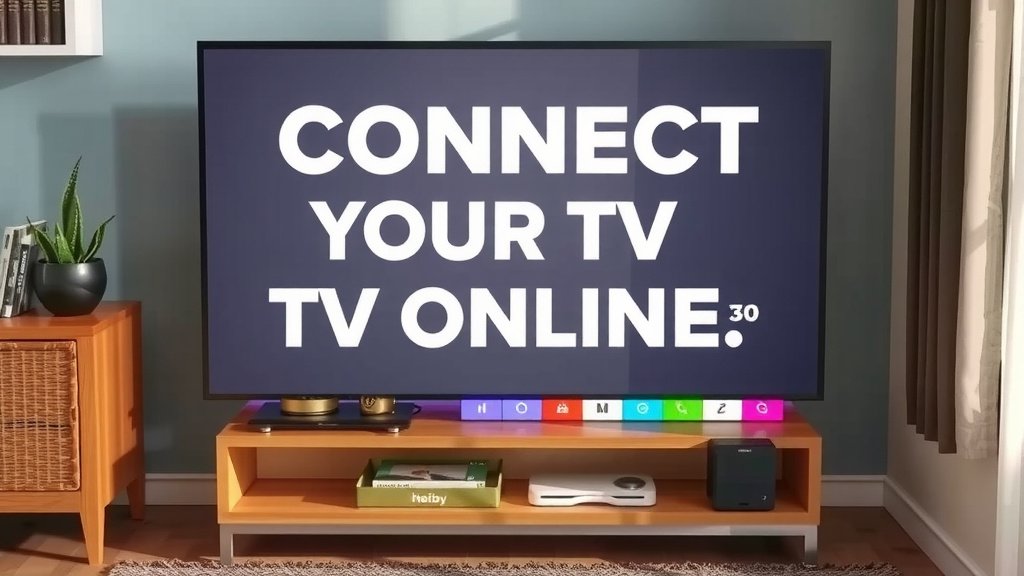
Connecting via Ethernet Cable: Step-by-Step
If you prefer a wired connection, or if your Wi-Fi signal is weak, an Ethernet cable is a fantastic option. It’s often considered the most reliable way to get your TV online.
What You’ll Need
You’ll need an Ethernet cable (also known as a Cat 5e, Cat 6, or Cat 7 cable) and an available Ethernet port on both your TV and your router. Most routers have multiple ports, usually located on the back.
Plugging In the Cable
Locate the Ethernet port on the back of your TV. It looks like a slightly larger phone jack. Then, find an available Ethernet port on your router. Plug one end of the Ethernet cable into the TV’s port and the other end into the router’s port. You should hear a satisfying click as each end snaps into place.
Configuring Network Settings (If Necessary)
For most modern TVs and routers, connecting via Ethernet is plug-and-play. Your TV should automatically detect the wired connection and configure itself. However, if it doesn’t connect automatically, you might need to go into your TV’s network settings menu. Look for a “Wired Connection” or “Ethernet” option and select it. It might prompt you to run a network setup wizard.
Testing the Connection
Once plugged in, check your TV’s network status. Similar to Wi-Fi, it should indicate a successful connection. You can often test this by trying to open a streaming app or accessing your TV’s web browser. Many experts recommend this method for stable, high-speed streaming (PCMag).
Troubleshooting Common Connection Issues
Sometimes, things don’t go as smoothly as planned. Don’t worry; most connection problems are fixable. Here’s a quick checklist of things to try if you’re having trouble.
Consider this simple checklist:
- Restart Everything: Turn off your TV, router, and modem. Wait 60 seconds, then turn them back on. This is often called a power cycle and resolves many glitches.
- Check Your Password: If using Wi-Fi, ensure you’ve entered the password correctly. It’s the most common mistake.
- Signal Strength: For Wi-Fi, make sure your TV is within a reasonable range of your router. Obstructions like thick walls can weaken the signal.
- Router Placement: Ensure your router is in an open area, not tucked away in a cabinet or behind other electronics.
- Ethernet Cable: If using a cable, try a different cable or a different port on your router to rule out a faulty component.
- TV Software Update: Sometimes, a software update for your TV can fix network bugs. If you can connect temporarily or via another method, check for updates in your TV’s settings.
Remember, getting your TV online is usually a straightforward process. By following these steps, you’ll be enjoying your favorite streaming content in no time!
“`Conclusion
You’ve now learned the straightforward methods for connecting your TV to the internet, whether you prefer the simplicity of Wi-Fi or the robust reliability of an Ethernet cable. Getting online unlocks a world of streaming content and keeps your TV up-to-date with the latest software. Don’t let technical hurdles hold you back from enjoying your favorite shows. If you encountered any issues, remember that a quick restart or double-checking your password often resolves them. Go ahead and get your TV connected today – your next binge-watching session awaits!
Frequently Asked Questions
How do I find my Wi-Fi password if I forgot it?
You can usually find your Wi-Fi password on a sticker located on your internet router. If not, it might be in the documentation provided by your internet service provider. If you changed it and forgot, you may need to log into your router’s settings or contact your ISP for assistance.
What’s the difference between a smart TV and a regular TV?
A smart TV has built-in internet connectivity and an operating system, allowing you to access streaming apps and web browsing directly. A regular TV, often called a “dumb TV,” requires external devices like streaming sticks or boxes to access internet-based content.
Can I connect my TV to the internet without a smart TV?
Yes, you can. You can use external devices like Amazon Fire TV Stick, Roku, Apple TV, or Google Chromecast. These devices plug into your TV’s HDMI port and connect to your Wi-Fi, giving your non-smart TV smart capabilities.
Is an Ethernet connection really faster than Wi-Fi for my TV?
In most cases, yes. An Ethernet cable provides a more stable and often faster connection because it’s a direct, wired link, less prone to interference than Wi-Fi. This is especially beneficial for streaming high-resolution content like 4K.
My TV won’t connect to Wi-Fi, what should I do?
First, try restarting your TV and your router by unplugging them for about 60 seconds. Ensure you’re entering the correct Wi-Fi password, as they are case-sensitive. Also, check if your TV is within a good range of your router, as distance and obstructions can weaken the signal.