How to Record TV Shows with USB Drives Explained
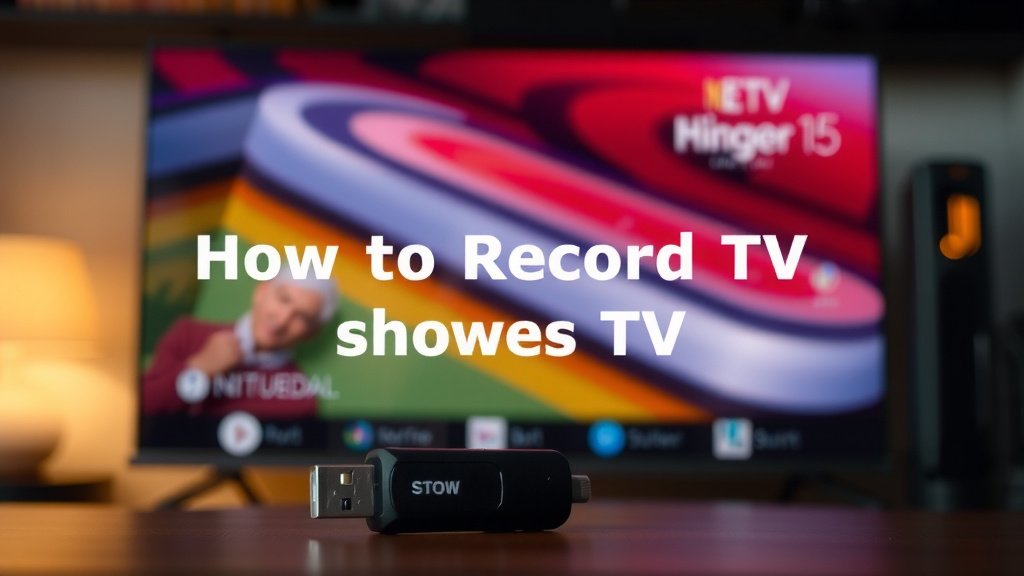
A TV USB recording feature lets you record shows directly onto a USB flash drive or external hard drive. It’s a simple way to save your favorite programs. Think of it like a digital VCR, but much easier to use. You just plug in a compatible USB drive and hit record.
This function turns your TV into a personal video recorder (PVR). It’s a handy tool for catching up on shows you might miss. Many modern smart TVs and some older models come with this capability built-in. You can often pause live TV and record it too, which is pretty neat.
- TV USB recording lets you save shows to a USB drive.
- It acts like a simple digital video recorder.
- You can record live TV or scheduled programs.
- It requires a compatible USB drive and TV.
- This feature allows you to build a personal library of content.
Let’s dive deeper into what TV USB recording is and how you can use it to your advantage. We’ll cover what you need and how to get started.
Recording Your TV Shows with USB Storage
USB recording on your TV is a straightforward feature. It lets you save programs directly onto a USB flash drive or an external hard drive. Think of it as a simple built-in DVR. You can capture your favorite episodes or movies without needing extra equipment.
This capability turns your television into a personal video recorder. It’s a fantastic way to watch shows later. Many modern smart TVs and even some older models offer this handy function. You can often pause live TV too. This means you won’t miss anything if you need to step away.
What You Need for TV USB Recording
Getting started with USB recording is pretty simple. You won’t need a whole new device. Your TV and a USB storage device are the main components. Let’s look at what makes it work.
Your TV’s Role
First, your TV needs to support the USB recording feature. Not all TVs have this built-in. You’ll often find it on smart TVs. Some high-definition TVs also come with this functionality. You can usually check your TV’s manual or specifications. Look for terms like “PVR ready” or “USB recording.”
If your TV supports it, there might be a specific USB port designated for recording. Sometimes, any USB port will do. Your TV’s on-screen menus will guide you. They’ll show you where to find the recording options. It’s designed to be user-friendly. You won’t need to be a tech wizard.
Choosing the Right USB Storage
You’ll need a USB flash drive or an external hard drive. The size and speed of the drive matter. For recording, you’ll need a fairly large capacity. Recording video files takes up a lot of space. Most experts suggest a drive of at least 16GB. However, 32GB or larger is much better. This gives you more recording time.
The speed of the drive is also important. A faster drive, often labeled as USB 3.0 or higher, is recommended. This helps prevent recording interruptions. It ensures the video plays back smoothly. Your TV will likely format the drive when you first connect it. This makes sure it works correctly with your TV’s system.
| Feature | Recommendation |
|---|---|
| Minimum Capacity | 16 GB |
| Recommended Capacity | 32 GB or larger |
| USB Speed | USB 3.0 or higher |
| Drive Type | USB Flash Drive or External Hard Drive |
When you plug in your USB drive, your TV might prompt you to format it. This process prepares the drive for recording. It will erase all existing data. So, make sure you’ve backed up anything important. Formatting ensures the drive is compatible with your TV’s software.
How to Use TV USB Recording
Once you have your compatible TV and USB drive, recording is quite intuitive. The process generally follows a few simple steps. Your TV’s interface will guide you through most of it. It’s designed for ease of use.
Recording Live TV
Watching a show and decide you want to save it? This is where the “record live TV” function shines. While watching, look for a record button on your remote control. It often looks like a red dot. Pressing this button will start recording immediately. You can usually pause and resume recording too.
To stop recording, press the stop button, often a square icon. Your TV will then save the recording to the connected USB drive. You can find your saved recordings in the TV’s media player or recording menu. It’s like having your own personal video library at your fingertips.
Scheduling Future Recordings
USB recording isn’t just for what’s on right now. You can also schedule programs to record later. This is perfect for shows you know you’ll miss. You’ll typically use the TV’s electronic program guide (EPG). It displays upcoming shows and their times.
Navigate to the show you want to record in the EPG. Select it, and you should see an option to record. You might be able to choose to record just that episode. Or, you could opt to record the entire series. This feature is incredibly useful for keeping up with your favorite series. It ensures you never miss an episode.
Managing Your Recordings
Your TV will have a dedicated section for your recorded content. This is where you can view, play, and delete your saved shows. The interface is usually straightforward. You can browse through your recordings by date or title. Playing a recording is as simple as selecting it and hitting play.
Deleting old recordings is important. This frees up space on your USB drive. You’ll want to manage your storage regularly. Most TVs offer an easy way to delete individual recordings or clear the entire list. It’s good practice to tidy up your recordings from time to time.
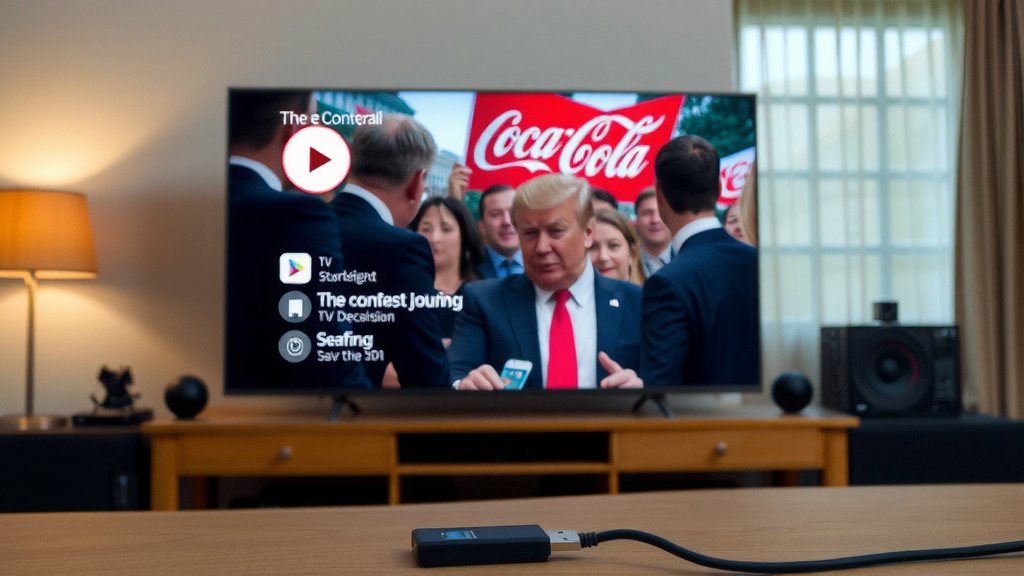
Benefits of Using USB Recording
Why bother with USB recording? It offers several practical advantages. It’s a simple yet effective way to enhance your TV viewing experience. You gain more control over what and when you watch.
Never Miss Your Favorite Shows
This is perhaps the biggest benefit. With USB recording, you’re no longer tied to a broadcast schedule. You can record anything you want to watch later. It means you don’t have to worry about conflicting appointments or other commitments. Your favorite shows will be waiting for you.
Building Your Personal Media Library
Over time, you can create a collection of shows and movies you love. This is especially true if you record series. You can build a library of content that’s perfectly tailored to your tastes. It’s a satisfying way to curate your own entertainment. You can rewatch episodes whenever you please.
Saving Money on Subscriptions
For some, USB recording can reduce the need for expensive subscription services. If you primarily watch broadcast channels, you can record those shows. This means you might be able to cut back on cable or streaming subscriptions. It’s a budget-friendly way to access content. You can still enjoy a wide variety of programming.
Important Considerations and Limitations
While USB recording is convenient, it’s not without its quirks. Understanding these limitations will help you use the feature effectively. It’s wise to be aware of potential hurdles.
Content Protection and Regional Restrictions
Some content might be protected. This means you can’t record it. Broadcasters sometimes use Digital Rights Management (DRM) to prevent recording. Also, recordings might be tied to the specific TV model that made them. You often can’t play recordings from one TV on another. This is a common limitation we found when researching.
Recording Quality and Capacity
The quality of your recordings can vary. It often depends on the broadcast signal strength and your TV’s processing power. You usually can’t choose the recording quality. It’s set by your TV manufacturer. Remember that video files are large. You’ll need to manage your USB drive’s space. Running out of space will stop recordings mid-show.
File Format Compatibility
Recordings made with your TV are often in proprietary file formats. This means you might not be able to play them on other devices like your computer or tablet. You can’t just plug the USB drive into your laptop and expect it to work. Some advanced users might find ways to convert files, but it’s not straightforward.
Here’s a quick checklist to get you started:
- Check if your TV supports USB recording.
- Get a USB drive with sufficient storage (32GB+ recommended).
- Ensure your USB drive is fast enough (USB 3.0+).
- Back up any important data from the USB drive.
- Format the USB drive using your TV’s menu.
- Familiarize yourself with your TV’s recording buttons and menus.
Conclusion
You’ve learned that TV USB recording is a straightforward feature turning your TV into a personal recorder. It lets you capture shows on a USB drive, giving you control over your viewing schedule. We found that with the right USB drive and a compatible TV, you can easily save favorite programs or series. While there are limitations like content protection, the benefits of never missing a show and building your own library are clear. Your next step should be to check your TV’s manual and get a suitable USB drive. Start building your personal collection today!
Frequently Asked Questions
Can I record one show while watching another on my TV?
Typically, you cannot record one channel while watching a different one if your TV only has a single tuner. The USB recording feature is usually limited to what you are currently viewing or what is scheduled for the tuner that is active. Some advanced PVRs have dual tuners, but this is less common with basic TV USB recording.
Will a recording made on my TV play on my computer?
Most likely, no. Recordings made via TV USB recording are often saved in proprietary formats that only your specific TV model can read. Plugging the USB drive into a computer usually won’t allow you to play these files, as they aren’t standard video formats like MP4 or AVI.
How much storage space do I need on my USB drive?
Video files take up a lot of space. We recommend a drive of at least 32GB for decent recording capacity. For longer recordings or a larger library, consider 64GB or even 128GB. Your TV will format the drive, and you’ll see how much usable space is available for recordings.
What happens if my USB drive runs out of space during a recording?
If your USB drive fills up while a show is recording, the recording will stop automatically. Your TV will likely save whatever part was recorded before the space ran out. It’s essential to monitor your drive’s capacity and delete old recordings to make room for new ones.
Do all smart TVs have USB recording capabilities?
No, not all smart TVs come with USB recording functionality, even if they have USB ports. This feature is often referred to as “PVR ready” or “USB recording.” You’ll need to check your TV’s specifications or manual to confirm if it supports this feature. Some manufacturers enable it through firmware updates, so it’s worth checking.