How to Program a TV Remote in 5 Easy Steps at Home
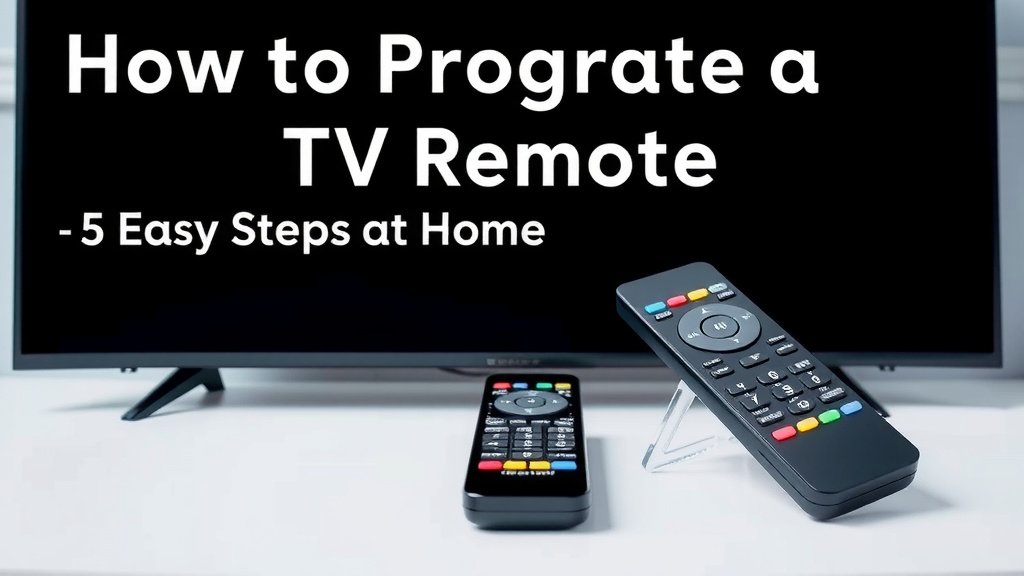
The easiest way to program a TV remote is to press and hold the setup button, enter your TV’s brand code, and test the power button until your TV responds. Most universal remotes take less than five minutes to set up. Some newer remotes even pair automatically through your TV’s settings menu.
Sound too good to be true? It’s not — but the exact steps depend on whether you have a universal remote, a brand-specific remote, or one that uses auto-sync technology. We researched the most common methods so you don’t have to dig through a dozen manuals (or shove the couch cushions aside looking for them).
- Universal remotes usually need a code for your TV brand
- Auto-pairing remotes can sync without any codes at all
- Brand remotes often just need fresh batteries and a reset
- Smartphone apps can work as a backup remote in a pinch
- Most setup problems come from wrong codes or weak batteries
Below, we walk you through each method step by step, so your remote works again before your next show starts. Let’s dive in.
Programming a TV Remote the Simple Way
Programming your remote comes down to three things: knowing your remote type, finding the right code, and testing it. Get those right, and you’re done in minutes.
Before you touch a single button, grab two things. Your remote, and your TV’s brand name. That’s it. Most setup headaches happen when people guess the brand or mix up remotes.
Find Your Remote Type First
Not all remotes are created equal. Some talk only to one TV. Others run your whole entertainment setup. Knowing which one you have saves you a lot of button-mashing.
- Brand-specific remote: came bundled with your TV, works with that brand only
- Universal remote: sold separately, controls multiple devices with codes
- Smart or auto-pairing remote: syncs through Bluetooth or your TV’s menu
Check the back of the remote or the original box if you’re unsure. Many manufacturers print the model number right on the battery cover, which makes identification much easier.
Setting Up a Universal Remote With a Code
This is the classic method. You enter a short numeric code that matches your TV brand, and the remote learns to speak your TV’s language. Think of it like teaching your remote a secret handshake.
Steps to Enter the Code
- Turn on your TV manually.
- Press and hold the Setup or Code Search button until the light stays on.
- Enter the code for your TV brand using the number pad.
- Point the remote at the TV and press the Power button.
- If the TV turns off, press Enter or OK to save the code.
If nothing happens, don’t panic. Most brands have several codes. Try the next one on the list until one works. We found that the third or fourth code often does the trick.
Common Brand Codes to Try
Codes vary by remote model, so treat this table as a starting point. Your remote’s manual is the final word.
| TV Brand | Common Codes |
|---|---|
| Samsung | 10812, 10060, 10178 |
| Vizio | 11758, 10178, 10864 |
| LG | 10017, 11423, 10178 |
| Sony | 10000, 10810, 11317 |
| TCL | 11756, 10812, 10178 |
Many remote makers, like GE and RCA, publish full code lists on their support pages. A quick search for your remote’s model number usually finds them.
Pairing a Remote Without Any Codes
Newer remotes often skip codes entirely. If you have a smart TV from the last five years or so, odds are good your remote pairs through the TV’s settings menu.
Auto-Pairing Through Your TV Menu
Here’s the usual path. Go to Settings, then look for Remote & Accessories or Bluetooth. Put your remote in pairing mode, usually by holding a button like OK or Back for a few seconds. Your TV finds it, and you confirm the connection. If the Bluetooth side of pairing feels confusing, our guide to connecting Bluetooth to your TV walks through it step by step.
Samsung, LG, and Roku all use some version of this process. Roku remotes, for example, pair automatically the moment you insert fresh batteries near the TV. No codes, no fuss.
Resetting a Stubborn Remote
Sometimes a remote just needs a hard reset, like a grumpy laptop. Pull the batteries out, hold the Power button for 20 seconds, then put the batteries back in. This drains leftover charge and clears old pairings.
Using Your Phone as a Backup Remote
Lost the remote again? Your phone can step in. Many phone makers include an IR blaster app, and smart TV brands offer free remote apps that connect over Wi-Fi.
- Check your app store for your TV brand’s official remote app
- Make sure your phone and TV share the same Wi-Fi network
- Look for a built-in “IR Remote” app if you own an Android phone
It’s not a perfect replacement, but it’ll get you to the next episode while you hunt for the real thing.
Troubleshooting When Programming Fails
Nothing works, and you’re starting to side-eye the remote? Take a breath. Most failures trace back to a few usual suspects.
Quick Fixes That Solve Most Problems
Work through this checklist before you buy a replacement. We found that a surprising number of “broken” remotes just need one of these.
- Swap in fresh batteries, even if the old ones seem fine
- Check that you’re entering the code for the right brand
- Clear the line of sight between remote and TV
- Hold buttons a beat longer — many remotes need 3–5 seconds
- Reset the remote and start the process over
- Test the remote’s signal with your phone’s camera
That last one is a fun trick. Open your phone camera, point the remote’s tip at the lens, and press a button. If you see a flickering light on screen, the remote is sending a signal. No light means dead batteries or a dead remote.
When to Replace Instead of Fix
If fresh batteries and a reset change nothing, the remote itself may be toast. Replacement remotes cost far less than most people expect, and universal models work with almost any TV. Some experts also suggest checking whether your TV brand still supports the remote model, since older smart remotes can lose compatibility after TV software updates.
Tips to Make Setup Easier Next Time
Once your remote works, a little foresight keeps it that way. Write the working code on a piece of tape stuck inside the battery cover. Future you will be grateful.
Also, keep the manual or snap a photo of the code list before the manual wanders off into the junk drawer abyss. Many experts recommend replacing remote batteries once a year, before they leak and corrode the contacts. A tiny bit of prevention beats another evening of button-mashing.
Conclusion
Programming your TV remote doesn’t have to eat up your whole evening. We’ve covered the three main paths: entering a brand code on a universal remote, pairing a smart remote through your TV’s menu, and resetting a stubborn one when things go sideways. You also learned how fresh batteries fix more problems than most people expect, and how your phone can fill in as a backup. Once your remote is working, jot the code down and stash it inside the battery cover. Ready for the easy win? Grab your remote, find your TV’s brand code, and knock out the setup tonight.
Frequently Asked Questions
Can I program a TV remote without the original codes?
Yes, many remotes offer a code search mode that scans through every stored code automatically. You hold the setup button, then repeatedly press the power button until your TV shuts off. It’s slower than entering a code, but it works when you’ve lost the manual.
Why does my universal remote control everything except the volume?
This usually happens when the remote is paired to one device but volume commands route to another, like a soundbar. Check the remote’s audio or volume lock setting in the manual. Some remotes also let you assign volume to a specific device with a button combo.
Do I need to reprogram my remote after changing TV batteries?
Most universal remotes hold their codes after a battery swap, so no reprogramming needed. However, some smart remotes lose their Bluetooth pairing when power is cut for too long. If yours stops responding after a battery change, just re-pair it through your TV’s settings menu.
Can one universal remote work with different TV brands in my house?
Absolutely. That’s exactly what universal remotes are built for. Most models store multiple device codes, so you can switch between your living room Samsung and bedroom LG by pressing a device button first. Check your model’s manual for how many devices it supports.
Is there a way to program a remote to my TV using just my phone?
In many cases, yes. If your TV supports HDMI-CEC, some phone apps can send commands over your Wi-Fi network without any codes. Your TV brand’s official app is the best place to start, and setup usually takes just a couple of minutes.