How to Enable ALLM on Your TV for Low Latency Gaming
To enable ALLM on a TV, open your TV’s settings, head to the picture or general settings menu, and turn on the Auto Low Latency Mode option. Once it’s on, your TV will automatically switch to game mode whenever it detects a gaming signal. No more digging through menus every time you fire up your console.
So what is ALLM exactly? It’s a feature in the HDMI 2.1 standard that lets your TV and console talk to each other. When your PlayStation, Xbox, or gaming PC starts a session, the TV drops into low latency mode on its own. We researched how this works across major TV brands, and we found that the setting lives in slightly different places depending on whether you own a Samsung, LG, Sony, or Vizio TV. Annoying? A little. Complicated? Not at all.
- ALLM stands for Auto Low Latency Mode, an HDMI 2.1 feature.
- It automatically switches your TV to game mode when gaming starts.
- It cuts input lag, so button presses show up on screen faster.
- You can usually find it under picture, general, or external device settings.
- Steps vary by brand, and some older TVs don’t support it at all.
Below, we walk you through exactly where to find this setting on the most popular TV brands, step by step. Let’s get your setup dialed in.
Turning On ALLM on Popular TV Brands
Each TV brand hides ALLM in a slightly different spot, so we broke down the exact steps for the big four. Follow along for your specific model and you’ll be done in under a minute.
Samsung TVs
Samsung buries this one a little, but it’s easy once you know the path. We found the setting under connected device controls on most recent models.
- Press the Home button on your remote.
- Go to Settings, then General.
- Open External Device Manager.
- Toggle Game Auto Mode to On.
LG TVs
LG makes this pretty painless. On webOS models from the last few years, ALLM is tucked into the game-specific menu.
- Open Settings from the home screen.
- Select General, then Devices.
- Choose External Devices or Game Optimizer.
- Switch Instant Game Response or Auto Low Latency Mode to On.
Sony TVs
Sony’s menu names change slightly by model year, but the path is similar across Google TV and Android TV sets.
- Press Settings on your remote.
- Go to Channels & Inputs, then External Inputs.
- Select HDMI signal format and set it to Enhanced.
- Under Picture, enable Auto Low Latency Mode if listed.
That Enhanced format step matters more than you’d think. Without it, some HDMI 2.1 features simply stay asleep, like a dog that won’t fetch until it feels like it.
Vizio TVs
Vizio handles this differently. Many models enable low latency automatically when they detect a console, but you can verify it manually.
- Press the Menu button.
- Choose Picture, then Game Low Latency.
- Set it to On or Auto if available.
What to Do Before You Flip the Switch
A quick prep checklist saves you from mystery problems later. We found that most ALLM headaches trace back to one of these basics.
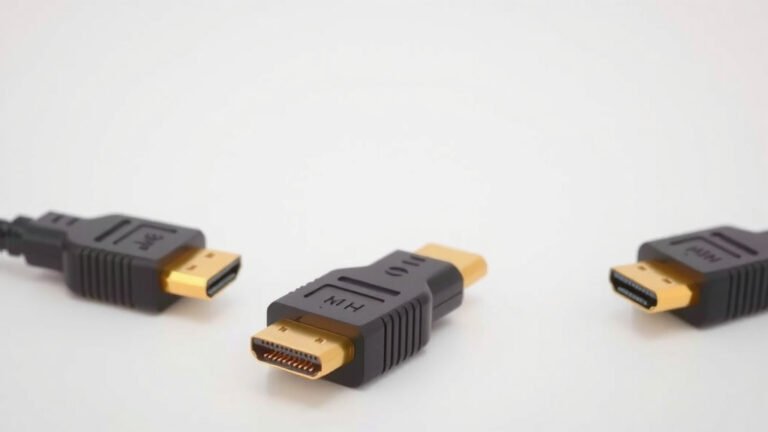
- Plug your console into an HDMI port labeled 2.1, 4K120, or Game if your TV has one.
- Use an Ultra High Speed HDMI cable for 4K at 120Hz.
- Update your TV’s firmware to the latest version.
- Update your console’s system software too.
- Enable 4K or 120Hz output in your console’s display settings.
- Restart both the TV and console after changing anything.
Does Your TV Even Support ALLM?
Here’s the honest answer: not every TV does. ALLM became standard with HDMI 2.1, so most TVs made before 2019 lack it. Many experts say checking your manual or the manufacturer’s spec page is the fastest way to confirm.
No ALLM? Don’t panic. You can still switch to game mode manually, and your TV will treat it as a decent stand-in. It’s like making coffee with a French press instead of a fancy machine. Same result, one extra step.
Checking Your HDMI Ports
Even on HDMI 2.1 TVs, not every port supports the full spec. Some sets only offer full 2.1 bandwidth on one or two inputs. Check the labels near the ports or look in your manual for terms like 4K120 or eARC.
How to Know ALLM Is Actually Working
Skeptical by nature? Good. Here’s how to verify the feature kicked in instead of just hoping for the best.
Look for On-Screen Confirmation
Most TVs flash a small banner or notification when they switch modes. LG, Samsung, and Sony all show some version of “Game mode on” when ALLM triggers. If you see that pop up when launching a game, you’re golden.
Check the Picture Mode Name
Press the info or settings button while gaming. If the picture mode now reads Game or Game Optimizer without you touching anything, ALLM did its job. We found this is the most reliable check across brands.
Test Input Lag Yourself
Want a hands-on test? Open a fast game and try a quick turn or jump. In game mode, your inputs feel snappy and immediate. In standard mode, there’s a faint but noticeable delay, like talking to someone through a bad phone line.
| Signal | What the TV Shows | What It Means |
|---|---|---|
| Game starts | “Game mode” banner appears | ALLM is working |
| You open Netflix | TV returns to movie mode | ALLM switched back correctly |
| Game starts, no banner | Picture mode stays standard | ALLM is off or unsupported |
Common ALLM Problems and Quick Fixes
Even a simple feature can act up. Here are the issues we ran into most often during research, along with fast solutions.
ALLM Won’t Turn On
First, confirm the setting is actually enabled for the right HDMI input. Some TVs apply ALLM per port, which surprises a lot of people. Next, reseat your HDMI cable on both ends. A loose connection can block the handshake signal that tells your TV a console is there.
TV Keeps Switching Out of Game Mode
Does your TV bounce back to movie mode mid-session? That usually happens when the console pauses video output, like during a long loading screen or rest mode. Check your console’s HDMI settings and disable any option that turns off video output during rest. Also, some streaming apps trigger the switch, which is normal behavior, not a bug.
It Works but the Picture Looks Worse
Game mode often tones down processing to cut lag, so motion may look choppier. That’s the trade-off working as designed. If it bothers you, dig into your TV’s game picture settings and nudge up motion smoothing slightly. You’ll add a bit of lag back, but you get to pick your own balance.
ALLM vs. VRR vs. Game Mode: What’s the Difference?
These three terms get tossed around together, and it’s easy to mix them up. Here’s the plain-English version. Game mode is the low-lag picture setting your TV switches into. ALLM is the automation that flips game mode on for you. VRR, or variable refresh rate, is a separate HDMI 2.1 feature that smooths out screen tearing during gameplay.
Think of it this way: ALLM is the butler that turns on the lights, VRR is the dimmer switch, and game mode is the room itself. You can use ALLM and VRR together, and on modern consoles like the PS5 and Xbox Series X, that combo is the sweet spot.
Conclusion
Enabling ALLM takes about a minute once you know where your TV hides the setting. We found that Samsung, LG, Sony, and Vizio each tuck it into a different menu, but the payoff is the same: your console gets instant access to game mode without you lifting a finger. If your TV doesn’t support it, manual game mode is still a solid backup. The biggest mistakes come down to the wrong HDMI port, an old cable, or outdated firmware, so run through the prep checklist if something feels off. Now go flip that switch, fire up your favorite game, and enjoy inputs that respond the moment you press a button.
Frequently Asked Questions
Does ALLM work on PS4 or older consoles?
Usually not. ALLM relies on the console sending a specific signal to the TV, and older consoles like the PS4, PS4 Pro, and original Xbox One don’t send it. You’ll need to switch to game mode manually on those systems.
Can I use ALLM with a gaming PC?
It depends on your graphics card and drivers. Modern NVIDIA and AMD GPUs can signal ALLM on many TVs, but support varies by model. If your PC doesn’t trigger it, setting your TV’s picture mode to Game manually works just as well.
Should I leave ALLM on all the time?
Yes, there’s no downside to leaving it enabled. It only activates when a gaming signal is detected and switches back to your normal picture mode afterward. Movies, shows, and sports stay untouched.
Why does my TV show a banner every time I launch a game?
That’s normal behavior, not a glitch. The banner is your TV confirming it switched into game mode. Most brands let you dismiss it quickly, but we haven’t found a reliable way to disable it entirely across all models.
Does ALLM affect picture quality?
Indirectly, yes. ALLM itself is just the switch, but game mode disables most motion processing to reduce lag. That means slightly choppier motion in fast scenes, which many gamers barely notice during play.