How to Disable TV Tracking in November 2026: Simple Guide

You can disable TV tracking by heading into your TV’s settings, finding the privacy or advertising section, and turning off viewing data collection and personalized ads. The exact steps vary by brand, but most TVs let you do this in under five minutes.
Here’s the uncomfortable truth: many smart TVs watch you almost as much as you watch them. They can track what you stream, when you watch, and even send that data to advertisers. We researched how the major brands handle this, and we found that turning off Automatic Content Recognition (ACR) is the single biggest win for your privacy.
Want the short version first? Here’s your TL;DR:
- Smart TVs often track your viewing habits and sell that data to advertisers.
- You can turn off tracking in your TV’s privacy or advertising settings.
- Each brand (Samsung, LG, Roku, Vizio, and others) hides the option in a different spot.
- Turning off ACR and personalized ads stops most of the data sharing.
- You can also limit tracking by refusing terms during setup or using a streaming stick instead.
Below, we walk you through exactly where to find these settings on every major TV brand, step by step, so you can reclaim your privacy in minutes.
Turning Off Tracking on Your Smart TV, Brand by Brand
Every TV brand buries its privacy settings in a different spot. We’ve mapped out the exact path for each major brand so you don’t have to go hunting through menus.
Before you start, grab your remote and make sure your TV is connected. Some settings only appear when the TV is online. Weird, we know.
Samsung TVs
Samsung calls its tracking feature Viewing Information Services. To turn it off, go to Settings > General > Privacy, then toggle off Viewing Information Services. While you’re there, also disable Interest-Based Ads.
On older models, you may find this under Settings > Support instead. If you see a prompt asking to “view personalized content,” decline it.
LG TVs
LG labels its tracking as Home Dashboard > Settings > Additional Settings, depending on your model year. The main toggle is called Viewing Information. Turn it off, then also switch off Personalized Advertising.
LG also asks about data collection during setup. If you skipped past that screen the first time, you can change it anytime in the privacy menu.
Roku TVs and Roku Devices
Roku’s setting lives in Settings > Privacy > Smart TV Experience. Toggle off Use Info for TV Inputs to stop ACR on broadcast and HDMI content.
Then head to Advertising and check the box for Limited Ad Tracking. Roku won’t stop all ads, but this limits how much of your data feeds them.
Vizio TVs
Vizio is one of the more aggressive trackers, and its setting is honestly easier to find. Go to Settings > System > Reset & Admin and turn off Viewing Data.
While you’re there, switch off Advertising too. We found that Vizio’s default settings share data unless you opt out manually, so don’t assume a new TV is private out of the box.
Amazon Fire TV
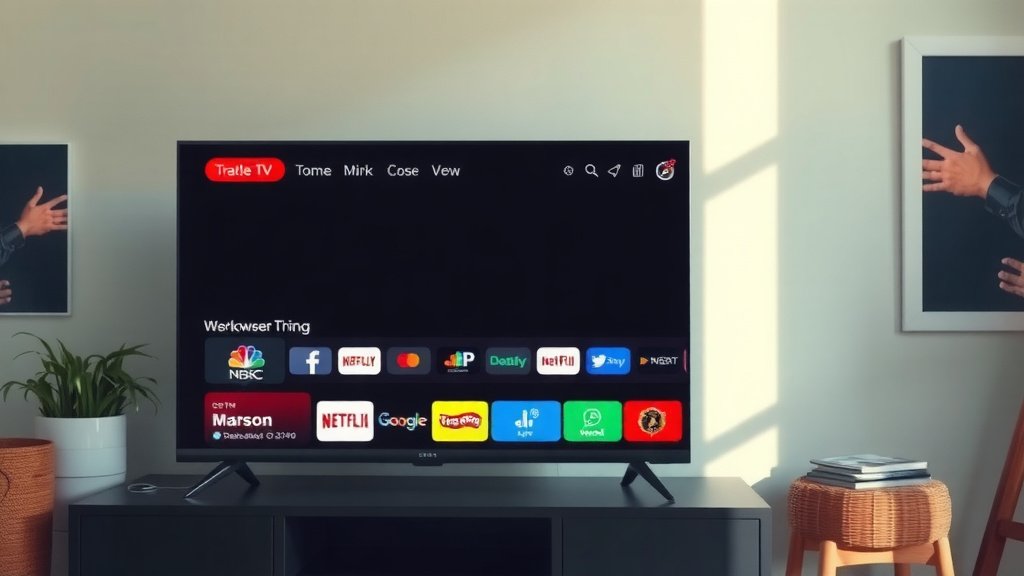
Fire TV users should open Settings > Preferences > Privacy Settings. Turn off Device Usage Data and Collect App and Over-the-Air Usage.
You can also delete your existing viewing history on the same screen. That wipes the slate clean, which feels surprisingly satisfying.
Google TV and Android TV
On Google TV, go to Settings > Device Preferences > About and select Reset Advertising ID, then opt out of ad personalization.
For viewing data, check Settings > Channel > Ambient Mode and any Usage & Diagnostics toggles. Different manufacturers put these in slightly different places, so look for anything mentioning “usage” or “diagnostics.”
Extra Privacy Moves Most People Miss
Turning off ACR is the big win, but a few smaller steps add real protection. None of these take more than a couple of minutes.
Opt Out During Setup
The easiest time to stop tracking is before it starts. When you first power on a smart TV, read those setup prompts instead of mashing “accept.”
Most brands let you decline data collection entirely. You’ll lose a few recommendations, but who cares? You know what you like.
Reset Your Advertising ID
Even after opting out, your TV may still carry an advertising ID from before. Resetting it wipes any profile already built around your habits.
Look for “Reset Advertising ID” in your privacy settings. It’s like changing the locks after someone borrowed your key.
Disconnect It Completely
Want a nuclear option? Don’t connect your TV to Wi-Fi at all. A TV with no internet can’t send data anywhere.
Plug in a privacy-focused streaming stick instead, or use an HDMI-connected device you trust more. This is what many privacy experts recommend, and it’s the setup we found works best for people who want zero tracking.
What Your TV Actually Collects
It helps to know what you’re opting out of. Here’s a quick breakdown of the data types smart TVs commonly gather.
| Data Type | What It Shows | Who Gets It |
|---|---|---|
| Viewing history (ACR) | Every show, movie, and game you watch | Advertisers and data brokers |
| App usage | Which apps you open and how long | TV maker and app partners |
| Device identifiers | A unique ID tied to your TV | Ad networks |
| IP address and location | Your general area and network | Ad networks and services |
Federal regulators have flagged these practices before. The Federal Trade Commission has taken action against companies over improper TV data sharing, and Consumer Reports has tested major brands and found ACR enabled by default on many models.
Quick Privacy Checklist
Short on time? Run through this list and you’re covered:
- Turn off ACR or viewing data in your TV’s privacy settings.
- Disable personalized or interest-based ads.
- Reset your advertising ID.
- Opt out of usage and diagnostics data sharing.
- Decline data prompts during setup on any new TV.
- Consider a streaming stick with your TV off Wi-Fi.
Will Turning Off Tracking Break Anything?
No, it won’t. Your apps, streaming services, and picture quality all work exactly the same.
The only change you’ll notice is less “helpful” content suggestions on the home screen. Honestly, that’s a feature, not a bug. You might see more generic ads instead of weirdly specific ones, which most people find less creepy anyway.
A Note on Data That’s Already Collected
Opting out stops future collection, but it doesn’t always erase the past. Some brands let you request a data deletion through their privacy pages or support teams.
LG, Samsung, and Vizio all have privacy policies that mention deletion requests. It takes an email or a form, and it’s worth doing if your TV has been tracking for years. Think of it as cleaning out the garage before you close the door for good.
Conclusion
Your TV shouldn’t know more about your evenings than your family does. The good news? You now have everything you need to shut the data taps off. We found that disabling ACR, killing personalized ads, and resetting your advertising ID takes most people under ten minutes per brand. Add in a smart setup routine and, if you want total peace of mind, a streaming stick on an offline TV, and you’re in great shape. None of it breaks your apps or your picture quality. So grab that remote, run through the checklist one more time, and take back control of your living room today.
Frequently Asked Questions
Can my smart TV still track me if I turn off the tracking settings?
Turning off ACR and viewing data stops most tracking, but basic diagnostics may still pass through unless you disable those toggles too. The only way to guarantee zero data sharing is to disconnect the TV from your Wi-Fi entirely. A streaming stick gives you a cleaner middle ground.
How do I know if my TV is tracking me right now?
Check your TV’s privacy or advertising settings and see if viewing data or interest-based ads are switched on. Many brands ship with these enabled by default. If your TV was never set up with privacy in mind, it’s safe to assume data has been flowing.
Does turning off TV tracking affect my streaming subscriptions?
Not at all. Netflix, Hulu, Disney+, and every other service work exactly the same. The only difference is you may see generic recommendations instead of personalized ones from your TV’s home screen.
Will a factory reset delete the data my TV already collected?
A factory reset wipes settings and your account info from the TV itself, but it doesn’t reach data already sent to the manufacturer’s servers. To remove that, submit a data deletion request through the brand’s privacy page or support team.
Do smart TV privacy laws protect me automatically?
Some states, like California, give you rights to know what data is collected and request deletion. But in most places, protection depends on you opting out manually. That’s why turning off tracking yourself is still the best move.