What is AirPlay on TV? A Simple Guide
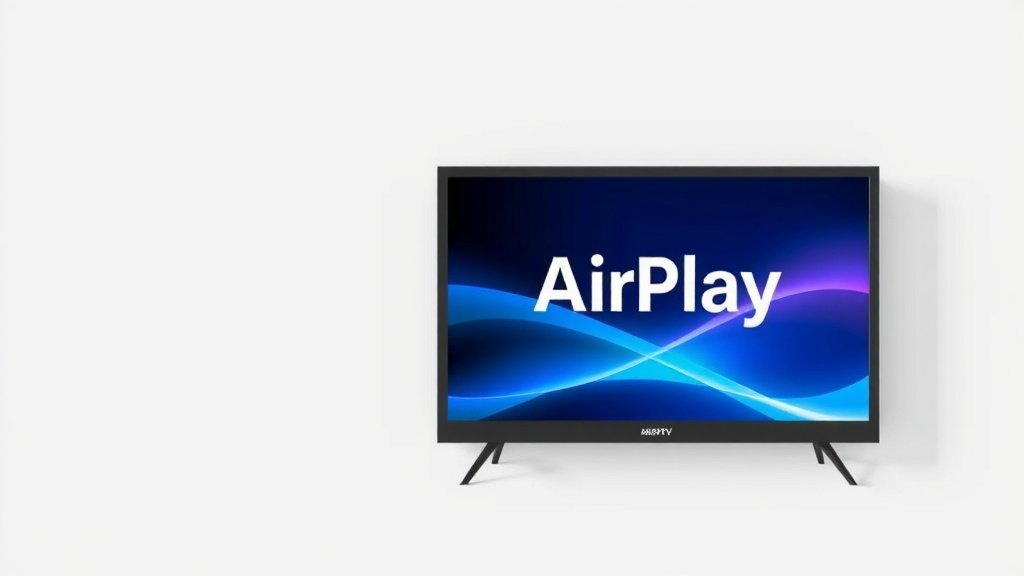
AirPlay on your TV is a wireless streaming technology. It lets you send content from your Apple devices to your television. Think of it as your iPhone or iPad screen appearing on the big screen. This feature works with compatible smart TVs and streaming devices. It’s a super handy way to share photos, videos, or stream your favorite shows without needing extra cables. You can even mirror your entire device screen.
This wireless magic is built into many modern televisions. You might see it referred to as Apple AirPlay 2 support. It allows for easy screen mirroring and casting. It’s designed to be simple and intuitive for everyday users. Many people wonder if they can use it with their non-Apple devices. We found that while it’s an Apple feature, some smart TVs allow broader compatibility.
- AirPlay is Apple’s wireless streaming tech.
- It sends content from Apple devices to your TV.
- You can mirror your device screen or stream specific apps.
- It works with compatible smart TVs and streaming boxes.
- No extra cables are needed for this connection.
So, what exactly is AirPlay on a TV and how can you make it work for you? We’ll break down all the details, from what it is to how to use it, so you can start enjoying your content on the big screen.
You’ve seen the little AirPlay icon on your iPhone or iPad and wondered, “What can this do for me?” It’s all about getting your favorite content from your Apple device onto your TV screen. Think of it as a wireless bridge. It connects your small screen to your big screen, making it easy to share or enjoy media together.
Understanding How AirPlay Works on Your TV
AirPlay is Apple’s proprietary technology. It allows you to stream audio and video. You can also mirror your screen wirelessly. This feature works between compatible Apple devices and your television. It’s designed to be super simple to use.
The Basic Connection: Devices and Requirements
For AirPlay to work, you need a few things. First, you need an Apple device like an iPhone, iPad, or Mac. Second, you need a TV that supports AirPlay. This includes many modern smart TVs and streaming devices like the Apple TV box. Both your Apple device and your TV need to be on the same Wi-Fi network. This is key for the wireless connection to establish.
Mirroring Your Screen vs. Streaming Specific Apps
AirPlay offers two main ways to get content onto your TV. One is screen mirroring. The other is by streaming directly from apps that support AirPlay. Screen mirroring shows *exactly* what’s on your device’s screen. This is great for showing photos or demonstrating something. Streaming from an app sends just that app’s content to the TV. This often provides a higher quality stream and lets you continue using your device for other things.
Getting Started with AirPlay on Your Smart TV
Setting up AirPlay is usually quite straightforward. Most of the time, it works right out of the box. You don’t need to download extra apps or buy special hardware, provided your TV is compatible. We’ve found that the simplicity is a big draw for many users.
Finding the AirPlay Icon
When you’re using an app that supports AirPlay, like the Photos app or Apple TV+, you’ll see a specific icon. It looks like a rectangle with a small triangle at the bottom. You’ll find this icon within the video player or sharing options of the app. Tapping it reveals a list of available AirPlay devices. Your TV should appear there if it’s compatible and on the same network.
Initiating the Stream or Mirroring Session
Once you tap the AirPlay icon, select your TV from the list. If you’re mirroring your entire screen, you might need to go into your device’s Control Center. On an iPhone or iPad, swipe down from the top-right corner (or up from the bottom on older models). Look for the “Screen Mirroring” option. Select your TV from that menu. It’s really about tapping a few buttons.
What If Your TV Doesn’t Show Up?
If your TV isn’t listed, don’t panic! First, double-check that both your Apple device and your TV are connected to the exact same Wi-Fi network. Sometimes, a slight difference in network names can cause issues. Also, ensure your TV’s firmware is up to date. Manufacturers often release updates that include or improve AirPlay support. Many experts recommend restarting your router and your TV as a quick troubleshooting step.
Using AirPlay with Apple TV Box
If you have an Apple TV box connected to your television, it acts as an AirPlay receiver. This is a very common setup. Your iPhone, iPad, or Mac can then easily stream content to the Apple TV. The Apple TV box then displays it on your television. This method offers a very reliable connection and high-quality playback.
AirPlay Compatibility: Beyond Just Apple?
While AirPlay is an Apple technology, its availability has expanded. Many TV manufacturers have built AirPlay 2 support directly into their smart TVs. This means you might not need an Apple TV box to use it. We’ve researched that brands like Samsung, LG, Sony, and Vizio often include this feature in their recent models. Some even offer broader compatibility. For example, some TVs might allow content casting from non-Apple devices too, though this isn’t AirPlay itself. It’s worth checking your TV’s specifications or manual.
Which TVs Support AirPlay?
Generally, if you bought a smart TV within the last few years, it has a good chance of supporting AirPlay. Look for “AirPlay 2” in the product description. Many 2018 models and newer from major brands include it. If you’re unsure, a quick search for your TV model plus “AirPlay support” should give you an answer. It’s a feature that has become increasingly standard.
Smart TVs vs. Streaming Devices: A Quick Comparison
Here’s a little breakdown of how you might encounter AirPlay:
| Method | Description | Pros | Cons |
|---|---|---|---|
| Built-in Smart TV Support | Your TV has AirPlay capability directly. | No extra hardware needed. Simple setup. | May depend on TV manufacturer updates. |
| Apple TV Box | An external device connected to your TV. | Very reliable, excellent performance. Access to Apple TV+ and App Store. | Requires purchasing an extra device. |
Both methods get your content from your Apple device to your TV. The best choice depends on your setup and preferences.

Making the Most of AirPlay: Tips and Tricks
Once you’ve got AirPlay working, you’ll find it’s incredibly useful. Here are a few ideas to get you started:
- Share Photos Instantly: Show off your vacation photos or family moments on the big screen with friends and family.
- Movie Nights Made Easy: Stream movies or TV shows from your iPad directly to your TV.
- Presentations and Work: Mirror your Mac’s screen to share documents or presentations in a meeting.
- Music Playback: Send your favorite playlists to your TV for room-filling sound.
- Gaming on the Big Screen: Some games allow you to mirror your device’s screen for a more immersive experience.
AirPlay is all about making your Apple devices more versatile. It extends their capabilities to your home entertainment system.
Conclusion
You now understand that AirPlay on your TV is your wireless ticket to sharing content from Apple devices. It’s a simple way to get your photos, videos, or favorite apps onto the big screen without fuss. Whether your TV has AirPlay built-in or you use an Apple TV box, the connection is designed to be user-friendly. We’ve seen how easy it is to start streaming or mirroring. Now, go ahead and try AirPlay with your own devices. You might find it becomes your go-to for enjoying content with others.
Frequently Asked Questions
Can I use AirPlay if I don’t have an Apple TV box?
Yes, you can! Many modern smart TVs come with AirPlay 2 support built directly into them. You just need to make sure your TV is compatible and on the same Wi-Fi network as your Apple device. Check your TV’s specifications to confirm it supports AirPlay.
Does AirPlay work with Android or Windows devices?
AirPlay is Apple’s proprietary technology, so it’s designed primarily for Apple devices like iPhones, iPads, and Macs. While some smart TVs might offer mirroring features for other devices, this is not AirPlay itself. You’ll need an Apple device to use AirPlay.
What’s the difference between mirroring my screen and streaming from an app with AirPlay?
Screen mirroring shows *everything* on your device’s screen, like a live copy. Streaming from an app sends just that specific app’s content to the TV. Streaming from an app usually offers better quality and lets you use your device for other tasks while the content plays.
My TV isn’t showing up in the AirPlay list. What should I do?
First, confirm that both your Apple device and your TV are connected to the exact same Wi-Fi network. Sometimes a simple router restart can fix connection issues. Also, check if your TV has any available firmware updates, as these can often improve or enable AirPlay functionality.
Is AirPlay secure? Can others see what I’m AirPlaying?
AirPlay is generally secure on a trusted home network. Your device and TV communicate directly. You can set a password for AirPlay access on your TV or Apple TV box to prevent unauthorized connections. This ensures only you or those you allow can AirPlay content.