Smart TV Without WiFi: What You Need to Know
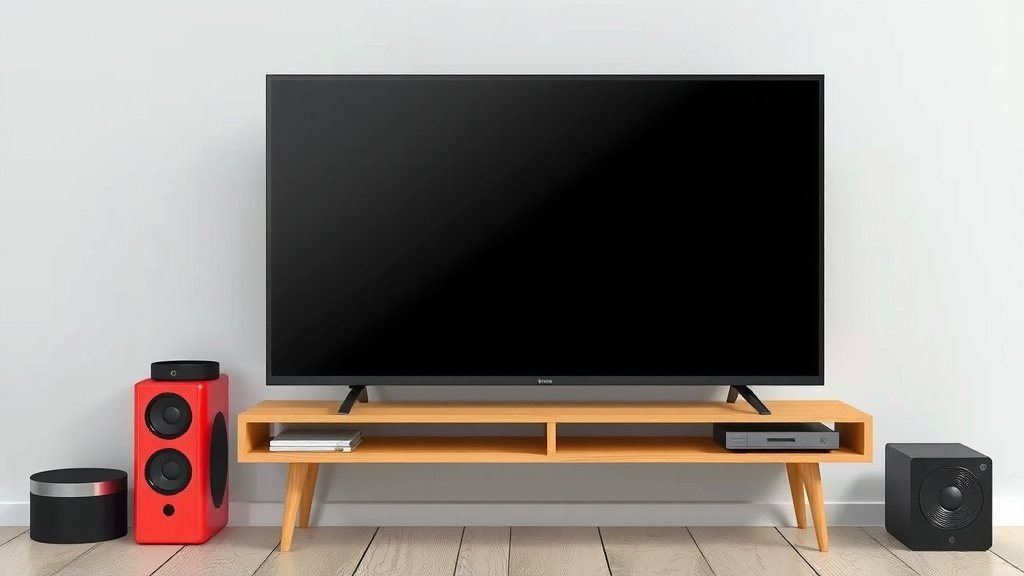
Yes, you can absolutely use your Smart TV without Wi-Fi. While Wi-Fi is needed for many smart features, your TV will still function as a regular television for watching broadcast channels and playing content from connected devices. You can still enjoy many of your TV’s capabilities even without an internet connection.
Think of Wi-Fi as an optional upgrade for your TV. It unlocks streaming apps and online services. But without it, your TV is still a screen! You might miss out on services like Netflix or YouTube, but your basic TV functions remain fully operational. We found that many users forget about other ways to connect their devices.
- Your Smart TV still works as a regular TV.
- You can watch local channels with an antenna.
- Connect devices like Blu-ray players or gaming consoles.
- Use HDMI ports for non-internet content.
Let’s walk through exactly what you can still do with your Smart TV when it’s not connected to the internet, and how to make the most of it. We’ll show you the best ways to keep enjoying your television experience.
“`htmlUsing Your Smart TV Without An Internet Connection
Can you truly use a smart TV without Wi-Fi? The short answer is a resounding yes! Your smart TV is still a television first and foremost. It’s designed to display video and audio content. Without Wi-Fi, you’ll simply miss out on its internet-dependent features. Think of it like a smartphone without cellular service. You can still play games, use offline apps, and take photos, but you can’t make calls or browse the web.
We found that many people worry about their investment becoming useless if their internet goes down. This isn’t the case at all. Your smart TV without Wi-Fi is like a powerful, modern monitor waiting for input. It’s ready to display content from various sources. You just need to know what those sources are and how to connect them.
Accessing Broadcast Channels
One of the most fundamental ways to watch content on your TV is through broadcast channels. Your smart TV, even without Wi-Fi, can still access these. You’ll need a few basic components to make this happen. It’s a straightforward process that brings back the classic TV viewing experience.
Antenna for Over-the-Air (OTA) TV
For viewers in areas with good signal strength, an antenna is your best friend. A digital TV antenna connects to your TV’s coaxial input. This allows you to pick up free over-the-air channels. Many popular networks broadcast their content this way. Researching local channel availability in your area is a good first step. This method offers a cost-effective way to watch live TV.
Cable or Satellite Box Connection
If you subscribe to a cable or satellite TV service, your smart TV can still connect to your provider’s set-top box. You’ll use an HDMI cable for this connection. The box itself handles the signal reception and decryption. Your TV then simply displays the picture and plays the sound. This setup bypasses the need for your TV to connect directly to the internet for these services. It’s a very common way people watch TV. Your smart TV can still connect to your provider’s set-top box using an HDMI cable.
Connecting External Devices for Entertainment
Your smart TV is equipped with several ports designed for external devices. These ports are your gateway to a world of content that doesn’t rely on Wi-Fi. Plugging in a device is usually as simple as connecting a cable. We found that most modern TVs have plenty of these options.
The Mighty HDMI Port
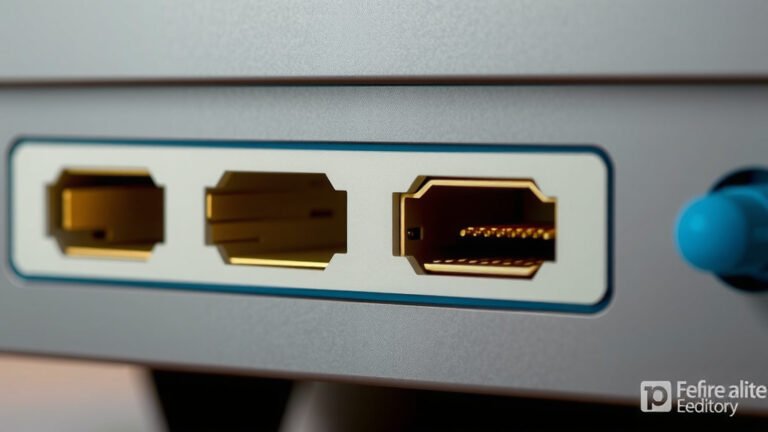
HDMI (High-Definition Multimedia Interface) is the industry standard for connecting audio and video devices. You’ll find multiple HDMI ports on the back or side of your TV. These ports are essential for many offline entertainment options. They transmit both picture and sound signals digitally, offering high quality.
- Blu-ray and DVD Players: If you have a collection of physical media, these players are perfect. Connect them via HDMI to enjoy movies and shows.
- Gaming Consoles: PlayStation, Xbox, and Nintendo consoles all use HDMI. You can play all your favorite games without any internet connection needed for the console itself (though some games may have online features you won’t access).
- Streaming Sticks (in offline mode): Some streaming sticks, like Roku or Fire TV, can download content when connected to Wi-Fi. You can then watch this downloaded content later when your TV is not connected to the internet. The stick itself still needs to be plugged into your TV’s HDMI port.
- Laptops and Computers: Connect your computer to your TV via HDMI. You can then play any media file stored on your computer or access offline content from various software.
- Digital Cameras and Camcorders: Some devices can output directly to a TV via HDMI for immediate playback of photos and videos.
USB Ports for Media Playback
Many smart TVs also feature USB ports. These are incredibly useful for playing media files directly from a USB drive. You can store photos, music, and videos on a thumb drive or external hard drive.
Simply plug the USB drive into the TV’s USB port. Then, navigate to the TV’s media player app or input source. You should be able to browse the contents of your drive and play compatible files. This is a fantastic way to share photos with family or watch your own home videos. The file format compatibility can vary between TV models, so check your TV’s manual for supported formats.
Understanding Your TV’s Built-in Media Player
Even without an internet connection, your smart TV likely has a built-in media player application. This is the software that allows you to access content from connected USB drives or other inputs. Think of it as a universal player for your offline media library.
When you connect a USB drive, the TV’s media player should recognize it. You can then access folders and files stored on the drive. It supports various file types, including common video formats like MP4, MKV, and AVI, as well as image files like JPEG and music files like MP3. This feature turns your smart TV into a capable media hub for all your stored content. It’s a **hidden gem** for many users.
What You’ll Miss Out On (and What You Won’t!)
It’s important to be realistic about what features require an internet connection. If your TV isn’t connected to Wi-Fi, you won’t be able to:
- Stream content from apps like Netflix, Hulu, Amazon Prime Video, or YouTube.
- Use voice commands that require online processing.
- Browse the internet using the TV’s built-in web browser.
- Receive software updates for your TV.
- Access cloud-based smart home features or other online services.
However, you will still be able to:
- Watch live TV channels via antenna, cable, or satellite.
- Play games on connected consoles.
- Watch movies and shows from Blu-ray or DVD players.
- View photos and videos from USB drives.
- Use your TV as a monitor for your computer.
Research and found that for many users, the core functionality of watching television and playing content from connected devices is what matters most. The “smart” features are often considered a bonus. Your TV will still perform these core functions perfectly well without internet. It’s all about knowing your options.
Making the Most of Your Wi-Fi-Free Smart TV Experience
Getting the most out of your smart TV without Wi-Fi involves a little planning. It’s about preparing your content sources and understanding your TV’s capabilities. We’ve put together a quick checklist to help you get started.
Your Offline Smart TV Checklist:
- Ensure you have an antenna for free broadcast channels if you don’t use cable/satellite.
- Invest in a good quality HDMI cable for connecting external devices.
- Consider purchasing a Blu-ray or DVD player for a vast library of physical media.
- Keep a USB drive handy for storing and playing your own media files.
- Familiarize yourself with your TV’s media player app and supported file formats.
- Test all your physical connections to ensure they are secure and working properly.
By focusing on these offline methods, you can maintain a rich and enjoyable entertainment experience. Your smart TV is a versatile device. It doesn’t need to be online to provide hours of viewing pleasure. Many experts suggest that focusing on these core, reliable methods can actually lead to a more focused and less distracting entertainment experience.
“` “`html
Conclusion
You absolutely can enjoy your smart TV without a Wi-Fi connection. Your TV remains a powerful screen ready for various content sources. By connecting an antenna, cable box, or external devices like gaming consoles and Blu-ray players, you retain full viewing capabilities. Even a simple USB drive can bring your stored photos and videos to life. Don’t let the “smart” label fool you; the core function of displaying entertainment is always available. Your next step is to gather the necessary cables and devices to maximize your offline viewing experience.
Frequently Asked Questions
Will my smart TV still turn on without Wi-Fi?
Yes, your smart TV will still power on and function like a regular television without Wi-Fi. The power button and basic display functions do not require an internet connection. You can still access its menus and connected devices.
Can I download apps on my smart TV without Wi-Fi?
No, you cannot download or update apps on your smart TV without an active Wi-Fi connection. Apps like Netflix or YouTube require internet access to function and to be installed from the TV’s app store.
How do I connect a gaming console to my smart TV without Wi-Fi?
You connect a gaming console using an HDMI cable. Simply plug one end into your console and the other into an available HDMI port on your TV. Your TV will then display the game directly from the console.
Is it safe to use my smart TV if it’s not connected to Wi-Fi?
It is perfectly safe to use your smart TV without Wi-Fi. In fact, not connecting to Wi-Fi can actually enhance your privacy by preventing your TV from sending usage data online. You will just miss out on internet-dependent features.
What happens to my smart TV’s software updates if I don’t have Wi-Fi?
Your smart TV will not receive automatic software or firmware updates without a Wi-Fi connection. You may be able to manually update by downloading the firmware to a USB drive from the manufacturer’s website, but this is not always an option.
“`