How Smart TVs Work: A Simple Explanation
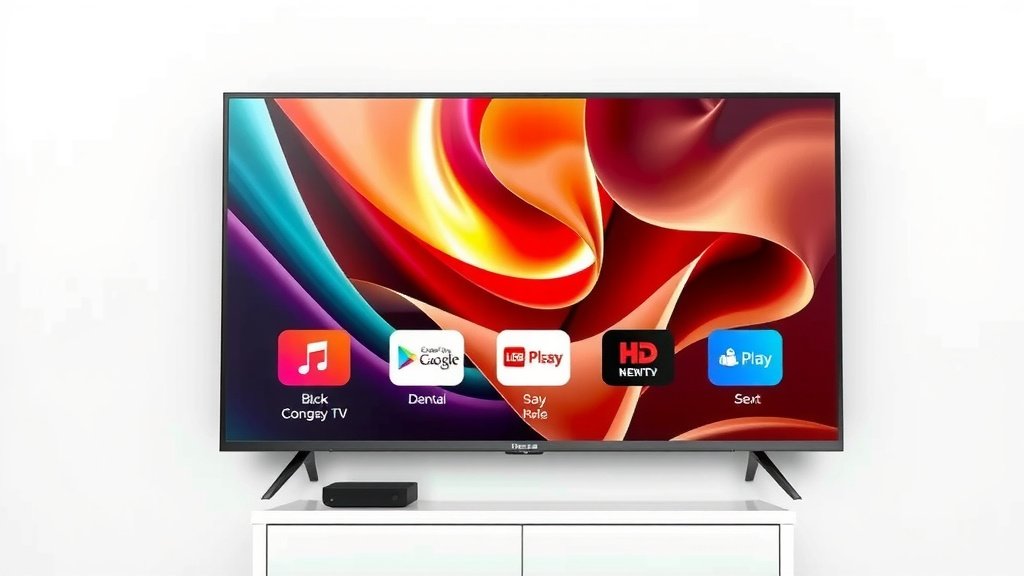
Your smart TV works by connecting to the internet, letting you stream movies, browse apps, and even surf the web right from your couch. It’s like a computer built into your television, running on its own operating system to manage all those cool features. This connection allows it to access a vast amount of online content and services.
Think of it as a regular TV with superpowers. Beyond just channels, it offers a gateway to services like Netflix, Hulu, and YouTube. Many smart TVs also include features for screen mirroring from your phone or tablet, making sharing photos or videos a breeze. It’s designed for a connected, convenient entertainment experience.
- Smart TVs use the internet to stream content.
- They have their own operating system, like a computer.
- You can access apps like Netflix and YouTube.
- Screen mirroring is often a built-in feature.
- It’s designed for easy, connected entertainment.
Ready to understand what makes your smart TV tick? Let’s break down how it all comes together so you can be the most informed viewer on the block.
Understanding How Your Smart TV Works
Your smart TV is more than just a screen; it’s a connected hub for your entertainment. It brings the internet directly to your living room.
Think of it like a computer that’s been streamlined for watching movies and shows. It uses a special software, called an operating system, to run all its smart features. This system is what allows you to download apps and access online content.
The Brains Behind the Screen: Operating Systems and Hardware
Every smart TV runs on an operating system, much like your smartphone or computer. This software manages everything your TV does.
Common Smart TV Operating Systems
You’ll find several different operating systems powering smart TVs. Some of the most popular include Roku TV, Amazon’s Fire TV, Google TV (which evolved from Android TV), and Samsung’s Tizen. Each offers a slightly different user interface and app store.
Roku TV is known for its simple, user-friendly design and a wide selection of streaming channels. Fire TV offers deep integration with Amazon’s ecosystem, including Alexa voice control. Google TV provides access to a vast library of apps and services through the Google Play Store. Tizen, on the other hand, is Samsung’s own system, focusing on a clean look and quick access to content.
Internal Components: What’s Inside?
Beneath the sleek exterior, your smart TV contains several key components. A powerful processor handles all the tasks, from loading apps to playing high-definition video. It’s similar to the CPU in your computer.
You also have memory (RAM), which helps the TV run multiple apps smoothly at once. Then there’s storage, where the operating system and your downloaded apps reside. Finally, a network interface card (NIC) connects your TV to the internet, either via Wi-Fi or an Ethernet cable.
Connecting to the World: Internet Connectivity
The “smart” in smart TV comes from its ability to connect to the internet. This connection is absolutely essential for most of its features.
How Your TV Gets Online
Most smart TVs offer two ways to connect. You can use Wi-Fi, which is wireless and convenient. Simply select your home network from the list and enter your password. Or, you can use a wired Ethernet connection. This involves plugging a cable directly from your router to your TV, offering a more stable connection.
Many people find Wi-Fi perfectly adequate for streaming. However, for the best possible streaming quality, especially for 4K content, a wired Ethernet connection is often recommended by experts (CNET). It minimizes buffering and ensures a consistent stream.
Accessing Content: Apps and Streaming Services
Once connected, your smart TV becomes a portal to a universe of entertainment beyond traditional broadcast channels.
The Role of Apps
Smart TVs feature an app store, similar to what you find on your phone. From here, you can download applications for various streaming services. These include giants like Netflix, Hulu, Disney+, Amazon Prime Video, and YouTube.
You can also find apps for music streaming (like Spotify), news, games, and even fitness. The selection varies depending on the TV’s operating system. Finding your favorites is usually straightforward.
Understanding Streaming
When you choose a show or movie within an app, your TV uses its internet connection to stream that content. This means the video data is sent to your TV in small packets over the internet. Your TV then plays these packets in real-time.
This process is why a good internet connection is so vital. If your internet is slow, you might experience buffering, where the video stops to load. Many sources suggest a minimum download speed of 5 Mbps for HD streaming and 25 Mbps for 4K streaming (FCC.gov).
Beyond Streaming: Additional Smart Features
Smart TVs often pack in extra features that enhance your viewing experience.
Screen Mirroring and Casting
One popular feature is screen mirroring. This allows you to display the screen of your smartphone, tablet, or computer directly onto your TV. It’s great for sharing photos, watching videos from your phone on a bigger screen, or giving presentations.
Some TVs use specific technologies for this, like Miracast or AirPlay (for Apple devices). Others support Google Cast, which lets you “cast” content from compatible apps on your phone to the TV without mirroring your entire screen.
Voice Control and Smart Home Integration
Many smart TVs now come with built-in voice assistants, such as Google Assistant or Amazon Alexa. You can use voice commands to change channels, search for content, control playback, or even adjust TV settings.
Furthermore, some smart TVs can integrate with your smart home devices. You might be able to use your TV remote to control your smart lights or thermostat, or have your TV display notifications from your security cameras.
A Quick Checklist for Your Smart TV
Here’s a simple way to think about what makes your smart TV work:
- Internet Connection: Essential for most smart features.
- Operating System: The software that runs everything.
- Apps: Your gateway to streaming services and more.
- Processor & Memory: The TV’s internal “brain” and “short-term memory.”
- User Interface: How you navigate and control the TV.
- Connectivity Options: Wi-Fi and Ethernet for internet access.
Conclusion
So, you’ve seen how your smart TV is essentially a compact computer for your living room. It uses an operating system to manage its functions and connects to the internet for all its smart features. This allows you to access a universe of content through apps and streaming services. By understanding its internal components and connectivity, you can get the most out of your entertainment experience. Ready to dive in? Your next step is to explore your TV’s app store and see what new shows and movies await!
Frequently Asked Questions
Does my smart TV need an internet connection to work at all?
Your smart TV needs an internet connection to use its “smart” features like streaming apps and web browsing. However, it will still function as a regular TV to watch broadcast channels if you have an antenna or cable connection. You just won’t be able to access any online content without it.
How do I know which operating system my smart TV uses?
You can usually find out your smart TV’s operating system in the settings menu, often under “About” or “System Information.” Sometimes, the system’s name is also displayed briefly when you turn the TV on.
Is a wired Ethernet connection really better than Wi-Fi for my smart TV?
For streaming high-quality video, especially 4K content, a wired Ethernet connection often provides a more stable and faster connection than Wi-Fi. This can help reduce buffering and ensure a smoother viewing experience. Wi-Fi is usually fine for most general use, though.
Can I install apps on my smart TV that aren’t in its app store?
Generally, no. Smart TVs are designed to only allow app installations from their official app store. This is for security reasons and to ensure compatibility with the TV’s operating system and hardware.
What is screen mirroring and how is it different from casting?
Screen mirroring duplicates your entire device’s screen onto the TV. Casting, on the other hand, sends specific content from an app on your device to the TV, allowing you to use your device for other things while the content plays on the TV.