How to Add Apps to Your Smart TV: A Quick Guide
Adding apps to your smart TV is usually a straightforward process, and most smart TVs make it easy to access and install new applications. You’ll typically navigate to your TV’s app store, search for the app you want, and select “install” or “download.” Think of it like adding apps to your smartphone, just on a bigger screen!
Smart TVs run on various operating systems, like webOS, Tizen, or Android TV. Each system has its own app store, but the general steps for finding and adding apps are remarkably similar across brands. This allows you to enjoy streaming services, games, and other entertainment options right from your television. You can even find helpful productivity tools on some models.
- Access your TV’s built-in app store.
- Use the search function to find desired apps.
- Select the app and choose the install option.
- Wait for the app to download and install.
- Find your new app on your home screen or in a dedicated apps section.
Let’s walk through the common steps to get your favorite apps onto your smart TV so you can start enjoying them.
Getting New Apps Onto Your Smart TV
Adding new apps to your smart TV is a great way to expand its entertainment capabilities. You might want to try a new streaming service, a fun game, or even a fitness app. The process is usually quite similar across different TV brands and operating systems. Think of your TV’s app store like a digital mall for your living room.
Understanding Your TV’s App Store
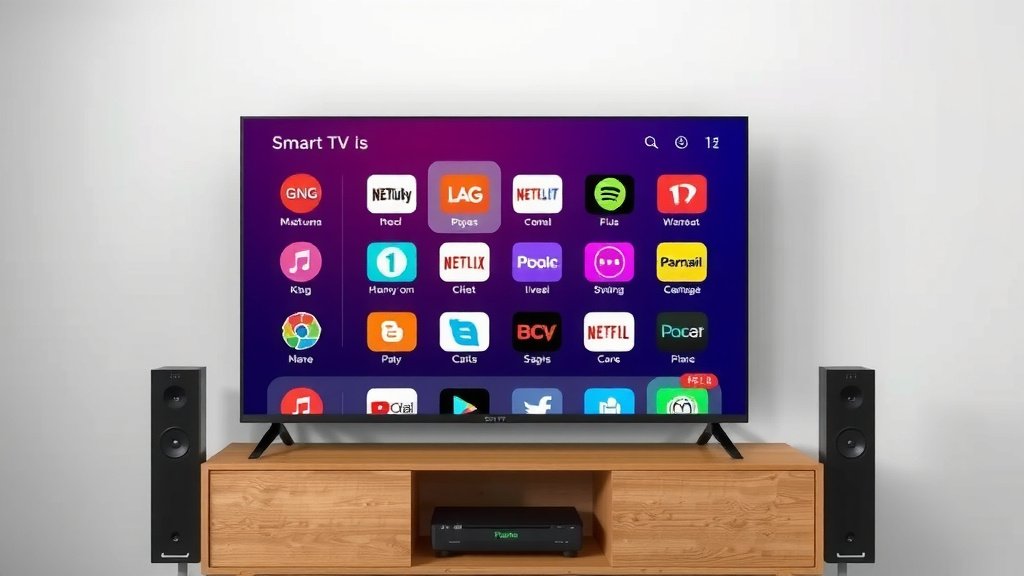
Most smart TVs come with a pre-installed app store. This is your gateway to downloading new applications. The name of the app store can vary depending on your TV’s manufacturer. For example, Samsung TVs use the Smart Hub, LG TVs have the LG Content Store, and Android TVs utilize the Google Play Store.
These app stores are designed to be user-friendly. You’ll typically find categories to browse, like “Top Free Apps,” “New Releases,” or “Entertainment.” There’s also usually a search bar so you can look for a specific app by its name. We found that using the search function is the quickest way if you know exactly what you’re looking for.
Step-by-Step App Installation Guide
Let’s walk through the general steps to get an app from the store onto your TV. While the exact button names might differ slightly, the core process remains consistent.
Navigating to Your TV’s App Store
First, you need to find the app store. This is often accessible directly from your TV’s home screen. Look for an icon that resembles an app store, a shopping bag, or sometimes just the word “Apps.” You might need to press your remote’s “Home” or “Smart” button to get to the main menu.
Once you’re on the home screen, navigate to the section labeled “Apps” or “App Store.” Some TVs might have a dedicated button on the remote for this. If you’re unsure, check your TV’s user manual or do a quick online search for your specific TV model and how to access its app store.
Searching for Your Desired App
After entering the app store, you’ll see a search bar or a magnifying glass icon. Select this to bring up the on-screen keyboard. Start typing the name of the app you want to install. For instance, if you’re looking for the popular streaming service, you’d type “Netflix” or “Disney Plus.”
As you type, the app store will likely suggest matching results. Select the correct app from the list. Many experts suggest making sure you’re selecting the official app to avoid scams or unofficial versions (Google Support).
Installing the App
Once you’ve found the app, select it. This will take you to its dedicated page, which usually shows screenshots, a description, and user reviews. On this page, you should see a button that says “Install,” “Download,” or “Get.”
Press the install button. Your TV will then begin downloading the app. You’ll often see a progress bar or a percentage indicator showing you how far along the download is. The time it takes will depend on the size of the app and your internet connection speed.
Launching Your New App
After the download and installation are complete, the “Install” button might change to “Open” or “Launch.” You can select this to start the app immediately. Alternatively, you can go back to your TV’s home screen or app list.
Your newly installed app should appear in your list of applications. Sometimes, it might be placed at the end of the list, or it might be added to a “Recently Added” section. You can then select it to open and start using it. Many apps will require you to sign in or create an account before you can use them.
Troubleshooting Common Issues
Occasionally, you might run into a snag. Don’t worry, these are usually easy to fix.
App Not Found?
If you can’t find an app, it might not be available for your TV’s operating system. Some apps are exclusive to certain platforms. For example, a very niche app might only be available on Android TV and not on a Tizen-based Samsung TV. We found that checking the app developer’s website can confirm compatibility.
Installation Errors?
If an app fails to install, try restarting your TV and your internet router. Sometimes, a simple reboot can clear up temporary glitches. Also, ensure your TV’s software is up to date, as outdated software can sometimes cause compatibility problems.
Another common fix is to check your TV’s available storage space. If your TV is full, you won’t be able to install new apps. You may need to delete unused apps to free up space.
Organizing Your Apps
Once you start downloading multiple apps, your home screen can become a bit cluttered. Most smart TVs offer ways to organize your apps. You can usually move apps around, group them into folders, or even delete ones you no longer use.
To rearrange apps, you often need to highlight the app icon and press and hold a specific button on your remote (like “OK” or “Enter”). This usually brings up options to move, delete, or uninstall the app. Check your TV’s settings menu for specific instructions on app management. Keeping your apps tidy makes finding what you want much quicker.
Quick Checklist for Adding Apps
Here’s a quick rundown to help you remember the essential steps:
- Locate your TV’s app store.
- Use the search bar to find the app.
- Select the app you want.
- Choose the “Install” or “Download” button.
- Wait for the download to complete.
- Find and open your new app.
Considering App Availability Across Brands
While the process is similar, the app selection can differ between TV brands. Samsung’s Tizen OS and LG’s webOS have robust app stores with most major streaming services. Android TV and Google TV, found on brands like Sony, TCL, and Hisense, also offer a vast library through the Google Play Store.
Some manufacturers might pre-install certain apps that you can’t remove. Others might have exclusive apps or partnerships. If a specific app is a must-have for you, it’s a good idea to research its availability on a particular TV model before purchasing.
We found that for the most popular streaming services like Netflix, Hulu, Amazon Prime Video, and Disney+, you’ll almost always find them available across all major smart TV platforms. For less common apps, a quick search within the TV’s app store is your best bet.
Keeping Your Smart TV Up-to-Date
To ensure the best experience and access to the latest apps, it’s important to keep your smart TV’s software updated. Manufacturers regularly release updates that can improve performance, fix bugs, and add new features.
You can usually find software update options within your TV’s settings menu. Look for sections like “Support,” “System,” or “About.” Enabling automatic updates is often the easiest way to stay current, but you can also manually check for updates. Keeping your TV updated also helps maintain security, which is always a good thing (Federal Trade Commission). To ensure the best experience and access to the latest apps, our guide explains how to keep your TV’s software updated.
Understanding App Permissions
When you install an app, it might ask for certain permissions, like access to your location, microphone, or contacts. It’s wise to review these permissions. If an app asks for access that doesn’t seem necessary for its function, you might want to reconsider installing it or adjust its permissions in your TV’s settings.
For instance, a simple puzzle game likely doesn’t need access to your microphone. However, a video conferencing app would. You can usually manage app permissions within your TV’s system settings, often under an “Apps” or “Privacy” section.
Conclusion
You’ve learned how easy it is to expand your smart TV’s entertainment options. From navigating your TV’s app store to searching and installing your favorite apps, the process is designed to be user-friendly. Remember, if you encounter issues, simple troubleshooting steps like restarting your devices or checking storage can often resolve them. Don’t forget to keep your TV’s software updated for the best performance and security. Your next step is to grab your remote and head to your TV’s app store to discover new content!
Frequently Asked Questions
Can I add any app I want to my smart TV?
Not every app is available for every smart TV. App availability depends on your TV’s operating system, such as Android TV, webOS, or Tizen. Major streaming apps are widely available, but some specialized apps might be limited to specific platforms. We found that checking the app developer’s website can confirm compatibility.
Why can’t I find a specific app in my TV’s app store?
If an app isn’t appearing in your search, it’s likely not supported on your TV’s operating system. It might be exclusive to a different platform or perhaps not yet developed for smart TVs. Double-checking the app’s compatibility for your TV model is a good idea.
How do I free up space if my smart TV is full?
To make room for new apps, you may need to uninstall programs you no longer use. Go to your TV’s settings menu and find the “Apps” or “Applications” section. From there, you can select apps to delete. We found that deleting unused apps is a quick way to free up storage.
Do I need a separate account for each app on my TV?
Yes, generally you will need to sign up for an account or log in with an existing one for most apps. This applies to streaming services, games, and social media apps. The TV app handles the download, but the app itself requires its own user profile for personalized content and access.
Is it safe to download apps from my TV’s app store?
For the most part, yes. Official app stores provided by TV manufacturers are generally safe, as they vet the applications. However, it’s always wise to read descriptions and reviews carefully. We recommend sticking to official apps to avoid potential security risks or scams.