Mirror Your Phone to TV: Easy Step-by-Step Guide
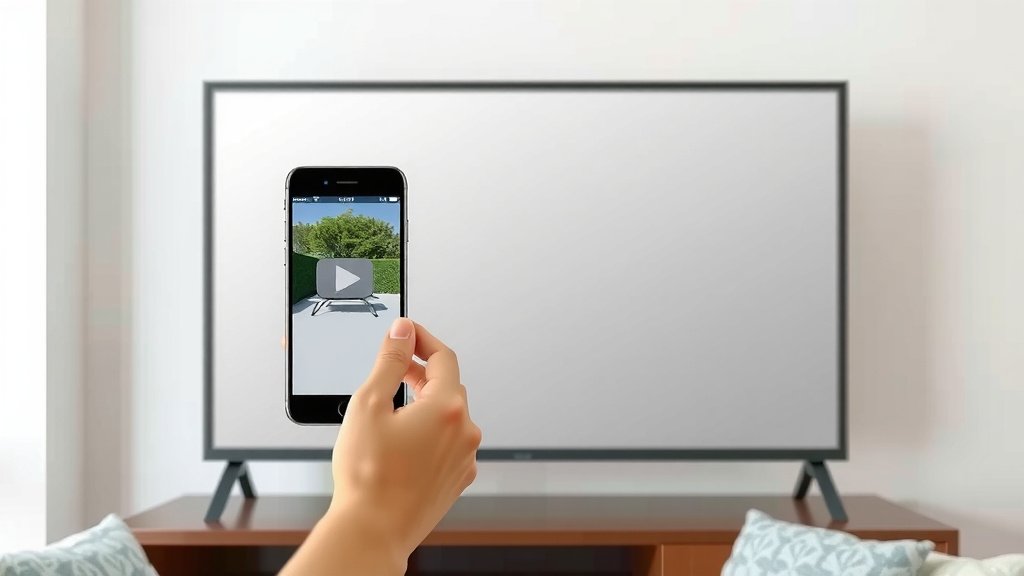
Mirroring your phone to your TV is surprisingly easy to do. You can share photos, watch videos, or even give presentations on a bigger screen. Most modern TVs and phones support this feature, making it a convenient way to enjoy your mobile content larger than life.
Whether you have an Android or an iPhone, there are typically built-in options or simple apps that can help. It’s a great way to avoid crowding around a small screen. We found that the process is very straightforward, often taking just a few minutes to set up your wireless connection.
- Screen mirroring connects your phone to your TV wirelessly.
- Both Android and iPhones can mirror their screens.
- You can use built-in features or third-party apps.
- It’s ideal for watching videos or sharing photos.
- Setup is usually quick and requires a Wi-Fi connection.
Ready to cast your phone’s display onto your television? Let’s walk through exactly how this works step by step for different devices.
Casting Your Phone to Your TV: A Simple Guide
So, you want to take your phone’s content and blast it onto the big screen? That’s a fantastic idea! Whether it’s a hilarious video clip, a family photo album, or even a business presentation, seeing it on your TV makes a huge difference. We’ve found that most people can get this set up in just a few minutes.
Mirroring Your Android Phone
If you’re rocking an Android device, you’ve likely got some built-in magic to make this happen. Most newer Android phones have a feature called “Screen Cast” or “Smart View.” Your TV also needs to be compatible with this wireless connection. Many smart TVs from brands like Samsung, LG, and Vizio come ready to go.
Using Built-In Android Features
The exact name for this feature can vary by phone manufacturer. Samsung often calls it “Smart View,” while other brands might use “Cast” or “Wireless Display.” You’ll usually find this option in your phone’s quick settings menu. Just swipe down from the top of your screen to reveal it.
Once you find the casting option, tap it. Your phone will then start looking for nearby devices. You should see your TV appear in the list if it’s on and connected to the same Wi-Fi network as your phone. Simply select your TV, and bam! Your phone’s screen should appear on your television.
Troubleshooting Common Android Issues
What if your TV doesn’t show up? First, double-check that both your phone and your TV are connected to the exact same Wi-Fi network. This is the most common reason for connection problems. Sometimes, restarting your phone and your TV can also work wonders.
If you’re still having trouble, your TV might not support direct casting from your phone. In this case, you might need a small, inexpensive device like a Google Chromecast or an Amazon Fire TV Stick. We found these are easy to set up and work with most TVs that have an HDMI port.
Mirroring Your iPhone or iPad
For our Apple fans, mirroring your iPhone or iPad to your TV is incredibly straightforward, especially if you have an Apple TV. This process uses a feature called AirPlay, which is Apple’s own wireless streaming technology. It’s designed to be super user-friendly.
Leveraging AirPlay for Apple Devices
AirPlay works by allowing your Apple devices to stream audio and video wirelessly to compatible devices. If you have an Apple TV connected to your television, it acts as the receiver. Many newer smart TVs also support AirPlay directly, meaning you might not need an Apple TV at all!
To start mirroring, you’ll need to access the Control Center on your iPhone or iPad. Swipe down from the top-right corner of your screen (or up from the bottom on older models). Look for the “Screen Mirroring” icon, which often looks like two overlapping rectangles. Tap it, and you should see a list of available AirPlay devices. Select your Apple TV or AirPlay-compatible TV. You might be prompted to enter a four-digit code that appears on your TV screen. Once entered, your device’s screen will be mirrored!
Mirroring Without an Apple TV
What if you don’t have an Apple TV? Good news! Many modern smart TVs, particularly those from brands like Samsung, LG, Sony, and Vizio, now have AirPlay 2 built-in. This means you can mirror directly to your TV without any extra hardware.
You’ll follow the same steps as above, but instead of selecting an Apple TV, you’ll look for your smart TV’s name in the AirPlay device list. If your TV supports AirPlay 2, it should appear there automatically. We found this makes mirroring much more accessible for many iPhone users.
Using Third-Party Apps for Universal Mirroring
Sometimes, your phone or TV might be a bit older, or perhaps you’re just looking for more features. In these cases, third-party apps can be a lifesaver. These apps often bridge the gap between different devices and operating systems, offering a universal solution.
Many of these apps are available for both Android and iOS. You usually download the app on your phone and a companion app or software on your TV, or they might simply connect via your home network. Some popular options include AirBeamTV, Mirroring360, and LetsView. We found that many of these apps offer a free trial, so you can test them out before committing.
How These Apps Work
Most mirroring apps work by establishing a connection over your Wi-Fi network. You install the app on your phone and then, often, either select your TV from within the app or use a corresponding app on your TV. They essentially create a temporary private network for screen sharing. Many also allow you to mirror specific content, like photos or videos, rather than your entire screen, which can be more efficient.
A Look at Popular Options
Let’s consider a couple of scenarios. If you have an older smart TV that doesn’t support AirPlay or Miracast well, an app like AirBeamTV can be excellent. It’s designed to stream your iPhone or iPad screen directly to your TV. For a more cross-platform approach, apps like Mirroring360 or LetsView are great. They often work well for mirroring from Android phones to Windows PCs, and then from the PC to a TV, or directly from Android to compatible smart TVs.
Tips for the Best Mirroring Experience
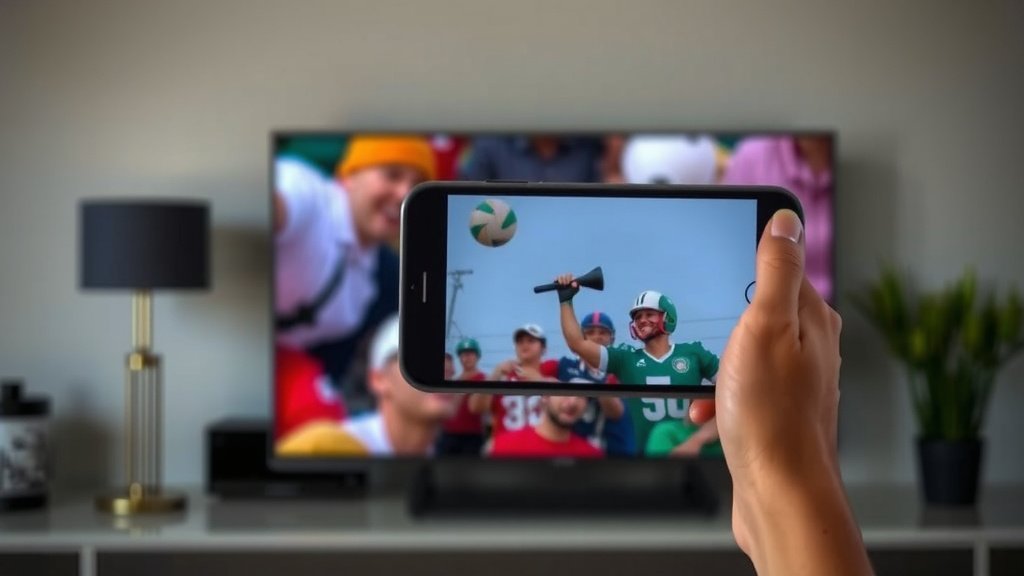
To ensure your screen mirroring goes off without a hitch, a few simple steps can help. A stable Wi-Fi connection is absolutely key. Think of it like a superhighway for your phone’s data; if the highway is bumpy, the ride won’t be smooth.
Optimizing Your Connection
Ensure your router is reasonably close to both your phone and your TV. If you have a dual-band router (2.4GHz and 5GHz), try connecting both devices to the 5GHz band if possible, as it generally offers faster speeds and less interference. Many experts say this can make a noticeable difference in video quality and lag.
Minimizing Lag and Improving Quality
Lag, or the delay between what happens on your phone and what appears on your TV, is a common annoyance. It’s most noticeable when playing games or watching fast-paced action. Closing unnecessary apps on your phone can free up processing power. Also, reducing the resolution of the mirrored content can sometimes help if your network is struggling. We found that for simple photo viewing or presentations, lag is rarely an issue.
What to Mirror and What to Avoid
Screen mirroring is perfect for sharing photos, watching YouTube videos, streaming movies from apps that don’t have native TV support, and giving presentations. For high-end mobile gaming where split-second reactions are needed, you might still find a wired connection or native TV apps are better. We found that mirroring is best when used for casual viewing and content sharing.
Your Quick Mirroring Checklist
Ready to give it a try? Here’s a quick rundown to make sure you’re set:
- Confirm your TV is a smart TV or has a streaming device attached (like Chromecast, Fire Stick, Apple TV).
- Ensure your phone and TV are on the same Wi-Fi network.
- Locate the screen mirroring feature on your phone (e.g., Cast, Smart View, Screen Mirroring, AirPlay).
- Check your TV’s input settings if prompted.
- If needed, download a compatible third-party mirroring app.
- Have fun enjoying your content on the big screen!
Conclusion
You’ve now seen how simple it is to mirror your phone to your TV. Whether you’re using Android’s built-in cast features or iPhone’s AirPlay, getting your content onto the big screen is often just a few taps away. We’ve found that even with older devices, third-party apps provide a great way to connect. By ensuring a stable Wi-Fi connection, you can enjoy a smooth viewing experience for photos, videos, and more. So go ahead and try it out – you’ll love seeing your favorite mobile moments displayed larger than life!
Frequently Asked Questions
Can I mirror my phone if my TV isn’t a smart TV?
Yes, you can often mirror your phone even if your TV isn’t a smart TV. You’ll likely need an external streaming device like a Google Chromecast or Amazon Fire TV Stick. These devices plug into your TV’s HDMI port and connect to your Wi-Fi, allowing your phone to cast to it wirelessly.
Will mirroring drain my phone’s battery faster?
Screen mirroring does use more battery than normal phone use. This is because your phone’s Wi-Fi radio is constantly transmitting data, and the processor is working harder to display the screen content. We recommend keeping your phone plugged in if you plan to mirror for an extended period.
Is there a difference between casting and mirroring?
While often used interchangeably, there’s a slight difference. Casting usually means sending specific content (like a YouTube video) to your TV, and your phone acts as a remote. Mirroring displays your entire phone screen on the TV, exactly as you see it. Many apps support casting, but mirroring is for when you want to show everything on your phone.
What if the screen mirroring quality is poor?
Poor quality is often due to a weak Wi-Fi signal. We suggest making sure both your phone and your TV are close to your Wi-Fi router. Try connecting to the 5GHz band on your router if it’s dual-band, as this usually offers a stronger, faster connection with less interference.
Can I mirror my phone to someone else’s TV at their house?
Generally, you can mirror to another TV if both your phone and the TV are connected to the same Wi-Fi network. If you’re visiting friends or family, you’ll need to know their Wi-Fi password. If their TV doesn’t have built-in mirroring capabilities or a streaming stick, you might not be able to connect.