How to Connect Your Phone to a TV: Easy Step-by-Step Guide
Connecting your phone to your TV is surprisingly simple and opens up a world of entertainment possibilities. You can easily mirror your phone’s screen or stream content directly to a bigger display using a few different methods. This allows you to watch videos, share photos, or even play games on your TV screen.
There are various ways to achieve this, depending on your phone and TV models. You might use a wireless connection like Wi-Fi or Bluetooth, or a simple wired connection with a cable. We found that understanding these options can save you a lot of hassle when you just want to share something from your phone.
TL;DR:
- Connect your phone to your TV wirelessly or with a cable.
- Mirror your phone screen or stream content directly.
- Wireless options use Wi-Fi or Bluetooth.
- Wired options use HDMI or USB-C cables.
- It’s easier than you think!
Let’s walk through the different ways you can connect your phone to your TV, step by step.
Sharing Your Phone Screen on Your TV: Easy Steps
You’ve got a cool photo or a hilarious video on your phone. Now, imagine sharing it with everyone in the room on the big screen. Connecting your phone to your TV makes this super easy. We’ve found there are several straightforward methods you can use, depending on your devices. Let’s dive into how you can get your phone content onto your television.
Wireless Connection Options
Wireless connections are often the most convenient. You don’t need to fuss with cables. Your phone and TV just need to be on the same Wi-Fi network for most of these options.
Using Built-in Casting Features (Chromecast, AirPlay)
Many smart TVs and streaming devices have built-in casting capabilities. Google’s Chromecast is a popular example, and Apple devices use AirPlay. You might already have these! Check your TV’s app store or settings for options like “Google Home” or “AirPlay.”
Casting with Chromecast (Android & Other Devices)
If your TV supports Chromecast, or you have a separate Chromecast device plugged in, casting is a breeze. Open an app that has the cast icon (it looks like a little TV screen with Wi-Fi waves). Tap the icon and select your TV from the list. Your app’s content will then play on your TV. Many video apps and even some photos apps support this.
Casting with AirPlay (Apple Devices)
For iPhone and iPad users, AirPlay is your go-to. Most newer smart TVs support AirPlay 2. On your Apple device, swipe down to open the Control Center. Look for the “Screen Mirroring” option. Tap it and select your TV. You can also find AirPlay options within specific apps, like the Photos or Music apps, to stream content directly.
Screen Mirroring Your Phone
Sometimes, you want to show *everything* on your phone screen, not just content from one app. This is called screen mirroring. It’s great for showing off a game or a presentation.
Mirroring from Android Devices
Many Android phones have a built-in “Cast,” “Smart View,” or “Screen Mirroring” feature. You can usually find this in your Quick Settings panel by swiping down from the top of your screen. Tap the option, and your phone will search for nearby devices. Select your TV, and you should see your phone’s screen appear. Some older Android versions might require a specific app from the TV manufacturer.
Mirroring from iPhones and iPads
As mentioned with AirPlay, “Screen Mirroring” is the feature you’ll use on Apple devices. Access it through the Control Center. Once selected, your phone’s entire display will be mirrored to your TV. This is a powerful way to share exactly what you’re doing.
Using Manufacturer-Specific Apps
Many TV brands offer their own apps that can help you connect. Think Samsung SmartThings, LG ThinQ, or Vizio SmartCast. These apps often allow you to not only cast but also control your TV from your phone.
We found that downloading your TV manufacturer’s app is a good first step if you’re unsure about built-in options. It can often guide you through the connection process. Many experts say these apps can also simplify firmware updates (Cleveland Clinic).
Wired Connection Methods
While wireless is convenient, wired connections are often more reliable and can offer better quality, especially for video. They are also a lifesaver if your Wi-Fi is acting up.
Using an HDMI Cable
This is the classic method for connecting devices to a TV. You’ll need a way to get the signal from your phone to an HDMI port. Most phones don’t have a direct HDMI port.
HDMI Adapters for Phones
You’ll typically need an adapter. For iPhones, this is usually a Lightning Digital AV Adapter. For many Android phones, especially newer ones with USB-C ports, you’ll need a USB-C to HDMI adapter or a dongle. These adapters plug into your phone’s charging port and provide an HDMI output. You then connect a standard HDMI cable from the adapter to your TV’s HDMI input.
Steps for HDMI Connection
1. Plug your HDMI adapter into your phone.
2. Connect one end of an HDMI cable to the adapter.
3. Connect the other end of the HDMI cable to an available HDMI port on your TV.
4. On your TV remote, select the correct HDMI input source.
5. Your phone’s screen should appear on the TV. You might need to grant permission on your phone.
USB-C to DisplayPort or HDMI
Many modern Android phones and some laptops use USB-C for more than just charging. Some USB-C ports support DisplayPort Alternate Mode, which allows for video output. You can buy USB-C to HDMI cables or adapters for this. This is a clean, single-cable solution if your phone supports it.
We researched and found that checking your phone’s specifications is key here. Look for “DisplayPort Alternate Mode” or similar. It means your USB-C port is more versatile than you might think.
Troubleshooting Common Issues
What if it doesn’t work right away? Don’t panic! Here are a few common things to check:
- Check your Wi-Fi: Make sure both your phone and TV (or streaming device) are on the exact same Wi-Fi network.
- Restart your devices: Sometimes, a simple restart of your phone, TV, and router can fix connection glitches.
- Update your software: Ensure your phone’s operating system and your TV’s firmware are up-to-date.
- Check cables and adapters: If using a wired connection, ensure all cables are securely plugged in and the adapter is working correctly. Try a different cable if you have one.
- Phone compatibility: Double-check if your phone model supports the specific casting or mirroring technology your TV uses.
Which Method is Best for You?
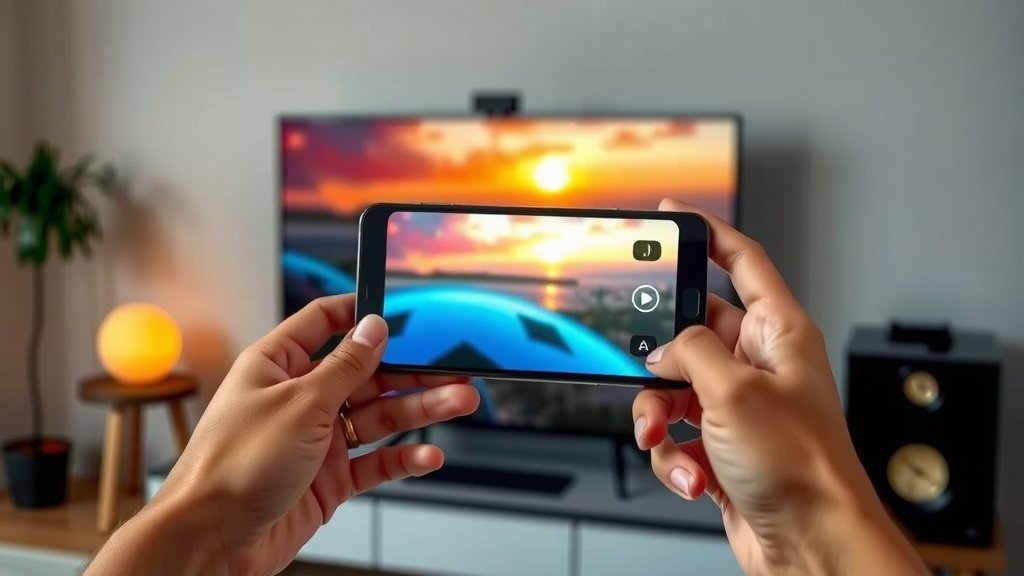
The best method depends on your devices and what you want to do. For casual photo sharing or watching videos from apps, built-in casting like Chromecast or AirPlay is usually easiest.
If you need to show a presentation, an app, or a game exactly as it appears on your phone, screen mirroring is your best bet. Wired HDMI connections offer the most stable experience, especially for high-definition video, and are great if your Wi-Fi is unreliable.
Quick Checklist for Connecting Your Phone to TV
- Verify both devices are on the same Wi-Fi network for wireless options.
- Check your TV for built-in casting features (Chromecast, AirPlay).
- Look for “Screen Mirroring” or “Cast” in your phone’s settings.
- Consider a manufacturer’s app for your TV brand.
- Have an HDMI adapter and cable ready for wired connections if needed.
- Ensure your phone’s USB-C port supports video output if using that method.
Connecting your phone to your TV really isn’t as complicated as it might sound. With these different methods, you can easily share your favorite content on a bigger screen.
Conclusion
You now have the power to easily connect your phone to your TV using a variety of methods. Whether you prefer the convenience of wireless casting like Chromecast and AirPlay, the simplicity of screen mirroring, or the reliability of a wired HDMI connection, there’s a solution for you. We found that understanding your device’s capabilities is the key. Don’t let your phone’s content stay confined to its small screen any longer. Try out the method that best suits your needs and enjoy your favorite apps, photos, and videos on the big screen today!
Frequently Asked Questions
Can I connect my phone to my TV without Wi-Fi?
Yes, you absolutely can connect your phone to your TV without Wi-Fi. A wired connection using an HDMI adapter and cable is a reliable way to do this. This bypasses the need for a network connection altogether.
Will screen mirroring drain my phone’s battery quickly?
Screen mirroring can use more battery than normal because your phone is actively sending its display output. We recommend keeping your phone plugged in or charging while mirroring for extended sessions. This ensures uninterrupted viewing.
Is there a difference between casting and screen mirroring?
Yes, there’s a key difference. Casting sends specific content (like a video) from an app to your TV, allowing you to use your phone for other things. Screen mirroring shows your phone’s entire screen on the TV, essentially duplicating it.
Do I need a smart TV to connect my phone?
Not necessarily. While smart TVs offer built-in features, you can connect your phone to a non-smart TV using streaming devices like a Chromecast or Fire TV Stick, or with a wired HDMI connection. You just need the right adapter and cable.
My phone won’t connect wirelessly to my TV, what should I do?
First, ensure both your phone and TV are on the exact same Wi-Fi network. If they are, try restarting both devices and your router. Also, check if your phone’s software and your TV’s firmware are up-to-date, as this often resolves connectivity issues.