Your Smart TV Setup Guide: Easy Steps for Beginners
Setting up your new smart TV is surprisingly simple and quick. You’ll generally connect it to your home Wi-Fi, sign into your accounts, and download your favorite apps. Many smart TVs guide you through these steps automatically when you first turn them on, making the process quite **user-friendly**. It usually takes less than 30 minutes to get your TV ready for streaming.
Once connected, your smart TV becomes a hub for entertainment. You can access services like Netflix, Hulu, and YouTube without needing extra devices. It offers a more **integrated viewing experience** than traditional TVs. Many models also allow for voice control, adding another layer of **convenience** to your setup.
- Connect to your Wi-Fi network first.
- Log in to your streaming accounts.
- Download the apps you want to use.
- Consider voice commands for easier navigation.
Let’s walk through exactly how to get your smart TV up and running so you can start watching your shows in no time!
Getting Your New Smart TV Connected
So, you’ve got a shiny new smart TV! That’s fantastic. The good news is setting one up isn’t rocket science. You’re probably eager to dive into streaming your favorite shows. We’re here to guide you through connecting your TV to the internet and getting it ready to roll.
The Essential First Step: Wi-Fi Connection
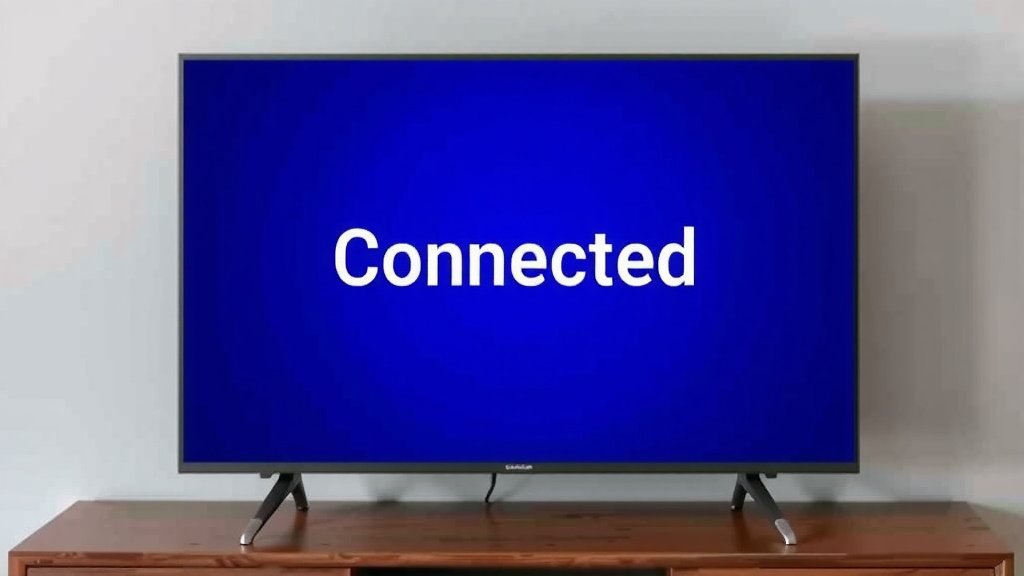
Before you can stream anything, your smart TV needs to join your home network. This is like giving your TV internet access. Most smart TVs will prompt you to connect to Wi-Fi right when you turn them on for the first time. It’s the very first hurdle, and it’s a simple one.
Finding Your Network and Entering the Password
You’ll see a list of available Wi-Fi networks appear on your screen. Look for the name of your home network, often called an SSID. Once you select it, you’ll be asked for your Wi-Fi password. Make sure you have this handy, as it’s case-sensitive. Think of it as the key to your home’s internet door. Typing it in correctly is super important!
Wired Connection Option (Ethernet)
If you prefer a more stable connection or have trouble with Wi-Fi, you can often use an Ethernet cable. Just plug one end into your TV’s Ethernet port and the other into your router. This direct connection can sometimes provide faster speeds and fewer interruptions. Many people find this to be a reliable choice. It removes one potential point of failure.
Account Setup: Logging In and Signing Up
Once your TV is online, it’s time to connect it to your digital life. This usually involves signing into accounts for various services. It might seem like a lot of clicking, but it’s essential for accessing content.
Your TV Manufacturer’s Account
Most smart TV brands, like Samsung, LG, or Sony, will ask you to create or sign into an account with them. This account helps manage your TV’s settings, software updates, and sometimes even grants access to a brand-specific app store. It’s pretty standard practice these days. Consider it like registering your new device.
Streaming Service Accounts
This is where the magic happens! You’ll need to log in to your existing streaming service accounts. Think Netflix, Hulu, Disney+, Amazon Prime Video, and so on. If you don’t have an account for a service you want, you can usually sign up directly through your TV. Have your usernames and passwords ready for each service. This step ensures you can access all the shows and movies you subscribe to. We found that having these credentials written down beforehand saves a lot of time. It’s a bit like collecting your tickets before a show.
Personalizing Your Smart TV Experience
Now that the core setup is done, you can start tailoring the TV to your preferences. This makes using your new device much more enjoyable.
Downloading Your Favorite Apps
Your smart TV comes with a basic set of pre-installed apps. But what about all the others? You’ll want to visit your TV’s app store to download more. Many people start with popular ones like YouTube, Spotify, or specific sports apps. The interface for app stores on TVs is usually straightforward. Just search for the app you want and select “Install” or “Download.” It’s similar to adding apps to your smartphone. We’ve found that organization is key here, so perhaps download your top 5-10 apps first. You can always add more later.
Arranging Apps and Setting Up Profiles
Once apps are installed, you can often rearrange them on your home screen. Put your most-used apps front and center. Some smart TVs also support user profiles. This is fantastic if multiple people use the TV. Each person can have their own personalized recommendations and watch history. It’s a nice touch for households with diverse viewing habits. This personalization can really improve your viewing experience. Think of it as curating your own personal entertainment dashboard.
Exploring Smart TV Features and Settings
Beyond basic streaming, smart TVs offer a host of features to make your life easier. Take a few minutes to explore these.
Understanding the Remote Control
Smart TV remotes can vary wildly. Some are sleek and minimalist, while others have more buttons. Many now include voice control buttons. Take a moment to familiarize yourself with yours. Pointing it at the TV and pressing buttons should give you an immediate sense of how it works. You’ll find buttons for navigation, volume, power, and often a home button. Don’t be afraid to press buttons and see what happens (as long as you’re not in the middle of a critical update!).
Voice Control and Smart Assistants
Many smart TVs come with built-in voice assistants like Google Assistant or Amazon Alexa. Activating this feature usually involves pressing a microphone button on your remote. You can then ask your TV to open apps, search for shows, adjust the volume, or even control other smart home devices. For instance, you might say, “Open Netflix” or “What’s the weather?” Research suggests that voice control can significantly speed up navigation for many users. It’s like having a personal assistant for your TV. You’ll need to grant it permission to listen, of course.
Picture and Sound Settings Adjustment
Don’t forget about the core viewing experience! Your TV has settings for picture and sound. You can often find options for “Picture Mode” (like Cinema, Standard, or Game) and “Sound Mode.” We found that tweaking these can make a noticeable difference. For example, a “Game Mode” often reduces input lag, which is great for gamers. For movies, a “Cinema Mode” might offer more accurate colors. Many experts suggest starting with the presets and then making minor adjustments to brightness, contrast, and color to suit your room’s lighting. It’s all about making the picture pop just right for you.
Final Checks Before You Binge
You’re almost there! A few quick checks can ensure everything is running smoothly.
- Check Internet Speed: If streaming seems choppy, test your internet speed. Many TVs have a built-in speed test tool.
- Install Updates: Ensure your TV’s software is up to date. Manufacturers often release updates for performance and security.
- Test Key Apps: Open your most-used streaming apps to confirm they load and play content correctly.
Conclusion
You’ve now got a clear roadmap to getting your new smart TV up and running smoothly! We’ve covered connecting to your Wi-Fi, setting up essential accounts for streaming, and personalizing your experience with apps and profiles. Don’t forget to explore those smart features like voice control and adjust your picture and sound settings for the best viewing. The most important next step is to power on your TV and follow these steps. Soon, you’ll be enjoying all the entertainment your smart TV has to offer. Happy streaming!
Frequently Asked Questions
What if my smart TV won’t connect to Wi-Fi?
First, double-check that you’ve entered your Wi-Fi password correctly, as it’s case-sensitive. You can also try restarting your router and your TV, and then attempt to connect again. If problems persist, consider using an Ethernet cable for a wired connection, which is often more stable.
How do I find my Wi-Fi password if I’ve forgotten it?
Your Wi-Fi password is usually found on a sticker on your router itself, or in the documentation that came with it. If you set it up yourself, you might have saved it in your computer’s network settings or your smartphone. You can also contact your internet service provider for assistance.
Do I really need to create an account for the TV manufacturer?
Yes, most smart TV manufacturers require you to create an account. This account helps with software updates, troubleshooting, and accessing their specific app store. We’ve found that registering your TV ensures you get important notifications and can manage your device settings easily.
Can I use my smart TV without signing into streaming services?
You can still use your smart TV for basic functions like watching live TV if you have a tuner and antenna, or for any pre-installed apps like a web browser. However, to access services like Netflix, Hulu, or YouTube, you absolutely need to sign into those specific streaming accounts.
How can I improve streaming quality if it’s choppy?
Choppy streaming often points to a weak internet connection. We recommend checking your internet speed using a tool on your TV or a separate device. If the speed is low, try moving your router closer to the TV, reducing the number of devices using your Wi-Fi simultaneously, or using a wired Ethernet connection.