How to Set Up a CAM Module: A Step-by-Step Guide
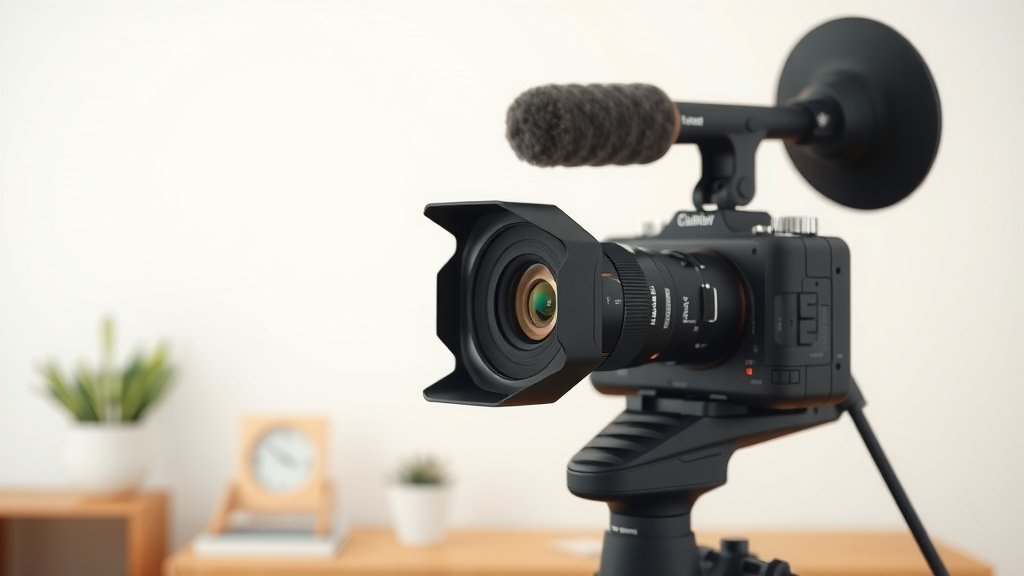
Setting up a cam module is simple: power off your device, insert the module into the correct slot (or connect it via cable), then install the drivers or app that let it work. Most setups take less than 15 minutes, even if you’ve never touched one before.
Cam modules come in a few flavors, from laptop camera boards to standalone modules for Raspberry Pi and security systems. We researched the most common setup methods and found that most problems come from one thing: skipping the driver installation step. The good news? You can avoid all of it with a little guidance. And yes, we mean you — even if your tech skills peak at restarting the router.
Quick summary before we dive in:
- Turn off your device before installing the cam module.
- Seat the module firmly in its slot or connect it properly.
- Install the drivers or software so your device can actually see it.
- Test the camera with a quick video or preview app.
- Troubleshoot loose connections first if nothing shows up.
Below, we walk you through the whole process step by step, so by the end, your cam module will be up and running without the headaches. Let’s get started.
Getting Your Cam Module Ready to Install
Before you touch a single cable, gather your gear. A little prep makes the actual install feel like a breeze. We found that people who prep first run into half the problems of people who dive right in.
Think of it like cooking. You wouldn’t start a recipe with the pan cold and the ingredients scattered across the kitchen, right? Same idea here.
What You’ll Need Before You Start
Most cam module setups need the same basic items. Check this list before moving forward:
- Your cam module and any ribbon cable or connector it came with.
- The device you’re connecting it to (laptop, Raspberry Pi, security hub, etc.).
- A small screwdriver, if your module uses screws.
- An internet connection for downloading drivers or software.
- The instruction sheet that came in the box — yes, actually read it.
That’s it. Nothing fancy. If something on this list is missing, grab it now so you don’t have to stop mid-install.
Know Your Module Type First
Not all cam modules connect the same way, and this is where many folks get tripped up. There are three common types:
- Ribbon-style modules — flat, flexible boards that slide into a slot. Common on Raspberry Pi and laptops.
- USB camera modules — plug-and-play style, usually the easiest.
- Wireless modules — connect over Wi-Fi and pair through an app.
Which one do you have? Look at the connector on the module. A wide flat strip means ribbon. A metal tip means USB. No wires at all means wireless. Simple as that.
Installing a Cam Module Step by Step
Here’s the part you came for. Follow these steps in order, and don’t skip ahead. Power off your device first — this protects both the module and the device from electrical damage.
Step 1: Power Down and Ground Yourself
Shut down your device completely. Unplug it from the wall. Then touch something metal, like a doorknob or desk leg, to discharge static electricity.
Static might sound like an old wives’ tale, but it’s real. A small zap can quietly damage a sensitive camera board. Many electronics guides, including resources from the National Institute of Standards and Technology, recommend grounding yourself before handling circuit boards.
Step 2: Seat the Module in Its Slot
For ribbon-style modules, gently lift the locking tab on the connector. Slide the ribbon in with the metal contacts facing the right direction — check your manual for which way. Then push the tab back down until it clicks.
Here’s a tip we found saves people a lot of grief: the ribbon should go in straight and firm. If it feels like it needs force, it’s probably crooked. Ease it out and try again.
For USB modules, just plug it into an open port. For wireless modules, skip to the software step — there’s nothing to physically install.
Step 3: Install the Drivers or Software
This is the step everyone skips, and it’s the reason most cam modules “don’t work.” Your device needs software that speaks the camera’s language. Without it, the hardware sits there invisible.
Where do you get the driver? Three places, in order of preference:
- The manufacturer’s website (search the exact model number).
- The included CD or download card, if your module came with one.
- Your operating system’s automatic update tool.
For Raspberry Pi users, enabling the camera interface in the system settings usually does the job. Many official documentation guides walk through this in a few clicks.
Step 4: Test the Camera
Power your device back on. Open any app with a camera preview — a video call app, a photo booth tool, or the device’s built-in camera app. If you see yourself (possibly looking confused, which is fine), you’re done.
Don’t see anything yet? Don’t panic. That’s what the next section is for.
Quick Setup Checklist
Ticking boxes feels oddly satisfying, so here’s your quick checklist in one place:
- Device powered off and unplugged.
- Module seated firmly, contacts facing the correct way.
- Connector tab clicked back into place.
- Driver or app installed from the manufacturer.
- Device restarted after installation.
- Camera tested in a preview app.
Fixing Common Cam Module Problems
When things go wrong, they usually go wrong in predictable ways. We found that loose connections and missing drivers cause the majority of failures. Start there before assuming your module is dead.
Camera Not Detected at All
Check the cable first. Reseat the ribbon or USB connection, making sure it’s fully inserted. Half-seated connectors are the number one culprit we found in troubleshooting guides.
Still nothing? Try the module in a different port or slot. If it works there, the original port may be the problem, not the camera.
Camera Detected but Shows a Black Screen
A black screen often means the driver installed but the camera is blocked by privacy settings. On Windows, check your privacy permissions under camera settings. On Mac, look in system settings under privacy and security.
Apps need explicit permission to use your camera. It’s a security feature, not a glitch — though it sure feels like one when you’re mid-setup.
Grainy or Upside-Down Image
Grainy footage usually means poor lighting, not a broken module. Camera modules need decent light, more than your phone does. Try moving a lamp closer.
An upside-down image? That’s normal on ribbon modules. The orientation depends on how it was installed. Most software has a flip or rotate setting to fix it in seconds.
When to Ask for Help
Sometimes a module is simply defective. If you’ve rechecked every connection, reinstalled the driver, and tested on another device with no luck, contact the manufacturer. Most offer support within the warranty period.
Keep your receipt. Future you will be grateful.
Caring for Your Cam Module After Setup
Once it’s working, a little maintenance keeps it that way. Dust is the main enemy — it collects on the lens and makes images foggy. Wipe the lens gently with a microfiber cloth, the same kind you use on glasses.
Also, check for driver updates every few months. Manufacturers release them to fix bugs and improve performance. Five minutes of updating beats an hour of troubleshooting later.
Safety Tips Worth Remembering
One last thing before you go. Cam modules involve small parts and sensitive electronics, so keep a few habits in mind:
- Never install or remove a module while the device is plugged in.
- Keep drinks and snacks away from your workspace. Crumbs and circuit boards don’t mix.
- Handle the ribbon cable by the edges, not the metal contacts.
- Store spare modules in anti-static bags if you have them.
And that’s really all there is to it. You went from a box of parts to a working camera — take a second to enjoy that. You’ve officially done something many people assume requires a technician.
Conclusion
Setting up a cam module comes down to three things: powering off first, seating the connection properly, and installing the drivers. Skip any one of those, and you’ll spend your afternoon troubleshooting instead of using your camera. We found that most failures trace back to a loose ribbon or a missing driver, both fixable in minutes. Take your time with the small stuff, ground yourself before handling the board, and test right away so problems surface while everything’s fresh. Your next step is simple: grab your module, block out 15 minutes, and follow the checklist above. You’ve got this.
Frequently Asked Questions
Can I install a cam module while my device is turned on?
We recommend against it. Plugging in hardware while powered can cause electrical shorts that damage the module or your device’s motherboard. Take the extra minute to shut everything down and unplug it first.
Do USB camera modules need drivers too?
Many don’t, since modern operating systems recognize most USB cameras automatically. That said, some modules include extra features like adjustable focus or resolution that only work with the manufacturer’s software. If the basic feed works but something seems off, check the brand’s website for a driver.
Why does my cam module show up but not work in one specific app?
That’s usually a permission issue inside that app, not a hardware problem. Open the app’s settings and confirm it has camera access. On phones and computers, you can also review app permissions in your system’s privacy menu.
How do I know if my cam module is defective or just set up wrong?
Test it on a different device if you can. If the module works elsewhere, your original device’s settings or port are the issue. If it fails on two devices after fresh driver installs and connection checks, the module itself is likely faulty.
Will a cam module work with any operating system?
Not always. Modules designed for Raspberry Pi or Arduino often need specific software libraries that don’t exist on Windows or Mac. Check the product listing or manual for supported systems before buying, so you don’t end up with hardware you can’t use.