TV Signal Lost? Troubleshooting Common Causes
Your TV keeps losing signal because of a wide range of issues, from simple connection problems to deeper technical glitches. Often, it’s a matter of a loose cable or interference from other devices. We’ve found that most signal loss can be fixed with a few common troubleshooting steps.
This frustrating problem can interrupt your favorite shows or important games. Many people wonder if it’s their TV’s fault or something else entirely. We’ve researched the common culprits behind a flickering screen or a sudden loss of picture and sound.
- Loose or damaged cables are a primary cause.
- Interference from nearby electronics can disrupt signals.
- Outdated TV software or firmware might be the issue.
- Signal strength problems from your provider are also common.
Let’s walk through the most frequent reasons your TV might be dropping its signal and how to get it back on track.
It’s incredibly frustrating when your TV signal decides to pack it in right at a critical moment. One minute you’re enjoying a show, and the next it’s a scrambled mess or a blank screen. We understand how annoying this can be, and you’re definitely not alone in experiencing this. Many people wonder if it’s time for a new TV or if there’s a simpler fix. We’ve researched the most common reasons for your TV to lose its signal, and thankfully, most of them are quite manageable.
Troubleshooting Your TV’s Signal Issues
We’ve found that addressing your TV’s signal problems often comes down to a few key areas. It’s rarely a sign of a completely dead TV. Instead, it’s usually related to its connections, the environment it’s in, or the source of the signal itself. Let’s break down the likely suspects and how you can get your picture back.
Checking Your Physical Connections
This is by far the most common culprit. Think of your TV’s cables like the veins and arteries of your entertainment system. If they’re kinked, loose, or damaged, the signal just can’t flow properly. It’s like trying to talk through a crushed straw – the message gets garbled or doesn’t arrive at all.
The HDMI Cable Conundrum
Your HDMI cable carries both your video and audio. If it’s not plugged in securely at both ends – your TV and your cable box, streaming device, or Blu-ray player – you’ll likely experience signal loss. You might see a “No Signal” message pop up. Make sure it’s pushed in all the way until it clicks or feels firmly seated.
Sometimes, the cable itself can be the problem. Over time, they can fray or internal wires can break. If you have a spare HDMI cable lying around, try swapping it out. This is a quick and easy test that often solves the issue. We found that even a slight bend can sometimes degrade the signal over time.
Antenna and Coaxial Cable Checks
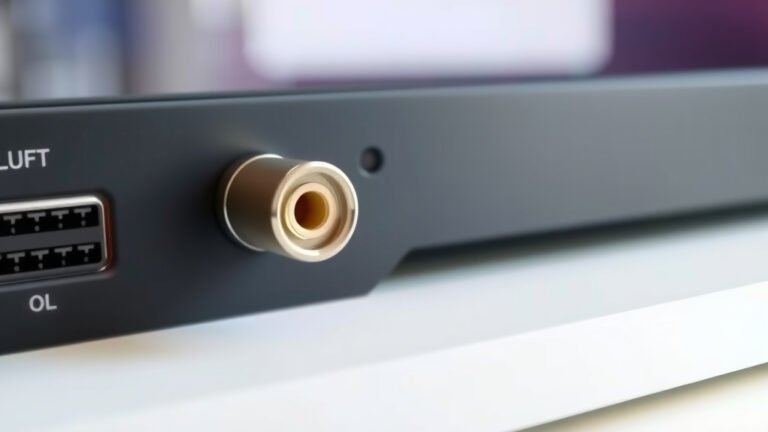
If you’re using an antenna for over-the-air channels or have a cable TV service, the coaxial cable is your lifeline. Ensure it’s screwed tightly onto both the TV’s antenna input and the wall outlet or splitter. A loose connection here is like having a leaky faucet – the signal just trickles out.
Inspect the coaxial cable for any visible damage. Look for cracks, kinks, or bent pins on the connectors. If you have splitters, try bypassing them temporarily to see if the splitter is causing the problem. Some older or low-quality splitters can weaken the signal significantly.
Environmental Interference and Signal Strength
Your TV doesn’t operate in a vacuum. Other electronic devices can actually cause disruptions. It’s like trying to have a quiet conversation in a crowded, noisy room. The signal gets drowned out.
The “Noisy Neighbor” Effect of Electronics
Many household electronics emit radio frequency (RF) or electromagnetic interference (EMI). This can include things like microwaves, cordless phones, Bluetooth devices, gaming consoles, and even some types of lighting. We found that placing these devices too close to your TV or its cables can cause signal dropouts.
Try moving any potentially interfering devices a few feet away from your TV and its connections. If the problem stops, you’ve likely found your culprit. It’s a simple fix that often gets overlooked. Keep these devices at a respectful distance for a clearer signal path.
Signal Strength Issues
This is a bit more technical, but sometimes the problem isn’t with your TV at all. It could be the signal coming from your cable provider, satellite dish, or even your antenna’s reception. Low signal strength means your TV isn’t getting enough information to display a clear picture.
For cable or satellite, this could be an issue with your provider’s equipment or a problem with the lines coming to your home. For antennas, it might be due to your location, weather conditions, or obstructions like trees or buildings. Many TVs have a built-in signal strength meter. You can usually find this in the settings menu under “Tuner” or “Channel Scan.” Check this to see if the signal levels are consistently low or fluctuating wildly (Nielsen Media Research).
Software and Hardware Considerations
Your TV is a smart device, and like any computer, it needs its software to be up-to-date. Outdated software can lead to all sorts of glitches, including signal reception issues.
The Importance of Software Updates
Manufacturers regularly release software updates to fix bugs and improve performance. If your TV is set to update automatically, it should handle this on its own. However, if it’s not, you might need to go into your TV’s settings menu and manually check for updates. This process is often found under “Support” or “System” settings.
A quick software refresh can often resolve mysterious signal drops. We found that many users report signal stability improvements after a simple update. It’s like giving your TV a fresh coat of paint and a tune-up.
Internal TV Problems
While less common, it’s possible that there’s an issue with the TV’s internal tuner or other components. If you’ve tried all the external troubleshooting steps and the problem persists across multiple input sources and cables, it might be time to consider this possibility.
This is where things can get a bit more serious. If your TV is still under warranty, this is the time to contact the manufacturer. If it’s out of warranty, you might need to consult a professional TV repair service. We advise exhausting all the simpler fixes first, as internal repairs can be costly.
Quick Checklist to Get Your Signal Back
Here’s a handy checklist to run through when your TV keeps losing signal. Tackle these one by one:
- Check all cable connections are secure at both ends.
- Try a different HDMI or coaxial cable if possible.
- Move any nearby electronics away from the TV and cables.
- Restart your TV and any connected devices (cable box, streaming stick).
- Check your TV’s software for updates and install them.
- Test signal strength if your TV has a built-in meter.
Conclusion
You’ve navigated the common reasons for your TV signal dropping. We’ve seen how easily a loose cable or interference from another gadget can cause frustration. Often, simple checks like securing connections, swapping a cable, or moving electronics resolve the issue. Remembering to keep your TV’s software updated is also a key step. If you’ve tried these fixes and the problem persists, it may be time to consider a professional assessment. Don’t let a flickering screen ruin your viewing; take these steps to get your signal back reliably.
Frequently Asked Questions
How often should I check my TV cables?
We recommend checking your TV cables at least once every few months. It’s also a good idea to inspect them whenever you notice a signal issue. Look for any signs of wear, kinks, or loose connections. A quick check can prevent bigger problems down the line.
My TV signal is weak, what can I do?
If your TV’s signal strength is consistently low, you might need to adjust your antenna or check for obstructions. For cable or satellite, contact your provider to ensure the signal coming to your home is strong. Sometimes, using a signal amplifier can help boost a weak signal.
Can my streaming device cause my TV to lose signal?
Yes, a faulty streaming device or its power adapter can sometimes cause your TV to display a “No Signal” message. Try unplugging your streaming device and restarting your TV to see if the issue resolves. If it does, the problem likely lies with the streaming device itself.
What does a “No Signal” message really mean?
A “No Signal” message means your TV is not receiving any input from your connected source. This could be because the TV is on the wrong input, a cable is loose or damaged, or the connected device (like a cable box) isn’t powered on or is malfunctioning.
Is it safe to use a signal booster for my antenna?
Signal boosters, or amplifiers, can be helpful if you have a weak over-the-air signal due to distance or obstructions. However, using a booster with an already strong signal can sometimes distort the picture. We suggest testing your signal strength first to see if an amplifier is truly necessary.