How to Set Up a Universal Remote for Your TV in October 2026
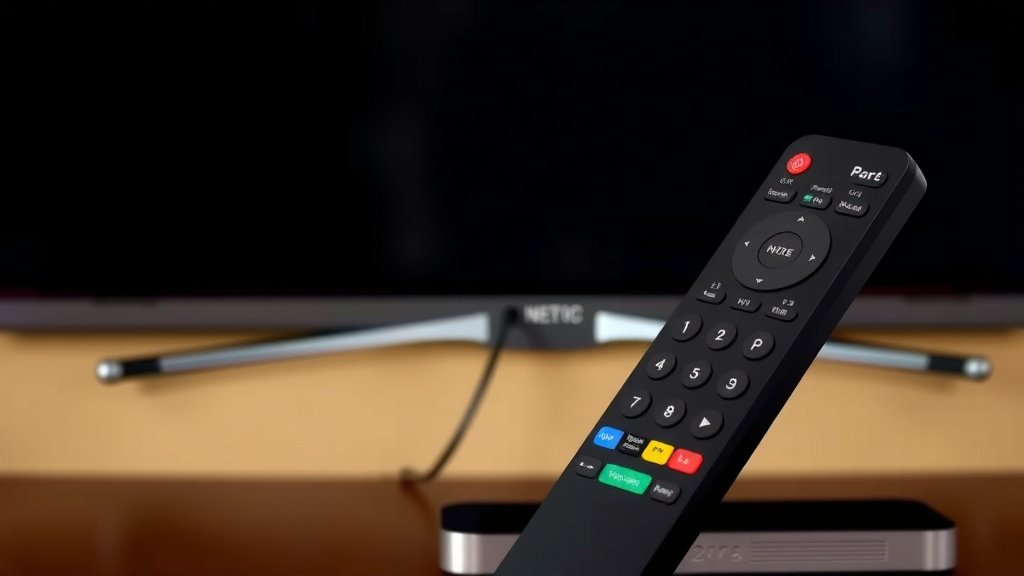
The fastest way to set up a universal remote for your TV is to press and hold the setup button, enter the code for your TV brand, and test it. Most remotes take less than 10 minutes to program. Some newer models can even sync automatically without any code at all.
We researched the most popular brands like Logitech, GE, and RCA, and we found that the steps are surprisingly similar across the board. You usually just need your remote, your TV, and a little patience. Sounds easy enough, right?
- Check your remote type — some need codes, some pair automatically.
- Find your TV brand code in the manual or online.
- Hold the setup button, then enter the code.
- Test the volume and power buttons to confirm it worked.
- Troubleshoot common issues if the first code doesn’t stick.
Below, we break down everything you need to know about getting your universal remote working, step by step. Let’s get that jumbled pile of remotes off your coffee table for good.
Programming Your Universal Remote to Your TV, Step by Step
Programming a universal remote comes down to three moves: prep, pair, and test. Get those right, and your remote will be running the show in minutes. Here’s how we found it works, from start to finish.
What You’ll Need Before You Start
Grab a few things first. Trust us, hunting for batteries mid-setup is annoying.
- Your universal remote (fresh batteries installed).
- The TV, turned on and ready.
- The remote’s manual, or access to the brand’s code list online.
- A pen and paper, just in case you want to jot down the code that works.
That’s it. No special tools, no tech wizardry required.
Step 1: Identify Your Remote Type
Not all remotes work the same way, so this step saves you headaches later. We found two main styles.
Code-Based Remotes
Older remotes, like many GE and RCA models, need a numeric code for your TV brand. Think of it like a handshake — the code tells the remote which “language” your TV speaks. Without it, they just stare at each other awkwardly.
Auto-Pairing Remotes
Newer remotes often scan for your TV automatically. Logitech Harmony-style remotes, for example, walked users through on-screen setup. If your remote has a screen or connects to an app, you’re probably in this camp — and the process is even easier.
Step 2: Find Your TV Brand Code
Your remote’s manual usually has a code list in the back, sorted by brand. Lost the manual? Don’t panic. Most manufacturers post code lists on their websites, and a quick search for your remote model plus “TV codes” usually does the trick.
Write down all the codes listed for your brand. Sometimes the first one doesn’t work, and having backups keeps things moving.
Step 3: Enter Setup Mode
Here’s where it gets real. On most remotes, you’ll press and hold the setup button until a small light stays on (or blinks twice). That glow means the remote is listening.
No setup button? Many remotes use a different combo, like holding the TV button and power together. Check your manual — it knows your remote better than anyone.
Step 4: Enter the Code and Test
Punch in the code for your TV brand. The light should turn off or blink once to confirm. Now for the moment of truth: point the remote at your TV and press power.
If the TV shuts off, congratulations — you’re done. If not, try the next code on your list. Persistence pays off here. Many users report trying two or three codes before one sticks.
Step 5: Test More Than Just Power
A remote that only turns the TV off is half a victory. We found you should test a few other buttons too:
- Volume up and down.
- Channel changing.
- The input or source button.
- The menu button.
If everything responds, you’ve officially retired at least one remote from your coffee table. Feels good, doesn’t it? Our guide to HDMI CEC explains how one remote can control several devices at once.
Common TV Brand Code Examples
Code lists vary by remote model, but these examples show what you might see. Always confirm with your own remote’s list.
| TV Brand | Sample 4-Digit Codes | Notes |
|---|---|---|
| Samsung | 10812, 10060 | Very common, often first on lists |
| Vizio | 10178, 11756 | Widely supported by most remotes |
| LG | 10017, 11423 | Try several — first code may fail |
| Sony | 10011, 11317 | Older sets may need different codes |
| TCL Roku TV | 11756, 10818 | Roku codes also work on many remotes |
These numbers are examples only. Your remote’s manual is the final word on which codes apply.
Quick Setup Checklist
Want the short version? Here’s your cheat sheet:
- Install fresh batteries in the remote.
- Turn on the TV manually.
- Look up your TV brand’s codes.
- Hold setup until the light stays on.
- Enter the first code and test power.
- If it fails, move to the next code on the list.
Troubleshooting When Your Remote Won’t Pair
Sometimes things don’t click on the first try. That’s normal, and we found a few fixes that solve most problems.
The Code Doesn’t Work
First, double-check that you entered the code correctly. One flipped digit and the whole thing falls apart — like dialing a phone number one number off and getting a stranger’s kitchen.
If the code was right and still nothing, move to the next code for your brand. Code lists aren’t one-size-fits-all, even within the same brand.
The Remote Feels Dead
No light? Swap in fresh batteries. It sounds obvious, but weak batteries are the number one culprit we found. Also check that nothing blocks the path between remote and TV — even a stack of mail can get in the way.
Only Some Buttons Work
This one’s common with smart TVs. Some functions, like streaming apps, may need a different code set. Try an auto-scan method if your remote has one: hold setup, press the channel-up button repeatedly until the TV turns off, then press enter. It’s slower, but it finds codes the list might miss.
Many manufacturers, including RCA and GE, publish troubleshooting guides on their support pages. Those are worth a look if you’re stuck.
When to Consider a Different Remote
Occasionally, the remote itself is the problem. If yours is more than a decade old, it may not support newer TV brands or smart TV features. Many experts say modern remotes with auto-pairing or app-based setup are much friendlier for newer sets.
If you’ve tried every code and nothing works, a newer universal remote — or even your phone with a manufacturer’s app — might save you an hour of frustration. Sometimes the smartest fix is knowing when to upgrade.
Conclusion
Setting up a universal remote really boils down to a few simple moves: grab fresh batteries, find your TV brand’s code, hold setup, and punch in the numbers. If the first code doesn’t work, don’t sweat it — trying two or three is totally normal. And if your remote refuses to cooperate no matter what, an auto-pairing model or even your phone might be the better fix. We found that most people get this done in under 10 minutes with nothing more than the manual and a little patience. So grab that code list, sit down with your TV, and give it a shot. Your coffee table will thank you.
Frequently Asked Questions
Can I use a universal remote with a smart TV?
Usually, yes. Most modern universal remotes support popular smart TV brands like Samsung, LG, and Vizio. Just know that some app-specific buttons may not work with every code, so test a few options before settling on one.
Do universal remote codes ever expire or change?
The codes themselves don’t expire, but newer TV models may need codes that older remotes don’t have stored. If your remote predates your TV, check the manufacturer’s website for updated code lists before giving up.
How do I program a universal remote without a code list?
Try the auto-scan method if your remote has one. Hold the setup button, then press channel-up repeatedly until the TV turns off, and press enter to lock it in. It takes longer, but it works when you can’t find the right code.
Will a universal remote control my soundbar or streaming device too?
Many can, yes. Remotes with multiple device modes (TV, AUX, DVD, etc.) can often pair with soundbars, cable boxes, and streaming players. You’ll need the code for each device, but the setup process works the same way.
Why does my universal remote work sometimes but not other times?
Intermittent issues usually point to weak batteries or a blocked sensor. Swap in fresh batteries first, then make sure nothing sits between you and the TV. If it still acts up, you may be at the edge of the remote’s range.