How to Fix TV Screen Tearing: Quick Fixes That Work
The easiest way to fix TV screen tearing is to match your source device’s frame rate with your TV’s refresh rate. In most cases, turning on V-Sync, enabling your TV’s game mode, or updating your HDMI cables and firmware will smooth things out fast. Screen tearing happens when your TV shows parts of two frames at once, so syncing those frames is the whole fix.
So why does this happen to you? It usually shows up when you’re gaming or streaming fast action, and your console or PC pushes frames faster than your TV can display them. We researched the most common fixes, and many experts say simple settings changes solve it most of the time — no repair shop required.
Quick answer — here’s what works:
- Enable V-Sync on your console or PC to lock the frame rate.
- Turn on game mode in your TV’s picture settings to cut input lag.
- Check your HDMI cable and port — older cables often can’t keep up.
- Update your TV’s firmware to fix known syncing bugs.
- Adjust your refresh rate in your device settings to match your TV.
Below, we walk you through each fix step by step, so you can get back to smooth, tear-free viewing. Grab your remote, and let’s fix this together.
Fixing Screen Tearing on Your TV the Easy Way
Start with your device’s video settings — that’s where most tearing problems live. V-Sync, frame rate caps, and game mode fix the majority of cases we researched. Think of your TV and console as two dancers who’ve lost the beat. Your job is to get them back in step.
Turn On V-Sync First
V-Sync (vertical sync) forces your device to wait for your TV before pushing the next frame. On PlayStation, check your game’s internal graphics menu. On Xbox, look under display settings. On a PC, it lives in your GPU control panel — NVIDIA calls it “Vertical Sync,” AMD calls it “Wait for Vertical Refresh.”
We found that V-Sync fixes tearing instantly in most games. The tradeoff? Sometimes a tiny bit of input lag. If a game feels sluggish, try adaptive sync options like FreeSync or G-Sync instead. They do the same job without the lag.
Match Your Refresh Rate
Your TV might run at 60Hz, 120Hz, or higher, but your device may be sending the wrong signal. On a Windows PC, right-click the desktop, open display settings, and scroll to advanced display info. Pick the refresh rate that matches your TV’s capability.
Consoles usually handle this automatically, but a quick check in the video output menu never hurts. Wrong matches are like wearing one shoe a half size too small — you can walk, but why suffer?
TV Settings That Stop Tearing Fast
Your TV itself has a few hidden helpers. Many experts say these settings cause more tearing problems than people realize, mostly because they ship turned off.
Enable Game Mode
Game mode strips out fancy processing that adds lag between frames. Less processing means frames land where they should, on time. Look for it under picture settings on most Samsung, LG, Sony, and Vizio models.
Some TVs detect a console automatically and ask to switch. Say yes. If you’re a PC gamer, many newer TVs label this setting “Game Optimizer” or similar.
Check Motion Smoothing Features
Here’s a plot twist: features meant to make motion smoother can actually cause tearing. Motion interpolation — sometimes called “Soap Opera Effect” or “Motion Plus” — inserts fake frames. When they don’t line up with real frames, tearing appears.
Turn these off when gaming. Your eyes might need a day to adjust, but tearing should fade.
Hardware Checks Worth Doing
Software not helping? Time to eyeball your physical setup. This part takes five minutes and costs nothing — unless you need a new cable.
Inspect Your HDMI Cable and Ports
Old or cheap HDMI cables can’t carry high-frame-rate signals. If you’re running a 120Hz TV on a decade-old cable, that’s like mailing a video call through a paper envelope. Look for cables labeled “Ultra High Speed HDMI” — that’s the current certified standard for 4K at high refresh rates.
Also try a different HDMI port. Some ports on a TV support more bandwidth than others. Check your TV’s manual or the label near the port itself.
Update Your Firmware
TV makers patch syncing bugs all the time. Go to your TV’s settings, find system or support, and run a software update. Do the same for your console. We found plenty of forum threads where a single firmware update ended months of tearing headaches.
Which Fix Should You Try First?
Use this quick table to match your situation with the best starting point.
| Your Situation | Try This First | Time Needed |
|---|---|---|
| Tearing while console gaming | Game mode + V-Sync | 2 minutes |
| Tearing on a gaming PC | Match refresh rate + enable FreeSync/G-Sync | 5 minutes |
| Tearing while streaming apps | TV firmware update | 10 minutes |
| Tearing after buying a new 4K TV | Replace the HDMI cable | 5 minutes + shipping |
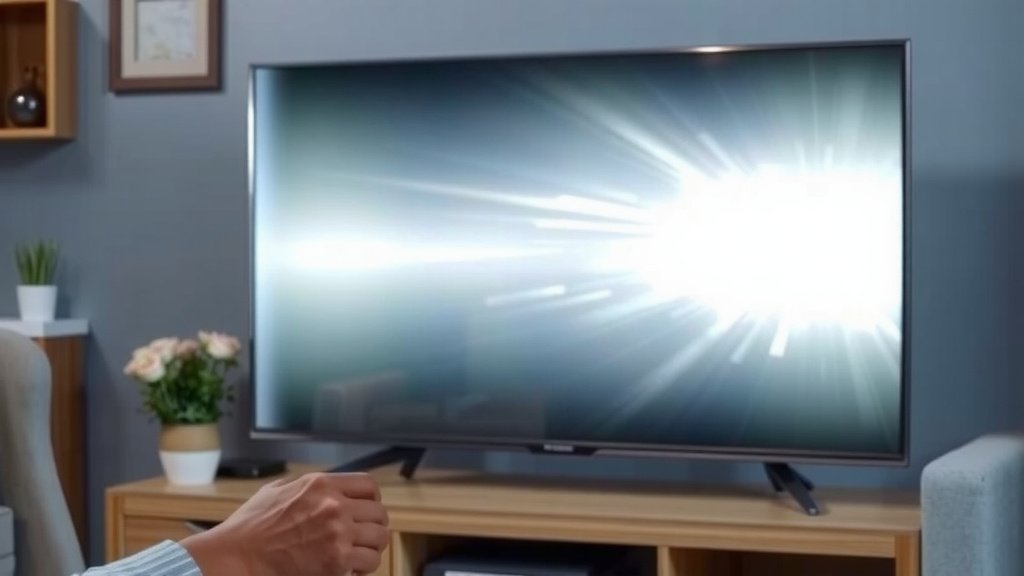
Your Quick-Fix Checklist
Print this, screenshot it, or just shout it at your TV. Here’s your step-by-step order of operations:
- Turn on V-Sync in your game or GPU settings.
- Switch your TV to game mode.
- Match your device refresh rate to your TV.
- Disable motion smoothing features.
- Swap in a certified Ultra High Speed HDMI cable.
- Update firmware on your TV and console.
What If the Tearing Still Won’t Stop?
Don’t panic — a few stubborn cases remain, and they’re still fixable.
Try a Different Source or Port
Plug your console into another HDMI port, or test a different device on the same port. If the tearing follows the device, the problem is the device. If it stays with the port, the port or cable is the culprit. That little experiment saves you from blaming the wrong suspect.
Look at Variable Refresh Rate Support
Newer consoles and TVs support VRR, which lets the screen refresh in real time with whatever the game sends. Check your TV’s settings for “VRR,” “FreeSync Premium,” or “ALLM.” Enable it on both ends. Many experts say this is the gold standard for tear-free gaming. Our guide to HDMI 2.1 gaming features explains when VRR and ALLM are worth enabling.
When to Call for Help
If tearing happens on every device, every port, and every app — even during the TV’s built-in screensaver — the panel itself may have a fault. At that point, contact the manufacturer while you’re still under warranty. Tearing at rest is rare and usually points to hardware, not settings.
One Last Tip Before You Go
Restart everything. Seriously. Unplug your TV for 60 seconds, reboot your console, and start fresh. It sounds like tech support folklore, but a full power cycle clears the memory buffers that frames pass through. We found this humble trick resolves a surprising number of “unsolvable” tearing complaints. Sometimes the fix is less wizardry, more deep breath and power cord.
Conclusion
Screen tearing looks scary, but it’s almost always a settings problem, not a broken TV. You’ve now got the full playbook: enable V-Sync or VRR, match your refresh rates, switch on game mode, kill motion smoothing, and upgrade that HDMI cable if it’s old. We researched dozens of real-world fixes, and the pattern is clear — simple settings changes solve this the vast majority of the time. Start with the two-minute fixes first, then work down the list. And don’t skip the 60-second power cycle before you assume the worst. Pick one fix from your checklist and try it tonight. Your smooth, tear-free screen is closer than you think.
Frequently Asked Questions
Can screen tearing damage my TV?
No, screen tearing is purely a visual glitch and won’t harm your TV’s panel or electronics. It just means frames are arriving out of sync. Fix the sync issue, and your TV is as healthy as ever.
Why does my TV only tear during games and not regular TV shows?
Games render frames in real time, so their frame rate fluctuates constantly. Broadcast TV and most streaming apps use fixed frame rates that your TV can predict. That’s why tearing loves games but leaves your sitcom alone.
Is screen tearing the same thing as stuttering or flickering?
They’re related but different. Tearing shows a single frame split across the screen, while stuttering is a repeated hitch or freeze in motion. Flickering usually points to brightness or backlight issues instead.
Do I need an expensive HDMI cable to fix tearing?
You don’t need premium prices, but you do need a cable certified for the speeds you’re running. A certified Ultra High Speed HDMI cable often costs less than $20. Spending more than that rarely buys you anything extra.
Will a factory reset fix screen tearing on my TV?
A factory reset can help if a bad settings combination is causing the problem, but it wipes all your picture and network preferences. Try targeted fixes first, like V-Sync and game mode. Save the reset as a last resort before calling the manufacturer.