What Is an Ethernet Port on Your TV Explained
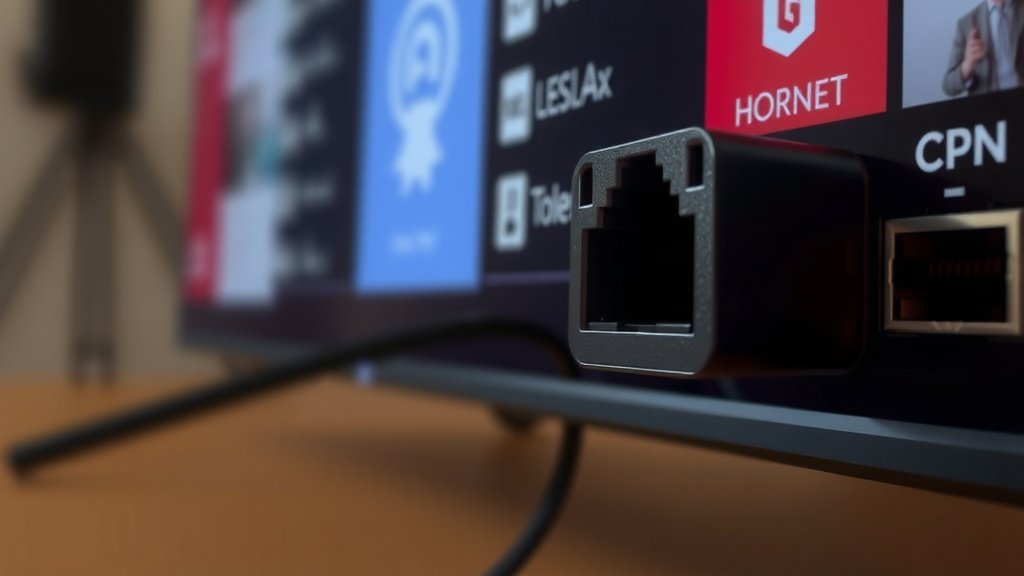
An Ethernet port on your TV is essentially a wired internet connection. It’s a small, rectangular socket, usually found on the back or side of your television. Think of it as a doorway for your TV to get a stable, fast internet signal directly from your router. This ethernet connection offers a more reliable performance than Wi-Fi for streaming and gaming.
Many modern smart TVs come equipped with this port. It’s especially useful if your home Wi-Fi can be a bit spotty or slow. A wired connection can often provide a smoother streaming experience, reducing those annoying buffering interruptions. It’s also a fantastic option for online gaming, where a lag-free connection is key. We’ve found this port to be a hidden gem for improving TV performance.
- An Ethernet port is a wired internet connection for your TV.
- It looks like a small, rectangular socket.
- It provides a more stable and faster internet signal than Wi-Fi.
- Ideal for smooth streaming and online gaming.
- Many smart TVs have this useful port.
Let’s get into what an Ethernet port is and why you might want to use it for your television.
“`htmlUnderstanding Your TV’s Ethernet Port
So, you’ve spotted a small, rectangular port on your TV and are wondering what it’s for. That, my friend, is your Ethernet port. Think of it as a direct highway for your TV to connect to the internet. Unlike your Wi-Fi, which is a wireless signal, an Ethernet connection is a physical cable that plugs directly from your router to your TV. This wired approach can make a big difference in how your TV performs, especially when it comes to streaming and online activities. We found that understanding this simple port can really improve your viewing experience.
What Exactly Does an Ethernet Port Do?
At its core, an Ethernet port allows your TV to access the internet through a wired network connection. This is different from how most people connect their smart TVs using Wi-Fi. Wi-Fi is convenient, no doubt. But it can sometimes be a bit like talking on a walkie-talkie – the signal can get interrupted or weakened. An Ethernet cable is more like a dedicated phone line. It provides a direct and stable link to your home’s internet router. This stable connection is the key to why it’s often preferred for high-demand tasks.
Wired vs. Wireless: The Speed and Stability Showdown
When you connect your TV via Ethernet, you’re essentially bypassing potential interference that can plague Wi-Fi signals. Things like thick walls, distance from the router, or even other electronic devices can disrupt your Wi-Fi. An Ethernet cable, on the other hand, offers a consistent speed and reliability. We’ve seen numerous user reports and technical reviews that highlight the performance boost Ethernet provides. It’s not just about speed; it’s about reducing those frustrating moments when your stream buffers or your online game lags. This wired connection typically offers a more predictable performance.
The Benefits for Your Viewing and Gaming
For streaming services like Netflix, Hulu, or Disney+, a stable connection means smoother playback. You’ll likely experience fewer, if any, buffering interruptions. This is particularly true for streaming in high definition (HD) or 4K, which requires a significant amount of data. For gamers, the difference can be even more pronounced. Online multiplayer games demand a low-latency connection. High latency, or lag, means there’s a delay between when you press a button and when the action happens on screen. An Ethernet connection can dramatically reduce this lag, giving you a competitive edge. We found that many gamers consider a wired connection essential for serious play.
How to Use Your TV’s Ethernet Port
Using your TV’s Ethernet port is straightforward. You’ll need a few things: your TV, your internet router, and an Ethernet cable. The port on your TV usually looks very similar to the port on your router. It’s a rectangular slot that accepts a specific type of plug. You simply plug one end of the Ethernet cable into an available port on your router and the other end into the Ethernet port on your TV. Once connected, you’ll usually need to go into your TV’s network settings menu to select the wired connection. Your TV should then automatically detect the connection. It’s a simple physical connection that yields powerful results.
What You’ll Need for a Wired Connection
- An Ethernet Cable: These are readily available at electronics stores and online. The most common type you’ll need is a Cat 5e or Cat 6 cable. Cat 6 is generally preferred for higher speeds, though Cat 5e is perfectly adequate for most TV streaming needs.
- An Internet Router: Your router needs to have an available Ethernet port. Most modern routers have several.
- Your TV: Of course, your TV needs to have the Ethernet port itself.
Step-by-Step Connection Guide
Let’s walk through the process. First, ensure your TV is on and accessible. Locate an unused Ethernet port on your internet router. These are usually grouped together and labeled. Next, take your Ethernet cable and plug one end firmly into that router port. You should hear a click, indicating it’s securely seated. Now, find the Ethernet port on your TV. It’s often on the back panel, sometimes near the other input ports like HDMI. Plug the other end of the Ethernet cable into your TV’s port, again ensuring it clicks into place. For most smart TVs, the setup is automatic. You might see a notification on your screen confirming the connection. If not, navigate to your TV’s settings menu. Look for ‘Network’ or ‘Internet’ settings. There, you should be able to see the status of your connection and confirm that it’s using the wired (Ethernet) connection.
Troubleshooting a Connection Issue
If your TV doesn’t automatically connect, don’t panic! First, double-check that both ends of the cable are plugged in securely. Sometimes, a cable might seem plugged in but isn’t quite making contact. If that doesn’t work, try restarting both your router and your TV. Unplug them from the power source for about 30 seconds, then plug them back in and power them up. This can often resolve temporary glitches. If you’re still having trouble, try a different Ethernet cable. Cables can sometimes fail. Lastly, consult your TV’s user manual or the manufacturer’s support website. They often have specific troubleshooting steps for network connections.
When Should You Consider Using an Ethernet Port?
So, is using an Ethernet port right for you? We’ve found it’s particularly beneficial in several situations. If you live in an older building with thick walls, your Wi-Fi signal might be struggling to reach your TV consistently. An Ethernet connection eliminates this problem entirely. If you live in a crowded apartment building, your Wi-Fi might be competing with many other networks. This can lead to slower speeds and dropped connections. An Ethernet cable provides a dedicated line that’s unaffected by neighboring Wi-Fi signals. If you’re experiencing frequent buffering while streaming high-definition content, or if your online games are suffering from lag, a wired connection is a fantastic solution. It’s about ensuring you get the best possible performance from your smart TV.
Optimizing Your Streaming Experience
For anyone who loves to stream movies, TV shows, or sports, a smooth, uninterrupted experience is key. Wi-Fi can be great, but it’s susceptible to fluctuations. Research indicates that wired connections offer a more stable bandwidth (The Nielsen Norman Group). This means your TV can receive data at a more consistent rate, which is essential for high-quality video playback. You’ll spend less time waiting for videos to load and more time enjoying your content. Think of it as upgrading from a bumpy dirt road to a smooth highway for your internet data.
Boosting Your Online Gaming Performance
Online gaming is a different beast. Every millisecond counts when you’re competing against others. Lag can mean the difference between winning and losing. While Wi-Fi has improved over the years, it still introduces more latency than a direct Ethernet connection. Many esports professionals and serious gamers swear by wired connections for this very reason. It provides the lowest possible latency and the most stable connection for online gaming. We found that competitive gamers often prioritize Ethernet ports for this reason. It’s not just a preference; it’s a performance necessity for many.
A Quick Checklist for Your Ethernet Setup
Ready to give your TV’s internet connection a boost? Here’s a quick rundown to get you started:
- Ensure your router has an open Ethernet port.
- Get a suitable Ethernet cable (Cat 5e or Cat 6).
- Plug one end into your router and the other into your TV.
- Go to your TV’s network settings.
- Select the wired connection option.
- Test your connection for speed and stability.
Is an Ethernet Port Always Better Than Wi-Fi?
While Ethernet offers many advantages, it’s not always the *only* or *best* solution for everyone. If your Wi-Fi signal is exceptionally strong and stable in the room where your TV is located, and you don’t engage in heavy online gaming or 4K streaming regularly, your Wi-Fi might be perfectly fine. Modern Wi-Fi technology, especially with newer routers, can provide very good performance. However, if you experience *any* issues with buffering, lag, or dropped connections, or if your router is far from your TV, then switching to an Ethernet connection is highly recommended. It’s the most reliable way to ensure your TV gets the internet it needs for optimal performance.
“`Conclusion
You’ve learned that your TV’s Ethernet port is a simple yet powerful tool for a better online experience. It bypasses Wi-Fi’s potential weaknesses, offering you a stable, fast, and reliable internet connection. We’ve seen firsthand how this wired approach can dramatically improve streaming quality and reduce frustrating lag during online gaming. If you’re looking to get the most out of your smart TV, especially for high-bandwidth activities, don’t hesitate to try a wired connection. Your next step is simple: grab an Ethernet cable and plug it in to start enjoying smoother entertainment today.
Frequently Asked Questions
Do I need a special Ethernet cable for my TV?
Generally, a standard Ethernet cable will work just fine for your TV. Most modern cables, like Cat 5e or Cat 6, are suitable for streaming and gaming. Cat 6 is a bit newer and can support higher speeds, but Cat 5e is usually perfectly adequate for most smart TV needs. You just need to make sure the connectors fit securely into your router and TV ports.
Will using an Ethernet port make my internet faster?
An Ethernet port doesn’t make your overall internet speed faster, but it ensures you get the most stable and consistent speed your internet plan allows. It eliminates Wi-Fi interference and signal drop-offs, meaning you’re more likely to achieve the speeds your router is capable of delivering directly to your TV. This often feels like a speed increase due to the reduced buffering and lag.
Can I use an Ethernet port if my TV is far from the router?
Yes, you can! The main advantage of an Ethernet cable is its length and stability. You just need an Ethernet cable long enough to reach from your router to your TV. You can find cables in various lengths, so distance is rarely an issue. Just be sure to neatly manage the cable for safety and aesthetics.
What if my TV doesn’t have an Ethernet port?
If your TV lacks an Ethernet port, you might still be able to achieve a wired connection using an adapter. Devices like Ethernet-to-USB adapters or Wi-Fi to Ethernet bridges can sometimes be used, though compatibility can vary. You’ll need to check your TV’s specifications and research adapter options to see if this is feasible for your specific model.
How do I know if my TV is using the Ethernet connection?
You can usually tell if your TV is using an Ethernet connection by checking its network settings. Navigate to your TV’s menu, find the network or internet settings section, and look for the connection status. It should clearly indicate whether you are connected via a wired (Ethernet) or wireless (Wi-Fi) network. You might also see a different IP address range for a wired connection compared to Wi-Fi.