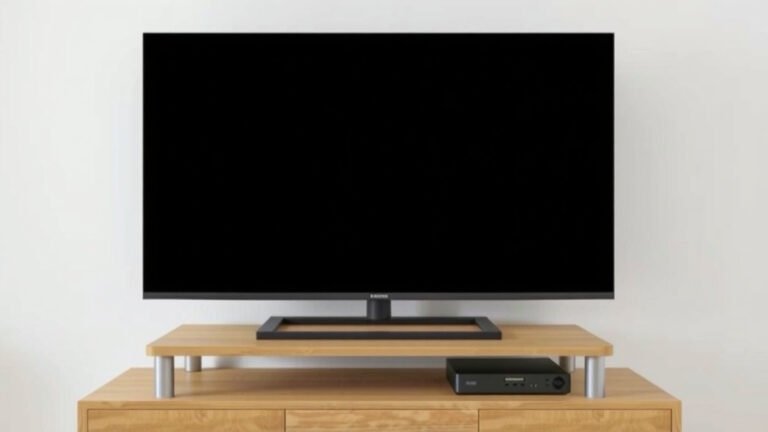
How to Connect Speakers to Your TV for Better Sound
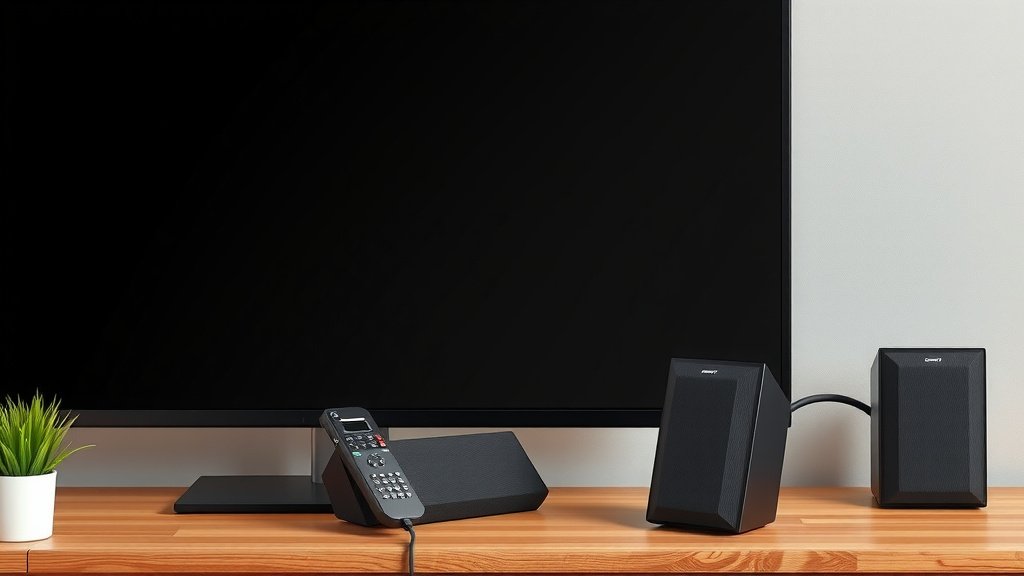
Connecting speakers to your TV is a great way to improve your sound experience. You can do this using various methods, depending on your TV and speaker setup. Most modern TVs offer several simple connection options, like HDMI ARC or optical audio.
Getting better TV audio doesn’t require a degree in engineering. We found that many people worry about complicated setups. However, connecting external speakers is often a straightforward process. You can easily enjoy richer sound for movies, games, and music with a few simple steps.
- Check your TV’s available audio output ports.
- Look at your speaker’s input options.
- Match the right cable to the ports.
- Make sure to select the correct audio source on your TV.
- Adjust volume settings for optimal sound.
Let’s walk through the common ways to connect your speakers to your TV, step by step, so you can get to enjoying that amazing sound.
Getting Better TV Sound: Connecting Your Speakers
Connecting external speakers to your TV can transform your viewing experience. It’s easier than you might think! Most people want richer sound for movies and games. We found that many worry about complicated setups, but it’s often quite simple.
Understanding Your TV’s Audio Outputs
Before you buy any cables, you need to know what your TV offers. Think of these as the doors for sound to leave your TV. Most modern TVs have a few common options. Checking these first saves you time and money.
HDMI ARC: The Modern Standard
HDMI ARC stands for Audio Return Channel. It’s a fantastic feature if your TV and sound system support it. One HDMI cable carries both video and audio. This means less clutter behind your TV. You’ll usually find the ARC port labeled clearly on your TV. It often shares a port number with regular HDMI inputs.
You’ll need an HDMI cable for this connection. Make sure it’s a reasonably modern one; older cables might not support ARC. Many experts say HDMI ARC is the preferred method for its simplicity and quality.
Optical Audio (Toslink): A Reliable Choice
An optical audio connection uses a special Toslink cable. This cable carries digital audio signals. It’s a very common output on TVs, especially those not featuring HDMI ARC. You’ll see a small, often square-shaped port on your TV. It usually has a tiny flap that covers it.
The optical cable has a distinctive connector. It’s often shaped to prevent incorrect insertion. When you plug it in, you might see a small red light at the end. This light carries the audio data. It’s a very robust connection and less prone to interference.
3.5mm Headphone Jack: The Simple Solution
Does your TV have a headphone jack? You can use this for audio output. It’s the most straightforward option if your speakers have a 3.5mm input. This is essentially the same port you’d use for headphones. You’ll need a 3.5mm to 3.5mm audio cable.
While easy, this method can sometimes offer slightly lower sound quality than optical or HDMI ARC. It’s because it’s an analog signal. However, for basic soundbar or speaker setups, it’s often perfectly adequate. Many people find this works well for basic TV audio improvement.
RCA Audio Outputs: The Older but Still Usable Option
Some TVs, especially older models, might have RCA audio outputs. These are the red and white (or sometimes black) jacks. They carry analog audio signals. You’ll need an RCA to RCA cable or an RCA to 3.5mm cable, depending on your speakers’ inputs.
If you see these, it means your TV is designed for older audio equipment. They still work perfectly fine for connecting many types of speakers. Research suggests that while not the newest technology, they offer a dependable audio connection.
Matching Your Speakers to Your TV’s Output
Now that you know your TV’s options, let’s look at your speakers. Your speakers will have specific ways they accept audio signals. You need to make sure these match up. Think of it like a puzzle where pieces must fit.
Common Speaker Input Types
Soundbars, home theater systems, and even some computer speakers will have inputs. The most common are HDMI ARC, optical, 3.5mm, and RCA. Some systems might also have Bluetooth capabilities, which offers a wireless option. We found that checking the back or sides of your speaker setup is key.
Wireless Connections: Bluetooth and Wi-Fi
Many modern soundbars and speakers offer Bluetooth. You simply pair your TV to the speaker like you would a phone. Your TV needs to have Bluetooth capability for this. Some higher-end systems use Wi-Fi for streaming audio directly. These offer excellent sound quality with no wires.
To use Bluetooth, you’ll typically go into your TV’s settings menu. You’ll search for Bluetooth devices and select your speaker. It’s a very convenient way to get better sound without running cables. Many users find this incredibly easy to set up.
Step-by-Step Connection Guide
Let’s walk through the actual connection process. It’s usually quite straightforward. Don’t worry, we’ll guide you through each step.
1. Identify Your Ports
As we’ve discussed, check your TV’s back panel for output ports. Then, look at your speakers for their input ports. You need to find a matching pair. For example, an optical output on the TV needs an optical input on the speakers.
2. Choose and Connect Your Cable
- HDMI ARC: Use a high-speed HDMI cable. Connect one end to the TV’s HDMI ARC port and the other to your soundbar or receiver’s HDMI ARC port.
- Optical: Use a Toslink cable. Connect one end to the TV’s optical out and the other to the speaker’s optical in. Remember to remove the small plastic protective caps from the cable ends.
- 3.5mm: Use a 3.5mm to 3.5mm audio cable. Connect one end to your TV’s headphone jack and the other to your speaker’s auxiliary (AUX) input.
- RCA: Use an RCA cable. Connect the red and white plugs to the matching colored RCA outputs on your TV and the inputs on your speakers.
3. Configure Your TV Settings
This is a critical step! After connecting the cables, you must tell your TV to send audio through the new connection. Go into your TV’s sound settings menu. Look for options like ‘Audio Output,’ ‘Sound Output,’ or ‘Speaker Settings.’ You’ll likely need to select the type of connection you’ve made (e.g., HDMI ARC, Optical, External Speakers).
For HDMI ARC, you might also need to enable ‘CEC’ (Consumer Electronics Control) in your TV settings. This allows devices to communicate. Many experts say this setting is key for ARC to work correctly.
4. Adjust Your Speaker Settings
Turn on your speakers or soundbar. Make sure they are set to the correct input source. If you used optical, set your speakers to ‘Optical.’ If you used HDMI ARC, set them to ‘HDMI ARC.’ The process varies by speaker model.
5. Test the Sound
Play some content on your TV. You should now hear the audio coming from your external speakers. If not, don’t panic! Double-check all your connections. Review your TV’s audio output settings. Ensure your speakers are on the correct input. Sometimes, a simple reboot of both devices can resolve issues.

Troubleshooting Common Issues
What if you’re not getting sound? It’s a common hiccup. Here are a few quick checks.
- No Sound at All: Check that the cable is securely plugged in at both ends. Verify that the correct audio output is selected in your TV’s settings. Ensure your speakers are powered on and set to the correct input source.
- Distorted Sound: This could be a faulty cable. Try a different one if possible. Also, ensure that the volume isn’t maxed out on both the TV and the speakers, as this can cause distortion.
- Delay (Lip Sync Issues): This is more common with wireless connections or complex systems. You might need to adjust the ‘audio delay’ or ‘lip sync’ setting in your TV’s sound menu.
Quick Checklist for Success
To make sure you get great sound quickly, follow these steps:
- Identify your TV’s audio OUT ports.
- Identify your speaker’s audio IN ports.
- Choose the correct cable to match.
- Connect the cable securely.
- Set your TV’s audio output correctly.
- Select the right input on your speakers.
Conclusion
You’ve now learned how simple it can be to upgrade your TV’s sound. We’ve covered how to identify your TV’s audio outputs, match them with your speakers, and make the physical connections. Remember, whether you use HDMI ARC for a clean setup, optical for reliability, or a simple headphone jack, the goal is richer audio.
Don’t let technical jargon intimidate you. By following these steps, you can easily enjoy better sound for movies and games. Now, take a moment to look at your TV and speakers, and get ready to experience your favorite shows like never before!
Frequently Asked Questions
What’s the best way to connect speakers to my TV?
The best method often depends on your TV and speaker capabilities. HDMI ARC is generally preferred for its simplicity and quality, carrying both audio and video over one cable. Optical audio is a very reliable digital connection if ARC isn’t available. For the easiest setup, check if your TV and speakers support Bluetooth for a wireless option.
My TV doesn’t have HDMI ARC. What should I use instead?
If your TV lacks HDMI ARC, an optical audio connection is your next best bet for high-quality digital sound. You’ll need a Toslink cable. If neither ARC nor optical is an option, you can often use the 3.5mm headphone jack or RCA audio outputs, though these analog connections might offer slightly less sound fidelity.
Can I connect my old RCA speakers to a new TV?
Yes, you usually can! Many modern TVs still include RCA audio outputs (the red and white jacks) specifically for compatibility with older audio equipment. You’ll need an appropriate RCA audio cable to connect your TV’s RCA outputs to your speakers’ RCA inputs.
Why is there no sound coming from my new speakers?
If you’re not getting any sound, double-check that your cables are securely plugged into both the TV and the speakers. Make sure you’ve selected the correct audio output source in your TV’s settings menu (e.g., Optical, HDMI ARC, External Speakers). Also, confirm that your speakers are powered on and set to the correct input channel.
What is HDMI ARC and why is it recommended?
HDMI ARC (Audio Return Channel) allows audio to travel from your TV back to your soundbar or receiver using the same HDMI cable that sends video to your TV. This reduces cable clutter and often allows your TV remote to control the soundbar’s volume. It’s recommended because it’s a simple, single-cable solution offering excellent digital audio quality.