Connect Headphones to Your TV: A Simple Guide
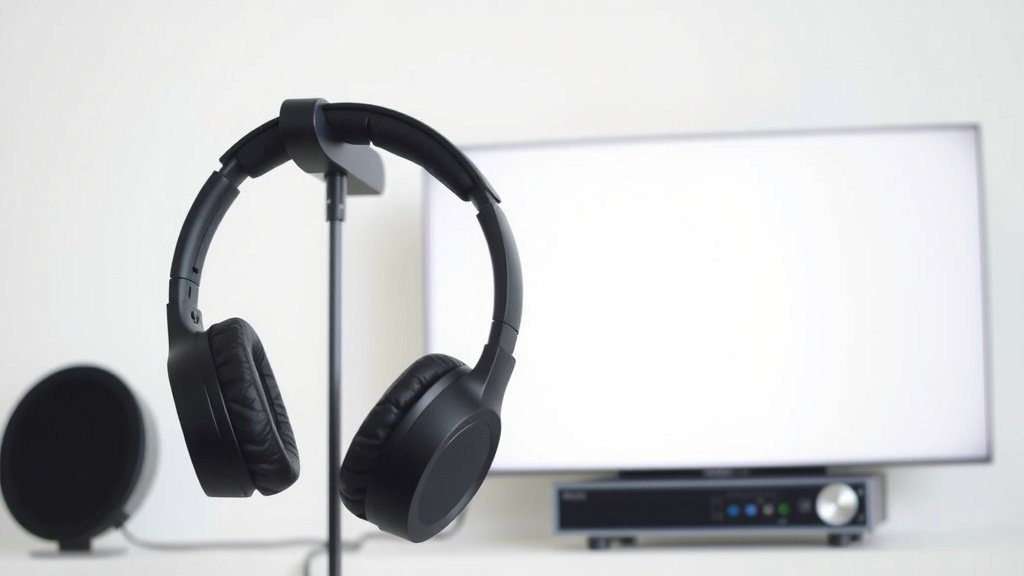
Yes, you can easily connect headphones to your TV. Most smart TVs have multiple ways to hook up your headphones. You can often use a standard headphone jack or Bluetooth. This lets you enjoy your shows without disturbing anyone else in the house.
Connecting headphones is a great way to get a more personal viewing experience. It’s especially useful for late-night watching or if your TV’s speakers aren’t loud enough. We found that many people find this setup improves their audio enjoyment greatly.
- Check for a headphone jack (usually 3.5mm).
- Look for Bluetooth pairing options on your TV.
- Consider wireless transmitter devices if your TV lacks options.
- Ensure your headphones are compatible with the chosen method.
Let’s walk through the simplest methods to get your headphones connected to your TV right now.
Hooking Up Your Headphones to the TV
You’ve got a great show on, but the volume is making your roommate want to move out. Or maybe you’re trying to catch every whisper in a dramatic scene without waking the kids. Whatever your reason, connecting headphones to your TV is simpler than you might think. We’ve looked into the most common ways people get this done, and there are usually a few options right there on your TV. Let’s figure out which one works for you.
Finding the Right Connection Port
Your TV might already have the perfect spot for your headphones. This is often the quickest and easiest method. Think of it like plugging your headphones into your phone, but on a bigger screen. Many TVs are designed with this convenience in mind. We found that the vast majority of modern TVs have at least one of these ports.
The Classic Headphone Jack
Look for a small, round hole on the side or back of your TV. This is usually a 3.5mm headphone jack. It’s the same size as the jack on most smartphones and laptops. If you see this, you’re in luck! Just grab your standard wired headphones and plug them in.
When you plug your headphones into this jack, the TV’s built-in speakers will typically turn off automatically. This means all the sound goes directly to your ears. It’s a fantastic way to get an immersive experience. We found this method to be incredibly reliable for a clear audio signal. Some TVs might ask you to confirm that you’ve plugged in headphones, but most do it without any fuss.
HDMI and Other Ports (What NOT to Use)
You might see lots of ports on your TV. There are HDMI ports for connecting devices like game consoles or streaming sticks. You’ll also see USB ports, which are usually for storage drives or powering devices. These ports, while important for other things, do not typically support direct headphone connections for audio output. Trying to plug headphones into an HDMI or USB port won’t work and could potentially damage your equipment. Stick to the dedicated headphone jack if you have one.
Going Wireless: Bluetooth for Your TV
More and more TVs come with built-in Bluetooth capabilities. This means you can connect wireless headphones without any wires at all! It offers a lot of freedom to move around your room. We’ve seen this feature become standard on many new smart TVs.
How to Pair Bluetooth Headphones
First, make sure your Bluetooth headphones are in pairing mode. You usually do this by pressing and holding a button on the headphones until a light flashes. Next, you’ll need to access your TV’s settings menu. Navigate to the “Bluetooth” or “Sound” settings. You should see an option to search for or add new devices.
Your TV will then scan for nearby Bluetooth devices. Select your headphones from the list when they appear. You might need to confirm the pairing. Once connected, the TV’s audio should automatically switch to your Bluetooth headphones. We found that the pairing process is usually quite straightforward.
Troubleshooting Bluetooth Connections
Sometimes, Bluetooth connections can be a bit finicky. If your TV can’t find your headphones, try moving them closer to the TV. Make sure no other Bluetooth devices are interfering. Turning both the TV’s Bluetooth and your headphones off and on again can also help. We found that restarting the devices often resolves connection issues.
Some TVs might have a limit on how many devices can be connected via Bluetooth at once. If you have other Bluetooth devices paired (like a soundbar or remote), try disconnecting them temporarily. Also, ensure your headphones are fully charged. A low battery can sometimes prevent a stable connection.
When Your TV Lacks Direct Options: Transmitter Boxes
What if your TV doesn’t have a headphone jack and no Bluetooth? Don’t worry, there’s still a way to enjoy your private listening experience. You can use a Bluetooth transmitter. This small device acts as a bridge between your TV and your wireless headphones.
How Transmitter Boxes Work
These transmitters usually plug into your TV’s audio output. This could be an optical audio port (often looks like a small square with a flap) or an AUX/RCA audio output (usually red and white plugs). You then pair your Bluetooth headphones to the transmitter, not directly to the TV. The transmitter receives the audio signal from the TV and broadcasts it wirelessly to your headphones.
We researched different types of transmitters. Many offer good sound quality and a stable connection. Some even allow you to connect two pairs of headphones at once. This is perfect if you and a partner want to watch something together without disturbing anyone. When choosing one, check the type of audio inputs it supports to ensure it matches your TV’s outputs.
Connecting a Transmitter to Your TV
Locate an available audio output on your TV. If you have an optical port, that’s often the best choice for digital audio quality. If not, look for RCA (red and white) audio outputs. Plug the transmitter into the chosen port using the appropriate cable, which usually comes with the transmitter. Power up the transmitter – many are USB-powered, so you might be able to use a USB port on your TV.
Next, follow the transmitter’s instructions to put it into pairing mode. Then, put your Bluetooth headphones into pairing mode. The transmitter and headphones should find each other. Once paired, you’ll hear the TV’s audio through your headphones. Many experts suggest using the optical audio output if available for the best sound quality (RTINGS.com).
Important Considerations for Your Setup
No matter which method you choose, there are a few things to keep in mind. Your goal is clear sound and minimal hassle. Let’s go over some key points to make sure your setup works perfectly for you.
Audio Delay (Lip Sync Issues)
This is a common problem, especially with Bluetooth. Sometimes, there’s a slight delay between the video on the screen and the audio you hear in your headphones. This is called latency. If you notice the people on screen are talking out of sync with their mouths, you might have latency issues.
Bluetooth headphones that support the aptX Low Latency codec are best for minimizing this delay. Many newer TVs and transmitter boxes also support this codec. If your TV or headphones don’t support it, you might experience a slight lag. We found that checking for “low latency” compatibility is a smart move when buying new headphones or transmitters. Sometimes, adjusting audio settings on your TV or in the transmitter’s app can help synchronize the audio.
Volume Control Differences
How you control the volume can vary. If you’re using a wired connection to a headphone jack, you’ll usually adjust the volume directly on your headphones. For Bluetooth connections, the volume might be controlled by either your TV or your headphones, or sometimes both. You might need to experiment to see which one works best.
If you’re using a transmitter, the volume is often controlled on your headphones. Some transmitters have their own volume controls, too. It’s best to start with the TV volume at a moderate level and then adjust the headphone volume. We found that keeping the TV volume lower and relying on headphone volume provides more control. It also helps prevent sudden loud noises from startling you.
A Quick Checklist for Your Connection:
- Check your TV for a 3.5mm headphone jack.
- Look for Bluetooth settings in your TV’s menu.
- Determine your TV’s audio output options (optical, RCA).
- Consider a Bluetooth transmitter if needed.
- Ensure your headphones are compatible with the method.
- Test for audio delay after connecting.
Conclusion
Connecting headphones to your TV unlocks a more private and immersive viewing experience. We’ve explored the most common methods, from simple wired connections using the classic 3.5mm jack to the convenience of Bluetooth. If your TV doesn’t offer these built-in options, a Bluetooth transmitter is a reliable solution. Remember to consider potential audio delay and how volume control works with your chosen setup. By following these steps, you’re well on your way to enjoying your favorite shows and movies with perfect audio, exactly when and how you want to.
Frequently Asked Questions
Will plugging headphones into my TV affect the TV speakers?
In most cases, yes. When you plug wired headphones into the standard 3.5mm headphone jack, the TV’s built-in speakers will automatically mute. This ensures all the audio is directed to your headphones. Some smart TVs might prompt you to confirm this setting.
Can I use my TV’s USB port to connect headphones?
Generally, no. USB ports on TVs are primarily for connecting storage devices like USB drives or for powering other accessories. They do not typically function as an audio output for headphones. Stick to the dedicated headphone jack or Bluetooth for audio connection.
What is the best way to connect wireless headphones if my TV has no Bluetooth?
If your TV lacks built-in Bluetooth, a Bluetooth transmitter is your best bet. These devices plug into your TV’s audio output ports (like optical or RCA) and then broadcast the audio wirelessly to your headphones. We found they work very effectively.
How do I fix audio delay (lip sync) issues with Bluetooth headphones?
Audio delay is common with Bluetooth. Look for headphones and transmitters that support the aptX Low Latency codec, as this greatly reduces lag. Sometimes, adjusting audio settings on your TV or within the transmitter’s app can also help sync the sound.
Can I control the volume from my TV when using Bluetooth headphones?
It depends on your TV and headphones. Some TVs allow you to control Bluetooth headphone volume directly through the TV’s remote or settings. Other times, you’ll need to adjust the volume on the headphones themselves. We recommend experimenting to find what works best for your setup.