How to Enable Game Mode on Your TV for Better Performance
Enabling Game Mode on your TV is a simple process. It’s usually found in your TV’s settings menu. This feature helps reduce input lag, making your games more responsive.
Game Mode is designed to improve your gaming experience. It often disables some of the TV’s picture processing features. This allows your console’s signal to reach the screen much faster, which is a big win for gamers.
- Find Game Mode in your TV’s settings.
- It’s usually under picture or general settings.
- This mode lowers input lag for better game response.
- Enjoy a smoother, more responsive gaming session!
Let’s walk through exactly how to find and activate Game Mode on your television.
Getting Your TV Ready for Gaming: Activating Game Mode
So, you’ve got a new game, or maybe you’re just tired of feeling like your controller has a mind of its own. Activating Game Mode on your TV is one of the easiest ways to make your games feel more responsive. It’s like giving your TV a turbo boost specifically for gaming!
What exactly does Game Mode do? It’s designed to reduce input lag. Think of input lag as the delay between when you press a button on your controller and when you see that action happen on screen. For fast-paced games, even a small delay can make a big difference. Game Mode helps minimize this delay.
Why You Want This Game Mode Thing
Your TV does a lot of processing to make pictures look amazing. It might sharpen edges, smooth out motion, or adjust colors. These extra steps take time. When you’re gaming, you want the signal from your console to get to the screen as quickly as possible. Game Mode cuts back on most of that extra processing. This allows the image to be displayed much faster, giving you that competitive edge or just a more immersive experience.
Many experts agree that reducing input lag is key for a better gaming experience. It makes the game feel more connected to your actions. We found that for genres like first-person shooters or fighting games, even a few milliseconds can matter.
Finding Game Mode: A Universal Hunt
While the exact steps can vary a bit between TV brands and models, the general location for Game Mode is pretty consistent. You’ll almost always find it within your TV’s settings or menu system.
Navigating Your TV’s Settings
Grab your TV remote. You’re looking for a button labeled “Menu,” “Settings,” “Home,” or sometimes a gear icon. Press that button. This will bring up your TV’s main menu or settings screen.
Once you’re in the settings, you’ll need to navigate through different categories. Common areas where you’ll find Game Mode include:
- Picture Settings: This is a very common place. Look for options like “Picture Mode,” “Advanced Settings,” or “Expert Settings.”
- General Settings: Sometimes it’s grouped under broader system settings.
- System Settings: Similar to general, this can be a catch-all.
- External Inputs or Device Settings: Occasionally, it might be tied to the specific HDMI port you’re using for your console.
Common Paths to Game Mode
Let’s say you have a Samsung TV. You’d typically press the Home button, navigate to Settings, then Picture, and look for “Game Mode.” For LG TVs, you might go to Settings, then Picture, and find “Game Optimizer.” Sony TVs often have it under Picture & Display, then Picture.
Don’t worry if your TV’s menu looks different. The key is to look for terms related to gaming or picture optimization. If you’re really stuck, checking your TV’s manual or doing a quick online search for “[Your TV Brand] [Your TV Model] Game Mode” can point you in the right direction.
Activating Game Mode: The Simple Switch
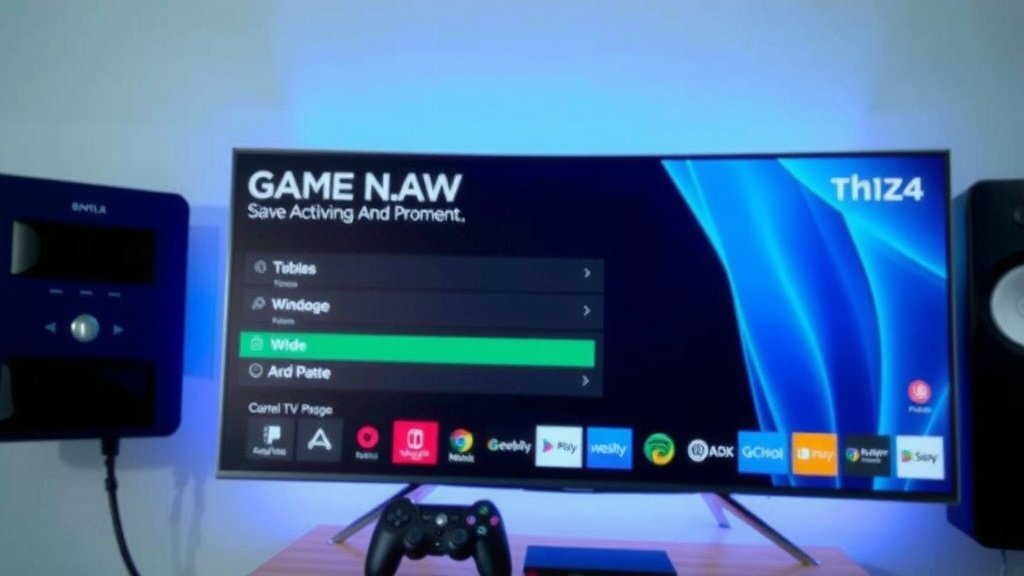
Once you’ve located the Game Mode setting, turning it on is usually just a matter of selecting it and confirming. It’s often a simple toggle or a choice from a list of picture modes.
How to Turn It On
After you’ve navigated to the Game Mode option, you’ll likely see choices like “On,” “Off,” or maybe even different types of game modes (like “Standard Game Mode” or “Pro Game Mode”). Simply select “On” or the most appropriate gaming option available.
In some cases, especially with newer TVs, Game Mode might turn on automatically. This is often called “Auto Game Mode” or “Game Stream.” If your TV supports this, it will detect when a game console is connected and switch to Game Mode without you doing anything. That’s pretty neat, right?
What Happens When You Turn It On
You might notice a slight change in the picture’s appearance. Colors might be less saturated, or the image might look a bit less “processed.” This is normal! Remember, Game Mode prioritizes speed over some visual enhancements. This is what allows for that reduced input lag we talked about.
Some TVs offer additional gaming-related settings within their Game Mode. These could include features for managing motion blur or enhancing dark scenes. We found that experimenting with these extra options can further fine-tune your experience.
When to Use Game Mode
Game Mode is fantastic for playing video games on consoles like the PlayStation, Xbox, or Nintendo Switch. It’s also beneficial if you connect your PC to your TV for gaming. If you’re streaming movies or watching regular TV, you’ll probably want to turn Game Mode off. The extra picture processing that Game Mode disables is what makes those cinematic experiences look their best.
Think of it like this: Game Mode is your gaming outfit. It’s optimized for performance. When you’re done gaming, you switch back to your everyday clothes (standard picture mode) for comfort and visual appeal.
| Feature | Game Mode | Standard Picture Mode |
|---|---|---|
| Input Lag | Low | Higher |
| Motion Smoothing | Reduced or Off | Often On |
| Picture Processing | Minimized | Maximized |
| Visual Appearance | Functional, responsive | Vibrant, cinematic |
| Best For | Gaming | Movies, TV shows, general viewing |
Troubleshooting: When Game Mode Isn’t Easy to Find
If you’ve looked through all the menus and can’t find Game Mode, don’t despair! A few things might be happening:
- TV Model: Some older or very basic TV models might not have a dedicated Game Mode. In this case, you’d want to look for picture settings that allow you to disable motion smoothing or reduce image processing.
- Firmware Update: Ensure your TV’s software is up to date. Sometimes, features are added or renamed in firmware updates.
- HDMI Deep Color/Enhancement: On some TVs, Game Mode is only available if you enable a specific HDMI setting, often called “HDMI Deep Color,” “HDMI UHD Color,” or “HDMI Enhanced Format” for the input you’re using. Check your TV’s manual for this.
We found that reading your TV’s manual or searching online for your specific model can often solve these puzzles.
Quick Checklist for Enabling Game Mode
Ready to give it a try? Here’s a quick rundown:
- Turn on your TV and game console.
- Grab your TV remote.
- Press the Menu, Settings, or Home button.
- Navigate to Picture or General Settings.
- Look for “Game Mode” or “Game Optimizer.”
- Select “On” and enjoy smoother gameplay!
You’ve got this! With Game Mode activated, your gaming sessions should feel more fluid and responsive. Happy gaming!
Conclusion
You’ve learned that activating Game Mode on your TV is a straightforward way to improve your gaming. By reducing input lag, this feature makes your games feel more responsive and connected to your actions. We’ve shown you common places to find it in your TV’s settings, like under Picture or General options. Remember, Game Mode is your go-to for console and PC gaming, but you’ll want to switch back to a standard mode for movies. So, grab your remote and give it a try for a smoother gaming experience!
Frequently Asked Questions
Does every TV have a Game Mode?
Not all TVs include a dedicated “Game Mode.” Some older or more basic models might lack this specific setting. If yours doesn’t, you can often achieve similar results by disabling motion smoothing or other picture processing features manually.
Will Game Mode make my games look worse?
Game Mode prioritizes speed and responsiveness over some visual enhancements. You might notice colors are less vibrant or motion is less smooth compared to standard modes. This is normal and necessary for reducing input lag.
Can I leave Game Mode on all the time?
It’s best to only use Game Mode when you’re actually gaming. For watching movies, TV shows, or general viewing, standard picture modes offer better visual quality. Think of it as switching to specialized gear when you need it.
What if I can’t find Game Mode on my TV?
If you’ve thoroughly checked your settings menus and still can’t locate Game Mode, consult your TV’s user manual. Sometimes, a firmware update is needed, or the setting might be named differently, like “Game Optimizer” or tied to specific HDMI input settings.
Will enabling Game Mode drain more battery on my TV remote?
Enabling Game Mode on your TV does not affect your TV remote’s battery life. The setting change is processed by the TV itself, not by constant communication with the remote once it’s set.