How to Use Your TV as a Computer Screen
Yes, you can absolutely use your TV as a computer screen, and it’s often simpler than you think! Most modern TVs can connect to your computer using an You can also connect a laptop to a TV using a simple cable.HDMI cable. This allows you to get a much larger display for your work or entertainment. It’s a fantastic way to upgrade your viewing experience without buying a new monitor.
Connecting your computer to your television means you can enjoy games, movies, or even just browsing the web on a screen that might be significantly bigger than your current setup. Many people find this setup great for presentations or when they want a more immersive experience. We found that the setup is usually straightforward for most users.
TL;DR:
- Yes, your TV can be a computer monitor.
- HDMI is the most common connection method.
- It’s great for a bigger display.
- Setup is generally easy.
- Enjoy a better viewing experience!
Let’s walk through exactly how you can connect your computer to your TV to get started.
You’re probably wondering how to turn that big, beautiful TV into your primary computer display. Good news! It’s often less complicated than you might imagine. Most modern televisions are built with connectivity in mind. You’re likely just a few simple steps away from a much larger screen experience.
Turning Your TV into a Bigger Computer Screen
Connecting your computer to your TV can dramatically change your computing experience. Imagine spreadsheets with more room to breathe or gaming with an immersive view. It’s a fantastic way to get more out of your existing technology. We found that this setup is a popular choice for both productivity and entertainment.
Gathering Your Necessary Cables and Ports
The first step is understanding what you need to make the connection. For most modern setups, the magic ingredient is an HDMI cable. You’ll need one that’s long enough to reach comfortably from your computer to your TV without pulling anything taut. Think of it like connecting a game console or Blu-ray player – it’s that familiar port.
What is HDMI?
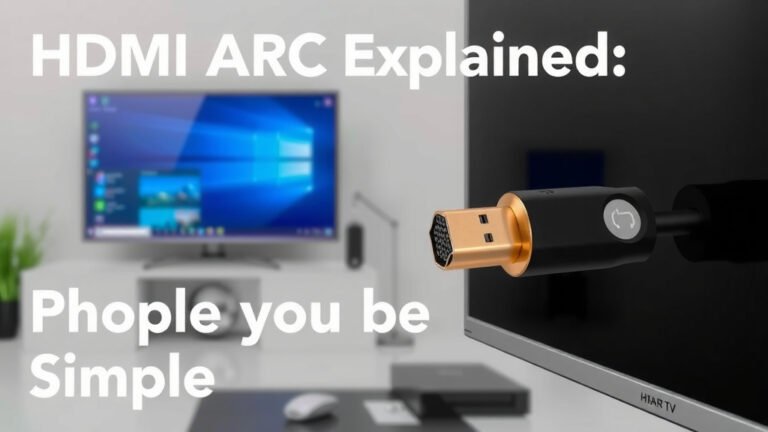
HDMI stands for High-Definition Multimedia Interface. It’s a standard that transmits both high-definition video and audio signals over a single cable. This means you won’t need a separate audio cable, simplifying the whole setup. Most TVs and computers made in the last decade have at least one HDMI port. Research shows HDMI is the most common and convenient method today (HDMI.org).
Checking Your Computer’s Ports
Look at the back or sides of your computer. You’ll be searching for a port that looks like a wide, slightly trapezoidal shape. It might be labeled “HDMI.” If your computer is older and lacks a direct HDMI port, you might need an adapter. Common adapters include DisplayPort to HDMI or DVI to HDMI. Many experts suggest checking your graphics card specifications if you’re unsure (TechRadar).
Checking Your TV’s Ports
Similarly, check the back or side panel of your television. You’re looking for the same HDMI port shape. Your TV might have multiple HDMI ports, often numbered. It’s a good idea to note which number you use, as you’ll need to select it on your TV later. Some TVs also have labels like “PC” or “Game” next to certain HDMI inputs, which might offer slightly optimized settings.
Connecting Your Computer to Your TV
Once you have your HDMI cable, the physical connection is straightforward. It’s like plugging in any other peripheral. Ensure both your computer and TV are turned off before you start plugging things in. This helps prevent any potential electrical surges.
Step 1: Plug in the HDMI Cable
Insert one end of the HDMI cable firmly into the HDMI output port on your computer. Then, plug the other end into an available HDMI input port on your TV. Make sure both connections are snug. You don’t want a loose connection causing flickering or no signal at all.
Step 2: Power On Your Devices
Turn on your TV first, and then turn on your computer. Your computer should, in most cases, detect the new display automatically. You might see your computer’s startup screen appear on the TV. If not, don’t worry; there are a few more steps.
Step 3: Select the Correct Input on Your TV
This is often where people get stuck. Your TV needs to know which source to display. Use your TV remote and press the “Input” or “Source” button. This will bring up a menu of available inputs. Cycle through them until you select the HDMI input that you plugged your computer into. For example, if you used HDMI 2, select “HDMI 2.” You should then see your computer’s desktop on the TV screen.
Configuring Your Display Settings
Sometimes, your computer doesn’t automatically set up the display perfectly. You might need to adjust a few things in your operating system’s settings. We found that these adjustments are usually quite simple to make. This ensures everything looks crisp and is positioned correctly.
Understanding Display Modes
Your computer can use the TV in a few different ways. These are often called display modes. You can choose to duplicate your screen, extending it, or using only the TV. Duplicating shows the exact same thing on both your computer screen and the TV. Extending treats the TV as a second monitor, giving you more desktop space.
Windows Display Settings
On Windows, you can access display settings by right-clicking on your desktop and selecting “Display settings.” Here, you can choose how you want to use the TV. You can select “Duplicate these displays,” “Extend these displays,” or “Show only on 1” or “Show only on 2.” You can also adjust the resolution and scaling here. Many users prefer extending for more workspace. Research indicates that setting the correct resolution is key for a sharp image (Microsoft Support).
macOS Display Settings
For Mac users, go to the Apple menu, then “System Settings” (or “System Preferences” on older macOS versions), and select “Displays.” You’ll see your connected displays. You can arrange them by dragging their representations. You can also choose whether to “Mirror Displays” or use them as separate screens. Adjusting the resolution is also done within this section. Many find the default settings work well, but tweaking is available.
Optimizing Your TV for Computer Use
While your TV is now connected, you might want to fine-tune it for the best viewing experience. TVs are designed for movies and TV shows, so some settings might need tweaking for text and graphics. We found that a few adjustments can make a big difference. You might want to calibrate your TV for the best viewing experience.
Picture Mode Adjustments
Most TVs have various picture modes like “Cinema,” “Standard,” “Game,” or “PC.” If you see a “PC” or “Game” mode, that’s often your best bet. These modes typically reduce image processing, which can cause lag or make text blurry. Look for settings that reduce motion smoothing or enhance sharpness. Excessive smoothing can make text look wobbly.
Checking for Input Lag
Input lag is the delay between when you move your mouse or press a key and when you see the action on screen. This is especially important for gaming. Many TVs have a “Game Mode” setting that drastically reduces input lag. Research from gaming sites often highlights that this mode prioritizes responsiveness over visual effects (Rtings.com).
Adjusting Text Size and Scaling
If text appears too small or too large on your TV screen, you can adjust the scaling in your computer’s display settings. This tells Windows or macOS how to size interface elements. You can often set it to a percentage or choose from presets. Experiment until you find a comfortable viewing size. It’s like adjusting the zoom level for your entire operating system.
Here’s a quick checklist to get you started:
- Ensure you have an HDMI cable.
- Connect the cable to both devices.
- Turn on your TV and computer.
- Select the correct HDMI input on your TV.
- Adjust display settings on your computer if needed.
- Explore TV picture settings for optimization.
Conclusion
You’ve now learned how simple it is to turn your TV into a larger computer screen. By using an HDMI cable and a few simple steps, you can significantly enhance your viewing experience for work or play. We found that checking your ports and selecting the correct input on your TV are key. Don’t forget to fine-tune your computer’s display settings and your TV’s picture mode for optimal clarity and responsiveness. Your bigger screen awaits – go ahead and give it a try!
Frequently Asked Questions
Can I use my TV as a computer monitor if it’s not a smart TV?
Yes, absolutely! As long as your TV has an HDMI port, you can use it as a computer monitor. Smart features are not necessary for this connection. The HDMI cable handles both the video and audio signals, so a basic TV with an HDMI input will work perfectly fine.
What happens if my computer doesn’t have an HDMI port?
If your computer lacks a direct HDMI port, you can often use an adapter. Common options include DisplayPort to HDMI or DVI to HDMI adapters. Research your computer’s graphics card specifications to find the right adapter for your setup. These adapters allow you to connect to your TV’s HDMI input.
Is it bad for my TV to be used as a computer monitor?
Generally, no, it’s not bad for your TV. TVs are designed for extended use, and using one as a monitor falls within normal operating parameters. However, be mindful of screen burn-in if you display static images for very long periods, especially on older TV technologies. Modern TVs have better protection against this.
Will the sound come through my TV speakers when connected via HDMI?
Yes, when you connect your computer to your TV using an HDMI cable, the audio signal is transmitted along with the video. You should hear your computer’s sound coming from your TV’s speakers automatically. If not, you may need to adjust your computer’s sound output settings.
Can I use my TV as a computer screen wirelessly?
Some newer TVs and computers support wireless display technologies like Miracast or AirPlay (for Macs and Apple devices). This allows for a cable-free connection, but performance can vary based on your network strength. It’s often less reliable for fast-paced activities like gaming compared to a wired HDMI connection.