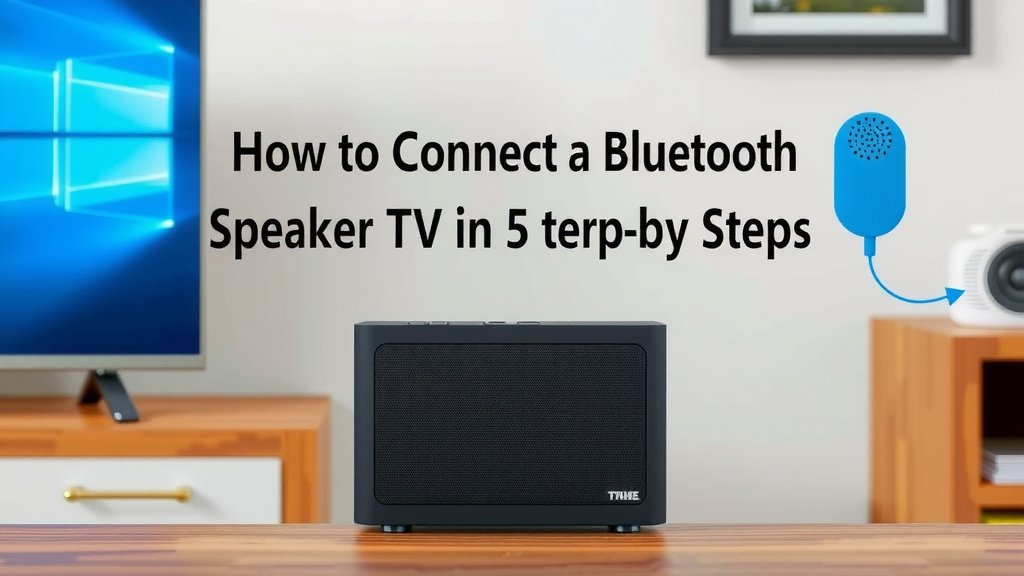
How to Connect a Bluetooth Speaker to Your TV in 5 Steps
The easiest way to connect a Bluetooth speaker to a TV is to open your TV’s audio settings, turn on pairing mode on your speaker, and select the speaker from your TV’s Bluetooth device list. That’s really the core of it. If your TV supports Bluetooth, the whole process takes about two minutes.
Of course, not every TV plays nice with Bluetooth speakers, and some older models need a workaround like a Bluetooth adapter. Don’t worry, we’ve got you covered either way. We researched every common setup, from smart TVs to older sets, so you can pick the method that fits yours. And trust us, once your TV audio is pumping through a real speaker, you’ll wonder why you waited so long.
- Check whether your TV has built-in Bluetooth support.
- Put your Bluetooth speaker in pairing mode.
- Select the speaker from your TV’s audio or Bluetooth settings menu.
- If your TV lacks Bluetooth, use a Bluetooth transmitter plugged into the audio output.
- Test the sound and adjust any audio delay if you notice lip-sync issues.
Below, we walk you through each method step by step, so you can get your speaker hooked up without the headache. Let’s get that sound sorted.
Pairing a Bluetooth Speaker With Your TV Step by Step
Most modern TVs can pair with a Bluetooth speaker in under two minutes. We found the process is nearly identical across brands: open settings, scan for devices, and pick your speaker. Here’s the full walkthrough.
Step 1: Turn On Pairing Mode on Your Speaker
Hold the Bluetooth button on your speaker until the light starts blinking. That blinking light means it’s ready to pair. Think of it as the speaker raising its hand and saying, “Pick me!”
If you’re not sure which button to press, check the manual. Many speakers also enter pairing mode automatically when powered on with no saved devices nearby.
Step 2: Open Your TV’s Bluetooth Menu
Grab your remote and head into Settings, then look for Sound, Audio, or Bluetooth. The exact location varies by brand. We found it fastest to search “Bluetooth” in the TV’s settings search bar if it has one.
Step 3: Select Your Speaker From the Device List
Your speaker should appear within a few seconds. Select it and wait for the confirmation tone or solid light. Some TVs ask you to confirm the pairing with an on-screen prompt.
Once connected, your TV speakers will usually go quiet. That’s normal. The audio is now routing to your Bluetooth speaker.
Step 4: Test the Sound and Fix Any Delay
Play something with talking, like a news clip or sitcom. Watch the mouths. If the sound lags behind the lips, look for an audio delay or “AV Sync” setting on your TV and adjust it. Bluetooth can add a small delay because the audio travels wirelessly before it reaches your ears.
Many experts say a slight delay is normal with Bluetooth and usually fixable with a sync adjustment (FCC guidelines on wireless audio also note interference can affect performance).
Finding the Bluetooth Settings on Popular TV Brands
Can’t find the menu? You’re not alone. Manufacturers hide it in different spots. We put together this quick reference so you don’t have to dig through menus like it’s a scavenger hunt.
| TV Brand | Where to Look |
|---|---|
| Samsung | Settings > Sound > Sound Output > Bluetooth Speaker List |
| LG | Settings > Sound > Sound Out > Use Wireless Speaker |
| Sony | Settings > Remotes & Accessories > Pair Device |
| Vizio | Many models lack Bluetooth; check for a Bluetooth audio option under Audio settings |
| TCL/Hisense | Settings > Audio > Bluetooth (varies by model and OS) |
If your TV brand isn’t listed or the menu looks different, check your model number on the manufacturer’s support page. It usually takes less than a minute to find the exact path.
What to Do When Your TV Has No Bluetooth
Don’t toss your TV just yet. A Bluetooth transmitter solves this problem for about the price of a pizza. It plugs into your TV’s audio output and sends the signal wirelessly to your speaker.
Choosing the Right Bluetooth Transmitter
Look at the ports on the back of your TV first. Most transmitters connect via 3.5mm headphone jack, optical (TOSLINK), or RCA. Buy a transmitter that matches what you have. Some models handle all three, which is handy if you own more than one TV.
Battery vs. Powered Transmitters
Battery models are portable but need recharging. USB-powered models draw power from your TV’s USB port, so they’re always ready. We found USB-powered options are the set-it-and-forget-it choice for most living rooms.
Hooking Up the Transmitter
Plug it into your TV’s audio output, put it in pairing mode, then pair your speaker as usual. Keep both devices within a few feet during the first pairing. Once they’re linked, you can move the speaker across the room.
One heads-up: if your TV’s output is fixed audio, set your speaker volume before you settle in. Otherwise you may blast your ears when you turn the volume up on the remote.
Quick Troubleshooting for Bluetooth TV Audio
Sometimes things go sideways. Before you assume your gear is broken, run through this checklist. In our research, these fixes solve most connection problems in a couple of minutes.
- Restart both the TV and the speaker. It sounds cliché, but it works.
- Move your speaker closer to the TV and away from your Wi-Fi router.
- Forget and re-pair the speaker in the TV’s Bluetooth menu.
- Charge your speaker. Low battery can cause dropouts and weak volume.
- Check that the TV’s audio output is set to Bluetooth, not internal speakers.
- Update your TV’s firmware if pairing keeps failing.
If your speaker still won’t connect, it may only support pairing with phones and tablets. Some portable speakers are built that way. A quick look at the spec sheet will tell you.
Bluetooth Speaker Limits You Should Know Before You Buy
Is a Bluetooth speaker really the best speaker for your TV? Honestly, sometimes. We found that Bluetooth works great for casual viewing, but there are trade-offs worth knowing about.
Range and Interference
Most Bluetooth connections stay stable up to about 30 feet in open space. Walls, microwaves, and crowded Wi-Fi networks can shrink that range. If your speaker lives in another room, expect occasional stutters.
Audio Quality and Latency
Bluetooth compresses audio before sending it, so a wired speaker will always sound a bit cleaner. For movies and shows, most people don’t notice. For music-heavy content or big game days, an optical connection to a soundbar is the better route.
The CDC notes that prolonged listening at high volumes can harm hearing, so once you add real speakers to your TV, resist the urge to crank them to concert levels.
One Speaker, One Connection
Bluetooth generally pairs with a single output device at a time. Want sound in two rooms? You’ll need either a speaker with multi-room features or two separate setups. It’s a small limitation, but worth knowing before movie night turns into tech support night.
Conclusion
Connecting a Bluetooth speaker to your TV comes down to three things: pairing mode, the right settings menu, and a quick sync check. If your TV has built-in Bluetooth, you’re done in minutes. If it doesn’t, a cheap Bluetooth transmitter gets the job done without replacing your TV. We found the biggest wins come from picking the right transmitter for your ports and keeping your speaker charged and close by. Your next step is simple: check the back of your TV for a 3.5mm, optical, or RCA output, then pick your connection method and start pairing. Movie night just got a serious upgrade.
Frequently Asked Questions
Can I connect multiple Bluetooth speakers to my TV at once?
Most TVs only support one Bluetooth audio device at a time. A few brands, like newer Samsung models, offer a dual-pairing feature, so check your model’s specs. If yours doesn’t, a Bluetooth transmitter with dual-link support can send audio to two speakers.
Why does my Bluetooth speaker keep disconnecting from my TV?
The usual culprits are low battery, distance, and interference from your Wi-Fi router or other wireless devices. We found keeping the speaker within about 30 feet and away from your router solves most dropouts. A firmware update on your TV can also help.
Will my TV remote control the volume on my Bluetooth speaker?
It depends on your TV and connection. Most smart TVs let the remote control Bluetooth speaker volume, but if you’re using a transmitter plugged into a fixed audio output, the remote won’t help. In that case, adjust volume directly on the speaker.
Do Bluetooth speakers drain my TV’s battery or slow it down?
No, connecting a Bluetooth speaker won’t affect your TV’s performance or use your TV’s power. The speaker runs on its own battery or power source. The only thing you might notice is a small audio delay, which you can fix with your TV’s sync settings.
Is Bluetooth audio as good as a soundbar for TV?
For casual shows and streaming, most people are happy with a good Bluetooth speaker. But soundbars win on bass, room-filling volume, and cleaner audio since they avoid Bluetooth compression. If movies are your thing, a wired or optical soundbar is worth considering.