What Is a TV App Store and How Does It Work
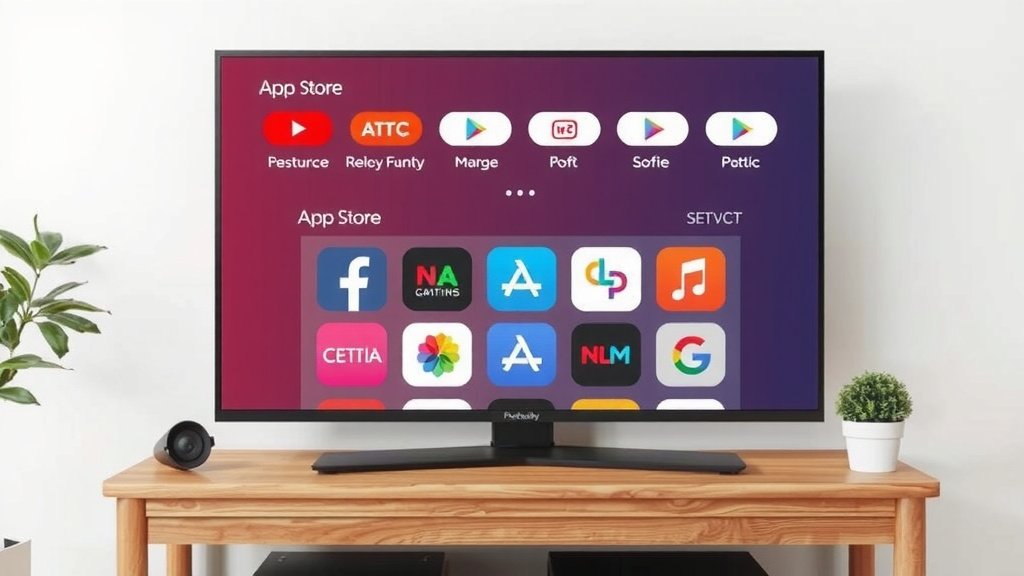
A TV app store is essentially a digital marketplace on your smart TV. It’s where you can find and download applications, much like you do on your smartphone. Think of it as the gateway to entertainment beyond your regular cable channels, offering everything from streaming services to games and more.
These app stores are built into the operating system of your smart TV. They allow manufacturers to provide a centralized place for users to access a wide variety of software and content. You’re not limited to what the TV maker pre-loads; you can customize your viewing experience by adding your favorite apps.
- A TV app store is a marketplace for TV apps.
- It’s built into your smart TV’s software.
- You can download streaming services, games, and more.
- It lets you customize your TV’s entertainment options.
- It’s like an app store for your phone, but for your TV.
We found that understanding how TV app stores work can really open up your entertainment possibilities. Let’s walk through exactly what they are and how they function.
Understanding Your Smart TV’s App Hub
So, what exactly is this digital marketplace on your TV? It’s the central place where you go to find and download all sorts of applications for your smart television. Think of it as the app store on your smartphone, but specifically designed for your TV screen.
Manufacturers build these app stores right into the TV’s operating system. This way, you have a convenient, one-stop shop for adding new entertainment and utility to your viewing experience. You’re not stuck with just the apps that came pre-installed.
What Can You Actually Do With a TV App Store?
The primary function is simple: to give you access to a wider range of content and features than a standard TV offers. You can expand your entertainment options far beyond what your cable box provides. This is where you find the apps that stream your favorite movies, shows, music, and even games.
Streaming Services Galore
This is probably the most popular use. You can download apps for all the major streaming platforms. Want to watch Netflix, Hulu, Disney+, or Amazon Prime Video? They’re all available through the app store. It means you can cut the cord and rely on your smart TV for nearly all your viewing needs. We found that having these services readily available makes choosing what to watch much easier.
Beyond Binge-Watching: Other App Categories
While streaming is king, TV app stores offer much more. You’ll find apps for:
- Music Streaming: Like Spotify, Pandora, or Apple Music.
- Games: Simple casual games or more involved titles, depending on your TV’s capabilities.
- Fitness Apps: Guided workouts and yoga sessions.
- News and Information: Access to live news feeds and weather updates.
- Utilities: Like screen mirroring apps or web browsers (though these can be clunky on a TV).
Many experts suggest that these app stores are key to a modern home entertainment setup (Consumer Reports). They turn your TV into a more versatile device.
How Do TV App Stores Work?
The process is quite straightforward. Your smart TV runs on an operating system, similar to your phone or computer. This OS includes a dedicated application for the app store. When you open it, you’re presented with a catalog of available apps.
Navigating the Store
You’ll use your TV remote to scroll through categories, search for specific apps, and view app details. Descriptions, user reviews, and sometimes even screenshots or videos help you decide if an app is right for you. Most app stores also highlight popular or new apps to help you discover fresh content.
Downloading and Installing Apps
Once you find an app you want, you typically select it and hit an “Install” or “Get” button. For most free apps, this is all it takes. The TV will then download and install the app. Paid apps will require you to enter payment information, often linked to your TV manufacturer’s account.
We found that the installation process is usually quick and simple. Within a minute or two, you should be ready to launch your new app.
Key Differences Between TV App Stores and Phone App Stores
While the concept is the same, there are some key differences to keep in mind. TV app stores are often more curated, meaning they might have a more limited selection compared to your phone’s app store.
Content Focus
The primary focus is on entertainment and media consumption. You won’t find many productivity apps or highly specialized tools designed for touchscreens. The apps are optimized for viewing on a large screen and control with a remote.
Performance and Compatibility
Not all apps are available on every TV. Compatibility depends on the TV’s operating system (like Android TV, webOS, Tizen, Roku TV) and its processing power. A high-end TV might handle more demanding apps or games better than a budget model.
Here’s a quick comparison:
| Feature | TV App Store | Smartphone App Store |
|---|---|---|
| Primary Use | Entertainment, Streaming, Media | Communication, Productivity, Gaming, Utilities |
| Content Selection | More curated, focused on media | Vast, broad range of categories |
| Interface | Remote control optimized | Touchscreen optimized |
| App Types | Streaming, Music, Games, News | Apps for almost anything imaginable |
| Hardware Demands | Varies by TV model, generally less demanding than high-end mobile games | Can be very demanding for advanced games and apps |
Who Manages Your TV’s App Store?
The app store is managed by the TV manufacturer. Companies like Samsung, LG, Sony, and Vizio all have their own proprietary app stores or use platforms like Google’s Android TV or Amazon’s Fire TV. For instance, Samsung TVs typically use the Tizen OS and have the Samsung App Store. LG TVs use webOS and have the LG Content Store.
Roku TVs and Amazon Fire TV devices are a bit different. They have their own operating systems and app stores that are available across various TV brands that use their platform. Google’s Android TV is also a common operating system found in many different TV brands.
We found that knowing your TV’s operating system helps you understand which app store you’ll be using and what apps might be available (CNET Reviews).
Getting the Most Out of Your TV App Store
To really make your smart TV work for you, take some time to explore its app store. Don’t just stick to the pre-installed apps. You might discover hidden gems you never knew existed.
Here’s a quick checklist to get you started:
- Identify your TV’s operating system.
- Browse the categories that interest you most.
- Read reviews before downloading new apps.
- Check for app updates regularly.
- Organize your apps for easier access.
- Consider app permissions, though this is less common on TV apps than mobile.
Think of your TV app store as a way to personalize your entertainment. It’s your personal digital doorway to endless viewing possibilities.
Conclusion
You’ve learned that your smart TV’s app store is your personal portal to a world of entertainment. It’s the place where you can ditch cable and stream your favorite shows, listen to music, play games, and even get your news. Think of it as customizing your TV to perfectly fit your lifestyle. Don’t let it just be a place for pre-loaded apps; actively explore and download what you love.
Your next step is simple: grab your remote and dive into your TV’s app store. See what new streaming services or fun apps you can discover. You might be surprised at all the personalized entertainment options waiting for you!
Frequently Asked Questions
Can I install any app from my phone onto my TV app store?
No, you can’t install every app from your phone onto your TV. TV app stores are more curated and focused on content for a larger screen and remote control use. Apps need to be specifically designed and approved for your TV’s operating system.
Do I need to pay for apps in a TV app store?
Not always. Many apps in a TV app store are free to download, especially popular streaming services like Netflix or Hulu (though these require separate subscriptions). You will find paid apps and games, similar to your phone, which will require payment.
What happens if my TV is an older model and not “smart”?
If your TV isn’t a smart TV, it likely doesn’t have a built-in app store. You won’t be able to download apps directly onto the TV. You would need to get a separate streaming device like a Roku stick, Amazon Fire TV stick, or an Apple TV to access an app store and smart TV features.
How do I know which app store my TV uses?
The app store your TV uses is determined by its operating system, which is set by the manufacturer. For example, Samsung TVs typically use the Tizen OS with the Samsung App Store, while LG TVs use webOS with the LG Content Store. If you have a TV that uses Roku TV or Amazon Fire TV, you’ll use their respective app stores.
Can I organize the apps on my TV app store?
Yes, most smart TV app stores allow you to organize your downloaded applications. You can usually move apps around on your home screen, create folders, or prioritize which apps appear first. This helps you quickly access the content you use most often.