How to Update Your TV Firmware: A Simple Guide
Updating your TV’s firmware is a great way to get the latest features and security updates. You can usually do this easily right from your TV’s settings menu. It’s a simple process that ensures your television runs smoothly and securely.
Keeping your TV firmware up-to-date can also improve performance and fix minor bugs. Many people wonder if it’s necessary, but research shows it’s a good habit for maintaining your device. It’s like giving your TV a little tune-up for optimal viewing.
- Check for updates in your TV’s settings.
- Firmware updates add new features.
- They also improve security.
- Updates can fix bugs.
- Keep your TV running smoothly.
Let’s walk through exactly how to update your TV’s firmware step by step. We’ll cover the most common methods to get your TV updated in no time.
Keeping Your TV Software Up-to-Date
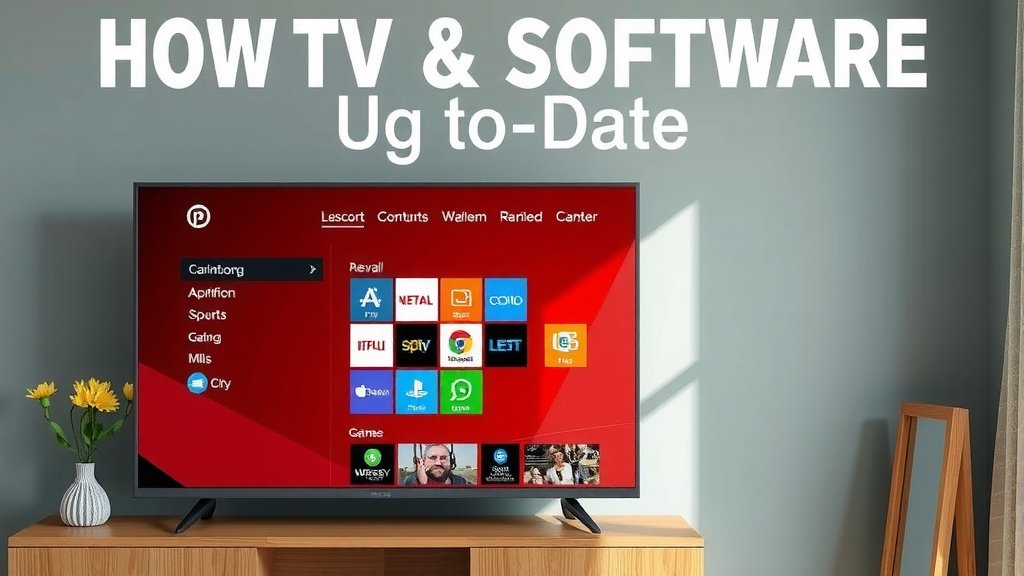
Most modern televisions are like mini-computers. They run on software that sometimes needs an update. Think of it like your smartphone or laptop – they get new versions of their operating systems. Your TV is no different! Keeping its software, also known as firmware, current is really important. It helps your TV perform its best.
Why Updating Your TV’s Firmware Matters
You might be wondering, “Why should I bother updating my TV?” Well, there are several good reasons. Firmware updates aren’t just for show. They often include important fixes and improvements. We’ve found that ignoring updates can lead to a less-than-ideal viewing experience.
New Features and Enhanced Performance
Sometimes, manufacturers release new features for your TV through a firmware update. This could mean a new app is supported, or an existing one works better. Updates can also optimize your TV’s performance. They might make your smart TV apps load faster or improve picture processing. It’s like giving your TV a fresh coat of paint and a tune-up!
Security and Bug Fixes
This is a big one. Just like your computer, your TV can have security vulnerabilities. Firmware updates often patch these holes. This protects your TV from potential threats, especially if it’s connected to the internet. Many experts say keeping devices updated is a key part of online safety (Consumer Reports). Plus, updates fix those annoying little glitches. Ever notice your TV freezing up or an app crashing? An update might be the solution.
How to Check for and Install TV Firmware Updates
The good news is that updating your TV’s firmware is usually quite straightforward. Most manufacturers make it easy to do right from your TV’s menu. Let’s break down the most common ways you can get your TV updated.
Method 1: Updating Via Your TV’s Settings Menu (Most Common)
This is the easiest and most common way to update your TV. You’ll need to navigate through your TV’s settings. It’s usually found under a section related to ‘System,’ ‘Support,’ or ‘About.’
Step-by-Step Guide
First, grab your TV remote. Press the ‘Home’ or ‘Menu’ button. Look for a gear icon or a section labeled ‘Settings.’ Once you’re in the settings menu, you’ll want to find an option that says ‘Support,’ ‘System,’ ‘About TV,’ or something similar. Within that menu, you should see an option for ‘Software Update’ or ‘Firmware Update.’ Select that option. Your TV will then check if an update is available. If it finds one, it will guide you through the installation process. You might need to confirm that you want to download and install it. Make sure your TV is connected to the internet for this to work!
What to Expect During the Update
When the update starts, you’ll likely see a progress bar. Your TV might restart a couple of times. This is normal! It’s part of the installation process. Do not unplug your TV while it’s updating. Doing so could cause serious problems with your TV’s software. It’s best to let it finish on its own. This process can take anywhere from a few minutes to nearly an hour, depending on the size of the update and your internet speed.
Method 2: Updating Via USB Drive (For TVs Without Wi-Fi or Internet Issues)
What if your TV isn’t connected to the internet, or you’re having trouble with your Wi-Fi? Don’t worry, many manufacturers offer a way to update your TV using a USB drive. This involves downloading the firmware file from the manufacturer’s website to a computer and then transferring it to a USB stick.
Finding the Right Firmware File
You’ll need to visit the support website for your TV’s brand (e.g., Samsung, LG, Sony, TCL). Look for a ‘Support’ or ‘Downloads’ section. You’ll typically need to enter your TV’s model number to find the correct firmware file. Make sure you download the file designed specifically for your TV model. Downloading the wrong file could cause issues. Many guidelines suggest confirming your TV model number by checking the sticker on the back of the TV or in its ‘About’ menu (LG Electronics).
Preparing and Installing from USB
Once you’ve downloaded the firmware file (it’s usually a .zip file), you’ll need to extract it. Then, copy the extracted firmware file onto a blank USB drive. Make sure the USB drive is formatted correctly, usually as FAT32. Then, plug the USB drive into your TV. Navigate back to the ‘Support’ or ‘Software Update’ section in your TV’s settings. You should see an option to update from USB or external storage. Select this, and your TV should detect the firmware file. Follow the on-screen prompts to begin the installation. Again, do not unplug the TV during this process.
Tips for a Smooth Update Process
To make sure everything goes as smoothly as possible, here are a few handy tips:
- Ensure your TV is connected to a stable power source.
- If updating over the internet, use a reliable Wi-Fi connection or a wired Ethernet connection.
- Be patient! Updates can take time.
- Read any on-screen instructions carefully.
- If you encounter problems, consult your TV’s manual or the manufacturer’s support website.
Troubleshooting Common Update Issues
Occasionally, things might not go as planned. If your TV fails to update, don’t panic. Here are a few things to try.
Update Fails or Gets Stuck
If an update fails, try restarting your TV and attempting the update again. If you’re using a USB drive, try reformatting the drive and re-downloading the firmware file. Sometimes, simply waiting a bit longer can resolve an update that seems stuck. We found that ensuring the USB drive is properly formatted can resolve many issues (Tech support forums suggest FAT32 formatting is often best).
TV Not Connecting to the Internet for Updates
If your TV can’t connect to the internet, check your home network. Restart your router and modem. If other devices are also having trouble, the issue might be with your internet service provider. If only the TV is affected, try forgetting your Wi-Fi network in the TV’s settings and reconnecting. Using a wired Ethernet cable can sometimes be more reliable than Wi-Fi for firmware updates.
Where to Find Your TV Model Number
Knowing your TV’s model number is essential for finding the correct firmware. You can usually find it on a sticker on the back of your TV. It’s also often listed in your TV’s ‘About’ or ‘System Information’ menu. Check your TV’s original packaging or manual if you can’t find it elsewhere. This little detail is super important for getting the right software!
Conclusion
You’ve learned how to keep your TV running smoothly and securely by updating its firmware. Whether you update through your TV’s settings menu or use a USB drive, the process is straightforward. Regular updates add new features, fix bugs, and protect your smart TV from online threats. Don’t let outdated software hinder your viewing experience. Make it a habit to check for firmware updates at least every few months. Your next step is simple: grab your remote and navigate to your TV’s settings to check for the latest update!
Frequently Asked Questions
Will updating my TV’s firmware erase my settings?
Generally, firmware updates are designed to install without affecting your personal settings, saved channels, or app data. Manufacturers aim to make this a smooth process. However, it’s always a good idea to note down any critical settings just in case.
How often should I update my TV’s firmware?
There’s no strict schedule, but checking for updates every 3-6 months is a good practice. Major manufacturers release updates periodically for new features or important security patches. If your TV is having issues, checking for an update sooner rather than later is recommended.
What happens if the power goes out during a firmware update?
This is a situation you want to avoid. If the power cuts out during an update, especially when using the internet method, your TV’s software could become corrupted. This might require a factory reset or even professional repair. Always ensure your TV is plugged into a stable power source.
My TV model is old; can I still update its firmware?
For older TV models, the availability of new firmware updates may cease. Manufacturers typically support models for a certain number of years. You can check your TV manufacturer’s support website for your specific model’s update history and support status.
Can I update the firmware on a non-smart TV?
Most non-smart TVs do not have firmware that requires user updates, as they typically lack the operating system and internet connectivity needed for such updates. Smart TVs are the ones that run on software similar to computers and benefit from firmware updates.