Understanding TV Gamma Settings for Optimal Picture Quality
TV gamma settings adjust the brightness and contrast of your picture. It’s a setting that controls the relationship between the signal a TV receives and the light it actually outputs. Getting your gamma right means you’ll see more detail in both the darkest and brightest parts of the image, making your viewing experience much better. It’s a key factor for achieving a true-to-life picture.
Think of gamma as the “shading” control for your screen. It dictates how quickly the picture goes from black to white. Without the correct gamma, dark scenes can look like a muddy mess, and bright scenes might lose all definition. Many experts say it’s one of the most important, yet often overlooked, picture settings for any home theater enthusiast or even just someone who wants their favorite shows to look their best.
- Gamma controls your TV’s brightness and contrast.
- It ensures detail in both dark and bright picture areas.
- Proper gamma makes images look more realistic.
- It’s a key, often-missed, picture setting.
Ready to make your TV look amazing? Let’s break down exactly what TV gamma is and how you can adjust it.
Understanding Your TV’s Gamma Setting
So, you’ve probably seen a “Gamma” setting on your TV menu. You might wonder what it does. It’s not about making your picture brighter or darker directly. Instead, gamma controls how smoothly the shades of gray transition from black to white. Think of it like the dimmer switch for your TV’s contrast. A properly set gamma ensures you see all the detail, even in the deepest shadows and the brightest highlights. It’s a critical step for a truly lifelike image.
What Exactly is Gamma? A Simple Explanation
Gamma refers to the exponent in a power-law relationship. For your TV, this means how the input signal (what the TV is told to display) relates to the actual light output (what you see). A standard gamma value is 2.2. This is a widely accepted value for many viewing environments. It aims for a good balance between dark and bright details. When gamma is too low, the picture can look washed out. When it’s too high, the picture can lose detail in the darker areas. Our guide on how to calibrate tv picture settings can help you fine-tune your display.
The Science Behind the Screen
In simpler terms, imagine a gradient from black to white. Without proper gamma, this gradient might skip steps. You might go from very dark gray to bright white too quickly. This causes those dark scenes to look like a blob of black. The bright scenes might lose their subtle variations in brightness. Research has shown that human eyes are more sensitive to differences in darker tones than brighter ones. Gamma settings help account for this natural human vision. This ensures that detail isn’t lost where we’re most likely to notice it.
Why Gamma Matters for Your Viewing Experience
Have you ever watched a dark movie scene and couldn’t make out what was happening? That’s often a gamma issue. Or maybe a bright, sunny outdoor shot looks like a blown-out mess? Gamma adjustment can fix that. Getting it right means you’ll see the textures in a shadowy room or the individual clouds in a bright sky. It makes the picture feel more natural and immersive. Many experts suggest gamma is one of the most overlooked settings for picture quality (Society of Motion Picture and Television Engineers).
Common Gamma Settings and What They Mean
Your TV menu will likely offer several gamma presets. You might see options like 1.8, 2.0, 2.2, 2.4, and sometimes even “Auto” or “Off.” Let’s break down what these typically mean for your viewing.
Gamma 1.8 and 2.0: Brighter Environments
A lower gamma value, like 1.8 or 2.0, generally results in a brighter image overall. This setting is often recommended for rooms with a lot of ambient light. Think of watching TV during the day in a sunlit living room. A lower gamma helps the picture “punch through” the light. It prevents the blacks from looking too gray. However, in a dark room, these settings can make the picture too bright and reduce contrast.
Gamma 2.2: The Standard for Most Rooms
Gamma 2.2 is considered the standard for a reason. It’s designed for a moderately lit or dark room. It provides a good balance. You get good detail in both shadows and highlights. For most people watching movies or TV shows at night, 2.2 is an excellent starting point. It’s often the default setting on many TVs.
Gamma 2.4: For True Home Theaters
A higher gamma value, like 2.4, is often used in completely dark environments. This is the ideal setting for a dedicated home theater room with no light pollution. It creates deeper blacks and higher contrast. This can make the image look more cinematic. However, in a room with ambient light, a 2.4 setting can make the picture too dark. You might lose detail in shadow areas. Consider choosing a tv for a dark room if you prefer deeper blacks and higher contrast.
“Auto” Gamma and Other Options
Some TVs have an “Auto” gamma setting. This tries to adjust gamma based on the content or ambient light. While convenient, it doesn’t always get it perfect. “Off” typically means the TV is using its default processing without a specific gamma curve applied. For the best results, manually selecting a gamma setting is usually preferred.
How to Find and Adjust Your TV’s Gamma Setting
Finding the gamma setting is usually straightforward. It’s typically located within your TV’s picture or display settings menu. The exact path can vary by manufacturer and model.
Here’s a general guide:
- Navigate to your TV’s Settings menu.
- Look for a Picture, Display, or Image option.
- Within that menu, you should find Advanced Settings or a similar submenu.
- Search for the Gamma setting. It might be listed alongside Black Level or Contrast.
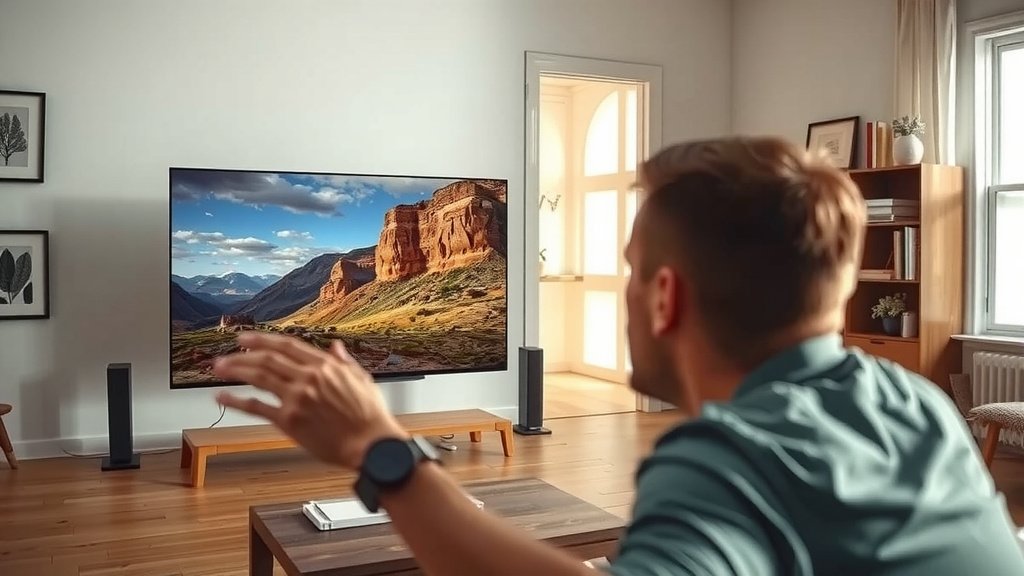
Once you find it, you can cycle through the available options. It’s best to make adjustments in a dimly lit room. This way, you can properly see the effect on dark and mid-tone details. You might want to use a reference image or a movie scene you know well to help you judge the best setting.
Adjusting Gamma for Optimal Viewing
Finding the perfect gamma isn’t just about picking a number. It’s about matching it to your viewing conditions and personal preference. Consider these points when you’re making adjustments.
Your Room’s Lighting is Key
This is the most important factor. If you watch TV in a bright, sunny room, a lower gamma (like 1.8 or 2.0) might be best. For a room that’s mostly dark when you watch, a higher gamma (like 2.2 or 2.4) will likely be superior. Many sources suggest gamma 2.2 is a good middle ground for typical living rooms (Rtings.com).
Content Matters Too
While you might want one setting for all your content, sometimes different types of shows benefit from slight tweaks. Dark, moody dramas might look better with a slightly higher gamma. Bright, colorful nature documentaries might be great with a standard 2.2. However, for simplicity, most people find a single setting that works well for the majority of their viewing.
Trust Your Eyes (Mostly)
While there are scientific standards, your perception is what ultimately matters. Use test patterns or familiar movie scenes. Look for details in shadows. Check that bright areas aren’t blown out. If a scene looks muddy or detail is lost, try a different gamma setting. It might take a bit of trial and error, but the result is worth it!
Common Pitfalls to Avoid
Even with the best intentions, you can make mistakes when adjusting gamma. Knowing these common traps can help you avoid them.
- Adjusting in a Bright Room for Dark Viewing: If you set your gamma in a super bright room and then watch in the dark, the picture might look terrible. Always set it in conditions similar to how you’ll be watching.
- Confusing Gamma with Brightness/Contrast: Gamma works with these settings but isn’t the same. Don’t tweak gamma if you actually need to adjust the overall light output (Brightness) or the difference between light and dark (Contrast).
- Ignoring Other Settings: Gamma is just one piece of the puzzle. Ensure your Brightness, Contrast, and Color settings are also reasonably well-calibrated.
Conclusion
You’ve learned that TV gamma is more than just a random setting; it’s a powerful tool for picture perfection. By controlling the transition from black to white, gamma ensures you see every detail, from the deepest shadows to the brightest highlights. Remember to adjust gamma based on your room’s lighting and your personal viewing habits. Don’t be afraid to experiment a little!
Your next step is to head to your TV’s settings menu. Find that gamma option and try adjusting it in your usual viewing environment. You’ll be amazed at how much better your favorite shows and movies can look when you get this crucial setting just right.
Frequently Asked Questions
What happens if I set my gamma too low?
Setting your gamma too low can make your picture look washed out. The darkest parts of the image may appear grayish instead of black. You might lose the sense of depth and contrast.
Is gamma the same as brightness?
No, gamma is not the same as brightness. While gamma affects the overall brightness of different shades, brightness specifically controls the black level. Gamma controls the relationship between the input signal and the light output across the entire gray scale.
Do I need to adjust gamma for every type of content?
Most people find one gamma setting that works well for the majority of their viewing. However, you might notice subtle improvements by tweaking it for very dark movies versus bright nature documentaries. For simplicity, sticking to one good setting is often sufficient.
My TV has an “Auto” gamma setting. Should I use it?
An “Auto” gamma setting can be convenient, but it doesn’t always provide the best results. It tries to guess the right setting, but manual adjustments often yield superior picture quality. It’s worth trying manual settings first.
Can I adjust gamma without any special equipment?
Yes, you can absolutely adjust gamma without special equipment! Use a familiar movie scene with both dark and bright elements. Pay attention to details in shadows and check if bright areas are losing definition. Trust your eyes to guide you to the best setting for your room.