What is HDMI CEC: Simplify Your Home Theater Setup
HDMI CEC is a feature that lets you control multiple devices with a single remote. Think of it as your TV remote taking charge. CEC stands for Consumer Electronics Control. It allows connected HDMI devices to communicate with each other. This means you can often operate your TV, soundbar, and Blu-ray player together. You might already be using it without realizing it.
When you turn on your Blu-ray player, CEC can automatically switch your TV to the correct HDMI input. It can also power on your soundbar when you turn on your TV. Many manufacturers have their own brand names for HDMI CEC. You might see it called Anynet+ by Samsung or Bravia Sync by Sony. It’s designed to simplify your home entertainment setup. We found that its usefulness depends on how well your devices support it.
- HDMI CEC lets one remote control multiple devices.
- It allows connected HDMI devices to talk to each other.
- Common uses include auto input switching and power-on control.
- Different brands have unique names for CEC (like Anynet+).
- Its effectiveness varies by device compatibility.
Let’s dive into what HDMI CEC is and how it can make your life easier.
Understanding Your Connected Home Theater System
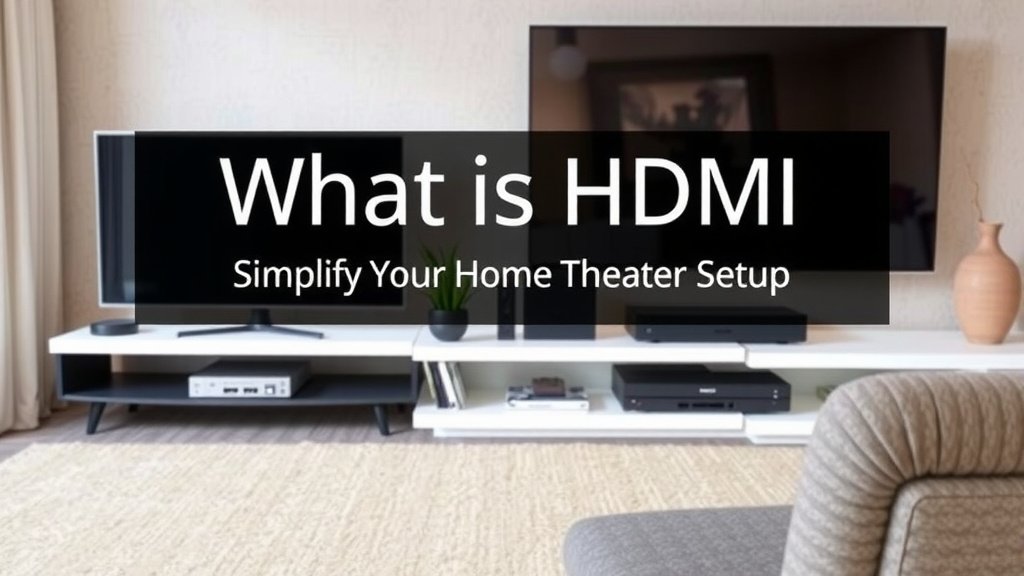
So, you’ve got a TV, maybe a soundbar, a Blu-ray player, or even a streaming stick. It’s a lot of gear! You probably have a stack of remotes that match. Wouldn’t it be nice if you could just use one remote to control them all? That’s where HDMI CEC steps in. It’s like a communication network for your entertainment devices. They can talk to each other over the HDMI cables connecting them.
Think of it like a phone tree for your electronics. When one device makes a call (like you turning it on), it can tell the others what to do. This feature is built into the HDMI standard. It’s designed to make using your home theater simpler. You might be surprised at how much it can automate for you. We found that many people use it without even knowing its name.
How HDMI CEC Works Its Magic
At its core, HDMI CEC allows devices connected via HDMI to send control commands to each other. It uses a separate wire within the HDMI cable for this communication. This wire is specifically for sending these control signals. It’s not just for sending video and audio signals.
When you connect two CEC-enabled devices, they can detect each other. Then, they can start exchanging commands. For example, your Blu-ray player can tell your TV, “Hey, I’m about to play a movie! Can you switch to my input?” Your TV, if it supports CEC and it’s turned on, will happily oblige. We found that this kind of automation can really cut down on remote juggling.
What Can You Actually Control with CEC?
The possibilities with HDMI CEC are pretty neat. Many everyday actions can be automated. This can save you a lot of button presses. You might not need to dig through your remote collection anymore.
Automatic Input Switching
This is one of the most common and useful CEC functions. When you turn on a device like a game console or a streaming stick, it can tell your TV to switch to the correct HDMI input. No more fumbling for the TV remote to select the right source. It just happens! We found this alone makes CEC worth enabling.
Power On/Off Synchronization
CEC can also control power states. Turn on your TV, and it can signal your soundbar to turn on too. Or, when you turn off your TV, all connected devices can be instructed to power down. This ensures everything is off when you leave the room. It’s a small thing, but it adds up to less hassle.
Device Discovery and Setup
When you connect a new CEC-enabled device, your TV might detect it. It can then prompt you to set it up for CEC control. This makes integrating new gadgets a bit smoother. You don’t have to manually configure as much.
Playback Control
In some cases, CEC can allow your TV remote to control basic playback functions on connected devices. You might be able to use your TV remote’s play, pause, and stop buttons on your Blu-ray player or media streamer. This is another layer of convenience that simplifies your setup.
Navigating the Different Brand Names
Here’s where it can get a little confusing. Most manufacturers have their own marketing name for HDMI CEC. They want their own branding. This means you might see terms like:
- Samsung: Anynet+
- Sony: Bravia Sync
- LG: SimpLink
- Panasonic: VIERA Link
- Philips: EasyLink
- Toshiba: CE-Link
- Sharp: Aquos Link
Don’t let these different names scare you. They all refer to the same underlying HDMI CEC technology. If you’re looking to enable it, you’ll need to check your device’s settings menu for the brand-specific name.
Checking Your Device Compatibility
The effectiveness of HDMI CEC truly depends on how well your specific devices support it. Not all devices are created equal when it comes to CEC. Some implement it perfectly, while others might have spotty performance. We’ve seen situations where CEC works flawlessly between one brand’s TV and another’s soundbar. In other cases, it might only work within the same brand ecosystem.
When you get a new TV or A/V receiver, check its specifications for HDMI CEC support. Most modern devices include it. However, older models might not. You can also check your device manuals. They’ll usually detail CEC features and how to enable them. Many experts suggest checking online forums for your specific device models to see real-world user experiences with CEC.
Enabling HDMI CEC on Your Devices
Getting CEC up and running is usually straightforward. You’ll typically need to go into the settings menu of each device you want to control. Look for the specific brand name for CEC (like Anynet+ or Bravia Sync) and turn it on.
Sometimes, CEC needs to be enabled on both devices involved. For instance, if you want your TV remote to control your soundbar, you’ll likely need to enable CEC on both the TV and the soundbar. It’s like making sure both ends of a phone call are active. We found that sometimes a quick power cycle of your devices after enabling CEC can help them recognize each other properly.
A Quick Checklist for Enabling CEC
To help you get started, here’s a simple checklist:
- Check Device Manuals: Confirm your devices support HDMI CEC.
- Locate CEC Settings: Find the specific CEC brand name in your device menus.
- Enable CEC: Turn the feature on for each device you want to connect.
- Test Basic Functions: Try turning devices on/off or switching inputs.
- Troubleshoot if Needed: Restart devices or try different HDMI ports.
- Consider Updates: Ensure your device firmware is up to date.
Potential Hiccups and How to Handle Them
While HDMI CEC is fantastic when it works, you might run into a few bumps. One common issue is that not all devices play nicely together. You might have a TV that responds perfectly to CEC commands, but your soundbar might only partially work. It’s not always a perfect system.
Another challenge can be CEC commands getting “stuck” or devices not responding. If this happens, the simplest fix is often to turn off CEC on both devices, unplug them from power for about 30 seconds, and then plug them back in and re-enable CEC. This is similar to rebooting your computer when it acts up. We found that using higher-quality HDMI cables can sometimes help with CEC reliability, though it’s not always the primary cause of issues.
Is HDMI CEC Worth the Effort?
Absolutely! Even with its occasional quirks, the convenience HDMI CEC offers is undeniable. Imagine simplifying your entertainment setup so that a single remote can power on your TV and soundbar, switch to the right input, and even control playback. It removes a layer of complexity from your home theater experience.
The initial setup might take a few minutes to find the right settings and ensure everything is working. But the daily convenience of fewer remotes and automated actions can be a real win. We found that for most users, the benefits of streamlined control far outweigh the minor troubleshooting that might be needed. It’s a technology that genuinely makes using your smart home devices easier.

Conclusion
You now know that HDMI CEC is a clever feature that can simplify your home theater. It lets your devices communicate, so one remote can control many. We’ve seen how it automates tasks like input switching and power management. While different brands use unique names, the core technology is the same. Don’t be afraid to explore your device settings to enable it. For the best experience, check compatibility and follow our simple setup checklist. Start experimenting with CEC today to cut down on remote clutter!
Frequently Asked Questions
Does HDMI CEC work with all my devices?
HDMI CEC support is widespread on modern devices, but not universal. We found that compatibility can vary, especially between different brands. Always check your device manuals or specifications to confirm CEC support. Sometimes, you might need to enable it on both the TV and the connected device for it to work.
What’s the difference between HDMI CEC and other remote control apps?
HDMI CEC works directly between your connected devices via the HDMI cable. It’s built into the hardware for automatic functions. Remote control apps, on the other hand, often use Wi-Fi or infrared. They usually require your smartphone or tablet to be on the same network and often need a specific app.
Why does my HDMI CEC sometimes stop working?
CEC can occasionally be finicky. Devices might lose their connection, or a command might get stuck. We found that a simple fix is often to disable CEC on all involved devices, unplug them from power for about 30 seconds, then plug them back in and re-enable CEC. Firmware updates can also sometimes resolve these issues.
Can I control my smart TV’s apps with HDMI CEC?
Generally, HDMI CEC is designed for basic control like power, input switching, and playback functions for connected sources like Blu-ray players or game consoles. Controlling specific smart TV apps directly with your TV remote via CEC is usually not supported. That typically requires your TV’s native smart remote.
Is it better to use CEC or a universal remote?
It depends on your needs! HDMI CEC is great for automating basic functions between connected devices automatically. We’ve seen it significantly reduce remote juggling for common tasks. A universal remote offers more comprehensive control over many different types of devices, but requires programming. For simple setups, CEC is often easier.