How to Optimize TV Settings for Gaming in October 2026
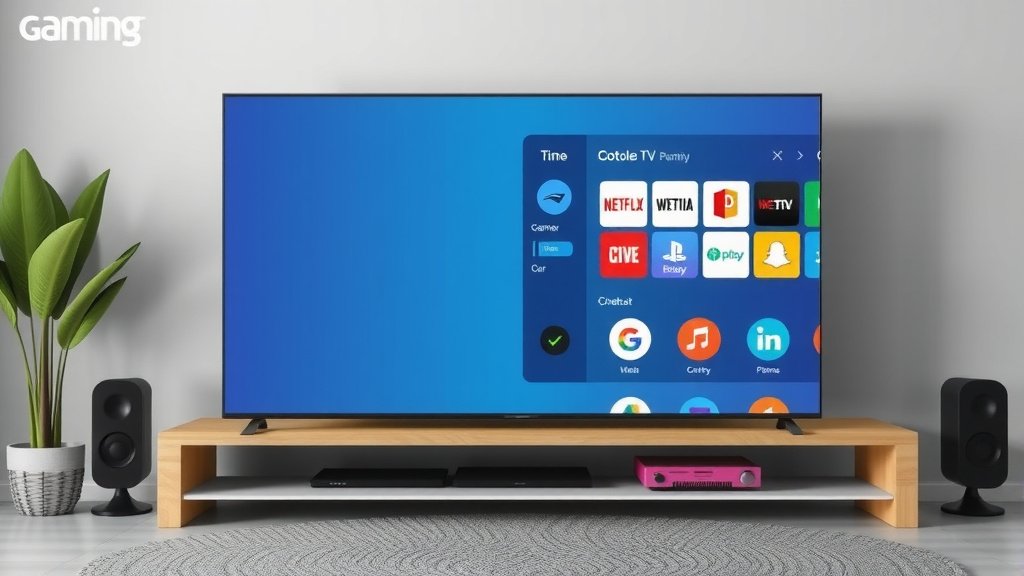
To optimize your TV settings for gaming, start by turning on Game Mode, which cuts input lag for faster response times. Then adjust your brightness, sharpness, and motion settings so the picture looks clean without slowing you down. We found that most TVs hide their best gaming features in plain sight, so knowing where to look makes all the difference.
Why does this matter? Because even the fastest console or gaming PC can look and feel sluggish on a TV that’s tuned for movies. Settings like motion smoothing and heavy image processing add delay between your controller and the screen. The good news is you don’t need to be a tech wizard to fix it — a few quick tweaks can make your games feel noticeably better.
- Turn on Game Mode to reduce input lag right away.
- Switch your TV’s input label to a gaming-friendly setting (some TVs do this automatically).
- Disable motion smoothing, also called soap opera effect, for a more natural feel.
- Match your resolution and refresh rate to your console, like 4K at 120Hz when supported.
- Fine-tune brightness and HDR so dark corners and bright highlights both look good.
Below, we break down everything you need to know, step by step, so your TV finally plays nice with your console. Ready to get the smoothest picture possible? Let’s get started.
Getting Your TV Ready for Gaming
Getting your TV ready for gaming comes down to a handful of settings that control speed and picture quality. We found that most people only need to touch five or six options to see a real difference. Think of it like tuning a guitar — a few small turns and everything sounds (or in this case, plays) better.
Start With Game Mode
Game Mode is your first stop. It strips out most of the picture processing that adds delay between your controller and the screen. Many TV makers design this mode specifically for consoles, so it’s the easiest win you’ll get.
Where is it hiding? Usually under Picture or General settings. On some TVs, plugging your console into the right HDMI port turns it on automatically. If your TV has an ALLM setting (Auto Low Latency Mode), leave it on — it flips to Game Mode for you.
Why Input Lag Matters
Input lag is the tiny delay between pressing a button and seeing the result on screen. Movie-friendly settings can add 80 milliseconds or more. Game Mode often cuts that down dramatically. Many experts note that competitive players notice delays as small as a few frames, so every millisecond counts.
Adjust Resolution and Refresh Rate
Next, match your TV’s output to your console. A PlayStation 5 or Xbox Series X can push 4K at 120Hz, but only if your TV allows it. Head to your console’s display settings and pick the highest option that doesn’t flicker or go blank.
| Console | Best Output | HDMI Port Needed |
|---|---|---|
| PS5 / Xbox Series X | 4K at 120Hz | HDMI 2.1 |
| PS5 / Xbox Series S | 1440p or 4K at 60Hz | HDMI 2.0 |
| Nintendo Switch | 1080p at 60Hz | HDMI 2.0 |
| Gaming PC | Match your GPU output | HDMI 2.1 or DisplayPort |
If your TV has a Game Optimizer or similar menu (many LG and Sony models do), that’s often where 120Hz gets toggled. Check your TV’s support page if you can’t find it — menus vary by brand and year.
Picture Settings That Make Games Look Great
Once speed is handled, it’s time to make the picture look good. Here’s a quick truth: factory settings are usually tuned for bright showroom floors, not your dim living room. You’ll want to dial things in yourself.
Brightness, Contrast, and Backlight
These three get confused all the time, so here’s the simple version:
- Brightness controls how dark areas look. Raise it until shadow details appear, but not so high that blacks turn gray.
- Contrast controls bright highlights. Push it up until whites pop without losing detail.
- Backlight controls overall screen punch. Set it based on your room’s lighting.
We found that playing in a darker room means you can lower the backlight, which also reduces eye strain during long sessions. The American Academy of Ophthalmology notes that screen brightness should roughly match your surroundings for comfortable viewing.
Sharpness and Color
Skip the urge to max out sharpness. Too much creates halo edges around characters — like outlining every player with a magic marker. Many reviewers suggest keeping sharpness low or at the default for games, since modern consoles already render crisp images.
For color, pick the Warm or Standard color temperature. Cool mode looks bluish and harsh. Warm may look odd for a day, then your eyes adjust and everything else looks off. Trust us — give it a week.
What About HDR?
HDR makes bright highlights brighter and dark scenes richer, but only if it’s set up right. Turn on HDR in your console settings, then check your TV’s HDR picture mode. Some TVs let you adjust brightness within HDR separately. If dark scenes look like a black hole, nudge brightness up a notch. If you’re unsure whether it’s worth the trouble, our guide explains when HDR actually makes a difference.
Settings to Turn Off for Faster Response
This is where many gamers lose precious milliseconds. Certain “enhancements” sound great in marketing but slow things down in practice.
- Motion smoothing / MotionFlow / TruMotion: Off. It adds artificial frames and lag.
- Noise reduction: Off. Games don’t need it like old movies do.
- Dynamic contrast: Off. It constantly adjusts and adds delay.
- Energy-saving mode: Off. It dims the screen unpredictably.
- Eco sensors: Off. Same reason — your picture shouldn’t breathe on its own.
Ever wonder why your game feels like it’s moving through peanut butter? One of these settings is almost always the culprit. Flip them off and feel the difference.
Your Quick Setup Checklist
- Turn on Game Mode for your console’s input.
- Set resolution to 4K and refresh rate to 120Hz if supported.
- Disable motion smoothing and noise reduction.
- Adjust brightness until shadow details appear.
- Set color temperature to Warm.
- Enable HDR on the console, then tweak TV HDR brightness.
Sound Settings Worth a Minute
Don’t neglect audio. Many TVs default to surround-sound processing that adds a small delay and muddies footsteps. Choose Stereo or Standard mode instead. If you play competitive shooters, many soundbars and headsets offer a dialogue or footsteps boost — worth a look.
When to Calibrate Further
Happy with the basics? Great. Want more? There are free test patterns online and even console built-in calibration tools that walk you through finer adjustments. Some folks hire professional calibrators, but honestly, most gamers won’t notice the difference in day-to-day play. Start simple. Adjust. Play a few matches. Adjust again. Your eyes are the best calibration tool you own.
Conclusion
Optimizing your TV for gaming comes down to a few smart moves: flip on Game Mode, match your resolution and refresh rate to your console, and kill the settings that add lag. From there, a little brightness and color tuning goes a long way. We’ve found that most players can complete this whole process in under 15 minutes — no tech expertise required. The best part? Once you set it, you’re done until you get a new console or TV. So grab your controller, pull up your TV’s settings menu, and make those changes tonight. Your next gaming session will feel tighter, look sharper, and finally match what your console can actually do.
Frequently Asked Questions
Does Game Mode reduce picture quality?
Slightly, in some cases. Game Mode skips heavy processing to cut input lag, so the image may look a bit less polished than movie mode. Most gamers agree the faster response is worth the small trade-off, especially in fast-paced titles.
Do I need an HDMI 2.1 TV for my PS5 or Xbox Series X?
Not necessarily. You’ll get great 4K at 60Hz gameplay from any decent HDMI 2.0 port. You only need HDMI 2.1 if you want 4K at 120Hz or certain features like VRR. Check your TV’s specs before assuming it’s missing out.
Why do my game settings reset every time I switch inputs?
Many TVs save picture settings per input, so unplugging devices or switching ports can trigger defaults. Set your preferences while your console is active, then avoid changing inputs. If your TV keeps reverting, check for a firmware update — some brands fixed this behavior.
Should I use my TV’s preset picture modes like “Vivid” or “Movie”?
Skip Vivid for gaming — it oversaturates colors and inflates brightness for store displays. Movie or Cinema modes look more accurate but often add processing lag. If Game Mode isn’t available for some reason, a Standard preset is your safest bet.
Can I use the same settings for every game?
You can, but you might not want to. Bright, sunny games like racing titles may benefit from a higher backlight, while dark horror games need shadow detail. Save a custom preset if your TV allows it, and switch when the mood strikes.