How Screen Mirroring Works: A Simple Guide

Screen mirroring works by using your device’s Wi-Fi connection to send a wireless signal. This signal is received by another device, like a smart TV or streaming stick. It then displays your phone or computer’s screen in real-time. You’re essentially casting your screen for others to see. It’s a quick and easy way to share content.
This technology relies on wireless protocols like Miracast or AirPlay. These protocols handle the data transmission smoothly. Your content travels wirelessly, appearing on the bigger screen. Many modern devices support built-in screen mirroring capabilities. It makes sharing photos or watching videos together super simple.
- Screen mirroring sends your screen wirelessly.
- It uses Wi-Fi to connect devices.
- Smart TVs and streaming devices often have this feature.
- Protocols like Miracast and AirPlay make it happen.
Let’s walk through exactly how screen mirroring works, step by step.
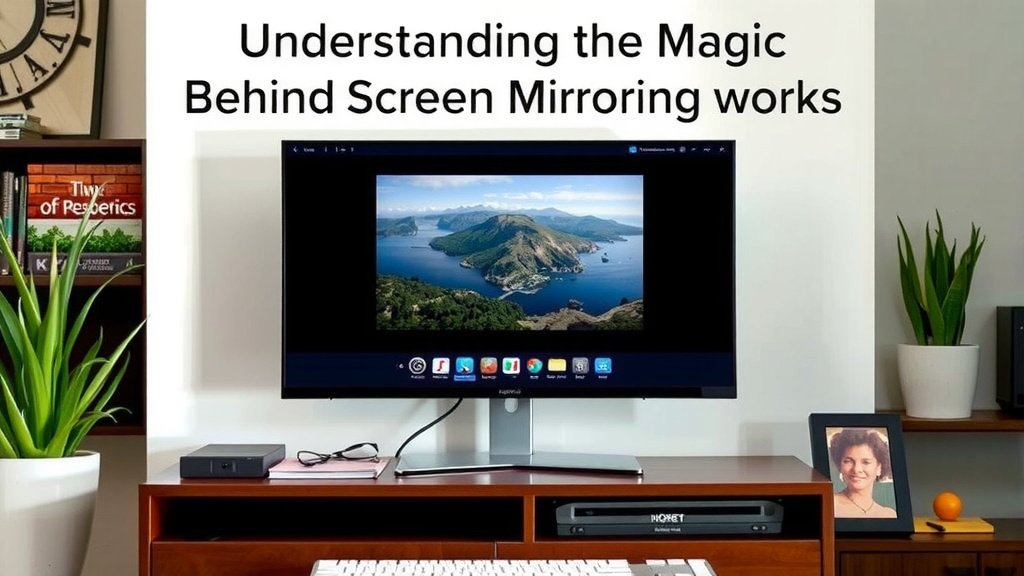
Understanding the Magic Behind Screen Mirroring
You might be wondering, “How does my phone’s screen magically appear on my big TV?” It feels like a bit of wizardry, right? Well, it’s all thanks to some clever technology working behind the scenes. The core idea is to take the visual output from one device and replicate it on another. This is done wirelessly, eliminating the need for messy cables. Your content travels through the air, from your small screen to a much larger one.
The process relies heavily on your existing Wi-Fi network. Think of your Wi-Fi as a highway. Your phone or computer sends its screen data down this highway. Another compatible device, like your smart TV or a streaming stick, is waiting at the destination to receive and display that data. It’s a digital handoff that happens in real-time.
The Technology That Makes It Possible
Several protocols are responsible for making screen mirroring work. You’ve probably heard of some of them. These are the rules that devices follow to communicate for screen sharing. They ensure that your video, photos, or presentations are sent accurately and efficiently.
Miracast: The Open Standard
Miracast is a widely supported technology. It’s an open standard, meaning many manufacturers can use it. This makes it quite common on various devices. Miracast creates a direct Wi-Fi connection between your source device and the receiving device.
This direct connection is key. It means you don’t always need a separate router for screen mirroring to work, though it often uses your home Wi-Fi. It’s like your phone and TV create their own temporary wireless link. This is great for spontaneous sharing when you’re at a friend’s house, for example.
AirPlay: Apple’s Ecosystem
If you’re an Apple user, you’ll be familiar with AirPlay. This is Apple’s proprietary technology. It’s designed to work seamlessly within the Apple ecosystem. AirPlay allows you to stream audio, video, and photos from your Apple devices.
AirPlay also handles screen mirroring. You can mirror your iPhone, iPad, or Mac screen to an Apple TV or an AirPlay-compatible smart TV. It’s known for its simplicity and reliable performance. Many experts praise its ease of use for Apple device owners (Apple Support).
Chromecast: Google’s Casting Solution
Google’s Chromecast is another popular option. While technically not always direct “screen mirroring” in the same way as Miracast, it achieves a very similar result. You can “cast” content from apps like YouTube or Netflix. This means the app sends a command to the Chromecast device to play the content directly.
You can also mirror your entire Android device screen or Chrome browser tab using Chromecast. This is achieved through the Google Home app or the Chrome browser. It’s a versatile tool for many users. Research shows Chromecast is used by millions for streaming and sharing (Statista).
How the Data Travels: A Step-by-Step Look
Let’s break down what happens when you initiate screen mirroring. Imagine you want to show vacation photos to your family. You grab your phone and your smart TV.
Initiating the Connection
First, you’ll usually go to a setting on your phone or tablet. This might be called “Screen Mirroring,” “Cast,” “AirPlay,” or “Smart View.” You select this option, and your device starts looking for nearby compatible receivers. Your smart TV or streaming stick also needs to be on and ready. It will appear in a list of available devices on your phone.
Establishing the Link
Once you select your TV from the list, the two devices begin to establish a connection. This uses your Wi-Fi network as the communication channel. If you’re using Miracast, they might establish a direct Wi-Fi Direct link. If you’re using AirPlay or Chromecast, they typically communicate through your home router. This handshake ensures both devices are ready to send and receive.
Encoding and Transmission
Now comes the magic for the visual part. Your phone’s screen content is essentially a series of images. To send this wirelessly, the device needs to compress and encode this visual data. It’s like packing a suitcase efficiently. This encoded data is then sent over your Wi-Fi connection.
The speed and quality of your Wi-Fi are really important here. A stronger, faster Wi-Fi signal means smoother video and less lag. Think of it like a clear phone call versus a choppy one.
Decoding and Displaying
On the receiving end, your smart TV or streaming stick takes the incoming data. It then decodes or unpacks it. This process reverses the packing. The TV’s hardware is built to display this decoded signal. It then shows exactly what’s on your phone’s screen, usually with minimal delay.
This entire process happens very quickly. It’s designed to feel almost instantaneous. The goal is a real-time mirror image. This allows for interactive use, like showing presentations or playing simple games.
Key Components at Play
Several technologies and components work together. Understanding these can help you troubleshoot if you ever have issues.
Wi-Fi Network
Your home Wi-Fi network is the backbone. Both your source device and your display device need to be connected to the same network. This is generally required for most screen mirroring methods. A stable Wi-Fi connection is crucial for a good experience. Many IT professionals stress the importance of a good Wi-Fi signal strength (CompTIA).
Hardware Support
Your devices need the right hardware. This includes Wi-Fi chips capable of handling the data. The operating system on both devices must also support the specific screen mirroring protocol being used. Newer devices almost always have this built-in.
Software and Protocols
As we discussed, protocols like Miracast, AirPlay, and Chromecast are essential software components. They define how the devices talk to each other. Your operating system (like iOS, Android, or Windows) has built-in support for these. Apps you use might also have their own casting features.
What to Check for a Smooth Experience
To ensure your screen mirroring session goes off without a hitch, here’s a quick checklist:
- Ensure Devices are on the Same Wi-Fi: This is the most common requirement.
- Check for Updates: Make sure your phone, TV, and any streaming devices have the latest software updates.
- Strong Wi-Fi Signal: Position devices closer to your router if possible.
- Device Compatibility: Confirm that your source device and your TV/receiver support the same mirroring protocol (e.g., both support AirPlay).
- Restart Devices: Sometimes a simple restart of your phone, TV, and router can fix connection issues.
Conclusion
You’ve learned how screen mirroring uses your Wi-Fi to connect devices. Protocols like Miracast, AirPlay, and Chromecast make this wireless sharing possible. Your phone’s screen data travels wirelessly, gets decoded, and displays on a larger screen in real-time. This technology offers a simple way to share content with others. To get started with your own screen mirroring, ensure your devices are compatible and on the same Wi-Fi network. Then, simply select your display device from your phone’s casting options.
Frequently Asked Questions
Can I screen mirror if my devices aren’t on the same Wi-Fi network?
Generally, no. Most screen mirroring methods require both your source device (like your phone) and your receiving device (like a smart TV) to be connected to the same Wi-Fi network. This shared connection is how they communicate and transfer data.
Will screen mirroring drain my phone’s battery quickly?
Yes, screen mirroring can consume more battery than usual. This is because your device’s Wi-Fi radio is constantly transmitting data, and the processor is working hard to encode and send your screen’s content.
What if my TV isn’t a smart TV? Can I still screen mirror?
You absolutely can! If your TV doesn’t have built-in smart capabilities, you can easily add them with a streaming stick or box like a Roku, Amazon Fire Stick, or Google Chromecast. These devices plug into your TV’s HDMI port and handle the screen mirroring connection.
Is screen mirroring the same as casting?
While often used interchangeably, they have slight differences. Screen mirroring sends your entire device screen, so whatever you see is what appears on the other display. Casting typically allows you to send specific content from an app (like a YouTube video) directly to your streaming device, freeing up your phone for other tasks.
What causes screen mirroring lag or stuttering?
Lag and stuttering are usually caused by a weak or unstable Wi-Fi signal. Interference from other devices, the distance from your router, or an overloaded network can all contribute to poor performance. Ensuring a strong, clear connection is key to a smooth experience.