Connect Your Antenna to TV: A Simple Guide
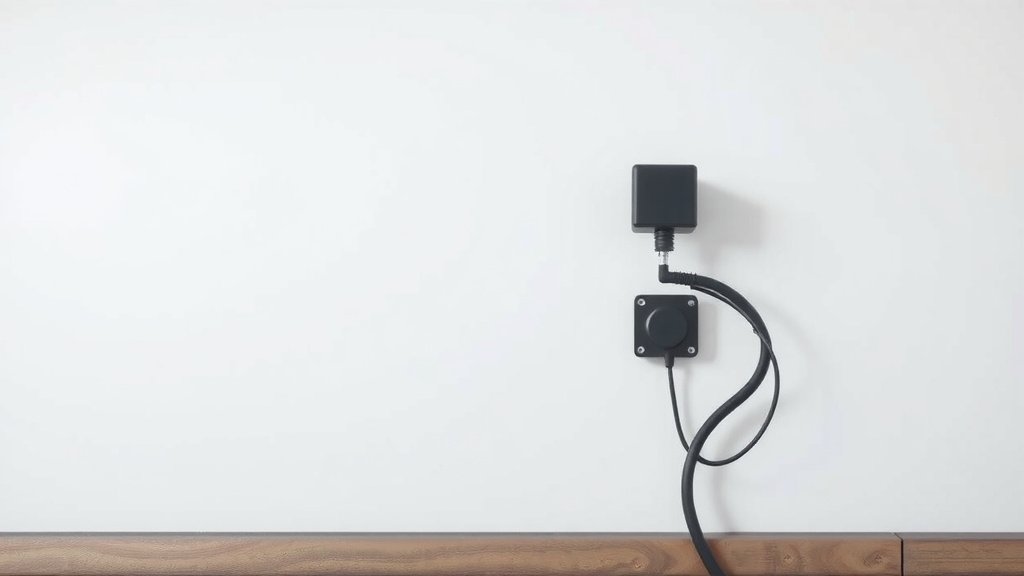
Connecting an antenna to your TV is a straightforward process that lets you access free over-the-air channels. You’ll need to connect the antenna cable to your TV’s antenna or cable input, then scan for channels within your TV’s settings. It’s a great way to get local programming without a cable subscription.
Most modern TVs come equipped with an antenna input port, often labeled “Antenna In,” “Cable In,” or “RF In.” Many antennas also come with the necessary coaxial cable. We found that understanding these basic connections is key to a successful setup.
- Connect the antenna cable to your TV.
- Plug in and position your antenna.
- Scan for channels in your TV’s menu.
- You can get free local channels.
Let’s walk through exactly how to get your antenna hooked up and start watching in no time.
Getting Your Antenna Hooked Up to Your TV
Connecting an antenna to your TV is simpler than you might think. It’s your ticket to free, local broadcast channels. You probably already have most of what you need. Let’s get this connection sorted so you can start watching your favorite shows without paying a monthly bill.
Understanding Your TV’s Input Ports
First things first, you need to know where to plug things in. Your TV has a specific port for antenna signals. It’s usually on the back or side of your television. Look for labels like “Antenna In,” “Cable In,” or “RF In.” This is the gateway for all those free channels.
What is a Coaxial Cable?
The cable that connects your antenna to your TV is called a coaxial cable. It’s pretty common. You might already have one if you’ve ever had cable TV. It has screw-on connectors at both ends. One end goes into your antenna, and the other connects to your TV’s input port.
Does My Antenna Come with a Cable?
Most new antennas come with a coaxial cable. This makes the setup even easier. You won’t need to go out and buy one separately. Just check the box your antenna came in. If it doesn’t, you can find one at most electronics stores.
Connecting the Antenna Cable: The Physical Link
This is the core of the setup process. You’ll be making the physical connection between your antenna and your TV. It’s a straightforward step that requires minimal effort but is absolutely essential for receiving any signal.
Step 1: Connect to the Antenna
Take one end of your coaxial cable. You’ll need to attach it securely to your antenna. Most antennas have a threaded connector. Simply screw the cable end onto this port until it’s snug. You don’t need tools for this, just hand-tighten it.
Step 2: Connect to the TV
Now, find the “Antenna In,” “Cable In,” or “RF In” port on your TV. Take the other end of the coaxial cable. Screw it onto this port on your television. Again, just hand-tighten it. Make sure both connections are firm so they don’t wiggle loose.
Step 3: Secure Any Extra Cable
You might have some extra cable length. Don’t let it dangle loosely. You can use zip ties or cable clips to keep it tidy. This prevents tripping hazards and looks much neater. A clean setup is always a happy setup.
Positioning Your Antenna for the Best Signal
Where you place your antenna makes a huge difference. It’s not just about plugging it in. You need to think about where it’s getting the best view of broadcast towers. Many experts recommend positioning it as high as possible and near a window.
Indoor vs. Outdoor Antennas
The type of antenna you have matters. Indoor antennas are convenient but might struggle with weaker signals. Outdoor antennas generally get better reception because they can be placed higher up. However, they require a bit more installation work.
Finding a Good Spot
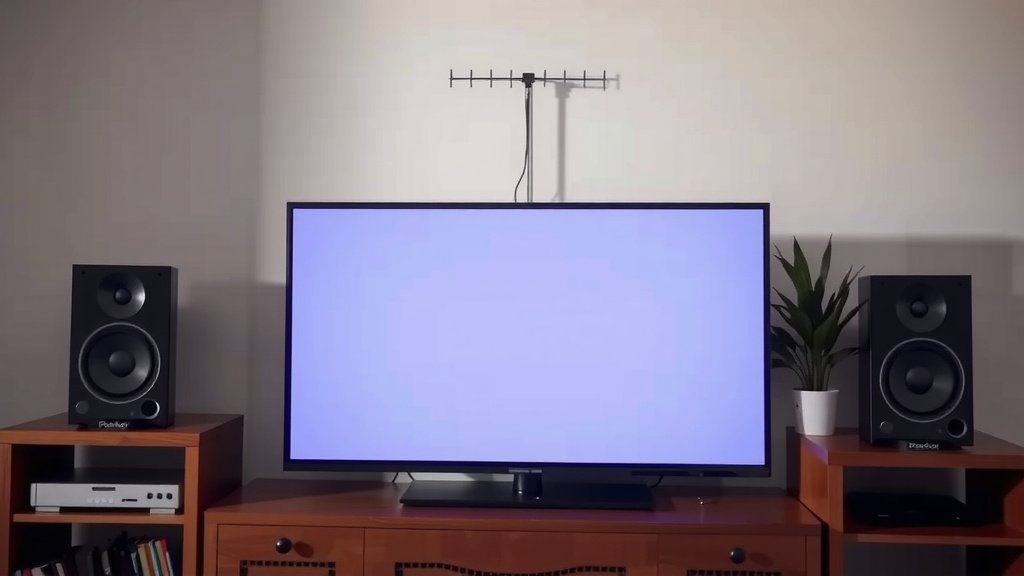
For indoor antennas, place them near a window facing the direction of the local TV towers. Avoid placing them behind large metal objects or appliances. These can block the signal. Research suggests that the best reception is achieved when there are fewer obstructions (Consumer Reports).
Using Online Tools
You can use online tools to find the direction of TV towers in your area. Websites like the FCC’s DTV Reception Maps can help. You enter your address and it shows you where the signals are coming from. This information is super helpful for antenna placement.
Scanning for Channels on Your TV
Once everything is connected and your antenna is in place, it’s time for the TV to do its job. Your TV needs to search for and lock onto the available signals. This process is called “scanning” or “tuning.”
Accessing Your TV’s Menu
Grab your TV remote. You’ll need to navigate to your TV’s settings menu. Look for a button labeled “Menu,” “Settings,” or “Home.” Once you’re in the menu, find the section related to “Channels,” “Broadcast,” “Tuning,” or “Antenna Setup.”
Starting the Channel Scan
Within the channel settings, you should see an option to “Scan for Channels,” “Auto Tune,” or “Auto Program.” Select this option. Your TV will then start searching for all the available over-the-air channels in your area. This can take a few minutes, so be patient.
What to Expect During the Scan
As your TV scans, you’ll likely see a progress bar. The number of channels found will increase. If you’re not getting many channels, this might mean you need to reposition your antenna or that your signal strength is weak. Don’t worry if it’s not perfect on the first try!
Saving Your Channels
After the scan is complete, your TV will automatically save the channels it found. You can then switch to antenna mode or “TV” mode on your remote. You should be able to cycle through all the channels you’ve tuned in. Enjoy your new free TV experience!
Troubleshooting Common Connection Issues
Sometimes, things don’t work perfectly the first time. It’s okay! Most problems are easily fixed. Let’s go over a few common hiccups and how to resolve them.
No Channels Found
If your TV finds zero channels, double-check all your connections. Ensure the coaxial cable is securely attached to both the antenna and the TV. Try rescanning. If that doesn’t work, try a different location for your antenna. Sometimes, even a few feet can make a difference.
Pixelated or Breaking Up Channels
This usually indicates a weak signal. Try moving your antenna to a higher location or closer to a window. If you have an outdoor antenna, ensure it’s properly aimed towards the broadcast towers. Some people find that a signal amplifier can help, but always try repositioning first.
Incorrect Channels Tuned
If you’re getting channels that aren’t local or are very fuzzy, you might need to perform a full rescan. Make sure your TV’s tuner is set to “Antenna” or “Air,” not “Cable.” Some TVs have a setting for digital vs. analog; ensure it’s set to digital.
Quick Checklist for Success
- Confirm your TV has an “Antenna In” or “RF In” port.
- Ensure you have a coaxial cable.
- Connect the cable securely to both the antenna and the TV.
- Place your antenna in a high, clear spot, ideally near a window.
- Run a channel scan in your TV’s settings menu.
- Test your reception by changing channels.
Conclusion
You’ve now learned the simple steps to connect an antenna to your TV. By understanding your TV’s ports, securing your coaxial cable, and properly positioning your antenna, you’re well on your way to enjoying free local channels. Remember that a good location and a quick channel scan are key. Don’t be discouraged if it takes a little tweaking! We found that most setups work best with a bit of patience. Take a moment to double-check your connections and run that channel scan again. You’re all set to start discovering what’s broadcasting in your area!
Frequently Asked Questions
Do I need to pay for an antenna service after setting it up?
No, the beauty of connecting an antenna is that it provides free over-the-air channels. Once you connect the antenna and scan for channels, you won’t have any monthly fees. You’re accessing local broadcast signals directly, which are free for public reception.
Can I use an old cable TV coaxial cable with my new antenna?
Yes, you absolutely can. Coaxial cables used for cable TV are the same type needed for antennas. Just make sure the connectors are clean and screw them on securely to both the antenna and your TV’s input port. We’ve found they work perfectly for this purpose.
What if my TV doesn’t have an “Antenna In” port?
Most modern TVs do. If yours is older and lacks this port, you might need a digital converter box. This box acts as an intermediary, converting the antenna’s signal into a format your TV can display. You would connect the antenna to the converter box, and then the converter box to your TV via HDMI or AV cables.
How do I know which direction to point my antenna?
You can find this information online using tools like the FCC’s DTV Reception Maps. Enter your address, and it will show you the direction and distance of local TV towers. This helps you aim your antenna for the strongest possible signal. We found this step makes a big difference in channel reception.
Is it better to use an indoor or outdoor antenna?
Generally, outdoor antennas perform better because they can be placed higher up and have fewer obstructions. Indoor antennas are more convenient but might struggle with weaker signals or interference. If you’re in an area with strong signals or live close to broadcast towers, an indoor antenna might be sufficient. For weaker signals, an outdoor antenna is often recommended.