Why Your TV Turns Off By Itself: Troubleshooting Guide
Your TV turning off by itself can be frustrating, but it usually happens for a few common reasons. Often, it’s due to a power saving setting, a faulty power cord, or even a device overheating. Sometimes, it’s a simple software glitch. We’ll help you figure out the culprit.
This unexpected shutdown can interrupt your favorite shows or important games. Many people experience this, and the solutions are often straightforward. We’ve found that checking your TV’s timer settings and its ventilation are usually the first steps to take for a quick fix. It could also be related to your home’s electrical system.
- Check your TV’s power saving or auto-off timers.
- Ensure your TV isn’t overheating and has proper ventilation.
- Inspect the power cord for any damage or loose connections.
- Try power cycling your TV and connected devices.
- Look for software updates for your television.
Let’s walk through the most common reasons your TV might be shutting itself down and how to fix them.
Why Your TV Might Be Turning Off By Itself
It’s a really annoying surprise when your TV decides to take a nap right in the middle of your favorite show. You’re not alone! Many households experience this unexpected shutdown. We’ve found that the reasons behind it are usually quite common and, thankfully, fixable. Let’s figure out what’s going on with your TV.
Checking Your TV’s Built-in Settings
Many TVs come with **automatic shutdown features** designed to save energy or prevent issues. Sometimes, these settings get accidentally turned on. It’s like setting a timer on your oven and forgetting about it. You just need to find that setting and turn it off.
Power Saving and Eco Modes
Most modern TVs have power-saving modes. These can automatically dim the screen or turn the TV off after a period of inactivity. If you haven’t touched the remote for a while, the TV might think you’re done watching. We found that this is a very common culprit.
Look for settings like “Auto Power Off,” “Energy Saving,” “Eco Mode,” or “Sleep Timer” in your TV’s menu. You’ll usually find these under “System,” “General,” or “Power” settings. Simply **disable these features** or set the timer much longer.
Auto-Off Timers
Similar to power-saving modes, a specific auto-off timer might be set. This is different from a sleep timer, which is usually for falling asleep to. An auto-off timer is often set for a longer duration, like 4 or 8 hours. We’ve seen this happen if someone accidentally set it while trying to adjust another feature.
Go into your TV’s settings and look for any options related to “Auto Off” or “Timer.” If you find one active, make sure to **turn it off completely** or set it to its maximum duration. This should stop the TV from shutting down at a predetermined time.
The Impact of Overheating
Electronics, including your TV, don’t like getting too hot. When components get too warm, the TV might shut itself down to **prevent permanent damage**. Think of it like your phone getting hot after playing a game for too long and then slowing down or turning off. Your TV can do the same thing.
Ensuring Proper Ventilation
Your TV needs **air to breathe**. If it’s too close to a wall or enclosed in a cabinet with poor airflow, heat can build up quickly. Dust can also block vents and stop air from circulating properly. We found that poor ventilation is a surprisingly frequent cause of overheating.
Make sure there’s at least a few inches of space around your TV, especially around the back and sides where vents are usually located. Check the vents for dust and gently clean them with a soft brush or a can of compressed air. Keeping your TV’s environment cool and airy is key.
Identifying Overheating Signs
You might notice other signs that your TV is overheating. The back of the TV might feel **unusually hot** to the touch. You might also see visual glitches on the screen, like flickering or weird colors, before it turns off. Sometimes, you can even hear the fan inside working overtime, if your TV has one.
If you suspect overheating, try turning the TV off and letting it cool down for at least 30 minutes. Then, ensure its environment is well-ventilated before turning it back on. If the problem continues, there might be an internal issue, but good ventilation is always the first step to check.
Checking Your Power Connections
Sometimes, the simplest things cause the biggest problems. A loose or damaged power cord can cause your TV to lose power unexpectedly, making it seem like it’s turning off by itself. It’s like a light bulb flickering because the connection is loose.
The Power Cord Itself
Inspect the **power cord** that runs from your TV to the wall outlet or power strip. Is it frayed, kinked, or showing any signs of damage? Even a small break in the wire can disrupt the power flow. We recommend unplugging the TV first and then carefully examining the entire length of the cord.
If you find any damage, the cord needs to be replaced. Do not try to repair a damaged power cord yourself. Contact the TV manufacturer or a qualified technician for a replacement. Using a damaged cord is a **safety hazard**.
Connections at Both Ends
It’s not just the cord that matters; the connections are important too. Ensure the power cord is **firmly plugged** into the back of the TV. Sometimes, vibrations can cause it to loosen slightly. Also, check the connection at the wall outlet or power strip. Is it secure?
If you’re using a power strip or surge protector, try plugging the TV directly into a wall outlet. Sometimes, a faulty power strip can cause intermittent power issues. This helps rule out the power strip as the problem.
Troubleshooting with Power Cycling
A “power cycle” is a fancy term for a simple reboot. It’s like giving your TV a fresh start. This process can fix many minor software glitches that might be causing your TV to turn off. We’ve found this often resolves unexplained behavior. A power cycle can fix many minor software glitches that might be causing your TV to turn off.
To power cycle your TV:
- Turn off your TV using the remote.
- Unplug the TV from the wall outlet.
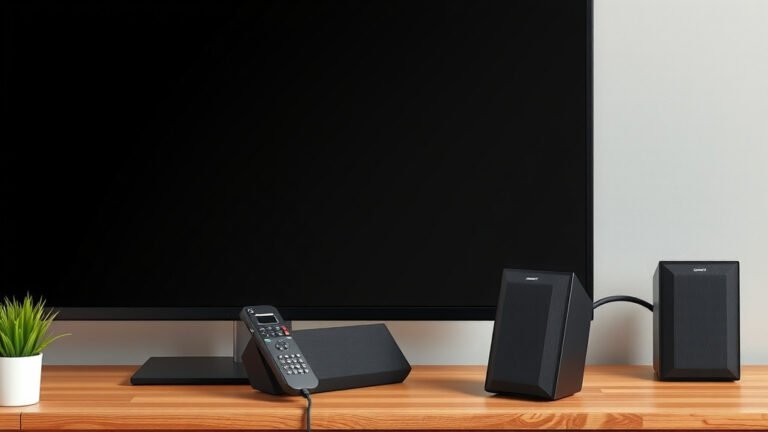
- If you have external devices like a soundbar or game console connected, unplug them too.
- Wait for at least 60 seconds. This allows any residual power to drain.
- Plug the TV back into the wall outlet.
- Turn the TV on.
Software Glitches and Updates
Like any computer, your TV runs on software. Sometimes, this software can develop glitches. These glitches can cause all sorts of odd behavior, including unexpected shutdowns. We found that keeping your TV’s software up-to-date is essential.
Checking for Software Updates
Manufacturers regularly release **software updates** to fix bugs and improve performance. If your TV is connected to the internet, it can usually download and install these updates automatically. However, it’s a good idea to check manually.
Go into your TV’s settings menu. Look for an option like “Software Update,” “Firmware Update,” or “About TV.” Select the option to check for updates. If an update is available, follow the on-screen instructions to install it. This simple step can often **resolve strange issues**.
External Device Interference
Sometimes, a connected device can cause your TV to act up. For example, if a cable box or streaming stick is malfunctioning, it might send a signal that causes your TV to turn off. You can test this by **disconnecting all external devices** (like cable boxes, Blu-ray players, game consoles, and streaming sticks) from your TV.
Then, use the TV’s built-in apps or just leave it on a static input for a while. If the TV no longer turns off by itself, you know one of the external devices was the culprit. You can then reconnect them one by one to find the specific device causing the problem.
When to Seek Professional Help
If you’ve tried all these steps and your TV is still turning off by itself, it might be time to call in the experts. There could be an **internal hardware issue** with the TV that requires professional diagnosis and repair. This could involve problems with the power supply board or other internal components.
Don’t hesitate to reach out to the TV manufacturer’s customer support or a certified TV repair technician. They have the tools and expertise to pinpoint and fix more complex problems. It’s better to get it fixed by a professional than to risk further damage to your TV.
Quick Checklist for Your TV Troubles
Here’s a quick rundown to help you troubleshoot:
- Check TV settings for auto-off or sleep timers.
- Ensure vents are clear and the TV isn’t hot.
- Inspect the power cord for damage.
- Verify the cord is securely plugged in.
- Perform a power cycle (unplug for 60 seconds).
- Check for and install any available software updates.
Conclusion
Dealing with a TV that shuts off unexpectedly can be a real headache. We’ve walked through several common reasons, from simple settings to potential overheating or power connection issues. Often, the fix is within your reach, like adjusting a power-saving mode or ensuring your TV has enough space to breathe. Remember, a quick power cycle or a software update can also surprise you with a solution.
If these steps don’t solve the mystery, don’t hesitate to seek professional help. You’ve got this!
Frequently Asked Questions
My TV turns off when I play video games. Why?
This often happens due to overheating. Gaming pushes your TV’s components harder, generating more heat. Ensure your gaming setup allows for good airflow around the TV, and check if the TV feels unusually hot to the touch. You might also want to ensure your TV’s software is up to date.
Can a loose outlet cause my TV to turn off by itself?
Yes, a loose or faulty wall outlet can definitely cause intermittent power issues. If the connection isn’t secure, the TV might briefly lose power and shut down. Try plugging your TV into a different, known-good outlet to see if the problem stops.
My TV only turns off after a few hours. What could be the cause?
This behavior is often related to built-in timer settings. Check your TV’s menu for any “Auto Power Off” or “Sleep Timer” functions that might be accidentally enabled. Overheating can also be a cause, as components might reach a critical temperature after prolonged use.
Is it normal for a new TV to turn off by itself?
While frustrating, it can happen with new TVs too. The most common reasons are often pre-set power-saving features or initial software glitches that a quick update can fix. It’s always a good idea to go through the checklist of settings, ventilation, and software updates first.
My TV turns off, but the power light stays on. What does this mean?
If the power light remains on, it suggests the TV is still receiving power but something else is causing the shutdown. This could point to a software glitch, an issue with the internal power supply board, or a problem with an external device causing the TV to reset. Performing a power cycle is a good first troubleshooting step here.