Fix TV Lines on Screen: Troubleshooting Guide
Seeing lines on your TV screen can be super frustrating. Luckily, you can often fix TV lines with a few simple troubleshooting steps. Common causes include loose cables, interference, or even a faulty component in your TV. We found that checking your connections first is usually the quickest fix.
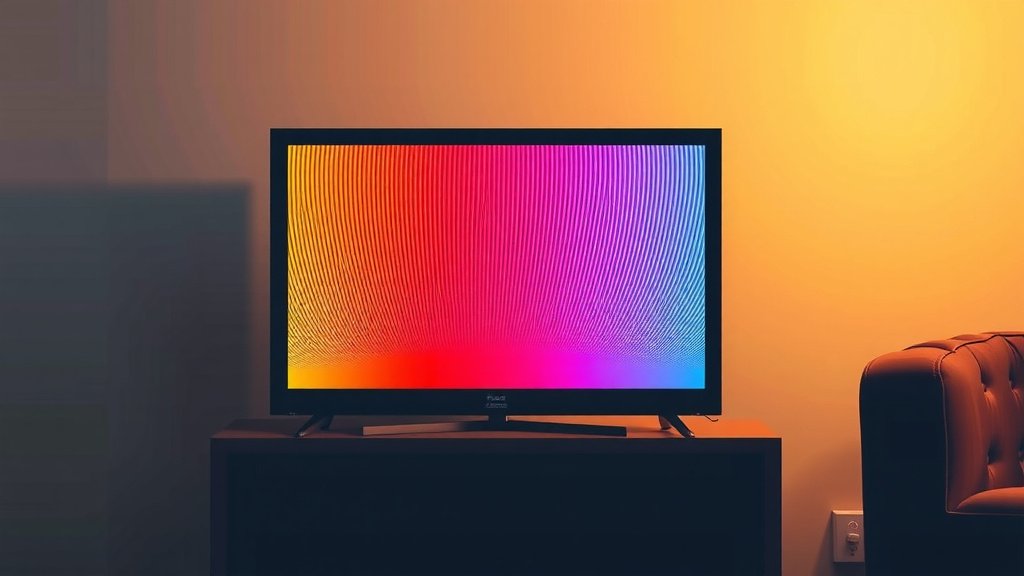
These annoying lines can appear in many forms, like horizontal stripes, vertical bars, or even a checkered pattern. Sometimes, TV picture issues are related to your signal source, like a cable box or streaming device. Other times, the problem might be with the TV itself. We’ll help you figure out which it is.
TL;DR:
- Check all cable connections first.
- Try a different HDMI cable or port.
- Restart your TV and connected devices.
- Test different input sources.
- Look for signs of physical damage.
Let’s walk through exactly how to tackle those pesky TV lines step by step, so you can get back to enjoying your favorite shows!
Troubleshooting Lines on Your TV Screen
Finding lines on your TV screen can feel like a scene from a bad movie. But don’t panic! Many times, fixing TV lines is within your reach. We’ve looked into common causes and found that simple checks often solve the problem.
Step 1: Check Your Cables
The most frequent culprit is a loose or damaged cable. Think of your TV’s cables like the veins connecting it to the outside world. If they’re kinked or not plugged in snugly, the picture can get messed up.
Inspect HDMI and Other Video Cables
Start with the cables connecting your TV to your cable box, game console, or streaming stick. Are they plugged in firmly at both ends? Sometimes a cable just needs a good push to reseat it properly. Gently wiggle each cable to see if the lines change or disappear. If they do, you’ve likely found your issue.
Look for Physical Damage
Examine the cables closely. Are there any visible nicks, cuts, or bent pins on the connectors? Damaged cables can send a garbled signal. Many sources suggest replacing any cable that shows signs of wear and tear. This is an easy and inexpensive fix if it’s the problem.
Step 2: Test Different Connections
Even if your cables look good, the port they’re plugged into could be the issue. Trying a different port can help pinpoint if the problem lies with the connection itself.
Try a Different HDMI Port
Most modern TVs have multiple HDMI ports. Unplug your cable from one port and try another. Sometimes, one port might be faulty or have a weaker connection. We found that this simple switch solves the problem for many users.
Swap Your HDMI Cable
If you have another HDMI cable handy, try using it instead. Cables can degrade over time, or you might have just grabbed a faulty one. If a new cable makes the lines disappear, you know it was the cable all along. This is a common fix that many people overlook.
Step 3: Restart Everything
A good old-fashioned reboot can clear up a surprising number of electronic glitches. It’s like giving your devices a fresh start.
Power Cycle Your TV and Devices
Turn off your TV, cable box, streaming device, or game console. Then, unplug them from the power outlet. Wait about 60 seconds. Plug everything back in and turn them on. This process, often called a power cycle, can reset temporary software glitches. We found this is a quick step that often resolves minor picture issues.
Step 4: Test Different Input Sources
Is the problem happening on every channel or app, or just one? This helps determine if the issue is with your TV or the source device.
Switch TV Inputs
Try switching to a different input on your TV. For example, if you’re watching cable, switch to a streaming app or a Blu-ray player. If the lines only appear on one input, the problem is likely with that specific device or its connection. If the lines show up on all inputs, the issue might be with the TV itself.
Test Built-In Apps vs. External Devices
Many smart TVs have built-in apps like Netflix or YouTube. If you usually use a separate streaming stick, try using the TV’s built-in apps. If the lines disappear when using the TV’s apps, your streaming stick or cable box might be the problem. Many troubleshooting guides point to this as a key diagnostic step.
Step 5: Look for Physical Damage or Overheating
Sometimes, the lines are a sign of a more serious hardware problem. It’s worth a quick visual inspection.
Check for Screen Damage
Gently inspect the TV screen itself. Do you see any cracks or physical damage? If there’s a crack, it’s likely an internal component has failed. Unfortunately, this usually means the TV needs professional repair or replacement.
Ensure Proper Ventilation
Overheating can sometimes cause display issues. Make sure your TV has enough space around it for air circulation. If the back of your TV feels unusually hot, try moving it to a more open spot. Many sources, like consumer electronics guides, recommend ensuring your TV isn’t covered or blocked.
When to Call a Professional or Consider Replacement
If you’ve gone through all these steps and the lines persist, it’s possible there’s a more serious internal issue with the TV. This could involve the display panel itself or the TV’s internal processing board. These are typically not user-fixable problems.
If your TV is still under warranty, contact the manufacturer. They can guide you through further steps or arrange for a repair. If the TV is older and out of warranty, you’ll need to weigh the cost of repair against the cost of a new TV. We found that for older models, replacement is often the more economical choice.
Quick Checklist for Fixing TV Lines
- Ensure all cables (HDMI, power) are securely plugged in.
- Check cables for any visible damage like cuts or bent pins.
- Try a different HDMI port on your TV.
- Test with a different, known-good HDMI cable.
- Restart your TV and all connected source devices.
- Switch to a different input source or built-in TV app.
Conclusion
Seeing lines on your TV screen can be frustrating, but you’ve learned many common issues are fixable. We’ve guided you through checking cables, testing different connections and sources, and restarting your devices. These steps often resolve picture problems quickly. If the lines persist after trying these solutions, it might indicate a hardware issue. Your next step should be to check your TV’s warranty or consult a professional for further diagnosis and repair options. Don’t let those lines keep you from enjoying your favorite content!
Frequently Asked Questions
What if the lines only appear on certain apps?
If the lines are exclusive to specific apps on your smart TV, it’s likely an issue with that app or your internet connection. Try clearing the app’s cache or reinstalling it. You might also want to check your Wi-Fi signal strength for those apps.
Can a TV screen protector cause lines?
A poorly applied or damaged screen protector could potentially cause visual distortions or lines. Carefully inspect the protector for bubbles, scratches, or lifting edges. If you suspect it’s the cause, try removing it to see if the lines disappear.
Do the lines get worse over time?
In many cases, lines that indicate a hardware failure, like a failing display panel, will indeed worsen over time. If you notice the lines are spreading or becoming more prominent, it’s a strong signal to address the problem sooner rather than later.
How do I know if it’s the TV or the source device?
The best way to tell is by testing different input sources. If the lines appear on your cable box, streaming stick, and game console, the TV is likely the problem. If the lines only show up when using one specific device, that device or its cable is probably at fault.
Is it safe to keep using a TV with lines on the screen?
While it might be safe to continue using your TV, lines often indicate an underlying issue that could potentially worsen. If the lines are distracting or signal a hardware fault, it’s best to investigate the cause and consider repair or replacement.