How to Set Up HDR Gaming on Your TV: A Step-by-Step Guide
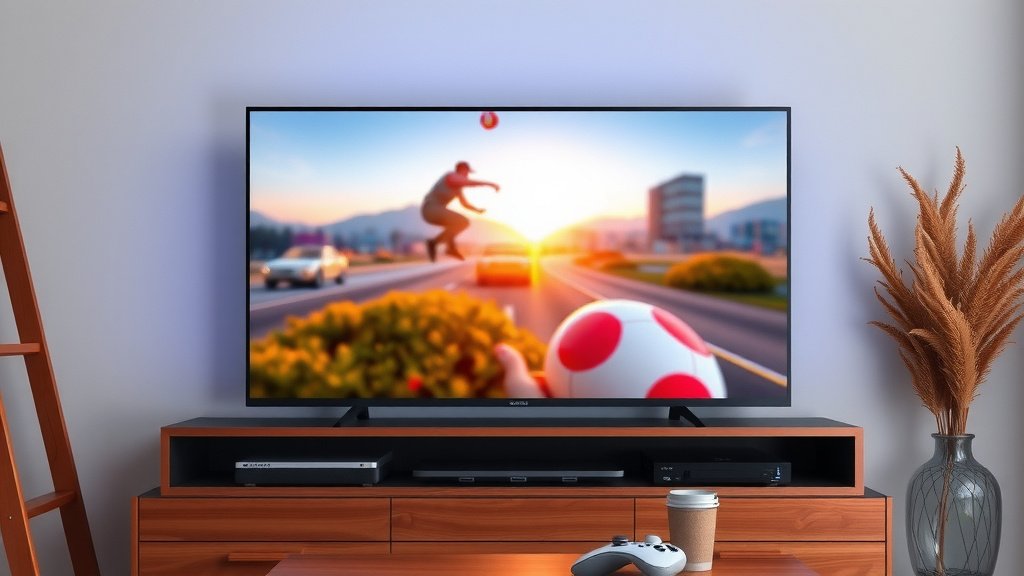
The easiest way to set up HDR gaming on a TV is to plug your console or PC into an HDMI 2.0 or higher port, then turn on HDR in your TV’s picture settings and in your console’s display settings. Do that, and your games will instantly look brighter, more colorful, and more detailed.
But here’s the thing: getting it right takes a little more than flipping one switch. You’ll want to check your TV’s HDR format, pick the right game mode, and adjust a few settings so everything actually looks good. Many experts say a poorly configured HDR setup can look worse than standard mode — and we found that’s often true.
- Make sure your TV and HDMI port support HDR
- Enable HDR on your console, PC, and TV
- Switch your TV to game mode for lower lag
- Fine-tune brightness and contrast for the best picture
- Test with a game that supports HDR to confirm it’s working
Below, we walk through each step in plain English, so you can go from “why does my game look washed out?” to stunning HDR visuals in about ten minutes. Ready? Let’s get your TV looking the way it should.
Setting Up HDR Gaming on Your TV the Right Way
Getting HDR right comes down to four things: the right port, the right settings, the right mode, and a little fine-tuning. Do these in order and you’ll avoid the washed-out look that frustrates so many gamers.
Step 1: Confirm Your TV and Port Actually Support HDR
Not every HDMI port is created equal. Some TVs only support HDR on one or two inputs, and plugging into the wrong one is the most common mistake we found when researching setup issues.
- Check your TV’s spec sheet for HDR10, Dolby Vision, or HLG support.
- Look for ports labeled HDMI 2.0 or HDMI 2.1 — often marked on the TV itself.
- Avoid ports labeled “ARC” or “eARC” unless they also list 4K HDR support.
- If your TV is from before 2016, it may not support HDR at all.
Think of it like plugging a lamp into an outlet with no power. The connection works, but nothing lights up.
Step 2: Pick the Right HDMI Cable
Here’s some good news: you probably don’t need a fancy cable. Any “Premium High Speed” or “Ultra High Speed” HDMI cable handles 4K HDR just fine.
The cheap cable that came in the box with your console? That one works too. Don’t let anyone talk you into a $100 monster cable.
Turning On HDR in Your Console and TV Settings
HDR needs to be switched on in two places: your console (or PC) and your TV. Miss one and you’ll wonder why nothing changed.
PlayStation and Xbox Settings
Both platforms make this fairly painless. Here’s where to look:
- PS5: Settings → Screen and Video → HDR → “Always On.”
- Xbox Series X/S: Settings → General → TV & Display Options → Video Modes → check “Auto HDR” and HDR10.
- Switch: HDR support is limited, so check per-game settings.
Many experts say leaving HDR set to “Automatic” can cause games to randomly drop out of HDR mode. We found setting it to “Always On” prevents that headache.
PC Settings
On Windows, go to Settings → System → Display → HDR and toggle it on. Windows also has an “Auto HDR” feature for older games — it’s worth flipping on while you’re there.
One tip from our research: keep your PC’s HDR slider at the default first. Many people crank it up and end up with a washed-out mess.
Game Mode: The Setting Everyone Forgets
Your TV processes images to make movies look pretty. That processing adds lag — the delay between pressing a button and seeing the result. Game mode strips most of that away.
When HDR kicks in, some TVs switch to a new picture mode and quietly turn game mode off. Sneaky, right? Always double-check after enabling HDR.
According to display testing guidelines from sources like RTINGS, input lag can drop from over 100ms to under 20ms in game mode. That’s the difference between winning and wondering what happened.
Fine-Tuning Brightness, Contrast, and Color
Default HDR settings often look too dark or too punchy. A few tweaks fix most of it.
Start With These Baseline Settings
Every TV is different, but these starting points work well on most modern sets:
| Setting | Recommended Starting Point | Why |
|---|---|---|
| HDR Brightness / Backlight | High or Max | HDR needs brightness to shine |
| Contrast | 90–100 | Preserves bright highlights |
| Local Dimming | High | Improves dark-scene depth |
| Color / Saturation | Default or +5 | Keeps tones natural |
| Sharpness | 0 or Default | Avoids fake edges |
Dolby Vision vs. HDR10: Does It Matter?
If your TV and console both support Dolby Vision, use it. It adjusts HDR picture scene-by-scene, which often looks better in dark games. HDR10 uses one setting for the whole game. Both look great — Dolby Vision just has a slight edge on compatible TVs.
Testing Your Setup With the Right Games
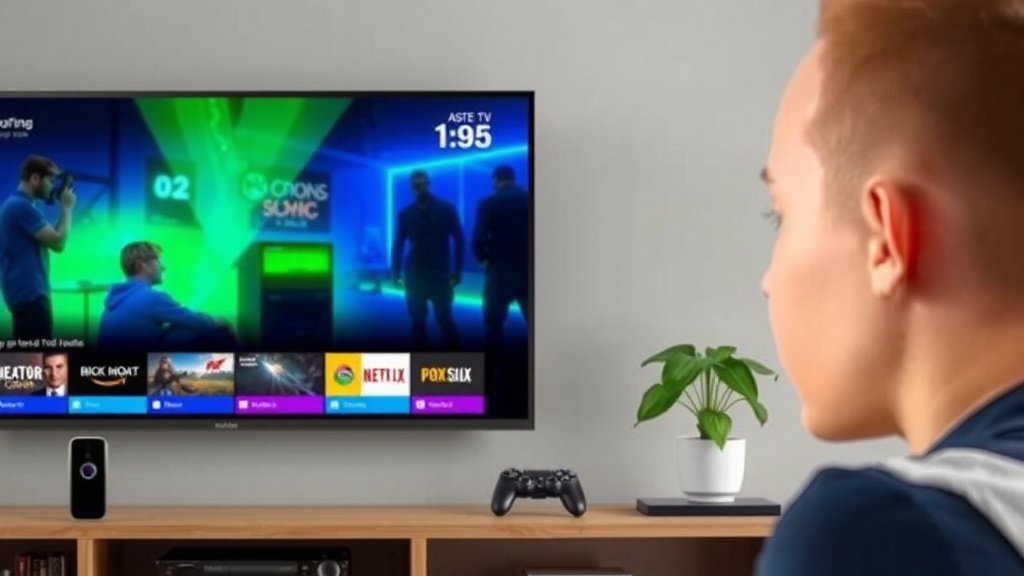
How do you know it’s working? Load an HDR-capable game and look for deep blacks and bright highlights at the same time.
- Play a nighttime or cave scene — shadows should stay detailed, not gray.
- Look at explosions, sunsets, or fire — they should feel bright and punchy.
- Check your TV’s info display; it should show “HDR” when the game loads.
If everything looks dim and gray, your TV is probably still in SDR mode. Recheck the port and settings above.
Your Quick HDR Setup Checklist
- Plug into an HDMI 2.0 or 2.1 port that supports HDR
- Turn HDR “Always On” in your console or PC settings
- Confirm your TV detects the HDR signal
- Switch to game mode for low input lag
- Adjust brightness, contrast, and local dimming
- Test with a dark scene in an HDR game
That’s it. Ten minutes of setup buys you hundreds of hours of better-looking games — and honestly, that’s a trade we’d take any day of the week.
Conclusion
Setting up HDR gaming on your TV doesn’t have to be complicated. Plug into the right HDMI port, enable HDR on both your console and TV, switch to game mode, and tweak your brightness and contrast until the picture pops. We found that most “HDR looks worse than SDR” complaints trace back to one skipped step — usually a TV quietly dropping out of game mode or a console set to automatic. Take ten minutes tonight, run through the checklist above, and load up a dark scene in your favorite HDR game. If the shadows stay rich and the highlights glow, you’ve done it right. Now go enjoy those visuals.
Frequently Asked Questions
Why does my HDR look washed out or gray on my TV?
This usually means your TV isn’t actually displaying HDR, or your brightness settings are off. Double-check that your console shows an HDR signal and your TV’s info bar confirms it. If HDR is active but looks dull, try raising your backlight and re-running any built-in HDR calibration your console offers.
Do all games support HDR, or only certain titles?
Only games built with HDR support will display it natively. Most major releases from the last several years do, but older titles and indie games often don’t. On Xbox and Windows PC, you can use Auto HDR to add an HDR-like effect to older games automatically.
Does HDR increase input lag when gaming?
By itself, HDR doesn’t add meaningful lag. But some TVs switch to a different picture mode when HDR activates, which can re-enable processing features and increase latency. That’s why we recommend re-checking game mode every time HDR kicks in.
Can I use HDR gaming on a 1080p TV?
Most likely not. HDR is almost always tied to 4K displays, and 1080p TVs with true HDR support are extremely rare. If your set is 1080p, check the spec sheet, but plan on upgrading to a 4K HDR model for the full experience.
Should I calibrate my TV for HDR, or are default settings fine?
Default settings are a decent start, but a quick calibration makes a real difference. Many consoles include built-in HDR calibration screens that walk you through brightness adjustments in a few minutes. We found this simple step fixes most complaints about HDR looking too dark or overly bright. For a deeper walkthrough beyond HDR, our guide to how to calibrate your TV covers brightness, color, and picture modes step by step.