How to Set Up Surround Sound With Your TV: Easy 2026 Guide
The easiest way to set up surround sound with a TV is to connect your speakers to an AV receiver, then run a single HDMI cable from the receiver to your TV’s ARC or eARC port. From there, you place your speakers around the room, calibrate them, and pick the right audio input on your TV. That’s it — movie night just got a serious upgrade.
Sound confusing? Don’t worry. We researched the most common setups and found that most people can get everything working in under an hour, even if they’ve never touched an audio cable before. Whether you have a 5.1 speaker system, a soundbar with rear speakers, or a full 7.1 setup, the basic steps are the same. The trick is knowing which cables go where — and we’ll show you exactly that.
- You’ll need a TV with an HDMI ARC/eARC port (most TVs from the last few years have one).
- An AV receiver or soundbar acts as the brain of your surround system.
- Speaker placement matters more than expensive gear.
- Most setups take 30 to 60 minutes with basic tools.
- We’ll also cover common mistakes that cause silent speakers and lip-sync issues.
Let’s walk through exactly how to set up surround sound with your TV, step by step, so you can get back to the fun part — actually watching something.
Setting Up Surround Sound on Your TV the Easy Way
The simplest path is this: your AV receiver sits in the middle, the TV connects to it with one HDMI cable, and the speakers connect to the receiver. Think of the receiver like a traffic cop directing sound where it needs to go.
Before you touch a single cable, make sure you have the right gear. We found that most setup problems start before the first wire is even plugged in.
What You’ll Need Before You Start
Gather everything first. It saves you from crawling behind the TV five times (we’ve all been there).
- A TV with an HDMI ARC or eARC port — check the label near the HDMI inputs.
- An AV receiver or a surround soundbar.
- Speakers: front left/right, center, surrounds, and a subwoofer for 5.1 or 7.1 systems.
- HDMI and speaker cables (speaker wire, 16 or 18 gauge, works for most rooms).
- A smartphone or sound level meter app for calibration.
- Fresh batteries in your remote — trust us on this one.
Understanding the Ports on the Back of Your TV
Look at the back or side of your TV. You’ll see several HDMI ports, and one will say ARC or eARC next to it. ARC stands for Audio Return Channel.
Why does this matter? Normally, HDMI sends audio one way — into the TV. ARC lets sound flow back out to your receiver too. That means one cable does two jobs. eARC is the newer version and handles higher-quality formats like Dolby Atmos. Our explainer on how the Audio Return Channel works breaks down this two-way audio trick in more detail.
Many TV makers label the ARC port clearly, but some hide it in the manual. If you can’t find it, check the small print printed right above the ports.
Connecting Your Receiver to the TV
Here’s the core connection: run one HDMI cable from the TV’s ARC/eARC port to the HDMI output labeled “ARC” or “Monitor” on your receiver. That’s the backbone of the whole system.
Then plug your streaming devices, game console, or cable box into the receiver, not the TV. The receiver passes video through to the TV while handling all the sound itself. This setup gives you the best audio quality and fewer sync problems.
What If Your TV Has No ARC Port?
Older TVs can still work. You have two main options:
- Use an optical cable (the square-headed one) from the TV’s optical out to the receiver. It carries good surround sound but not Atmos.
- Connect devices directly to the receiver and switch inputs on the receiver instead of the TV.
We found that the optical route works fine for most people. You lose a little quality with certain formats, but your ears likely won’t notice during a normal movie.
Soundbar Setups: A Simpler Route
No receiver? No problem. A soundbar with wireless rear speakers connects almost the same way — one HDMI cable from the soundbar’s ARC port to the TV. Many experts say this is the best first step for beginners because there’s almost nothing to configure.
Placing Your Speakers for the Best Sound
Placement matters more than price. A $300 system placed well often beats a $1,000 system placed badly. Here’s the quick guide for a 5.1 setup:
| Speaker | Where It Goes | Quick Tip |
|---|---|---|
| Center | Under or above the TV | Handles most dialogue — keep it clear of clutter |
| Front Left/Right | Flanking the TV, ear height | Angle slightly toward your seat |
| Surrounds | Behind or beside your couch | Above ear level works fine |
| Subwoofer | Front of the room | Corners add bass — sometimes too much |
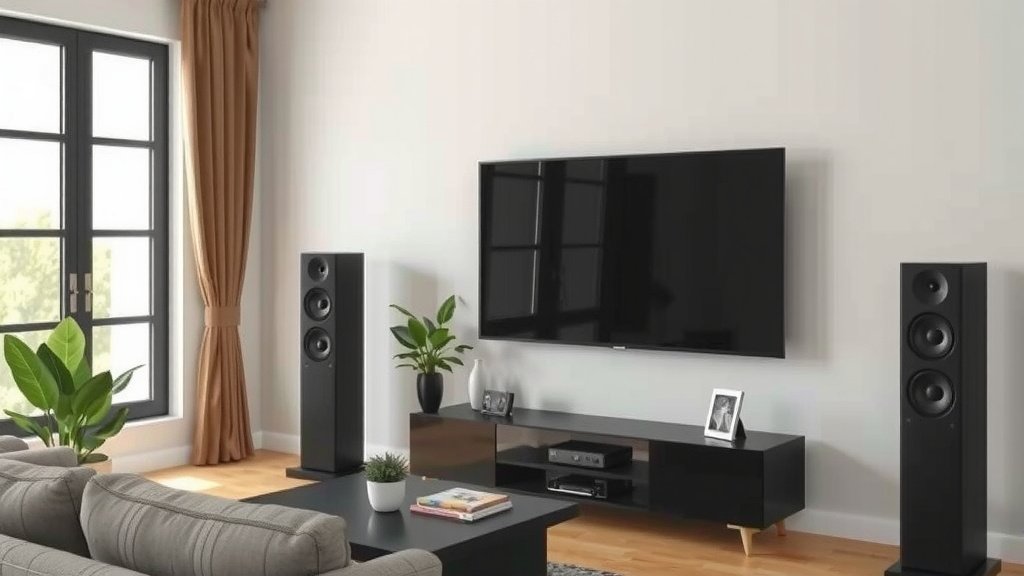
For a 7.1 system, add two more speakers behind your seating area. Sit in your usual spot and imagine sound coming from all directions — that’s the goal.
The Subwoofer Crawl Trick
Sounds silly, works great. Place the subwoofer in your main listening seat, play some bass-heavy music, then crawl around the room. Wherever the bass sounds smoothest, that’s where the sub should live. Yes, you’ll look strange. It’s worth it.
Running and Hiding the Speaker Wire
Now for the least glamorous part. Run wire from each speaker back to the receiver, keeping polarity straight — positive to positive, negative to negative. Most wire has a stripe or ridge on one side to help you track it.
Mix up those connections and a speaker may play out of phase, which makes bass sound thin and weird. We found this is the number one cause of “why does it sound off?” complaints.
- Tuck wire along baseboards with adhesive clips.
- Use flat wire under rugs for high-traffic paths.
- Label both ends of each wire with masking tape.
- Leave a little slack at each speaker in case you rearrange later.
- Never run wire through walls without in-wall rated cable.
Calibrating Your System So It Actually Sounds Right
Almost every modern receiver includes auto-calibration (Audyssey, YPAO, and similar names). Plug in the included microphone, place it at your seat, and run the program. It measures each speaker and sets levels and distances for you.
It’s not perfect. Many experts say a fine-tune by ear afterward helps — nudge the center channel up a bit if dialogue feels quiet. Also set your speaker sizes and crossover point (usually 80 Hz) in the receiver menu.
Turning On the Right TV Audio Settings
One last switch people forget. Go into your TV’s sound menu and set the audio output to external speakers or receiver, with the format set to Dolby Digital or Auto. If everything is silent, this menu is almost always the culprit.
Fixing Common Problems
Something not working? You’re in good company. These fixes cover most issues we found in owner forums and manufacturer guides.
- No sound at all: Check that the TV’s audio output is set to external/receiver, not TV speakers.
- Lip-sync issues: Look for an “audio delay” setting on your TV or receiver and adjust it.
- One silent speaker: Recheck the wire connections at both ends — a loose strand is often to blame.
- Weak bass: Try the subwoofer crawl again, or bump the sub level up in the receiver menu.
- Dialogue too quiet: Raise the center channel level a few decibels. For clearer dialogue overall, our guide to the center channel speaker explains why it matters most.
- Sound cuts out: Swap in a certified high-speed HDMI cable; cheap ones fail with 4K signals.
Pre-Movie-Night Checklist
Before you dim the lights, run through this quick list:
- All speakers connected with correct polarity
- HDMI cable in the ARC/eARC port on both ends
- TV audio output set to external speakers
- Auto-calibration run at least once
- Subwoofer placed and level-checked
- A test scene with explosions and dialogue played to confirm everything works
That’s it. Pop the popcorn, press play, and enjoy your room finally sounding like it was built for movies.
Conclusion
Setting up surround sound with your TV comes down to a few smart moves: use the ARC or eARC port, connect your source devices to the receiver, and take speaker placement seriously. Run your auto-calibration, double-check the TV’s audio output menu, and fix small issues like polarity or lip-sync before they ruin movie night. We found that most people can pull this off in an hour or less, even without prior experience. Your next step? Grab your cables, label them as you go, and play a favorite action scene to test the whole system. Once you hear true surround sound at home, there’s no going back.
Frequently Asked Questions
Can I use my TV speakers together with surround sound?
In most cases, no. When your TV’s audio output is set to an external receiver, the built-in speakers usually shut off. Some soundbars let you add the TV speakers as a center channel, but check your TV’s manual before expecting it.
Do I need the same brand of speakers and receiver?
Not at all. Speakers and receivers use standard connections, so mixing brands works fine. What matters more is matching the speakers to your room size and your receiver’s power rating.
Is Dolby Atmos worth it for a small room?
It can be, especially with eARC and Atmos-enabled speakers or upward-firing modules. That said, in a small room a well-placed 5.1 system often sounds just as good. Don’t feel pressured to chase Atmos if your space is tight.
Can I add surround speakers to a soundbar later?
Sometimes. Many soundbar brands sell compatible wireless rear speaker kits you can add down the road. Check the manufacturer’s website for your exact model before buying, since kits aren’t universal.
Does surround sound use a lot of electricity?
Not really. A typical 5.1 receiver draws modest power during normal viewing, similar to a lamp or two. It only pulls serious wattage during loud, bass-heavy moments, so your electric bill won’t take a hit.