How to Use a TV Ethernet Connection: A Simple Setup Guide
The easiest way to use a TV ethernet connection is to plug one end of an ethernet cable into your router and the other end into the port on the back of your TV. Then head to your TV’s network settings and choose the wired connection. That’s it — you’re online.
So why bother with a cable when Wi-Fi exists? Simple: a wired connection gives you a more stable stream, fewer buffering spins, and faster app loading. We researched common streaming issues and found that many of them come down to a weak wireless signal — something a plain old cable fixes fast.
TL;DR:
- Locate the ethernet port on the back of your TV and your router.
- Connect both ends with an ethernet cable.
- Open your TV’s network settings and select wired connection.
- Test your internet speed before streaming.
- Enjoy smoother, buffer-free viewing — most of the time.
Below, we walk you through each step in plain English, plus a few quick fixes if your connection acts up. Ready to kick buffering to the curb?
Setting Up a Wired Connection on Your Smart TV
A wired connection means running an ethernet cable from your router straight into your TV. It takes about five minutes, and you don’t need to hire anyone or buy fancy gear. Think of it as giving your TV its own private lane on the internet highway — no more fighting your kids’ tablets for Wi-Fi.
What You’ll Need Before You Start
- An ethernet cable (Cat 5e or Cat 6 works great for most homes)
- A router with an open LAN port
- Your TV’s remote for the settings menu
- Maybe a longer cable if your router lives far from the TV
That’s the whole shopping list. If you don’t own a cable yet, any basic one from a big-box store will do the job. Prices usually start under ten bucks.
Finding the Ethernet Port on Your TV
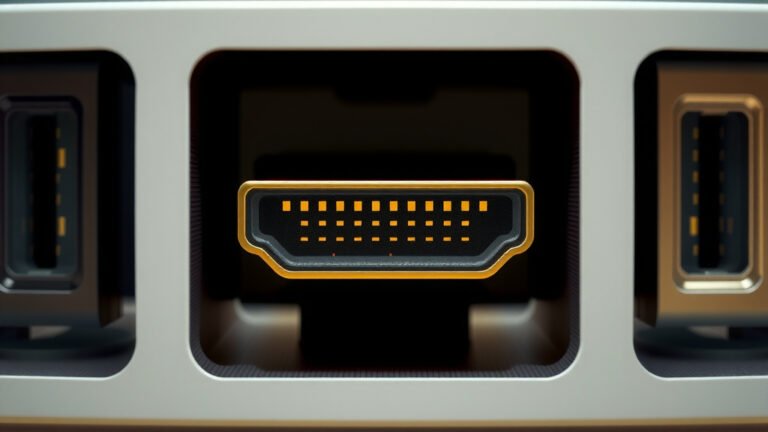
Reach behind your TV and feel around the panel of ports. The ethernet jack looks like a giant phone plug — wider and chunkier than the old telephone-style connectors. On most TVs, it sits near the HDMI ports.
Can’t find it? Check your TV’s manual or search your model number online. A small handful of ultra-slim TVs skip the port entirely and rely on Wi-Fi only, so it’s worth confirming before you buy a cable.
Plugging Everything In
Here comes the easy part. Push one end of the cable into your router’s LAN port until it clicks. Then push the other end into the TV’s ethernet port until it clicks too.
Those little clicks matter. A half-seated cable is one of the most common reasons a wired connection fails, according to troubleshooting guides from major router makers. Give each end a gentle tug to confirm it’s snug.
Choosing the Wired Network Option in Your TV Settings
Once the cable is connected, your TV needs a heads-up. Open your settings menu and look for Network or Network & Internet. The exact wording varies by brand, but it’s usually near the top.
From there, pick Wired or Ethernet instead of Wi-Fi. Most TVs connect automatically within seconds. No passwords, no typing on that clunky on-screen keyboard — one small mercy in life.
Quick Menu Paths by TV Brand
Menu layouts differ a bit between brands, so here’s a cheat sheet to save you some button-mashing. Once you’re online, our rundown of smart TV features shows what else your connected TV can do.
| TV Brand | Where to Look |
|---|---|
| Samsung | Settings > General > Network > Network Status |
| LG | Settings > Network > Wired Connection |
| Vizio | Menu > Network > Wired |
| Roku TV | Settings > Network > About (shows connection type) |
| Sony | Settings > Network & Internet > Network Setup |
Testing Your New Connection
Don’t just assume it works — prove it. Nearly every smart TV has a connection status or speed test screen in the network menu. Run it and make sure the TV shows “Connected” with a real IP address.
Then open a streaming app and play something. If the picture loads fast and stays smooth, you’re done. Kick back and enjoy.
Why Wired Often Beats Wi-Fi
Ever wonder why your show freezes right at the good part? Wi-Fi signals weaken as they pass through walls, floors, and that giant aquarium your uncle insisted on. The FCC notes that wireless interference from neighboring networks and household devices can degrade signal quality, especially in busy apartment buildings.
A cable sidesteps all of that. The signal travels directly from router to TV, untouched by microwaves or chatty neighbors’ routers. We found that households using wired connections for their main streaming TV report far fewer buffering complaints than those relying on distant Wi-Fi.
What Speed Do You Actually Need?
Good news: you probably already have enough. Netflix recommends about 15 Mbps for 4K streaming, which is well within most home internet plans. Speed matters, but stability is the real prize here — and that’s where the cable shines.
Quick Fixes When the Wired Connection Doesn’t Work
Sometimes things go sideways. Before you sigh dramatically and call tech support, run through this troubleshooting checklist:
- Unplug both ends of the cable and plug them back in firmly.
- Restart your TV and your router — turn them off, wait 30 seconds, power back on.
- Try a different LAN port on your router.
- Swap in another ethernet cable if you have one handy.
- Set your TV’s network settings to automatic (DHCP) instead of manual.
- Check for a TV software update, then try connecting again.
Nine times out of ten, one of these steps does the trick. Routers and TVs both get cranky after long stretches without a restart — a little digital nap fixes most moods.
When to Call in Backup
If your TV still won’t connect after all that, the port itself might be damaged. Contact your TV maker’s support line, or ask a tech-savvy friend to test the cable with a laptop. A laptop that connects fine through the same cable points the blame at the TV, not your network.
And if running a long cable across the room just isn’t in the cards? Many experts suggest powerline adapters as a middle ground — they send the internet signal through your home’s electrical wiring. Not as perfect as a true cable, but a solid plan B.
Smart Ways to Make the Most of Your Wired TV
Once you’re wired up, a few small habits keep things running smoothly. First, label your cable ends with masking tape so future-you knows which port goes where. Future-you will be grateful, we promise.
Second, keep your router in the open, away from thick walls and heat. Even wired setups benefit from a healthy router. Third, restart your router once a month as routine maintenance — it clears out minor glitches before they become weekend-ruining ones.
Finally, if you add more wired devices like game consoles, consider a small network switch. It plugs into one router port and gives you several extra ports. Cheap, simple, and it keeps every device on that stable, wired lane.
Conclusion
Wiring your TV with an ethernet cable is one of the simplest upgrades you can make to your home setup. It takes minutes, costs pocket change, and gives your streaming apps the steady connection they’ve been begging for. You’ve learned how to find the port, plug in the cable, pick the wired option in your settings, and fix things when they hiccup. Fewer mid-show freezes mean more actual watching. We think that trade is hard to beat. So grab that cable, click both ends in snugly, and run a quick speed test tonight. Your next movie night will thank you.
Frequently Asked Questions
Does an ethernet connection make my TV faster?
It makes your connection more stable, which often feels like more speed. Streaming relies on consistency, and a cable eliminates the interference and signal drops that come with Wi-Fi. If your internet plan itself is slow, a wire won’t change that.
Can I still use Wi-Fi on other devices while my TV is wired?
Absolutely. Your TV just uses one of your router’s LAN ports while everyone else stays on wireless. In fact, moving your TV off Wi-Fi frees up bandwidth for phones and laptops, so everything may run a little smoother.
Does the ethernet cable need to be a certain length?
Measure the distance between your router and TV first, then add a few feet of slack. Standard cables work fine up to 100 meters, so even long runs across a living room are no problem. Just avoid yanking or pinching the cable behind furniture.
Will unplugging my TV from ethernet break anything?
Nope. If you disconnect the cable, your TV simply loses its wired connection and won’t reach the internet unless you switch back to Wi-Fi. Nothing gets deleted, and reconnecting later takes just a few seconds.
Is a Cat 8 cable worth buying for my TV?
Probably not. Streaming 4K video needs far less bandwidth than a basic Cat 5e or Cat 6 cable can handle, so pricier cables offer no real benefit here. Save your money and put it toward a better popcorn budget.