TV Game Mode Explained: Boost Your Gaming Experience
A game mode on a TV is a special picture setting designed to make video games look and feel better. It usually reduces input lag, which is the delay between your controller input and what you see on screen. This means your actions happen almost instantly, giving you a smoother and more responsive gaming experience.
Many modern TVs offer this feature to help gamers get the most out of their consoles. It often works by simplifying the TV’s image processing. This can make colors pop and motion appear clearer, making fast-paced games much more enjoyable. You might also find it called “Game Mode” or something similar depending on your TV brand.
- Game mode reduces the delay between your controller and the TV.
- This makes games feel more responsive and smoother.
- It often involves simpler image processing.
- Look for “Game Mode” or a gaming icon on your TV settings.
Let’s walk through exactly what these modes do and how they can improve your play.
“`htmlUnderstanding Your TV’s Gaming Features
So, what exactly does this “game mode” on your TV do for you? Think of it as your TV taking off its fancy suit and putting on a comfy tracksuit. It strips away a lot of the extra processing your TV normally does. This is great for everyday watching. But for gaming, it can add tiny delays. Game mode removes those unnecessary steps. This makes your gaming much more smooth and responsive.
When you press a button on your controller, you want to see that action happen on screen instantly. That’s the magic game mode aims for. It’s all about reducing something called “input lag.” We’ll get into that more. But for now, just know that game mode is your TV’s way of saying, “Okay, gamer, let’s get down to business!” It prioritizes speed over some visual flair. That’s a trade-off most gamers are happy to make.
Input Lag: The Gamer’s Nemesis
Let’s talk about the big bad wolf: input lag. Imagine you swing your sword in a game. Then, a split second later, you see it happen on screen. That tiny delay is input lag. It’s measured in milliseconds. But in fast-action games, even a few milliseconds can feel like an eternity. This lag can make you miss shots, get hit by attacks you thought you dodged, and generally feel like you’re playing with weights on your fingers.
Why does this lag happen? Your TV does a lot of work behind the scenes. It enhances colors, sharpens images, and makes motion look smoother. These are called image processing features. They are wonderful for movies. But they add steps. Each step takes a tiny bit of time. Game mode essentially cuts out many of these processing steps. This is how it speeds things up for you.
How Game Mode Tackles Input Lag
Game mode is like a shortcut for your TV’s brain. Instead of going through all the usual visual tune-ups, it takes a more direct route. It’s like telling your TV, “Just show me the picture, and show it to me fast!” Many TV manufacturers have researched this. They found that simplifying the signal path is key. This allows the image data to reach your screen with much less delay. You’ll notice the difference immediately.
Some TVs might have different names for this. You could see “Game Mode,” “Gaming Mode,” or even a controller icon. Whatever it’s called, its purpose is the same: reduce input lag. We found that even a small reduction can make a big difference in how games feel.
Beyond Just Speed: Other Benefits of Game Mode
While slashing input lag is the main goal, game mode often brings other, smaller improvements. These can make your gaming experience even better. Think of them as little bonus perks. They contribute to a more enjoyable time spent with your favorite virtual worlds. It’s about more than just reaction time. It’s about the overall presentation too.
Color and Contrast Adjustments
Sometimes, game mode will tweak the TV’s color and contrast settings. This isn’t about making things look *perfect* in a movie-watching sense. It’s about making them look vibrant and clear for gaming. You might notice that dark areas in games become a bit brighter. This helps you spot enemies hiding in shadows. Some experts say this can give you a slight competitive edge (IGN).
Colors might also appear more saturated. This can make explosions pop and environments look more striking. It’s a trade-off, of course. Purists might prefer the original colors. But for the thrill of gaming, these adjustments are often welcome. They make the on-screen action more dynamic and engaging.
Motion Handling Improvements
Fast-moving scenes can sometimes look blurry on a TV. Game mode often includes settings that help reduce motion blur. This is different from input lag, but it’s also very important for gamers. When everything on screen is sharp and clear, you can track targets more easily. You can react faster when things change suddenly.
For example, in a car racing game, the scenery whizzing by will appear much clearer. In a first-person shooter, enemy movements will be easier to follow. This clarity is vital for precise aiming and quick maneuvers. It makes the whole experience feel more fluid and less like you’re trying to see through a fog. Many sources point to better motion handling as a key component of a good gaming display (Rtings.com).
Finding and Activating Game Mode on Your TV
So, how do you actually turn this on? It’s usually pretty straightforward. You’ll need to dive into your TV’s settings menu. Don’t worry, it’s not a complicated process. Most modern TVs make it easy to find this feature. If you’re unsure, your TV’s manual is always a good place to check. Or, a quick online search for your TV model can help too.
Navigating Your TV’s Menu
Typically, you’ll find game mode under the picture settings or general settings menu. Look for options like “Picture Mode,” “Advanced Settings,” or “System Settings.” Sometimes, it’s nested within a “General” or “Broadcasting” menu. You might see a list of picture presets like “Standard,” “Movie,” “Vivid,” and then, hopefully, “Game Mode.”
If you don’t see an explicit “Game Mode” option, don’t despair just yet. Some TVs might have automatic game mode detection. This means if your TV senses a gaming console connected via HDMI, it might switch to a low-lag mode automatically. You might also find a general setting that allows you to manually assign a specific HDMI input to be a “game” input. This is a clever feature that saves you from switching modes every time.
Understanding Different Game Mode Settings
Some higher-end TVs offer more granular control. Instead of just “Game Mode” on or off, you might find adjustable settings. These could include options like “Black Stabilizer,” “Motion Smoothing,” or “Color Saturation.” The “Black Stabilizer” is particularly useful for games with dark environments. It adjusts black levels so you can see details better.
Motion smoothing, if it’s an option within game mode, might be something you want to experiment with. While game mode generally aims to disable excess motion processing, some TVs allow fine-tuning here. For most gamers, keeping motion smoothing off or very low is best. This ensures you’re getting the lowest possible input lag. It’s always a good idea to test these settings yourself. See what looks and feels best for the games you play.
When to Use Game Mode (and When Not To)
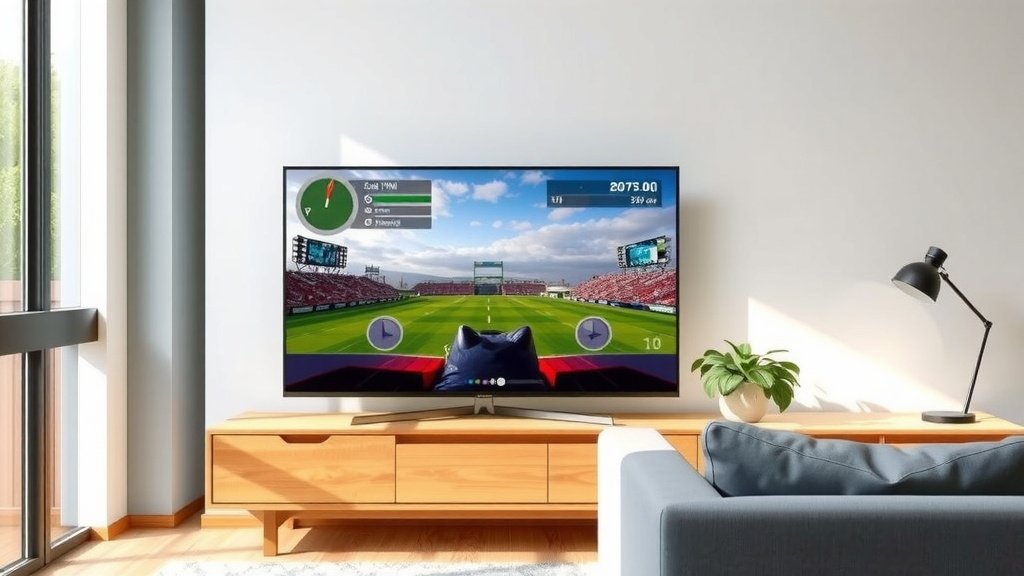
The primary reason to use game mode is simple: better gaming performance. If you play games that require quick reflexes, like first-person shooters, fighting games, or sports simulations, game mode is your best friend. It can genuinely improve your reaction time and make the game feel more fluid and connected.
However, you might not need it for everything. If you’re watching a movie or a TV show, the standard picture modes are likely better. They are designed to provide the most visually pleasing experience for cinematic content. Those extra processing steps that add input lag can actually enhance the viewing experience for films. So, remember to switch back if you’re done gaming!
Quick Checklist for Your TV’s Game Mode
- Locate your TV’s settings menu.
- Look for picture or general settings.
- Find the option labeled “Game Mode” or similar.
- If unsure, check your TV’s manual or online.
- Activate the mode for your gaming console.
- Test its effect on your favorite games.
Conclusion
You now understand that your TV’s game mode is a powerful tool for a better gaming experience. It works by reducing input lag and optimizing visuals for speed. This means your controller inputs feel more immediate. You’ll notice smoother motion and clearer action in your favorite games. Don’t forget to activate it for gaming sessions and switch back for movies. Take a moment to find and enable game mode on your TV. You’ll likely be impressed by the difference it makes in your gameplay.
Frequently Asked Questions
Will game mode hurt my TV’s picture quality for regular use?
Generally, no. Game mode prioritizes speed over visual enhancements like motion smoothing or advanced color processing. For watching movies or TV shows, standard picture modes are usually better. We recommend switching back to a movie or standard mode when you’re done gaming to get the most enjoyable picture for other content.
Is game mode the same across all TV brands?
While the core function of reducing input lag is the same, the name and specific settings can vary by brand. You might see “Game Mode,” “Gaming,” “Game Optimizer,” or even just a controller icon. Some brands offer more advanced tuning options within their game modes than others.
Can I use game mode with my streaming devices like a Roku or Apple TV?
Yes, you can! If you’re using a streaming device for games (like through cloud gaming services), game mode will still help reduce input lag. The TV’s game mode works by processing the incoming signal faster, regardless of whether it comes from a console, PC, or streaming stick.
Does game mode improve graphics or just speed?
Game mode primarily focuses on speed by reducing input lag. While some modes might slightly adjust colors or contrast for better visibility in games (like brightening dark scenes), it doesn’t fundamentally “improve” the graphics resolution or detail. The main benefit is a more responsive and fluid feel.
My TV doesn’t have an explicit “Game Mode” option, what should I do?
Don’t worry! Many newer TVs have an “Auto Game Mode” feature that detects a gaming console and switches automatically. You might also find an option to assign a specific HDMI input as a “game” input. Check your TV’s manual or search online for your specific model to see if it has these features.