How to Use Your Phone as a TV Remote in October 2026
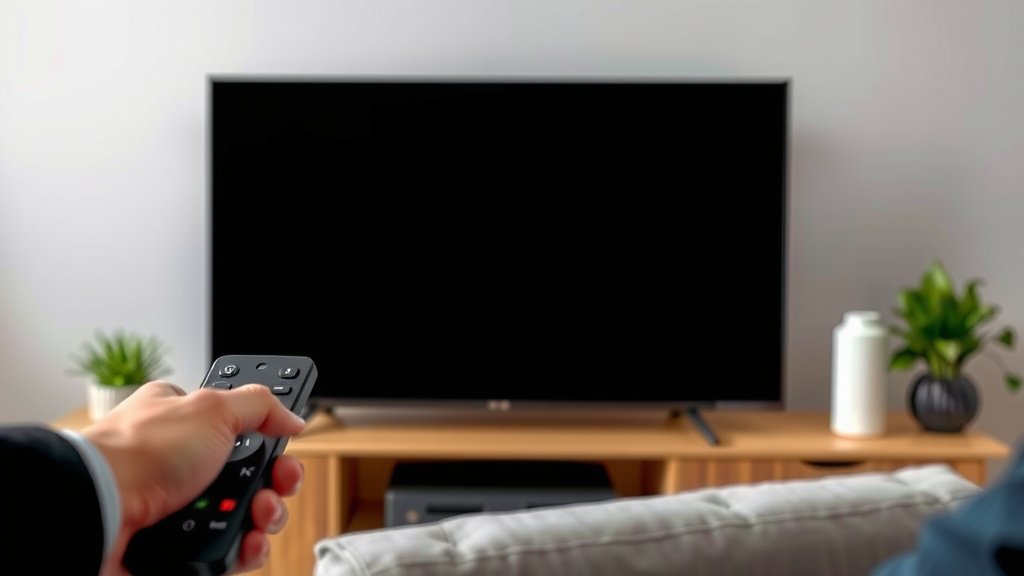
The easiest way to use a phone as a TV remote is to download your TV maker’s official remote app and connect both devices to the same Wi-Fi network. Apps like the Roku app, Google TV app, or Samsung SmartThings can replace your remote in minutes. No app yet? A universal remote app or an IR blaster can work too.
We researched the most popular options and found that most smart TVs have a free companion app built for this. Lost the remote down the couch cushions again? We’ve all been there. Many experts say the phone method is often faster and easier to use than the original remote, since your screen has a full keyboard for typing searches.
Here’s the quick version:
- Smart TV? Grab your TV brand’s free remote app.
- Connect your phone and TV to the same Wi-Fi network.
- No smart TV? You’ll need a phone with an IR blaster or a streaming device.
- Most apps also let you type, browse, and cast content.
- Setup usually takes less than five minutes.
Below, we walk you through every step, whether you have a Roku, Samsung, LG, or something else entirely. Let’s get your phone working as a remote today.
Turning Your Phone Into a TV Remote, Step by Step
The fastest path is simple: download your TV brand’s app, connect both devices to the same Wi-Fi, and pair them. That’s it. We found that most people finish setup in under five minutes.
Think of it like introducing two friends. Your phone and TV just need to be in the same room (network) before they’ll talk to each other.
Setting Up the Official App for Your TV Brand
Every major TV maker has a free app. We researched the big ones so you don’t have to guess.
| TV Brand | App Name | Works With |
|---|---|---|
| Roku | The Roku App | Roku TVs, sticks, and boxes |
| Samsung | SmartThings | Samsung smart TVs (2016 and newer) |
| LG | LG ThinQ | LG webOS smart TVs |
| Google TV App | Chromecast and Google TV devices | |
| Amazon | Fire TV App | Fire TV sticks and Fire TVs |
| Vizio | Vizio Mobile | Vizio smart TVs |
Pairing Your Phone With a Roku TV
Download the Roku app, open it, and tap Devices. Your TV should appear if both are on the same network. Tap it, and you’re controlling your TV from your phone.
If your TV doesn’t show up, check the Wi-Fi first. It’s almost always the network, not the app.
Pairing With Samsung, LG, or Vizio TVs
Samsung’s SmartThings walks you through pairing with a code on your TV screen. LG ThinQ works the same way. Vizio Mobile asks you to confirm a number on your TV to finish the connection.
Each app follows the same basic pattern: open, detect, confirm. Once you’ve done one, you could do them all.
What to Do When Your Phone and TV Won’t Connect
This is the most common snag, and it’s usually easy to fix. We found three culprits come up again and again.
- Different networks. Many routers run a “guest” Wi-Fi. Your phone might be on it while your TV is on the main one.
- Router settings. Some routers block devices from talking to each other. Look for a setting called “AP isolation” or “device isolation” and turn it off.
- Old app versions. Update the app. It sounds obvious, but it fixes more problems than you’d think.
Still stuck? Restart both devices and your router. It’s the tech equivalent of a deep breath, and it works surprisingly often.
Using an IR Blaster When You Don’t Have a Smart TV
Got an older TV that never connected to the internet? You have two options: an IR blaster or a streaming device. An IR blaster is a tiny gadget that sends the same infrared signals your old remote uses.
A few Android phones (mostly older Samsung and Xiaomi models) have one built in. If yours does, look for an app like “IR Universal Remote” in the Play Store. Most iPhones don’t have IR, so iPhone owners will need a small plug-in blaster dongle.
Many reviewers note that IR blasters work like a clone. Point them at the TV, program the codes, and they mimic your original remote, buttons and all.
Streaming Devices: The Easier Fix
If your TV is older but you stream anyway, a Roku stick or Fire TV stick might be the better answer. They plug into an HDMI port and connect to your Wi-Fi. Then any brand-name remote app on your phone can control them.
So even a stubborn 2012 TV can become phone-controllable for the price of a pizza night.
Cool Features Most People Miss
Remote control is just the start. We found that these extras are what make people keep using the app long after they find the real remote.
- Keyboard typing. Type searches on your phone instead of pecking letters one at a time on screen. This alone wins people over.
- Voice search. Most apps include a mic button for hands-free searching.
- Casting. Send YouTube or Netflix videos straight from your phone to the TV.
- Private listening. The Roku app can pipe TV audio into your earbuds. Late-night movie fans, rejoice.
- Quick launches. Jump straight to a channel or app with one tap.
That private listening feature? Many parents call it a lifesaver during naptime cartoons.
A Quick Setup Checklist
Before you call it done, run through this list:
- Download your TV brand’s official app.
- Confirm phone and TV are on the same Wi-Fi.
- Pair the devices using the on-screen code (if asked).
- Test the volume and channel buttons.
- Try the keyboard and voice search features.
- Bookmark or favorite the app for easy access.
Privacy and Safety Basics
Anything connected to your network deserves a little care. The FTC recommends keeping apps updated and only downloading from official stores like the Apple App Store or Google Play.
Use a strong Wi-Fi password, too. Anyone on your network could otherwise control your TV remotely, which is more annoying than dangerous, but still worth avoiding. And if you sell or give away your TV, unpair the app first.
When a Phone Remote Makes the Most Sense
Phone remotes shine in a few everyday situations:
- Broken or lost remotes. Use the app today, order a replacement at your leisure.
- Dead batteries. No more hunting for AAs at 9 p.m.
- Typing searches. The keyboard is the killer feature for streaming fans.
- Households with multiple TVs. One phone, several TVs, one app each.
Many experts say the app method is often more convenient than the plastic remote, mainly because of that keyboard. Once you type “yellowstone” with your thumbs instead of a directional pad, there’s no going back.
When the Old Remote Is Still Better
Honesty time: sometimes the original remote wins. Changing inputs, adjusting picture settings, or controlling a soundbar often works better with real buttons. Blind volume changes in the dark are also easier with physical keys.
We found the best setup is both. Keep the app for typing and casting, and keep the remote in the couch cushions where it belongs.
Conclusion
Your phone can be a remote in less time than it takes to reheat popcorn. Grab your TV brand’s free app, put both devices on the same Wi-Fi, and pair them with a quick tap. If your TV is older, an IR blaster dongle or a cheap streaming stick gets you there too.
Once you’re set up, the keyboard and voice search will spoil you. You’ll wonder how you ever typed show titles with a directional pad. Just keep the old remote handy for inputs and late-night volume changes.
Next step: open your app store, search for your TV brand’s app, and start pairing. Five minutes from now, you’re in control.
Frequently Asked Questions
Can I use my phone as a remote without Wi-Fi?
Only if your phone has a built-in IR blaster or you plug in an IR dongle. Those work over infrared, no network needed. Otherwise, most remote apps rely on Wi-Fi to talk to your TV, so a connection is required. Our guide to using a smart TV without Wi-Fi explains what still works when you’re offline.
Does using my phone as a remote drain the battery?
A little, but not enough to worry about during a normal evening. The app mostly sends small commands and uses your screen, which you’re using anyway. If you’re streaming a long movie, keep a charger nearby as you normally would.
Can I control multiple TVs with one phone?
Yes. Most brand apps let you save several devices and switch between them. Some universal remote apps can even mix brands, so one app handles the living room TV and the bedroom Roku stick.
Why does my phone remote keep disconnecting?
Weak Wi-Fi is the usual suspect. If your TV is far from the router, the connection can drop mid-stream. Moving the router closer, using a Wi-Fi extender, or restarting both devices often solves it.
Is it safe to give a remote app access to my TV?
Yes, as long as you download the app from an official store and keep it updated. Use a strong Wi-Fi password so strangers on your network can’t mess with your TV. Official brand apps are built and maintained by the TV makers themselves. For a deeper look at smart TV security, our guide covers the risks and how to avoid them.