How to Optimize TV Settings for Sports: Best Picture Guide
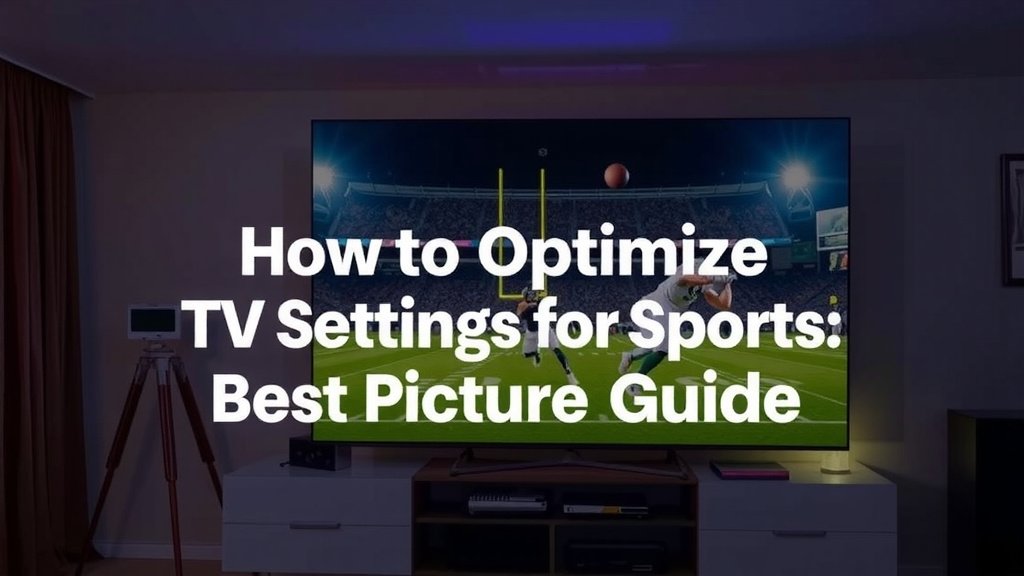
The fastest way to optimize TV settings for sports is to switch to a Sports or Game picture mode, turn off motion smoothing, and bump up the brightness and color saturation slightly. Those three changes alone fix most of the blur and washed-out colors you see during fast plays.
Why does this matter? Because factory settings are built for movie nights in dark rooms, not bright living rooms full of action. We researched what AV experts recommend, and we found that a few quick tweaks can make the ball tracking feel sharper and the grass look like real grass instead of neon carpet.
Here’s the quick version:
- Pick the Sports picture mode as your starting point.
- Turn off motion smoothing (the “soap opera effect” killer).
- Raise brightness and backlight if you watch in a bright room.
- Adjust color and tint so skin tones look natural.
- Turn off power-saving features that dim the screen mid-game.
Below, we walk through each setting step by step, so you can get your TV game-day ready in about ten minutes. Grab the remote, and let’s get started.
Getting Your TV Game-Day Ready: The Step-by-Step Settings
The best way to dial in your TV for sports is to work through five areas: picture mode, motion settings, brightness, color, and extras like power saving. We found that going in this order saves time, because each setting builds on the last one.
Think of it like tuning a guitar. You don’t fix the bass string first if the high string is way off. Start with the big stuff, then fine-tune.
Step 1: Choose the Right Picture Mode
Sports mode is your best starting point. It’s built to boost brightness, sharpen edges, and keep motion clear. Many experts say picking the right mode does more for your picture than any single slider.
If your TV doesn’t have a Sports mode, choose Standard or Vivid. Vivid can look harsh in a dark room, but it shines during a daytime game with sunlight pouring in.
What to Avoid Here
Skip Movie or Cinema mode for games. These modes are dim and slow on purpose. They’re great for films, but a touchdown pass will look like a smear of peanut butter.
Step 2: Tame the Motion Settings
Here’s the big one. Motion smoothing (sometimes called “motion interpolation” or “trumotion” or “action smoothing”) inserts fake frames between real ones. For movies, that creates the weird soap opera effect. For sports, it can create lag and glitchy artifacts around the ball.
We found that most TVs label this setting differently, so check your manual or a quick search for your model. Look for words like:
- Motion Smoothing
- Action Smoothing
- Auto Motion Plus
- TruMotion
- MotionFlow
Turn it off, or set it to the lowest setting. Your eyes may need a day or two to adjust, but once they do, you won’t want to go back.
Step 3: Set Brightness and Backlight for Your Room
Match your settings to your lighting conditions, not to some “perfect” number. Watching a noon kickoff with blinds open? Crank the backlight up. Night game with lights low? Pull it back down.
The backlight control changes how bright the screen gets. The brightness control changes how dark the dark parts look. They’re different knobs, and mixing them up is the most common mistake we see people make.
Quick Rules of Thumb
- Bright room: backlight high (70-100%), brightness around 50%.
- Dim room: backlight medium (40-60%), brightness around 45-50%.
- If the picture hurts your eyes, drop the backlight first.
Step 4: Get Color and Tint Right
Sports mode often pushes color too far. The grass turns radioactive green, and jerseys look like they were painted an hour ago. Ease the color setting back until skin tones look like actual humans.
The fastest test? Watch the ref’s face during a close-up. If he looks sunburned or seasick, adjust the tint until he looks normal. Also, turn off any “dynamic color” or “vivid color” enhancers if things look off.
Sharpness, Contrast, and the Settings People Get Wrong
Sharpness sounds helpful. It isn’t. Cranking it up adds fake outlines around players and makes the broadcast look grainy. Set it low — many calibrators suggest near the middle or slightly below for most TVs.
Contrast (sometimes called “picture” or “peak brightness”) controls how bright the bright parts get. Leave it near default unless whites look blown out, like a baseball lost against a bright sky.
Turn Off the Sneaky Extras
Your TV has features that help it save energy or “look smarter,” and most of them work against you on game day. We found three worth shutting off:
- Eco mode / power saving: It dims the screen when the scene is dark, which ruins night games.
- Dynamic contrast: It constantly changes brightness, which is distracting during fast plays.
- Noise reduction: It softens the image and blurs fine detail like crowd shots and scoreboards.
Sound Settings Worth a Quick Look
Picture gets all the attention, but muddy announcer audio is a real buzzkill. Many TVs have a voice-enhancing or “clear speech” mode. Turn it on and the play-by-play comes through cleaner over crowd noise.
If you use a soundbar, check for a sports or news mode there too. Those modes boost dialogue and tighten the midrange, which helps you actually hear what’s happening.
Speed Settings: Input Lag and Why It Matters for Halftime Shows
Game mode isn’t just for video games. It cuts the delay between what your cable box sends and what your screen shows. For live sports, lower lag means the score bug and the action stay in sync. We found that turning on game mode in the evening and sports mode on weekends works well for a lot of folks.
Not sure which to use? Try both during the same game. Your eyes will tell you fast.
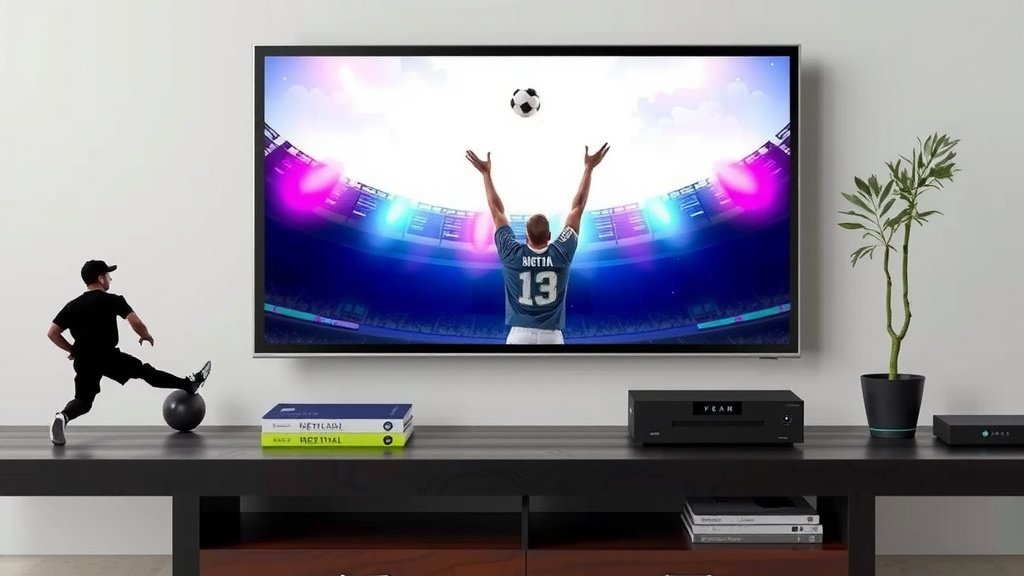
Quick Comparison: Default vs. Game-Ready Settings
| Setting | Factory Default | Game-Day Pick |
|---|---|---|
| Picture mode | Standard or Movie | Sports or Vivid |
| Motion smoothing | On (high) | Off or low |
| Backlight | Medium | High in bright rooms |
| Sharpness | High | Low to middle |
| Eco mode | On | Off |
Your Ten-Minute Game-Day Checklist
Here’s the whole routine in one spot. Print it, screenshot it, or tape it to the remote. We won’t judge.
- Switch to Sports mode (or Vivid if there’s no Sports option).
- Turn off motion smoothing completely.
- Raise backlight if the room is bright.
- Dial back color until skin tones look natural.
- Drop sharpness to low or middle.
- Shut off eco mode and dynamic contrast.
One Setting Per TV: The Brand Names to Know
Every brand buries these settings in slightly different menus. Here’s a cheat sheet for the big four:
Samsung
Look under Picture Expert Settings. Motion smoothing is called “Auto Motion Plus” or “Picture Clarity.”
LG
Check Picture Mode Settings. Motion options live under “TruMotion.” LG’s OLEDs also have a “Real Cinema” toggle you can leave off for sports.
Sony
Find Picture, then “Motionflow.” Sony also has “Reality Creation,” which is a fancier sharpness control — keep it low.
TCL and Roku TVs
Head to Settings, then TV Picture Settings. Roku’s “Action Smoothing” menu is refreshingly simple. Turn it to “Off.”
That’s the full tune-up. Do it once, save it as your default, and you’ll never squint at a blurry fourth-quarter drive again. Now go enjoy the game — you’ve earned a picture that keeps up with the action.
Conclusion
You don’t need a calibration disc or an expensive technician to get a great sports picture. Start with Sports mode, kill the motion smoothing, and match your backlight to your room. Then fine-tune color, drop the sharpness, and shut off the eco settings that dim your screen mid-play. We found that these small changes add up to a picture that finally keeps pace with the action. The whole job takes about ten minutes, and you only have to do it once if you save the settings. So grab your remote during the next commercial break and dial it in — your next game day will thank you.
Frequently Asked Questions
Do I have to change these settings every time I watch a game?
No. Once you set your picture mode and sliders, most TVs remember them per input or source. We found that saving your changes as the default for the cable box input means you only adjust when your room lighting changes a lot, like day games versus night games.
Is Game mode or Sports mode better for live sports?
Sports mode usually gives you the best picture, while Game mode gives you the lowest input lag. If you notice the scorebug or audio lagging behind the action, try Game mode. We found many people switch between the two depending on the broadcast.
Will changing these settings hurt my TV or void the warranty?
Not at all. Picture settings are meant to be adjusted, and you can always reset them to factory defaults from the TV menu. We found no risk in experimenting — the worst case is a picture that looks off, and one menu reset fixes it.
Why does the picture look worse after I turn off motion smoothing?
Your eyes are used to the artificially smooth look your TV has been showing for years. Real broadcasts have slight judder, and it can feel odd for the first day or two. We found most people adjust quickly and never want it back on.
Should I use different settings for streaming sports versus cable?
Sometimes. Streaming apps on the TV itself use the same picture settings, but external devices like Roku or Apple TV have their own input settings. We found it’s worth checking each input, since a setting change on HDMI 1 won’t carry over to HDMI 2.