How to Fix TV Color Banding: Causes and Simple Solutions
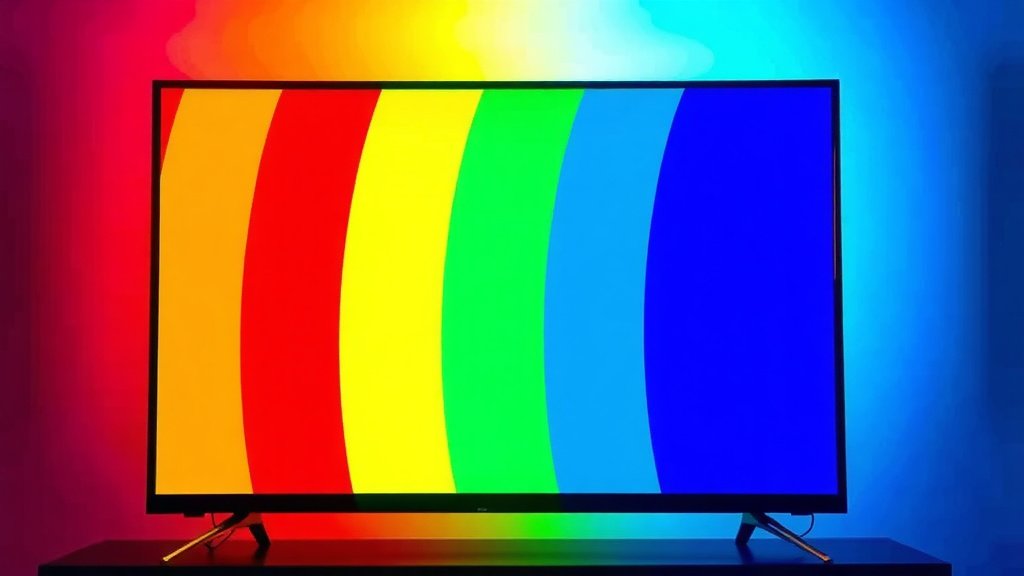
The easiest way to fix TV color banding is to turn off motion smoothing and sharpness enhancement, set your TV’s picture mode to Movie or Cinema, and check that your video source isn’t sending a heavily compressed signal. In many cases, banding comes from the content or cable, not a broken TV.
Color banding shows up as those annoying stripes or blocks in skies, sunsets, and dark scenes. It can come from low-quality streaming, bad HDMI cables, or your TV’s own settings. We researched this topic and found that most fixes take less than ten minutes. How nice is that?
TL;DR — Quick fixes for TV color banding:
- Switch your TV to Cinema or Movie mode and turn off motion smoothing.
- Lower sharpness and turn off dynamic contrast or local dimming presets.
- Check your source — try a different app, device, or HDMI cable.
- Update your TV’s firmware and your streaming app.
- Make sure your cable supports your TV’s resolution and refresh rate.
Below, we break down everything you need to know about fixing color banding, step by step, in plain English. Grab a snack, and let’s get your picture looking smooth again.
Fixing Banding on Your TV Screen the Easy Way
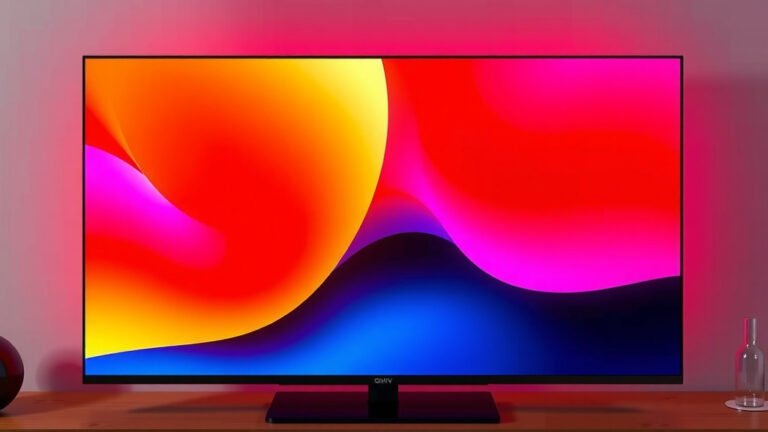
Color banding happens when your TV can’t show smooth changes between similar shades. Instead of a soft gradient, you get visible steps and stripes. The good news? Most fixes are free and take minutes.
Think of it like a staircase. Your TV should draw a smooth ramp of color, but when it runs out of steps, you see each one. We researched the most common causes and found that settings and source quality cause the vast majority of cases.
Start With Your Picture Settings
Your TV’s default settings are built for a bright showroom, not your living room. Many experts say this is the first thing to change (RTINGS, a well-known display testing site).
Switch to Cinema or Movie Mode
Movie or Cinema mode tones down aggressive processing that can create banding. Yes, the picture will look a bit dimmer and warmer at first. Give your eyes a day to adjust — it’s worth it.
Turn Off the Problem Features
A few settings are repeat offenders. Look for these in your TV’s picture menu and switch them off:
- Motion smoothing (sometimes called Motion Interpolation or TruMotion)
- Dynamic contrast or auto contrast enhancers
- Noise reduction and MPEG smoothing filters
- Sharpness set above 20 to 30
- Eco or energy saver modes that dim and shift colors
Change one setting at a time, then check the same scene. That way you’ll know exactly which fix worked.
Check Your Content and Streaming Quality
Here’s a hard truth we found in our research: sometimes your TV is innocent. Heavily compressed video is the number one cause of banding. A 4K stream squeezed into a tiny file looks like a photocopy of a photocopy.
Netflix, YouTube, and others often show a quality indicator in playback settings. Make sure you’re actually getting HD or 4K, not a sad 480p stream. If your internet slows down in the evening, your streaming app may quietly drop quality — and banding creeps in.
Test With a Known-Good Source
Play a high-bitrate 4K demo clip from YouTube, or a Blu-ray disc if you own one. If the banding disappears, your TV is fine. The problem lives in your streaming quality or connection.
If the banding shows up even on a clean source, keep troubleshooting your TV settings.
Look at Your Cables and Connections
A worn or cheap HDMI cable can cause more than banding — you might see sparkles, flickering, or dropouts too. Swap in a different cable before you panic. Many experts say a certified High Speed or Ultra High Speed HDMI cable covers everything most homes need (HDMI Licensing Administrator).
Try a Different HDMI Port
Ports can fail or behave differently. Move your device to another input and watch the same scene. If the problem follows the cable, you found your culprit. If it stays on one port, you found that instead.
Update Your TV’s Software and Apps
TV makers fix picture bugs in firmware updates. We found plenty of forum threads where a single update smoothed out banding complaints. Check your TV’s settings menu for a System or Support section, then look for software update.
Don’t forget the apps. Streaming apps update separately on many smart TVs. An outdated app can mangle video decoding, so update those too while you’re in there.
Adjust Gamma and Backlight for Dark Scenes
Banding loves dark scenes because near-black shades are the hardest to display smoothly. If stripes show up during night scenes, try a small gamma adjustment. Gamma around 2.2 works for most lit rooms; 2.4 suits dark home theaters.
Raising backlight slightly can also help. You’re giving the TV more room to spread out those gray steps. It’s like stretching a rubber band — more range, fewer crinkles.
When Banding Is Actually a Panel Problem
Sometimes the hardware itself is to blame. Uniformity issues, failing LEDs, or a defective panel can cause banding that no setting will fix. How do you tell the difference? Here’s a simple comparison.
| Sign | Settings or Source Issue | Panel Defect |
|---|---|---|
| Banding appears on every source | Unlikely | Likely |
| Changes when you adjust settings | Yes | No |
| Visible on menus or solid color test images | No | Yes |
| Lines stay in the exact same spot always | Rare | Common |
To run a quick check, search YouTube for a solid color test or gradient test video. Fill the screen with a single gray shade. Real banding from a defect shows up even there, on the plainest image possible.
What to Do If It’s the Panel
If your TV is under warranty, contact the manufacturer with photos of the issue. Many brands will repair or replace panels with confirmed uniformity defects. Out of warranty? Get a repair quote first. Panel replacement often costs close to a new TV, so weigh your options honestly.
Your Quick Banding-Fix Checklist
Work through this list top to bottom. Most people find their fix in the first three items.
- Switch to Movie or Cinema picture mode.
- Turn off motion smoothing, dynamic contrast, and noise reduction.
- Drop sharpness to around 20 to 30.
- Test a high-bitrate source to rule out streaming compression.
- Swap HDMI cables and try a different port.
- Update your TV firmware and streaming apps.
Small Habits That Keep Your Picture Looking Smooth
Once you’ve fixed the banding, a few habits keep it away. Restart your streaming devices now and then — a stale cache can degrade video quality. Keep your internet router close to your smart TV, or use a wired connection if you can. And recheck your picture settings after any major firmware update, because updates sometimes reset them.
That’s really it. Banding looks scary, but it’s usually just a setting or a cable having a bad day. You’ve got this.
Conclusion
Color banding looks like a hardware disaster, but in our research it almost never is. Start with your picture mode, kill the aggressive processing, and confirm your stream quality before you blame the TV. A ten-minute settings pass plus a high-bitrate test clip solves the majority of cases. If stripes persist on every source and every setting, then you’re likely looking at a panel issue worth a warranty call.
Your next step: pull up that gradient test video on YouTube tonight and work through the checklist. One change at a time, and you’ll know exactly what fixed it.
Frequently Asked Questions
Can color banding damage my TV over time?
No, banding itself is harmless. It’s a display or signal quality issue, not a fault that spreads or worsens. If banding gets worse over months, that points to aging hardware, but the stripes never cause the damage themselves.
Does color banding happen more on OLED or LED TVs?
Both types can show banding, just for different reasons. LED TVs often band in dark scenes because of limited local dimming, while OLEDs can band due to aggressive noise reduction or low-quality sources. Our research found source quality matters more than panel type.
Why does banding only show up in dark scenes?
Near-black shades are the hardest for any TV to display smoothly, so small errors become visible steps. Raising the backlight slightly and setting gamma to 2.2 usually softens this. Dim viewing rooms also make dark-scene banding less noticeable.
Will a picture calibration disc or app fix banding?
A calibration tool won’t remove banding directly, but it helps you set brightness, contrast, and gamma correctly so banding is less likely to appear. Many people find that a proper calibration pass eliminates banding they thought was permanent. Our TV calibration guide walks through a simple settings pass, one control at a time.
Does turning the TV off and on again help with banding?
Occasionally, yes. A full power cycle clears temporary processing glitches and stale device memory. Unplug the TV for a minute, plug it back in, and recheck the same scene before changing any settings.