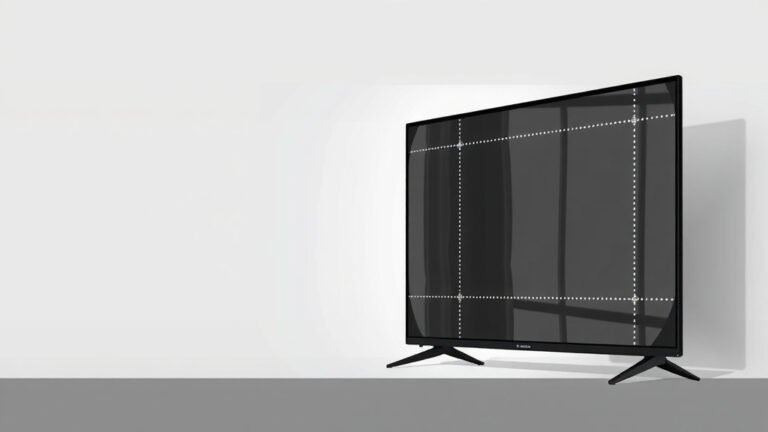
TV Upscaling Explained: Better Picture Quality
Upscaling on a TV is the process where your television automatically enhances lower-resolution video to fit your screen’s higher resolution. It essentially adds pixels to fill in the gaps. This makes older or lower-quality content look much better on your modern TV. Your TV does this behind the scenes.
Think of it like stretching a small photo to make it fit a large frame. Upscaling tries to do this smartly. It uses clever algorithms to guess what the missing details should be. This helps reduce blurriness and pixelation. Many TVs come with this feature built-in. It’s a key part of how you watch content today.
- Upscaling makes low-res content look better on high-res TVs.
- It works by adding extra pixels to fill the screen.
- Your TV does this automatically for you.
- It helps reduce blur and blocky pixels.
- This improves your viewing experience greatly.
Let’s dive into how your TV pulls off this visual magic and what it means for your movie nights.
How Your TV Makes Older Shows Look Better
Your television is pretty smart these days. It knows how to take content that wasn’t made for its super-sharp screen. Then, it makes it look as good as possible. This process is called upscaling. It’s a behind-the-scenes magic trick. It helps you enjoy your favorite movies and shows. Even if they are from a different era of TV technology.
The Science Behind Upscaling: Adding Pixels Smartly
Think about your TV screen. It has a certain number of tiny dots, called pixels. These pixels create the image you see. A 4K TV, for example, has millions of pixels. Older content, like DVDs or standard definition broadcasts, have far fewer pixels. When you play this lower-resolution content on your 4K TV, there aren’t enough pixels to fill the screen perfectly. Upscaling is the TV’s way of solving this problem.
Understanding Resolution: Pixels Tell the Story
Resolution refers to the number of pixels on a screen. More pixels mean a sharper, more detailed picture. A standard definition (SD) TV might have around 480 lines of vertical resolution. High definition (HD) is typically 720 or 1080 lines. 4K, also known as Ultra HD, has about 2160 lines. That’s a massive jump in pixel count. So, when a movie with a resolution of 480 lines is shown on a 2160-line screen, your TV has a lot of “empty” space to fill.
How Your TV Fills the Gaps: The Upscaling Process
Your TV doesn’t just stretch the old picture like a rubber band. That would make it look blurry and distorted. Instead, your TV’s processor analyzes the original image. It looks for patterns, edges, and colors. Then, it uses complex algorithms to guess what the missing pixels should look like. It essentially adds new pixels between the original ones. These new pixels are carefully calculated. This helps create smoother lines and sharper details.
Types of Upscaling: From Basic to Advanced
There are different levels of sophistication in upscaling. The most basic methods might just duplicate pixels. This is like stretching a photo. It’s not very good. More advanced techniques analyze neighboring pixels. They also look at the surrounding image content. This helps them predict the correct color and brightness for the new pixels. Some higher-end TVs use AI and machine learning. They have been trained on vast amounts of image data. These can produce truly impressive results.
Why You Need Upscaling on Your Modern TV
Even with all the amazing 4K and 8K content available, much of what we watch isn’t native to these high resolutions. Think about cable TV channels. Many still broadcast in HD or even lower. Streaming services offer a mix of resolutions. Your older Blu-ray discs or DVDs are also lower resolution. Without upscaling, these would look pretty disappointing on your big, beautiful, high-resolution TV. It would be like putting a small, fuzzy postage stamp in the middle of a large canvas.
The Visual Difference: What to Look For
When upscaling works well, you’ll notice less pixelation. The blocky squares you sometimes see in dark areas or on sharp edges will be reduced. Images will appear smoother. Text should be more readable. You might see more fine details emerge. Instead of a blurry mess, you’ll get a picture that feels more natural. It’s not going to look like native 4K content, but it will be a big improvement.
When Upscaling Might Struggle
However, upscaling isn’t perfect. If the original source material is very low quality, there’s only so much your TV can do. Really old videos, or content with heavy compression, might still look a bit soft or noisy. Sometimes, the upscaling process can introduce its own artifacts. These are visual errors. They might look like strange patterns or halos around objects. It really depends on the quality of the original video and the processing power of your TV.
Can You Turn Upscaling On or Off?
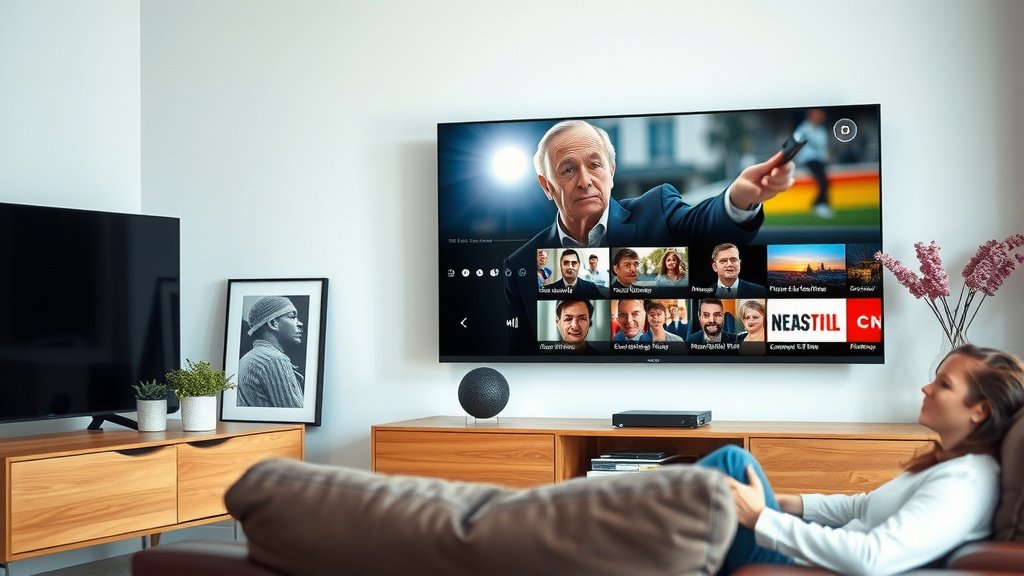
For the most part, upscaling is automatic. Your TV detects the incoming signal’s resolution. It then applies its upscaling technology to match your screen’s native resolution. You usually don’t have a button to “turn upscaling on.” It’s a fundamental part of how modern TVs display all content.
Checking Your TV Settings: What to Look For
While you can’t typically disable upscaling entirely, some TVs might offer settings related to picture processing. You might find options for “noise reduction” or “motion smoothing.” These can sometimes affect how upscaled content looks. If you’re watching something that seems overly smooth or a bit artificial, try adjusting these settings. It’s often a good idea to start with your TV’s “standard” or “movie” picture mode. These usually provide a good balance.
External Devices and Upscaling: A Different Story
It’s worth noting that some external devices also have upscaling capabilities. For instance, a modern Blu-ray player or a streaming media box might upscale content before sending it to your TV. In this case, you might have settings on that device to control its upscaling. Often, it’s best to let your TV handle the upscaling. This is because your TV knows its own capabilities and resolution best. Check your device’s manual to see if it has upscaling options. If so, you might want to set it to output the “native” resolution of the content, and let your TV do the heavy lifting.
A Quick Checklist for Understanding Upscaling
- Your TV analyzes low-resolution content.
- It intelligently adds pixels to fill your screen.
- This makes older shows look better.
- It reduces blurriness and pixelated squares.
- It happens automatically for most content.
- Not all upscaling results are the same.
Conclusion
So, you’ve learned that upscaling is your TV’s clever way of making lower-resolution content look its best. It intelligently adds pixels to fill your modern, high-resolution screen. This process helps reduce blurriness and those annoying blocky squares. While it’s mostly automatic, understanding it can help you adjust other picture settings if needed. Your TV is working hard behind the scenes to give you the best possible viewing experience, no matter the source. Take a moment to check your TV’s picture settings next time you watch something that isn’t brand new.
Frequently Asked Questions
Will upscaling make old movies look like new 4K?
Upscaling significantly improves the appearance of older content on your 4K TV. It makes images smoother and reduces pixelation. However, it cannot create detail that wasn’t there in the original recording. Native 4K content will always look sharper and more detailed.
Can I turn off upscaling on my TV?
Generally, upscaling is an automatic function that you cannot turn off. Your TV needs it to display content at your screen’s native resolution. Some TVs might have related settings like “noise reduction” that you can adjust.
Does my streaming device also upscale content?
Yes, some streaming devices like Blu-ray players or media boxes have their own upscaling features. It’s often recommended to let your TV handle the upscaling, as it knows its own resolution best. Check your device’s settings to see its options.
Is upscaling the same as downscaling?
No, upscaling and downscaling are opposite processes. Upscaling increases resolution by adding pixels. Downscaling decreases resolution by removing pixels, used when sending high-res content to a lower-res display.
What’s the difference between upscaling and native resolution?
Native resolution is the content’s original pixel count. Upscaling is your TV’s process of creating a higher-resolution image from lower-resolution source material. Native resolution content will always display with its intended clarity.